Turn on the capability first
Every automated workflow has its own switch in Automation and Capacity Controls, held by owners and admins. Until the switch is on, the matching automation cannot be enabled at all.

Automation you switch on one workflow at a time, operational alerts that find the person who can act, optional AI assistance a person always reviews, and the time given back made visible. Owners and admins hold the switches, and every run is recorded and metered.
Short demonstrations in the real product, using made-up data. Choose a part to watch it here.
Watch the full series on YouTube (opens YouTube in a new tab)
Each automated workflow is enabled separately by an owner or admin, so automation works the way you want.
Coverage risk, document expiry and incident escalation reach the right owner, not a group inbox.
Every run, and every individual action it took, is recorded so nothing happens out of sight.
Each AI function is a separate switch, results wait for a person, and original records are never changed.
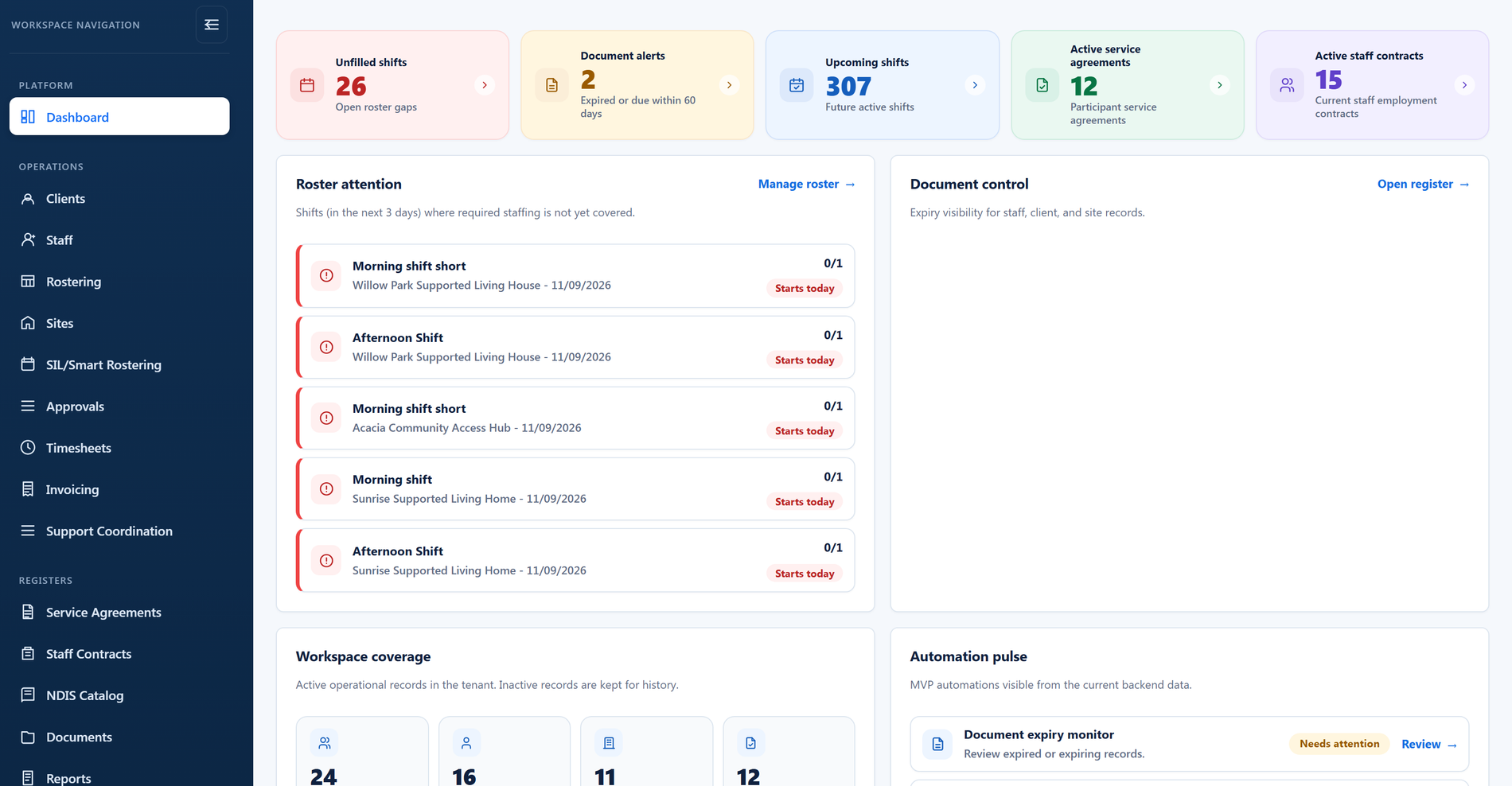
Automation feeds the same workspace your team already reviews (demo data).
Most of a provider's week disappears into repetitive coordination: arranging cover when someone cancels, chasing swap approvals, sending the same reminders, checking the same expiry dates. Automating that work is only attractive if you stay in charge of it. So the switches sit with owners and admins in account settings, the rules and their history sit in the Automation Centre, and nothing runs that your leadership has not deliberately approved.
Every automated workflow has its own switch in Automation and Capacity Controls, held by owners and admins. Until the switch is on, the matching automation cannot be enabled at all.
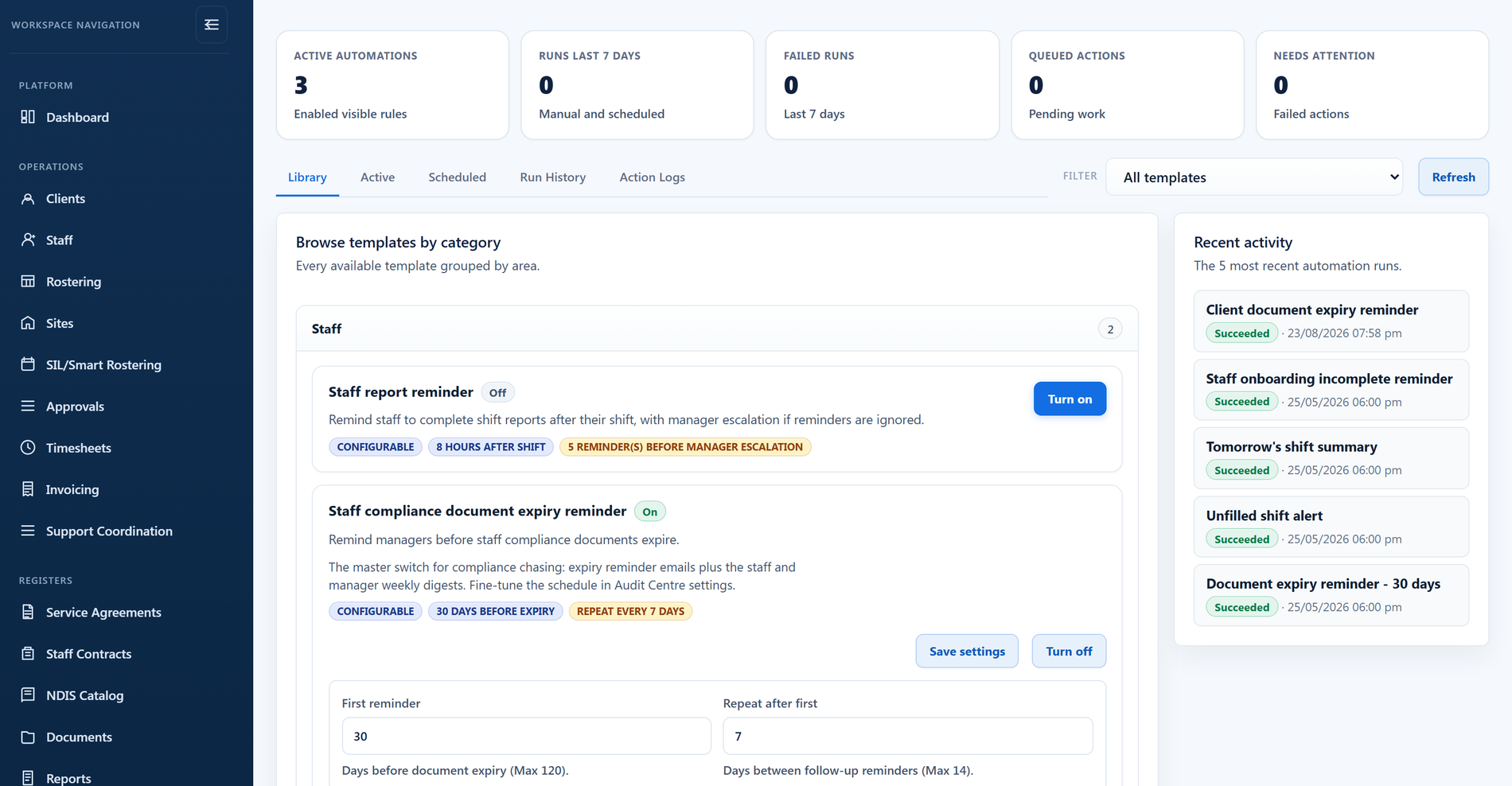
In the Automation Centre, browse a library of automation templates organised by category, so you begin from something proven rather than a blank page.
Each automation can run on a schedule, respond to an event such as a shift cancellation, or be run on demand when you want it. You decide the rhythm.
Reminder automations carry their own plain-language settings, such as how many hours after a shift ends the first shift report reminder goes out, how many reminders before it escalates to a manager, and how many days before an expiry date the chasing starts and how often it repeats.
Run history and action logs record every run and every individual action taken, so you can see precisely what automation did and when.
Pause a rule the moment something needs review. Existing rules and their history stay viewable, and your manual workflows keep working exactly as before.
Smart Rostering automation, the Automation Centre itself, draft timesheet and invoice generation, document expiry scans, incident escalation, Audit Centre automation, roster publish and staff interest notifications, shift swap handling, cancellation cover and AI-assisted features each turn on and off independently.
Where an automation has timing, you set it in plain language: hours after a shift ends, reminders before it escalates to a manager, days before an expiry date, days between follow-ups. Each is capped so a typo cannot flood inboxes.
Ready-made automations organised by category, so common workflows are a few clicks to set up rather than built from scratch.
Run automations on a timetable, in response to things that happen in your workspace, or manually when you choose.
Every run and every action it took is recorded, so there is never a question about what automation did on your behalf.
Each run is checked against your plan's automation capacity first, so automation can never quietly run up work beyond your allowance.
You are warned by email as automation usage approaches your monthly allowance, well before anything stops.
The capability switches live in Automation and Capacity Controls inside account settings, and only owners and admins can change them. Until the switch is on, the matching automation in the library stays greyed out.
Pausing stops execution instantly while rules, history and logs stay viewable, ready to resume when you are.
Automation stops at your plan's allowance rather than running up surprise usage, and manual workflows always keep working.
Automation prepares work and raises alerts; your team reviews and decides. It is built as supervised decision support, not a black box.
No. Every automation must be switched on by an owner or admin, and everything it does is recorded in run history and action logs you can open at any time.
You are warned by email as usage climbs towards the limit. If the allowance is reached, automated runs stop and your manual workflows keep working. Owners can add capacity from inside the app.
Shift swap handling, cancellation cover offers, draft timesheet and invoice generation, document expiry scans, incident escalation and follow-ups, roster publish notifications, staff interest requests and audit workflow automation.
Most capabilities are available from day one. The three that change what happens without a manager in the loop start switched off: shift swap handling, automated cancellation cover, and AI-assisted features. An owner or admin turns those on deliberately, and can turn them off again.
Yes, and we recommend it. Each workflow has its own switch, so you can enable one, watch its run history for a week or two, then move to the next.
No. Rules, run history and action logs stay viewable; nothing new executes until you switch it back on.
BondiByte meters the automated work it does for you, so owners can govern usage with a clear allowance.
Automation & AIAutomated signals raise the right alert to the right owner: coverage risk, document expiry, incident severity.
Automation & AIEvery time automation completes real work, BondiByte records a conservative estimate of the admin minutes it replaced, and shows you the running total.
Automation & AIAI assistance is off until your organisation turns it on, and then you choose each function separately. Every result waits for a person, the original records are never changed, and the work is metered like any other automation.
Start your free trial, or book a demo to see it with your own operation in mind.
Hi, I can help with BondiByte features, pricing, setup and more.
Please don’t include sensitive participant or personal information.