Share the evidence you choose
From your audit session, decide file by file what is visible in the portal and whether it can be downloaded. Nothing is visible to an auditor until you share it.

Give auditors a secure, time-boxed view of exactly the evidence you choose, organised by NDIS Practice Standard, with requests, findings and access logs kept in one place.
Short demonstrations in the real product, using made-up data. Choose a part to watch it here.
Watch the full series on YouTube (opens YouTube in a new tab)
Give auditors a clean view arranged by standard, not a pile of files.
Requests for evidence route to the right owner by email, so nothing stalls.
Auditor access is scoped and time-limited, so visibility ends when the review does.
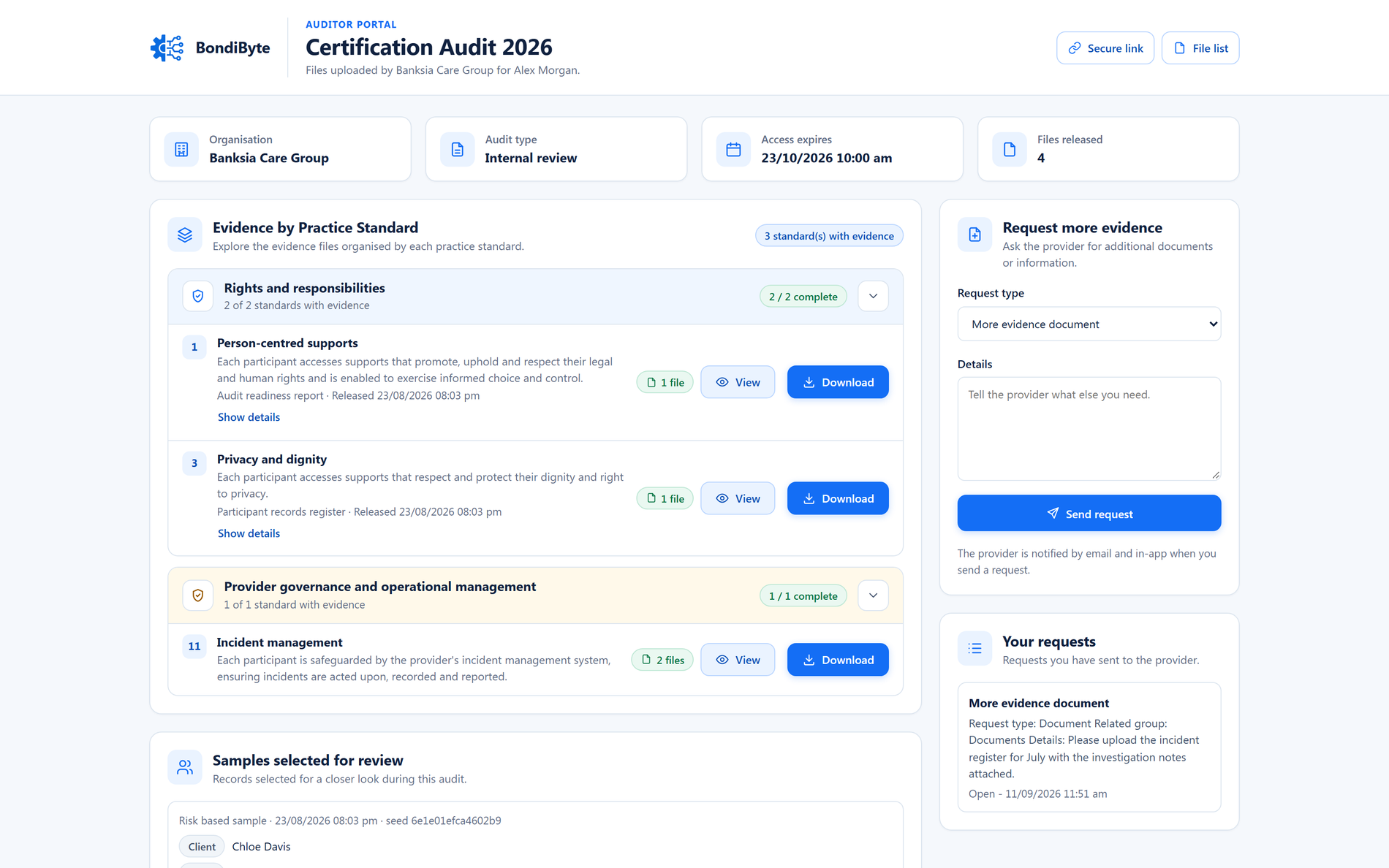
The portal an invited auditor opens: evidence by standard, scoped access, requests in one queue (demo data).

The sharing flow from audit session to access log.
When audit week arrives, evidence usually goes out through email threads, USB sticks or a shared drive that shows too much and stays open forever. There is no clean way to give an auditor exactly what they need, answer their requests in order, and switch access off when the audit ends. The auditor portal does all three.
From your audit session, decide file by file what is visible in the portal and whether it can be downloaded. Nothing is visible to an auditor until you share it.
Auditors receive a secure invitation link with a defined access window: no workspace account, and no access to anything beyond the audit. You can also require a one-time code sent to their email before the portal opens.
The portal presents shared evidence grouped by NDIS Practice Standard, showing each standard's quality indicators, with an additional evidence section so everything you released stays findable.
Auditors raise evidence requests in the portal, each with a type and priority. The person running the audit is emailed straight away and responds from the Requests tab, so nothing lives in an inbox thread.
The access window expires automatically, downloads carry a watermark recording who they were shared with, and the access log shows who viewed what.
Auditors see shared evidence grouped by NDIS Practice Standard, with quality indicators shown against each outcome, plus an additional evidence section for anything not mapped to a standard.
Choose exactly which evidence appears in the portal and, separately, whether each file can be downloaded or viewed only.
Set the access window when you create the session. Access opens when you say, expires automatically, and can be extended deliberately if the audit runs long.
Auditors request further evidence by type and priority, and the person running the audit is notified by email immediately.
Auditors can record samples and raise findings in the portal, and you respond from the audit session rather than over email.
Evidence access is logged, and downloaded files carry a watermark noting who they were shared with through the portal.
Open the portal exactly as an auditor will see it, with live actions disabled, so you can check the view before you invite anyone.
Portal visibility and download permission are set per file, by you, and can be changed while the session runs.
The access window expires on its own, you can extend it if the audit runs long, and you can revoke an auditor's access, or the whole session's, at any moment.
Require a one-time code sent to the auditor's email before the portal opens, on top of the secure invitation link.
No. Auditors use a secure invitation link scoped to the single audit session, completely separate from normal logins. They never see your workspace, only the evidence you have shared.
Access expires automatically at the end of the window you set. You can extend the window if the audit runs long, or revoke access earlier, and the access log remains for your records.
Only if you allow it, and you decide per file. Downloaded files carry a watermark recording who they were shared with through the portal, and access is logged.
An auditor raises a request in the portal with a type, details and priority. The person running the audit is emailed immediately and responds from the audit session's Requests tab, so the whole exchange stays in one place.
Yes. Preview mode opens the portal exactly as an auditor will see it, with sending disabled, so you can check what is visible before any invitation goes out.
Store, type, and manage participant, staff, site, and organisation documents, with expiry tracking and a reusable organisation template library.
Documents, Audit & ComplianceKeep your policies, procedures, insurance certificates, registration documents and contract templates in one organisation library, separate from staff and client files, so the whole team reuses the current copy instead of rebuilding it.
Documents, Audit & ComplianceA live readiness score with automatic checks, evidence mapped to the NDIS Practice Standards, staff self-service compliance, and audit sessions with scoped auditor access.
Documents, Audit & ComplianceMap your audit evidence to the NDIS Practice Standards, outcome by outcome, so coverage and gaps are obvious months before an auditor asks.
Documents, Audit & ComplianceOne register for incidents, with severity, status and the full context of what happened. Follow-up is owned by a named person with a due date, and anything left sitting is escalated by email rather than forgotten. Complaints get their own register alongside it.
Documents, Audit & ComplianceBuild reusable Chart templates, assign them to the participants who need them, preserve effective-dated changes, review entries and download period PDFs.
Start your free trial, or book a demo to see it with your own operation in mind.
Hi, I can help with BondiByte features, pricing, setup and more.
Please don’t include sensitive participant or personal information.