

Who this is for
This guide is written for Owner, Admin, Manager and Compliance Officer.
Before you begin
- Read the Audit Centre overview for how auditor access works. An audit session exists, with Access starts and Access expires set. See Run an audit session.
- You have the auditor's work email address, and ideally their name. The invitation goes to that address, and you cannot change the address after you add the auditor.
- The files the auditor should see are uploaded to the session. See Run an audit session.
Steps
The screenshots show a demonstration organisation with made-up names. Your own screens show your organisation's details. Select a screenshot to open it full size.
-
Go to Audit Centre > Audit sessions and open the Auditors tab
1 In the left menu, under Administration, choose Audit Centre.
2 Choose the Audit sessions tab, then choose the card of the session the auditor will review.
3 Under the session name, choose the Auditors tab.
4 On the left, the Add auditor form is where you invite someone.
5 On the right, Auditors lists everyone already added to this session. A session with nobody added says No auditors added.
Note: Auditors belong to one audit session. If the same person reviews two audits, add them to each session.
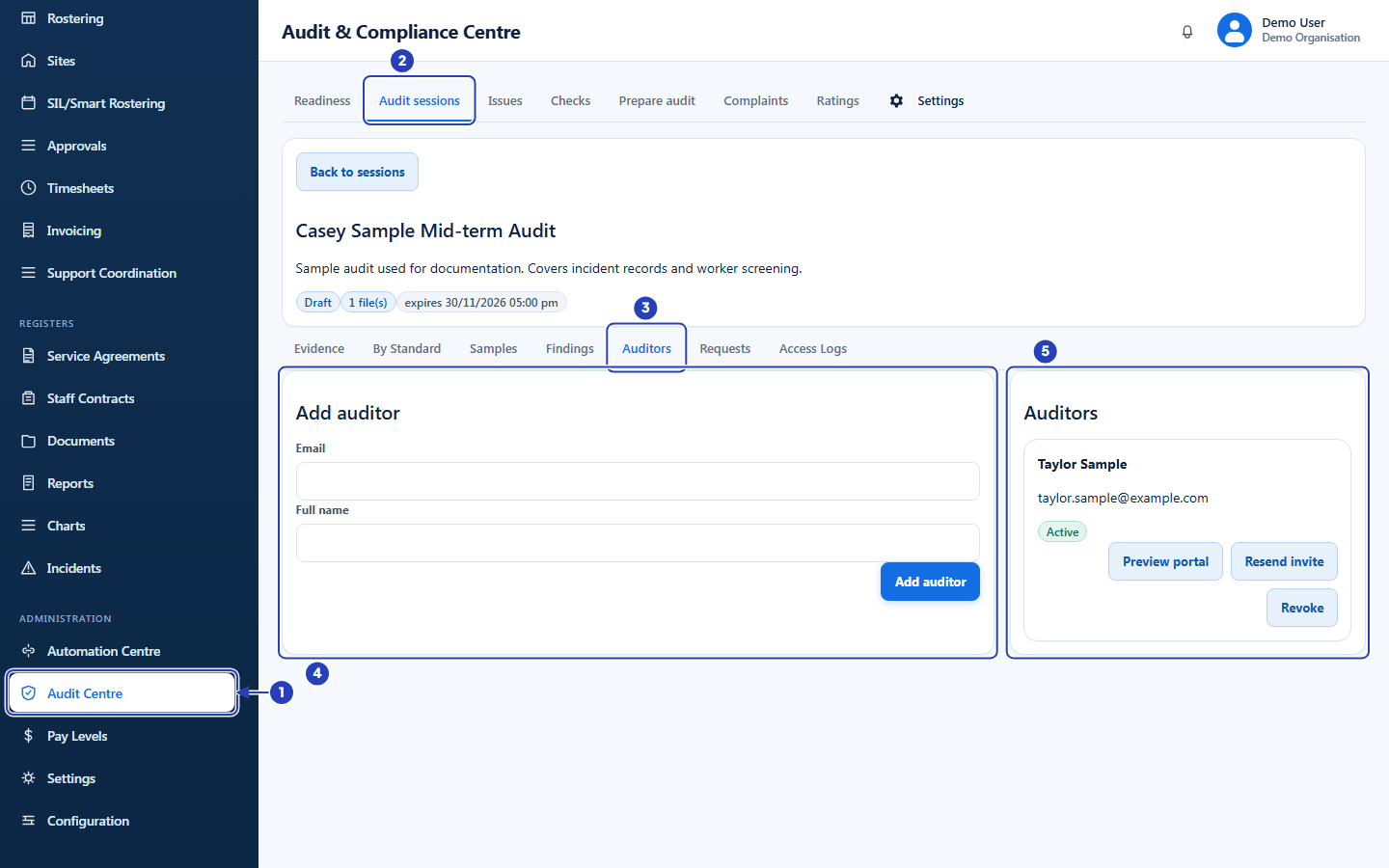
Choose Audit Centre (1) and the Audit sessions tab (2), open the session, then choose Auditors (3). Add auditor (4) is on the left and the list of auditors (5) is on the right. -
Enter the auditor's details and choose Add auditor
1 In Email, type the auditor's work email address.
2 In Full name, type their name.
3 Choose Add auditor. The button reads Adding... while it works.
Check the list on the right first, so you do not add the same person twice.
Fields in step 2 Field What it means Email Required. The address the invitation is sent to. You cannot change it after you add the auditor, so check it before you choose Add auditor. Full name Optional. Shown on the auditor's card and in the notification you receive when they send a request. If you leave it blank, their email address is shown instead. 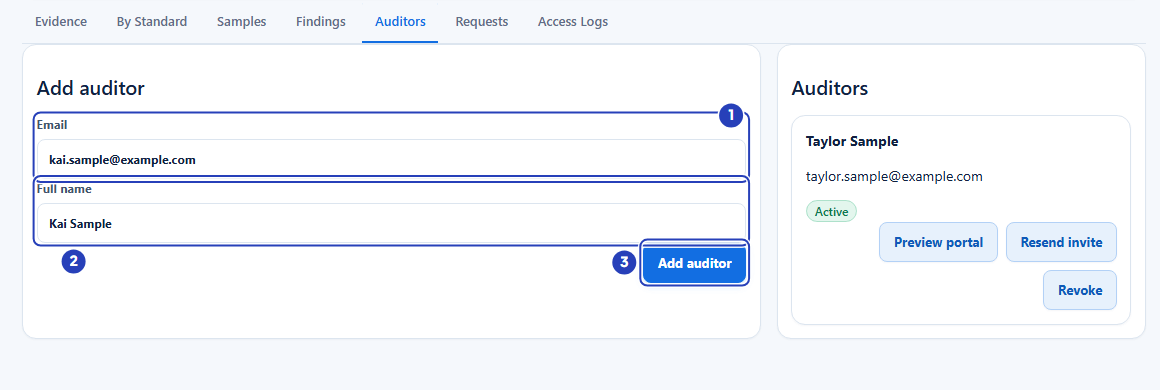
Type the auditor's email address (1) and full name (2), then choose Add auditor (3). -
Check the new auditor on the list
1 The auditor's name is at the top of their card. If you left Full name blank, their email address is used.
2 The email address is under the name.
3 The label shows where the auditor has got to. A new auditor shows Invited, or Scheduled when the session's access has not started yet.
4 The buttons on each card are Preview portal, Resend invite and Revoke. The next steps explain each one.
A message tells you what happened to the invitation. Auditor invite sent. means the email has gone. If the session's Access starts time is still in the future, the card shows Scheduled and the invitation is held until access opens. Check the card when access opens. A card that still shows Scheduled has not been sent its invitation, so choose Resend invite.
If a message says the invitation was not sent, use Resend invite once the problem is fixed.
The auditor receives an email titled Audit access invitation followed by your organisation's name. It shows the session, the audit dates and when access expires, and its Open audit portal button takes them to the portal.
Fields in step 3 Field What it means Scheduled You added the auditor before the session's Access starts time. The invitation is held. Choose Resend invite to send it. Invited The invitation has been sent and the auditor has not opened the portal yet. Active The auditor has opened the portal using their link. Revoked You chose Revoke. The auditor can no longer open the portal. 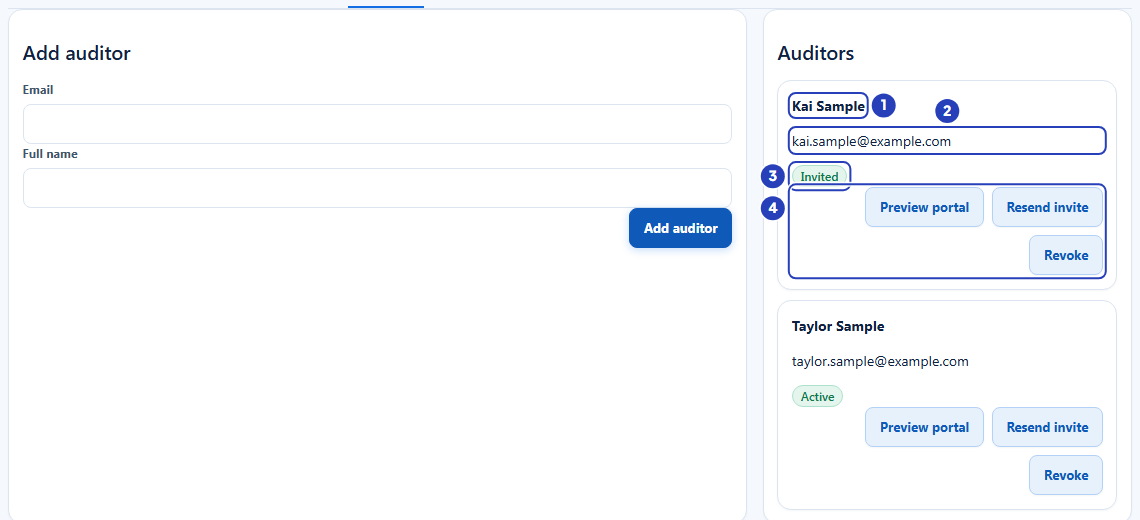
The new card shows the name (1), the email address (2), the label Invited (3) and the buttons Preview portal, Resend invite and Revoke (4). -
Preview what the auditor sees
1 On the auditor's card, choose Preview portal. The auditor portal opens in a new browser tab, under a panel that says Previewing auditor view.
2 Look through the portal: the summary tiles, Shared evidence, Findings, Request more evidence and Your requests. This is what the auditor sees.
3 The auditor does not sign in to BondiByte. They use the link in their email and see this audit only. They see only files marked Shared with auditor. View opens a file and Download saves it, and both work only on a file that has Auditor can download ticked. They can send requests and raise findings. They cannot upload files or change anything of yours. If Require auditors to verify with an emailed code is ticked, they first type the 6 digit code from their email.
4 Choose Exit preview at the top of the portal to go back to the Audit Centre.
Nothing you do in the preview reaches the auditor or your records. The preview is recorded on the Access Logs tab.
Note: If nothing happens when you choose Preview portal, your browser may have blocked the new tab. Allow pop-ups for BondiByte, then try again.
-
Resend an invitation when the auditor cannot find theirs
1 On the auditor's card, choose Resend invite.
2 A message says Auditor invite resent. and a new email goes to the auditor. The label goes back to Invited until they open it. The link in the earlier email stops working, so the auditor must use the newest one.
On an auditor who shows Scheduled, Resend invite sends the invitation straight away. The auditor still cannot open the portal before the session's Access starts time.
Warning: Resend invite is also shown on an auditor whose access you have revoked. Resending gives that auditor access again, so do not use it on a revoked auditor unless you mean to let them back in.
-
Take access away with Revoke
1 On the auditor's card, choose Revoke. No confirmation window asks first.
2 A message says Auditor access revoked.
3 The label changes to Revoked. The auditor can no longer open the portal, and their link leads to a page that says Audit portal access could not be verified.
Revoke affects that auditor only. Other auditors and the session's files are not changed. Access also ends by itself at the session's Access expires time, so you do not have to revoke an auditor when an audit finishes on schedule.
Important: Revoking stops the auditor opening the portal again. It does not take back files they have already downloaded.
Warning: Do not use Delete session to take an auditor's access away. It removes the whole session, with its evidence, requests and access logs. Use Revoke instead.
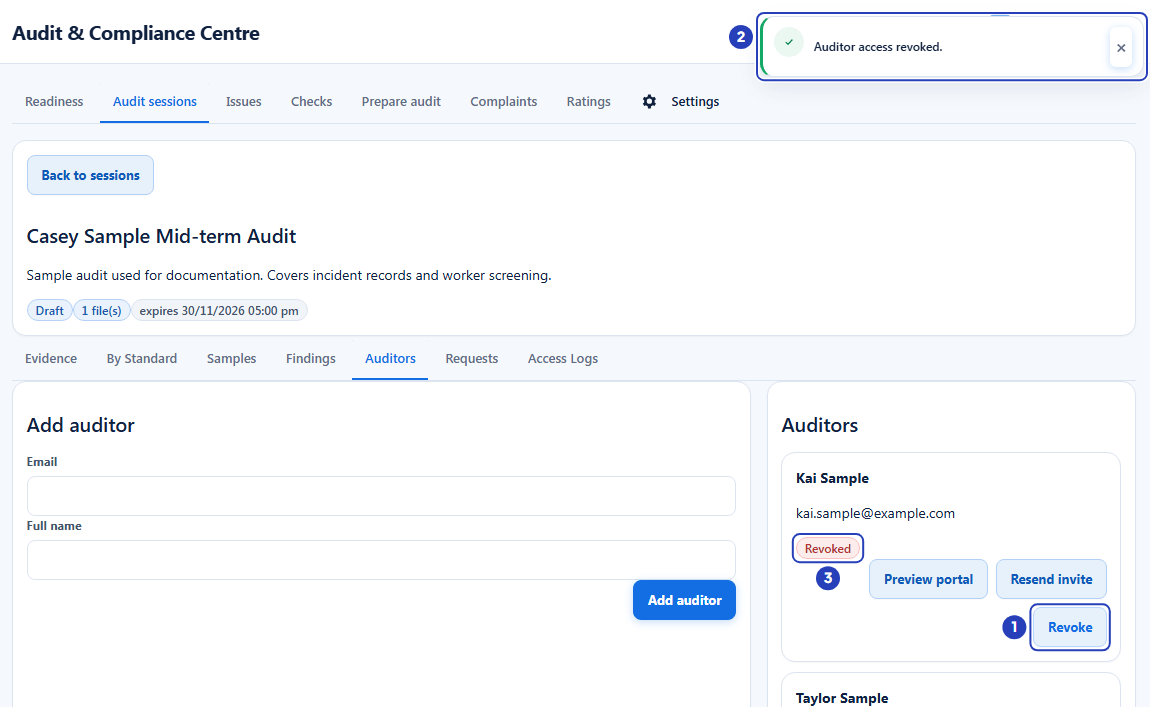
Choose Revoke (1). A message says Auditor access revoked. (2) and the label changes to Revoked (3).
What happens next
The auditor opens the invitation email, chooses Open audit portal and sees the files you have shared. Their label changes from Invited to Active the first time they do. Their requests appear on the Requests tab. See Manage evidence requests.
After the session's Access expires time the auditor can no longer open the portal, without any action from you.
Everything the auditor does in the portal, and everything you do to give, change or remove their access, is recorded on the Access Logs tab. See Review auditor access history.
Important notes
Important: Treat an auditor's invitation like a key. Add only the people who need to review the audit, use their own work email address, and revoke access as soon as they no longer need it.
Note: Adding an auditor does not share anything, and sharing a file does not add an auditor. You need both.
Good practice
- Add the auditor once the files are ready, then use Preview portal to check what they will see before they open their invitation. You can still share more files afterwards.
- Use the auditor's own work email address, and give each reviewer their own entry. You cannot edit an address, so if it is wrong, add the person again with the right address and choose Revoke on the wrong entry.
- Revoke access when the audit is finished rather than waiting for it to expire, and check the Access Logs tab first so you know what happened during the audit.
Troubleshooting
I cannot see the Add auditor form, or the buttons on the auditor's card.
Why it happens: Your role does not include Can invite auditor (for the form and Resend invite), Can revoke auditor access (for Revoke) or Can preview auditor portal (for Preview portal, which is also limited to the Owner, Admin and Manager roles).
What to do: Ask an Owner or Admin to check your role in Configuration > Roles & Permissions.
A new auditor shows Scheduled and no invitation has arrived.
Why it happens: The invitation is held while the session's Access starts time is still in the future, and the card keeps showing Scheduled until it is sent.
What to do: Choose Resend invite on the auditor's card to send the invitation. The auditor still cannot open the portal before the session's Access starts time.
A message says Auditor invite email could not be sent or Auditor invite was not sent because email delivery is disabled.
Why it happens: The invitation email did not go out. The auditor is on the list, but they have not received a link.
What to do: If the address you typed was wrong, add the person again with the right address and choose Revoke on the wrong entry. If it was right, choose Resend invite. If the message appears again, contact BondiByte support.
The auditor says their link does not work and the portal says Audit portal access could not be verified.
Why it happens: The link is invalid, expired, revoked or outside its access window. A newer invitation replaces the earlier link, and access can have ended or not yet started.
What to do: Check the auditor's label and the session's expires time. If access should be open, choose Resend invite and ask the auditor to use the newest email.
The auditor sees No files released yet, or can see a file but cannot open it.
Why it happens: No file is marked Shared with auditor, or Auditor can download is not ticked on the file. The auditor then sees You are not allowed to download this file.
What to do: On the Evidence tab, choose Share with auditor on each file the auditor should see, and tick Auditor can download on the ones they need to open.
The auditor says there is no way to send a request.
Why it happens: The session was created with Allow auditor requests unticked. The auditor's form then says Evidence requests are disabled for this audit.
What to do: Create a new session with Allow auditor requests ticked, and add the auditor to that one.