

Who this is for
This guide is written for Owner, Admin, Manager and Compliance Officer.
Before you begin
- Audit Centre automation is on in Account settings > Automation & Capacity Controls. It is on unless an Owner or Admin has switched it off. While it is off, Generate selected and Download evidence pack (ZIP) do not work. See Run an audit session and Automation Capacity.
The Audit Centre in three sentences
The Audit Centre helps you get ready for an NDIS audit and run the audit with less stress.
It checks your own records and shows what is missing, helps you gather the evidence for each audit (the records and documents that show what you do), and lets the auditor see only what you choose to share.
It helps you prepare and organise your evidence. It does not pass the audit for you.
What BondiByte does by itself
Once your records are in BondiByte, these things happen without anyone pressing a button.
- It keeps your readiness up to date. BondiByte checks your staff, client, shift, incident, complaint and document records, and works out a readiness score with a list of issues to fix. It checks again when your records change.
- It reminds your staff. BondiByte emails staff before their compliance documents expire. The switch is Chase staff about compliance documents in Settings, and it is on to start with.
- It opens and closes the auditor's access. The auditor can open the portal only between Access starts and Access expires, the times you set. Nobody has to switch it on or off.
- It tells you when an auditor asks for something. You get a notification and an email.
Two things never happen by themselves. BondiByte prepares evidence only when you choose Generate selected, and an auditor sees a file only after you choose Share with auditor.
What you do
You have three jobs, and each has its own guide.
- Keep your records ready. Open Readiness, fix the issues it lists, and in Settings choose which document types you require.
- Run an audit session when an audit is coming. An audit session is one audit: a private area where you gather that audit's evidence. Create it, choose which Practice Standards apply (explained next), prepare or upload the evidence, and share it.
- Give the auditor access and answer their requests. Add the auditor to the session. They get an emailed link to a private page, the auditor portal, where they see only the files you share, until their access ends. Reply to their requests, and review what they looked at.
What a Practice Standard is
An NDIS audit measures a provider against the NDIS Practice Standards. These are the national standards that registered NDIS providers are expected to meet. Each standard covers one area of good practice, such as Person-centred supports, Risk management or Incident management.
For each standard that applies to you, an auditor looks for evidence: a record or document that shows you do what the standard asks, such as a policy, a staff screening check or an incident register.
In an audit session, BondiByte shows which standards have evidence behind them and which do not yet. It does not decide whether you meet a standard. Confirm the exact requirements with the NDIS Quality and Safeguards Commission or your auditor.
Where to find things
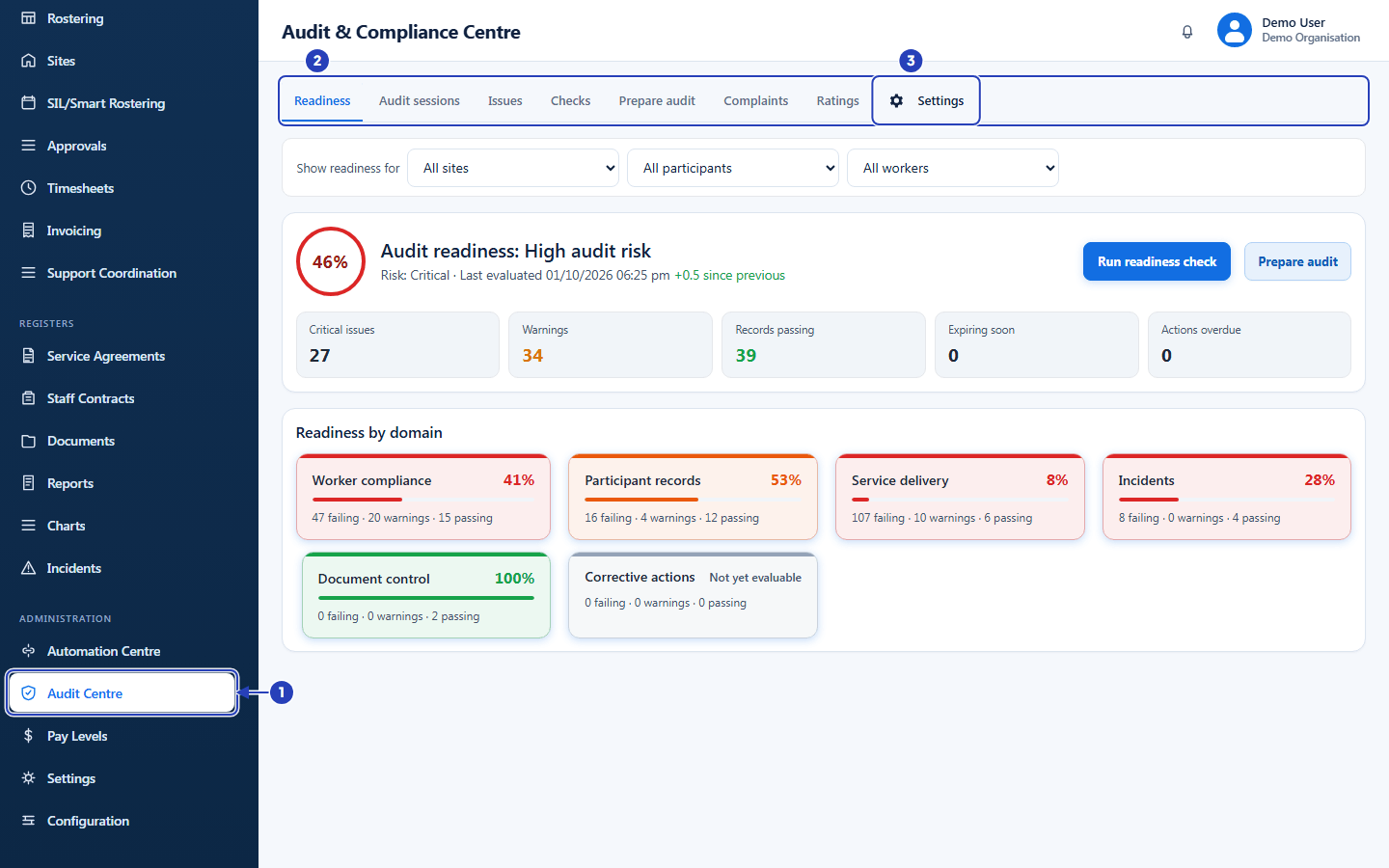
In the left menu, under Administration, choose Audit Centre. The page is headed Audit & Compliance Centre, and the tabs run across the top.
Readiness, Issues and Checks show your score, the records to fix and the checks behind the score. Audit sessions lists your audits, and Prepare audit is the guided set of steps that prepares evidence for one.
Complaints and Ratings are two related registers. Settings (the cog) holds your document requirements, including whether a missing document stops a person being rostered, the staff reminders and whether staff see their own rating in the Staff App.
You see only the tabs your role allows. The questions at the end say which permission opens which tab.
Inside an audit session
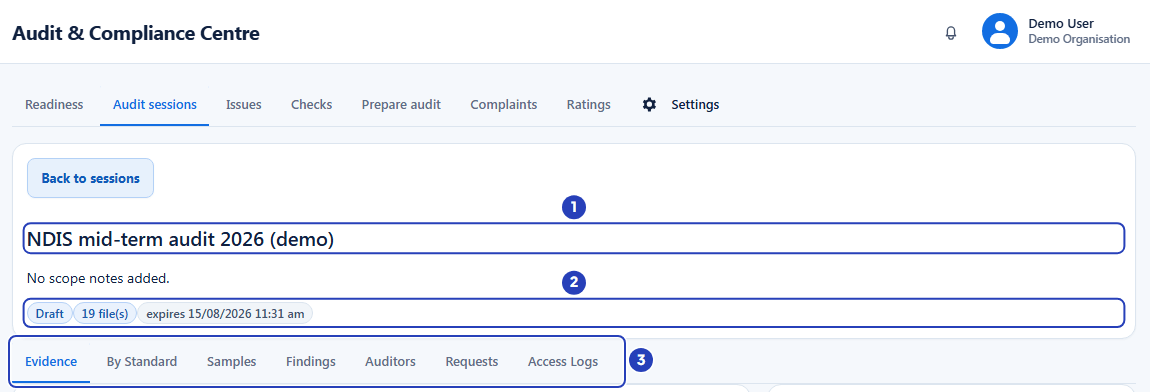
Open a session from Audit sessions to see its seven tabs.
Evidence holds the session's files. Each starts as Draft (private). By Standard links your files to the Practice Standards and shows which have evidence.
Samples picks records for the auditor to review: choose a Sampling mode, then Generate sample. Findings lists what the auditor raises, with a place to respond and add a corrective action.
Auditors is where you add the people who review the session. Requests holds what they ask for, and Access Logs records what they looked at.
Complaints and Ratings
Complaints is a register. Choose Record a complaint, fill in Summary, From, Received on and Detail, then choose Record complaint. Use Acknowledge and Resolve to move a complaint along. The readiness checks look at how quickly complaints are dealt with.
Ratings is a read-only table of how reliably each staff member keeps their rostered shifts, keeps time and stays up to date with their documents. Choose the period in Window. Staff see their own rating in the Staff App only if you tick Show staff ratings in mobile app in Settings.
Important notes
Important: The Audit Centre helps you prepare for an audit and organise evidence. A good readiness score or a full evidence list does not decide the result of an audit, and it does not replace advice from your auditor or the NDIS Quality and Safeguards Commission.
Good practice
- Fix the issues on Readiness as they appear, not the week before an audit. BondiByte keeps the score up to date by itself, so the list stays up to date.
- Create a separate session for each audit, and name it with the audit type and year so you can find it later.
- Share evidence deliberately. Check each file, then choose Share with auditor, and use Stop sharing if a file was shared by mistake.
Questions and answers
Do I have to press Run readiness check?
No. BondiByte checks again when your records change. Choose Run readiness check only when you want a fresh result straight away.
What is the difference between Readiness and an audit session?
Readiness checks your own records. It is for you and shows what to fix. An audit session is a private area you prepare for one auditor, and the auditor sees only what you share in it.
Does the auditor need a BondiByte login?
No. The auditor opens the link in their invitation email and sees that one audit only, and only the files you have shared. See Give an auditor access.
Does a high readiness score mean I will pass an audit?
No. The score helps you find and fix gaps in your records. It does not predict the result of an audit.
Why can I not see some tabs?
Each tab needs its own permission. Audit sessions and Ratings need Can view audit centre. Readiness, Issues, Checks and Settings need Can view audit readiness. Complaints needs Can view incidents. Prepare audit needs Can view audit centre and Can prepare audit evidence. An Owner or Admin can change a role in Configuration > Roles & Permissions. See Roles and permissions basics.
Where do I switch Audit Centre automation on or off?
An Owner or Admin does it in Account settings > Automation & Capacity Controls. It is on to start with. While it is off, Generate selected and Download evidence pack (ZIP) do not run. See Automation Capacity.