

Who this is for
This guide is written for Owner, Admin, Manager and Compliance Officer.
Before you begin
- Read the Audit Centre overview for how auditor access works. An auditor has been added to an audit session and has sent at least one request. You cannot create a request yourself: requests always come from the auditor. See Give an auditor access.
- The session was created with Allow auditor requests ticked, which it is to start with. If it was not, the auditor's portal says Evidence requests are disabled for this audit. and no requests arrive. See Run an audit session.
Steps
The screenshots show a demonstration organisation with made-up names. Your own screens show your organisation's details. Select a screenshot to open it full size.
-
Follow the notification to Audit Centre > Audit sessions
BondiByte tells you when an auditor sends a request. The person who created the audit session gets a notification and an email titled Audit evidence requested.
1 Choose the bell at the top right of any screen. The Notifications panel opens.
2 A request appears as Auditor requested evidence: followed by the request title, with a line saying who sent it and for which audit session.
3 Choose Open on that notification to go to the Audit Centre. It opens on its first tab, so carry on with the next step.
You can reach the same place at any time without a notification. In the left menu, under Administration, choose Audit Centre, then choose the Audit sessions tab.
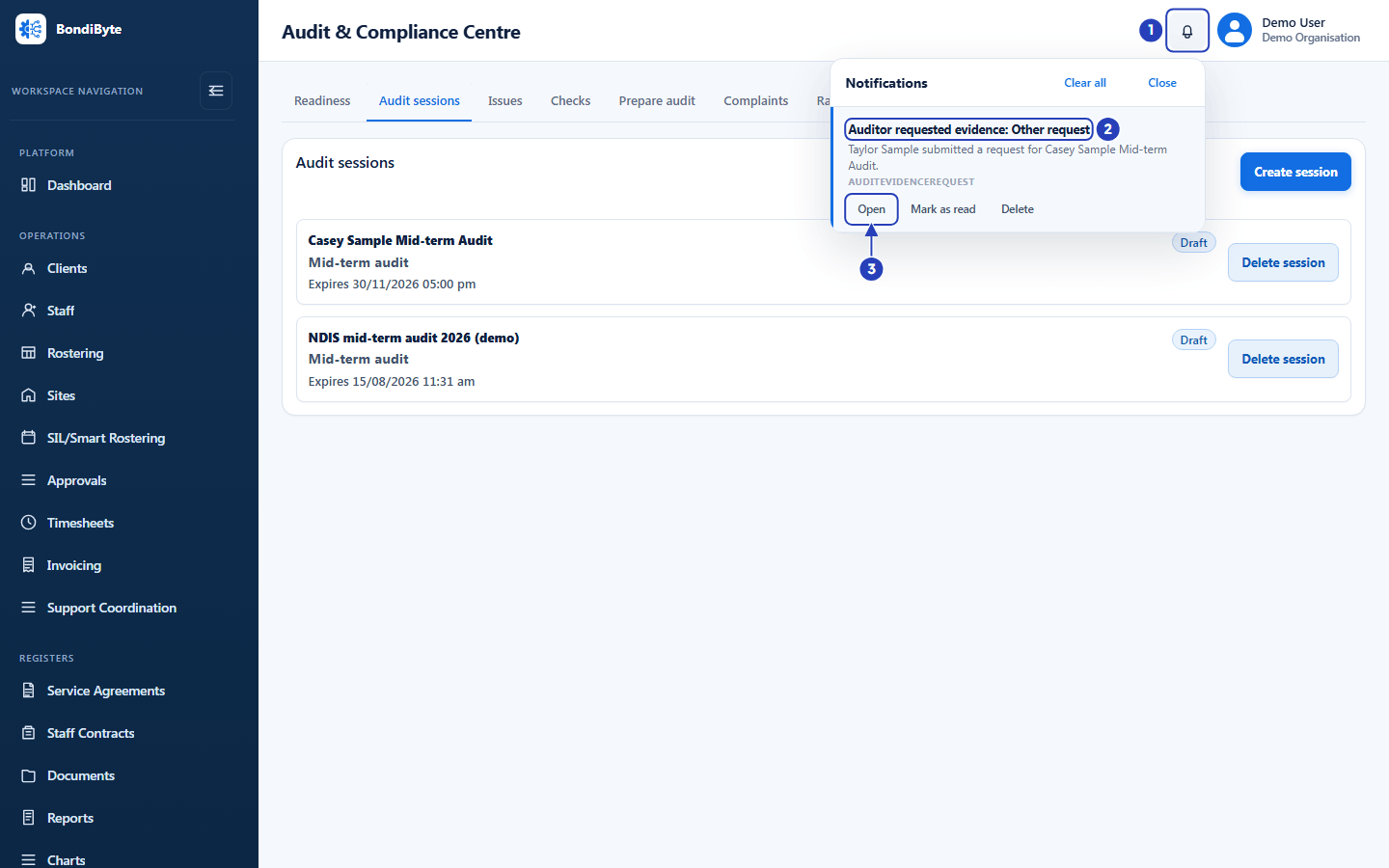
Choose the bell (1). A request appears as Auditor requested evidence (2). Choose Open (3) to go to the Audit Centre. -
Open the session and its Requests tab
Choose the Audit sessions tab, then choose the card of the session the auditor is working in. It opens on the Evidence tab.
1 Choose the Requests tab, the sixth of the seven tabs. The panel is titled Auditor requests.
2 Each request is a card. The bold line at the top is its title.
3 The line under the title says what kind of request it is, More evidence document or Other request, and gives the auditor's own words.
4 The label under the words is the request's status.
5 The Response box is where you reply.
6 Save response saves your reply and Mark closed closes the request.
Requests from every auditor in the session are in one list, newest first. A card does not name the auditor, so use the notification or the email to see who asked. A session with no requests says No requests yet.
Fields in step 2 Field What it means Open A new request that has no reply yet. Responded You have saved at least one reply. Saving a reply always sets this label, even on a request you had closed. Closed You chose Mark closed. A closed request stays in the list and keeps its replies. 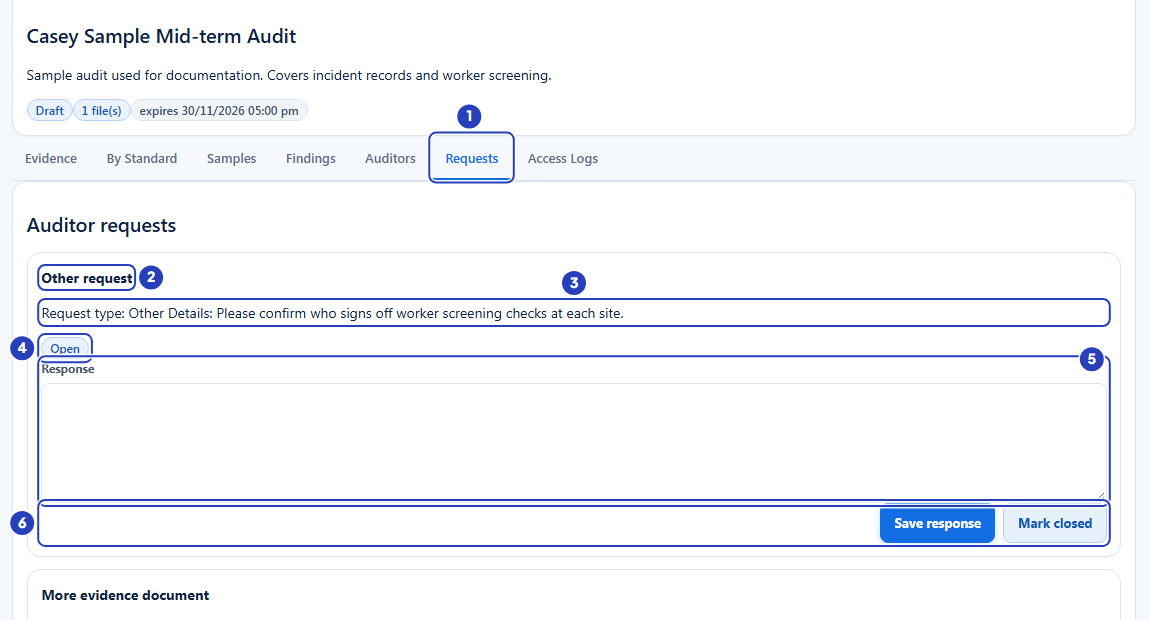
The Requests tab (1). Each card has a title (2), the auditor's words (3), a status (4), a Response box (5) and the Save response and Mark closed buttons (6). -
Give the auditor any file they asked for
The Response box takes text only, so a file reaches the auditor only when you share it. Do this before you reply, so your reply can say where to find it.
1 On the Evidence tab, upload the file and choose Share with auditor. See Run an audit session.
2 On the file's card, tick Auditor can download if the auditor needs to open the file. An auditor cannot open a shared file that does not have this ticked.
3 Choose the Requests tab again.
Note: A request that only needs an answer, such as a name or a date, needs no file. Type the answer in the Response box.
-
Write your response and choose Save response
1 In the Response box under the request, type your reply. Say what you have provided and where the auditor will find it, for example the file name on the Evidence tab.
2 Read it through, then choose Save response.
Fields in step 4 Field What it means Response Plain text, on as many lines as you need. Once saved, it appears on the card under Response, and the auditor sees it as Provider response. A reply can be added to a request of any status. Warning: A saved response cannot be edited or removed on this screen, and the auditor sees it exactly as you wrote it. If the box is empty, nothing is saved.
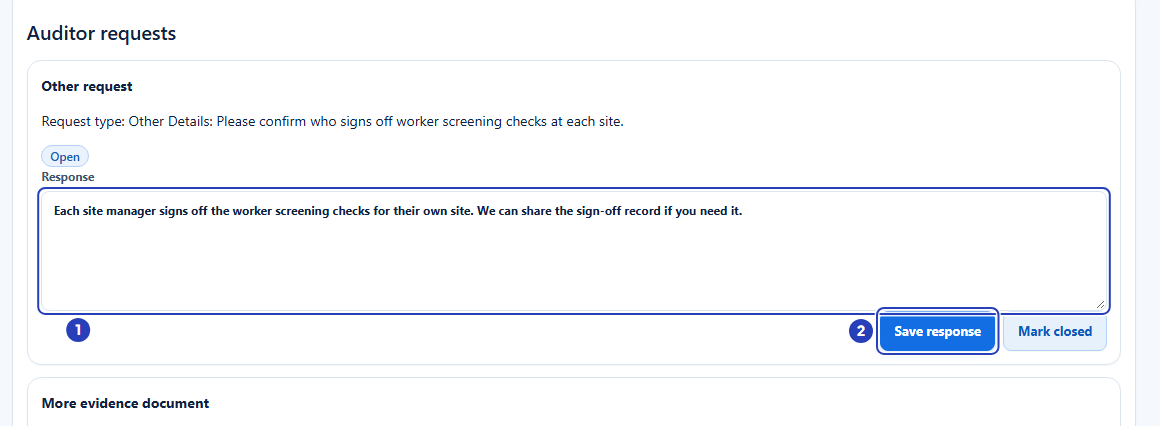
Type your reply in the Response box (1), then choose Save response (2). -
Check that the response is saved
A message at the top right says Response saved.
1 The request's label changes from Open to Responded.
2 Your reply appears on the card under the heading Response, above the box. The box empties so you can add a further reply.
You can reply to the same request as many times as you need. The replies are listed in the order you saved them, oldest first.
Important: BondiByte does not email the auditor when you save a response. The auditor sees it under Your requests in the portal the next time they open it, so tell them you have replied.
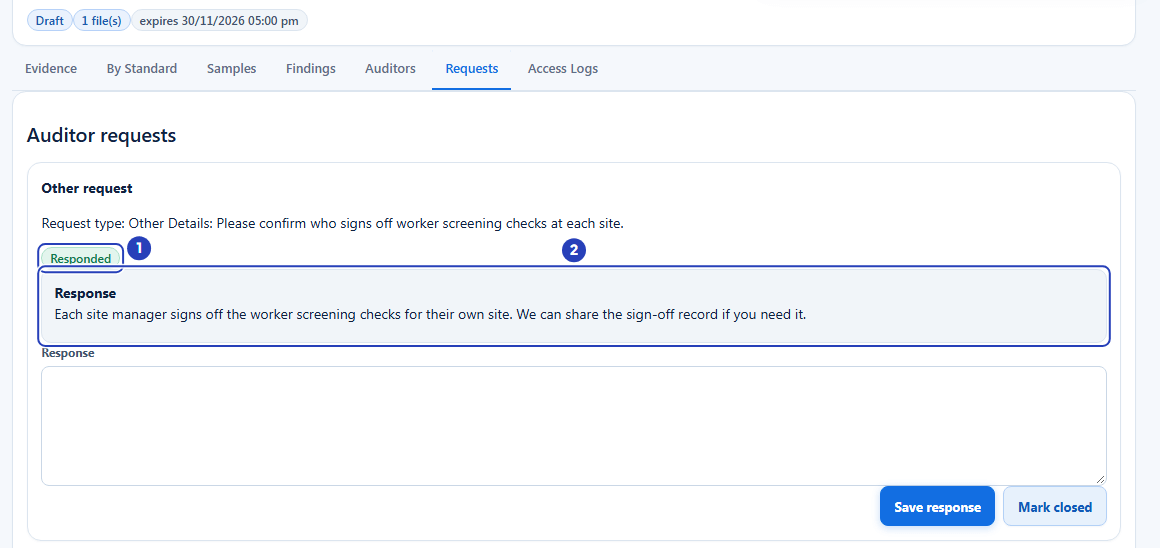
The label changes to Responded (1) and your reply appears under Response (2). -
Choose Mark closed when the request is dealt with
1 On the request's card, choose Mark closed. No message appears and no confirmation window asks first.
2 The label changes to Closed. The card stays in the list, and the auditor sees the label Closed against the request.
You do not have to reply before you close a request. If you save a further reply on a closed request, the label goes back to Responded, and you can choose Mark closed again.
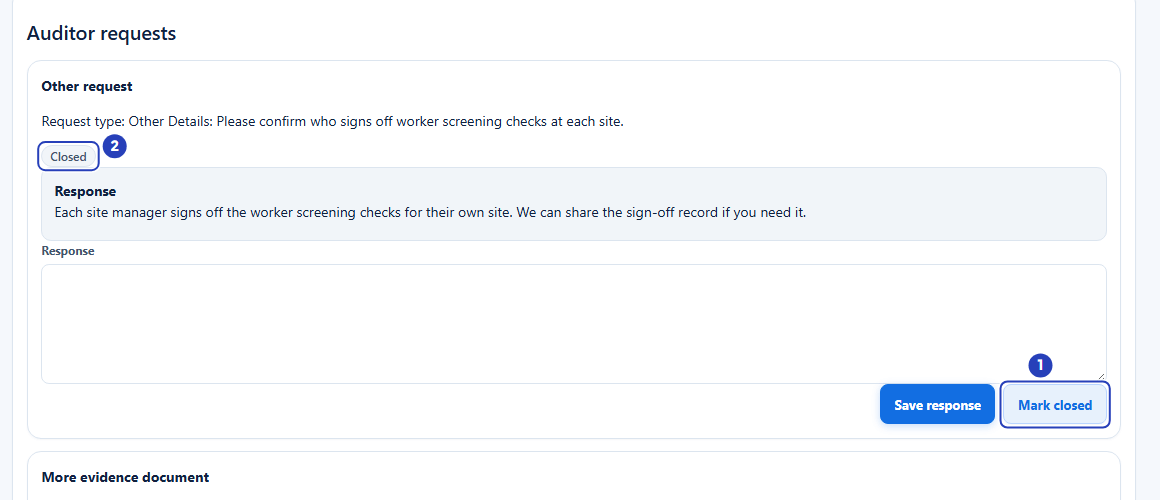
Choose Mark closed (1). The label changes to Closed (2).
What happens next
The auditor sees your reply under Your requests in the portal, labelled Provider response, the next time they open it. They also see the status of each request, so a closed request shows Closed.
Each reply you save and each status change is recorded on the Access Logs tab of the session. See Review auditor access history.
To check that the auditor can see your reply and file, choose Preview portal on the Auditors tab. See Give an auditor access.
Important notes
Important: Requests, replies and status changes are part of the audit record. Write replies as you would for the auditor to read, and keep to facts you can support.
Good practice
- Check the Requests tab every working day while an audit is open. A request left at Open looks the same as one nobody has seen.
- Share the file first, then reply. Name the file in your reply, and tick Auditor can download if the auditor must open it.
- Reply even when you cannot supply something yet, and choose Mark closed only when the auditor has what they asked for. Read each reply before you save it, because you cannot change it afterwards.
Troubleshooting
The Requests tab says No requests yet.
Why it happens: No auditor has sent a request in this session yet, or the session was created with Allow auditor requests unticked, so the auditor's portal does not let them send one.
What to do: Check that the auditor has been added on the Auditors tab. Choose Preview portal on their card and look for the Request more evidence form. If it says Evidence requests are disabled for this audit., create a new session with Allow auditor requests ticked.
I can see the requests, but there is no Response box, Save response or Mark closed.
Why it happens: Your role does not include Can edit audit session.
What to do: Ask an Owner or Admin to check your role in Configuration > Roles & Permissions.
I chose Save response and nothing happened.
Why it happens: The Response box was empty, or held only spaces. BondiByte does not save an empty reply.
What to do: Type your reply in the Response box, then choose Save response again.
I chose Open on a notification and landed on Readiness, not on the request.
Why it happens: Open takes you to the Audit Centre, which opens on its first tab.
What to do: Choose the Audit sessions tab, open the session, then choose Requests.
I did not get a notification or an email about a request.
Why it happens: Both go to the person who created the audit session. If that was someone else, they received them, not you.
What to do: Open the Requests tab of the session yourself. Ask the session's creator to check their notifications and email.
A request I closed now says Responded.
Why it happens: You saved another reply on it. Saving a reply always sets the label Responded.
What to do: Choose Mark closed again.
The auditor says they cannot see my reply.
Why it happens: The auditor is not emailed when you save a reply, and they see it only when they open the portal. Their access may also have ended, or been revoked.
What to do: Tell the auditor you have replied. On the Auditors tab check their label and the session's expires date. See Give an auditor access.
The auditor can see my file in their list but cannot open it.
Why it happens: Auditor can download is not ticked on the file's card.
What to do: On the Evidence tab, tick Auditor can download on the file.