

Who this is for
This guide is written for Owner, Admin, Manager and Compliance Officer.
Before you begin
- Read the Audit Centre overview for how auditor access works. An audit session exists, and you have added an auditor or shared a file in it. See Run an audit session.
Steps
The screenshots show a demonstration organisation with made-up names. Your own screens show your organisation's details. Select a screenshot to open it full size.
-
Go to Audit Centre > Audit sessions and open the Access Logs tab
In the left menu, under Administration, choose Audit Centre.
1 Choose the Audit sessions tab, then choose the card of the session you want to review. Each audit session has its own log.
2 Under the session name, choose the Access Logs tab, the last of the seven tabs.
3 Each entry is a card in one list, with the newest at the top.
BondiByte adds the entries by itself as things happen. A session with no entries says No access logs yet. The tab has no search box, so use your browser's find on the page to look for a word.
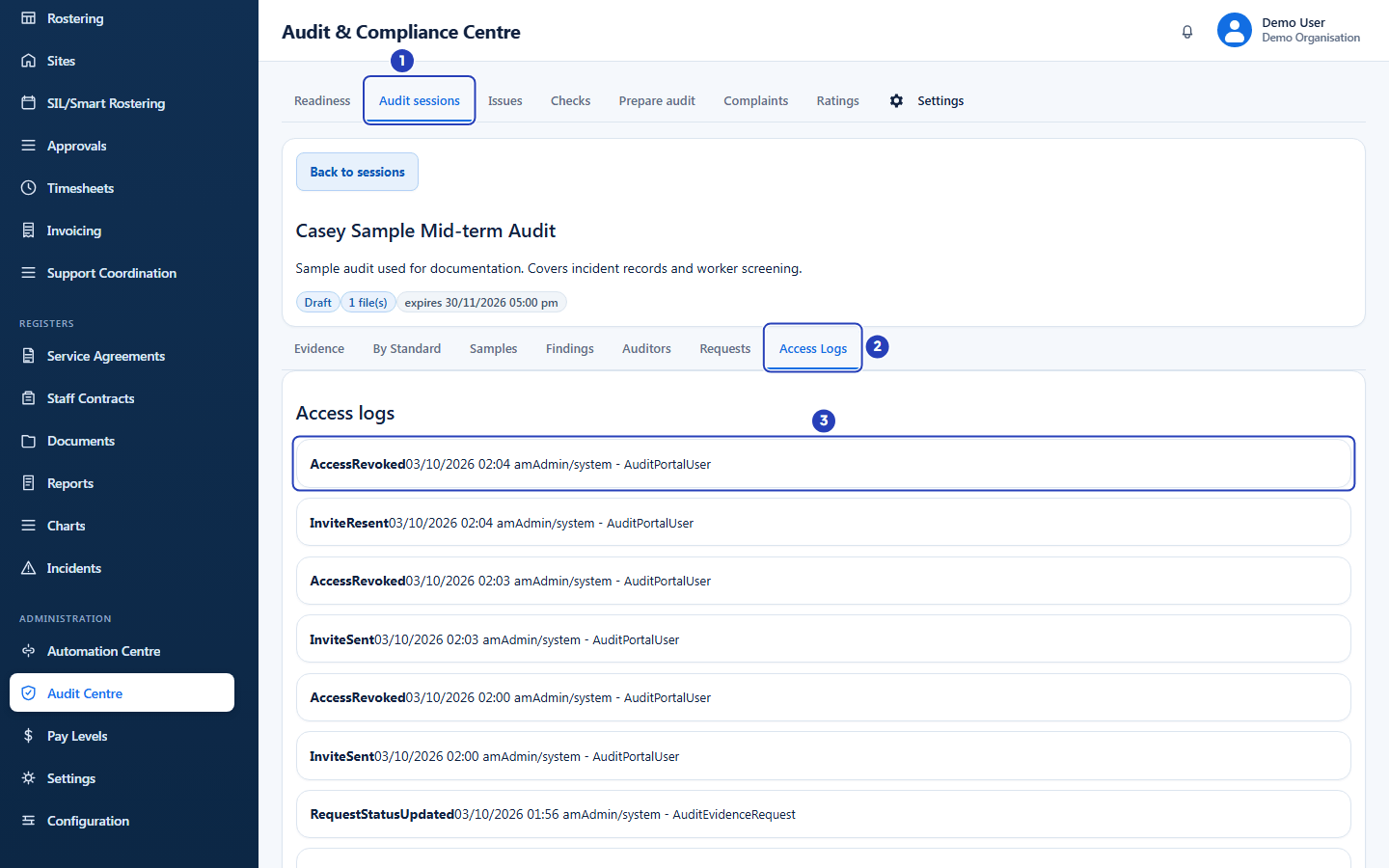
Choose the Audit sessions tab (1), open the session, then choose Access Logs (2). Each entry is a card (3) and the newest is at the top. -
Read one entry
1 The first word, in bold, says what happened, such as InviteSent or ViewOverview.
2 After it comes the date and time of the entry, in your organisation's time zone.
3 The small line starts with Admin/system, which is the same on every entry. It ends with what the entry is about: the audit, an auditor's access, a file or a request.
The three parts run together on one line with no gap, so read the bold word first, then the date and time. You cannot add, edit or remove an entry.
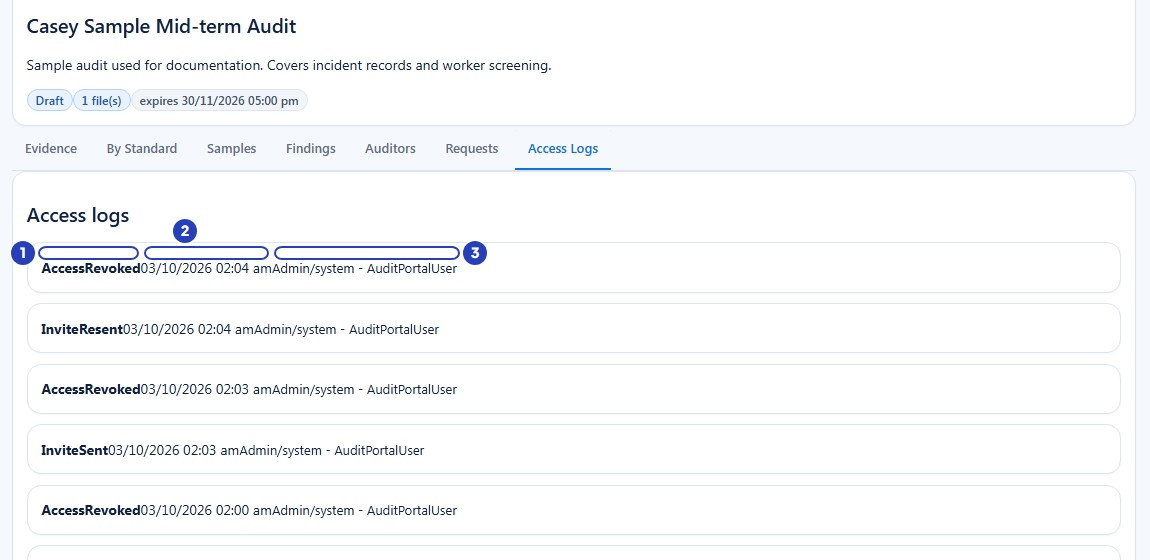
Each entry shows what happened (1), the date and time (2) and what it is about (3). -
See what your team did
These entries record what you and your team did in this session.
Fields in step 3 Field What it means InviteSent, InviteScheduled, InviteResent You added an auditor or chose Resend invite. InviteScheduled means the invitation is held until access opens. InviteSendFailed, InviteResendFailed The invitation email could not be sent. AccessRevoked You chose Revoke on an auditor. EvidenceFileUploaded, EvidenceGenerated, EvidenceReleased, EvidenceRevoked A file was uploaded, a register was generated, a file was shared with Share with auditor, or sharing was stopped with Stop sharing. RequestResponded, RequestStatusUpdated You saved a reply to an auditor's request, or changed its status, for example with Mark closed. Note: Entries that start with Preview, such as PreviewViewOverview, come from someone on your team using Preview portal. StartAuditorPreview marks the start. They are not the auditor.
-
See what the auditor did
These entries come from the auditor portal. Scroll down the list to find them.
1 DownloadDenied means the auditor tried to open a file and could not. Auditor can download is not ticked for it, the file is no longer shared, or there is no file behind the record.
2 DownloadEvidenceFile is the auditor choosing View or Download on a file. EvidenceDownloaded above it means the file was delivered, and DownloadDenied above it means it was refused. The newest entry is at the top, so the outcome appears above it.
3 A run of View entries at the same time, starting with ViewOverview, is the auditor opening or refreshing the portal. Each part of the page records its own entry, such as ViewRequests.
Fields in step 4 Field What it means EvidenceRequestCreated The auditor chose Send request. The request now appears on your Requests tab. FindingRaised, FindingStatusChanged The auditor raised a finding, or closed one or asked for clarification. Findings appear on your Findings tab. AccessDenied Someone used an auditor's link when access was revoked, had ended or had not started yet. 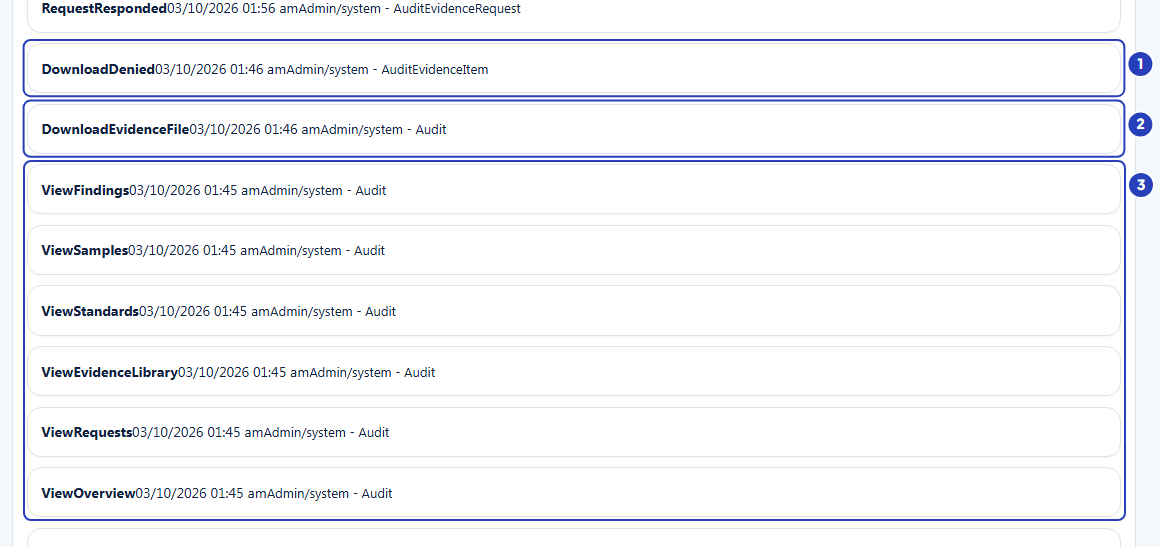
A refused download (1), the auditor opening a file (2) and a run of View entries as the portal page loads (3).
What happens next
The log fills in as the audit goes on. Come back to it whenever you want to check what an auditor has done, or what your team has done to give, change or remove their access.
To change what an auditor can do, go to the Auditors tab. See Give an auditor access. To answer an auditor's request, go to the Requests tab. See Manage evidence requests.
Important notes
Important: The log shows what happened in this audit session only, and looking at it changes nothing. Note down anything you need for your own audit file.
Good practice
- Check the Access Logs tab a few times while an audit is open, not only at the end. AccessDenied and DownloadDenied tell you early that an auditor is stuck.
- When an auditor says they cannot open something, look here first. DownloadDenied points to the Auditor can download tick box or to a file that is no longer shared, and AccessDenied points to their access window or label.
- Review the log when the audit is finished, together with the Auditors tab, and revoke any access that is still open.
Troubleshooting
The Access Logs tab says No access logs yet.
Why it happens: Nothing has happened in this session yet that the log records. Entries start once you upload or share a file, add an auditor or an auditor opens the portal.
What to do: Add an auditor or share a file, then come back. Entries appear in the order they happen.
I cannot see the list, or the session does not open properly.
Why it happens: Your role does not include Can view auditor access logs.
What to do: Ask an Owner or Admin to check your role in Configuration > Roles & Permissions.
I see entries that start with Preview and nobody has told me about them.
Why it happens: Someone on your team chose Preview portal. Each time the preview page loads it records its own entries.
What to do: Look for StartAuditorPreview at the start of the run. These entries are not the auditor.
AccessDenied entries appear.
Why it happens: Someone used an auditor's link when access was revoked, had ended or had not started yet.
What to do: Check the auditor's label and the session's expires time on the Auditors tab. If access should be open, choose Resend invite and ask the auditor to use the newest email.
I see DownloadDenied after DownloadEvidenceFile.
Why it happens: The auditor tried to open a file that has Auditor can download unticked, a file that is no longer shared with the auditor, or a record with no file behind it.
What to do: On the Evidence tab, check that the file still says Shared with auditor and that Auditor can download is ticked.
Questions and answers
Has the auditor opened the portal?
Look for ViewOverview, not PreviewViewOverview. You can also look for the label Active on the auditor's card on the Auditors tab.
Which files did the auditor open?
Look for DownloadEvidenceFile followed by EvidenceDownloaded. The log shows that a file was opened, not which file it was, so check the time against the files you shared.
Did we reply to the auditor's requests?
Look for RequestResponded and RequestStatusUpdated, then open the Requests tab to read the replies.
When did the auditor get access, and when was it removed?
Look for InviteSent or InviteResent (or InviteScheduled), and AccessRevoked. Access also ends by itself at the session's Access expires time.