

Who this is for
This guide is written for Owner, Admin, Manager and Compliance Officer.
Before you begin
- Read the Audit Centre overview for what readiness and issues are.
- On the Settings tab, under Compliance document settings, tick Enforce for compliance chasing for each document type your organisation requires, then choose Save changes. The document checks count only the ticked types. Types that carry an expiry date start ticked, and the others start unticked. This needs Can manage readiness checks.
Steps
The screenshots show a demonstration organisation with made-up names. Your own screens show your organisation's details. Select a screenshot to open it full size.
-
Go to Audit Centre > Readiness
1 In the left menu, under Administration, choose Audit Centre.
2 Choose the Readiness tab if it is not already open.
BondiByte keeps the score up to date by itself, so there is usually nothing to run. If the page says Readiness has not been evaluated yet, choose Run readiness check once.
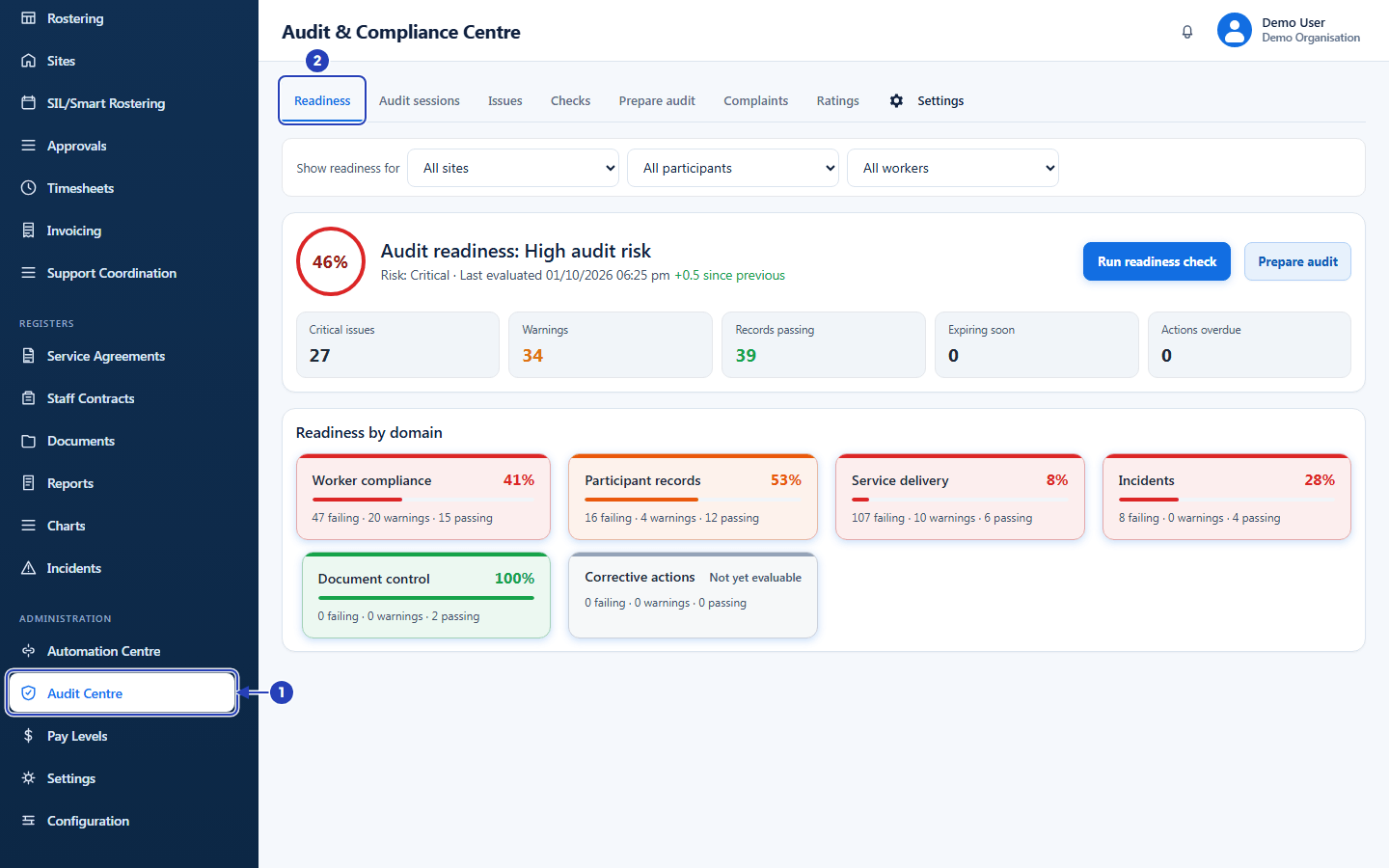
Choose Audit Centre in the left menu (1), then the Readiness tab (2). -
Read your score
1 The ring shows your overall readiness as a percentage. Two dashes mean there is not enough information for a number.
2 Beside it, Audit readiness: is followed by a band: Audit ready, Mostly ready, Attention required or High audit risk. The line under it shows the Risk, when readiness was Last evaluated and the change since previous check.
3 Run readiness check works the score out again now. BondiByte already checks again when your records change, so use the button only when you want a fresh result straight away. A Re-checking... tag means a check is running.
4 Prepare audit starts preparing evidence for an auditor. It is shown only to people who can prepare audit evidence. See Run an audit session.
5 The tiles count what sits behind the score. Critical issues opens the Issues tab filtered to them. The others are Warnings, Records passing, Expiring soon and Actions overdue.
When a critical check holds the score down, a line says Score capped at a percentage and shows the Uncapped score. Fixing the failing records lifts the ceiling.
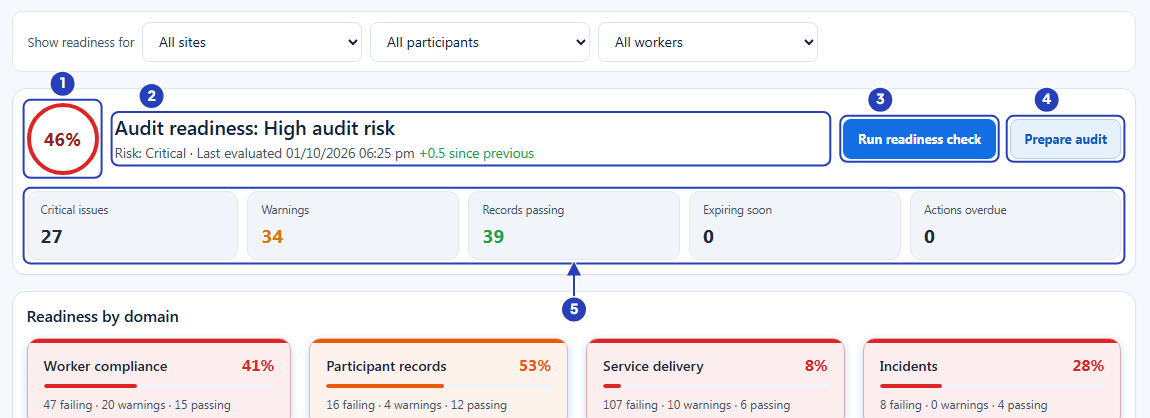
The score ring (1), the band, risk and last evaluated line (2), Run readiness check (3), Prepare audit (4) and the count tiles (5). -
Read the results by domain
1 Under Readiness by domain, each card is one area with its own percentage and a coloured bar. The areas are Worker compliance (screening and documents), Participant records (agreements and documents), Service delivery (shift reports and timesheets), Incidents (incidents and complaints dealt with promptly), Document control (documents not expired) and Corrective actions (issues fixed on time).
2 The line at the bottom of a card counts the records that are failing, the warnings and the ones passing.
3 A card that says Not yet evaluable has nothing to check yet. Corrective actions stays that way until an open issue has a due date.
Choose a card to open the Checks tab for that area. Fix these first, under the cards, lists up to three critical issues, and Caps the score marks the ones holding your score down. Choose Open on a row, or View all issues, to go to the Issues tab.
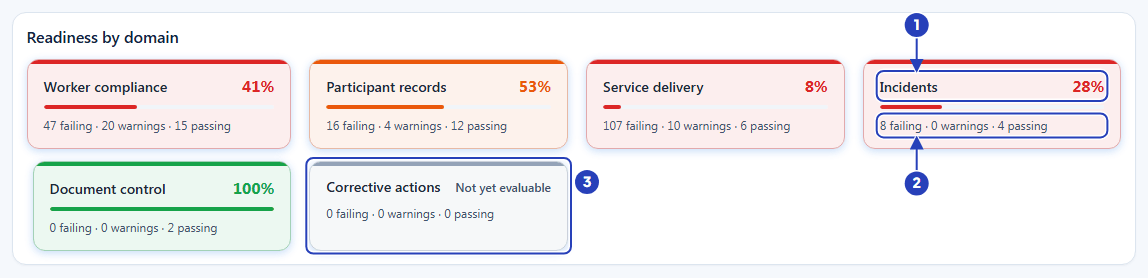
Each card shows an area's percentage (1) and its counts (2). A card with nothing to check yet says Not yet evaluable (3). -
Look at one site, participant or worker
1 At the top of the tab, Show readiness for has three lists: All sites, All participants and All workers. Choose one site, one participant or one worker. A role without access to a register sees only the All choice.
2 The banner changes to Scoped readiness, with its own percentage, band and Risk. Records that cannot be tied to your choice stay included.
3 Read the tiles and the Readiness by domain (scoped) cards. A card with nothing to check says Not evaluable in scope.
4 Choose Whole organisation to go back to the full score.
Note: The scoped view has no Run readiness check, Prepare audit or Fix these first. Choose Whole organisation to use them.
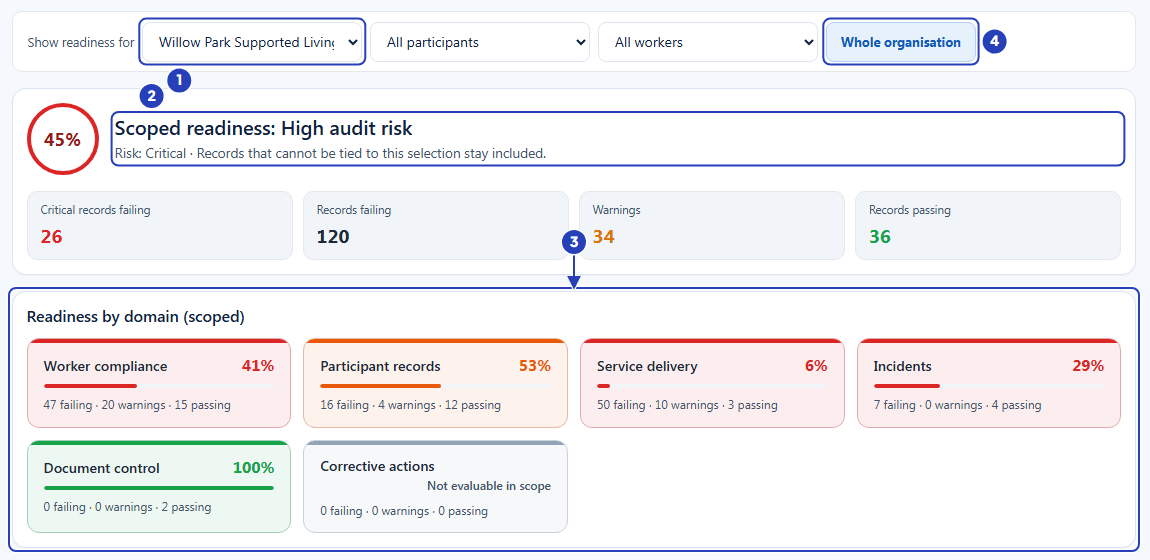
Choose a site (1). The banner becomes Scoped readiness (2) with its own cards (3). Choose Whole organisation (4) to go back. -
Go to the Issues tab
1 Choose Issues. Each record that fails a check is one issue. To do (not started), In progress (assigned to someone, or started) and Done (resolved, or dismissed with a reason) switch between queues. It opens on To do.
2 To narrow the list, choose Critical, Major or Minor in the All severities list.
3 To find one issue, type a word in Search issues, such as a person's name or part of a check name.
4 Each row shows the severity, the check and the record, a Due date if one was set, and a status label. Choose a row to open it.
An empty To do queue says No open issues.
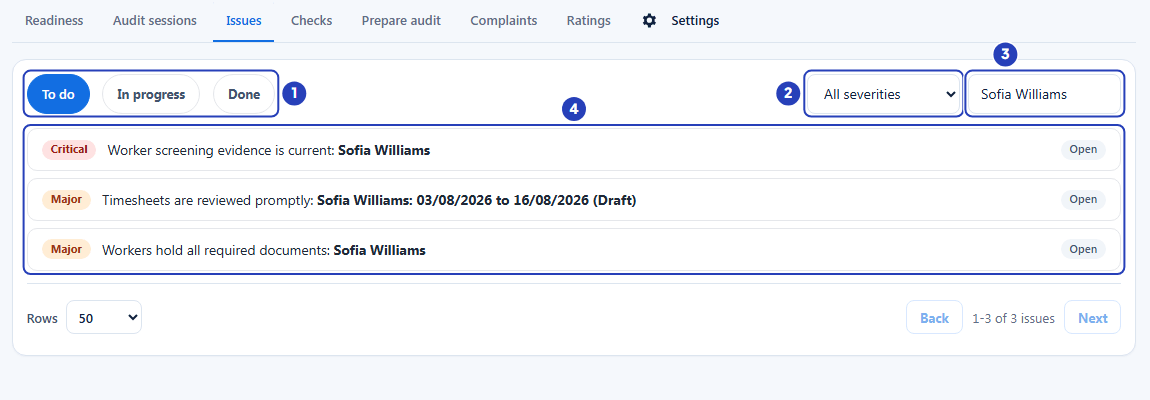
The queue buttons (1), the severity list (2), Search issues with a name typed (3) and the matching issues (4). -
Open an issue and choose what to do
1 Choose an issue row. It shows what is wrong, then How to fix:, then who it is Assigned to, or Unassigned.
2 To give the issue an owner, choose a person in Assign to, optionally choose a Due date (optional), then choose Assign. The issue moves from To do to In progress.
3 Choose Open record to go to the record where the problem is. A few issues have no record to open.
4 Choose Start to move the issue to In progress.
5 After you fix the record, choose Resolve, describe what you did in Resolution note (required), then choose Resolve issue. The issue moves to Done. If the record still fails the check, the issue reopens on the next check.
6 If the issue should not count at all, choose Dismiss with reason. The next step covers it.
Warning: Resolve does not fix the record. Fix the record first, using Open record, or the issue comes back.
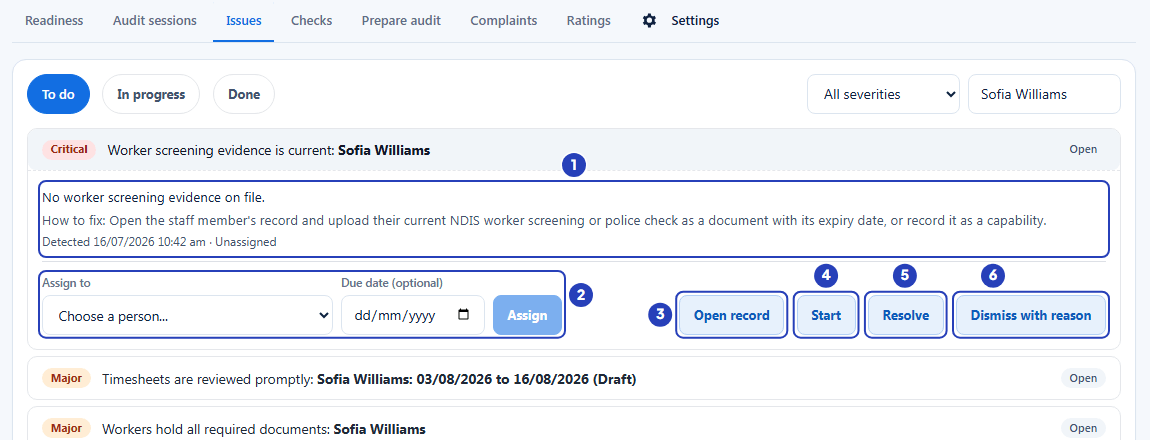
What is wrong and how to fix it (1), Assign to with a due date (2), Open record (3), Start (4), Resolve (5) and Dismiss with reason (6). -
Dismiss an issue only when it should not count
1 In Why should this issue not count?, choose the closest reason.
2 In Reason (kept on the audit trail), type a clear explanation. It is required.
3 If you chose Temporarily accepted, fix is planned (needs an expiry date), choose Exception expires on. After that date the issue reopens and counts again unless you have fixed it.
4 Read the note: the failed result stays on record, with your name, the reason and the date.
5 Choose Dismiss issue to save, or Cancel to close the window without dismissing anything.
Important: A dismissed issue leaves the score and is counted as an Approved exception on the Readiness tab. Use this only when the issue truly should not count.
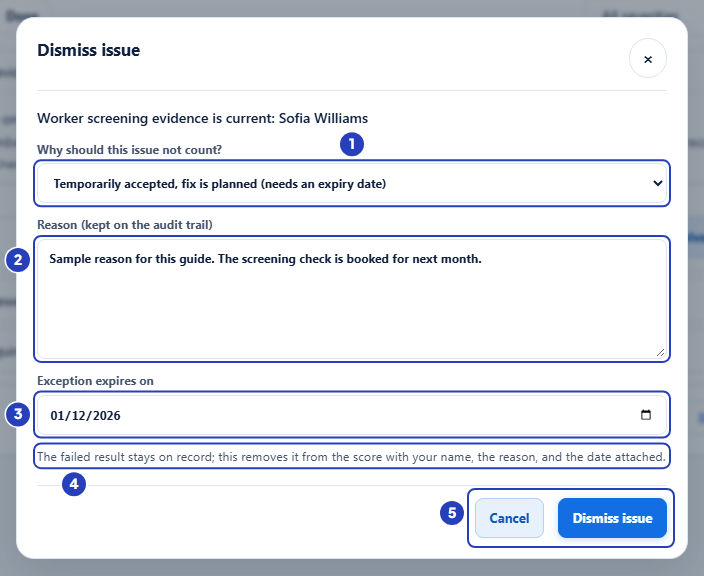
Choose why the issue should not count (1), type the reason (2), set the expiry date for a temporary exception (3), read the note (4) and choose Dismiss issue (5). -
Go to the Checks tab
1 Choose Checks. The note at the top says BondiByte maintains the checks and evaluates them automatically. You cannot change what a check looks for.
2 The checks are grouped by area, such as Incidents or Worker compliance. The area name is a heading above its checks.
3 Each row shows the severity (Critical, Major or Minor), the name of the check, and how many records are failing, warnings or passing. Choose a row to see each record with its Result and a Detail sentence saying why. How to fix: says what clears the check, and Back to checks returns to the list.
4 The On or Off tick box says whether the check counts. To stop a check counting, untick it and confirm Turn off check.
Warning: Turning a check off removes it from your score and stops it being evaluated. Auditors still expect the area to be covered, so turn a check off only if it truly does not apply to your organisation.
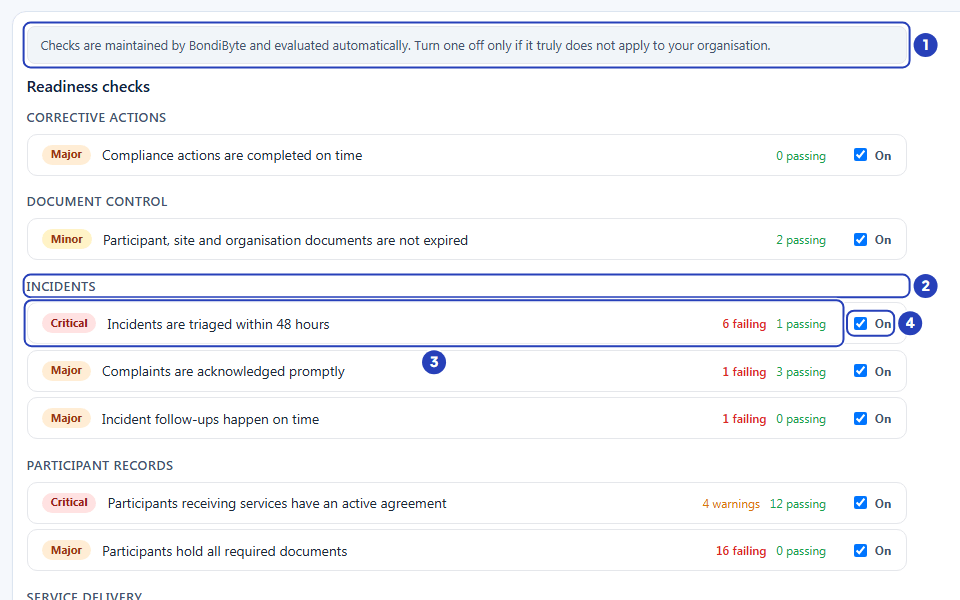
The note about checks (1), a group heading (2), a check with its severity, name and counts (3) and its On or Off tick box (4).
What happens next
BondiByte checks again by itself when your records change. When you correct a record, its issue clears on the next check and the score and domain cards move.
When an audit is coming, use Prepare audit. See Run an audit session.
Important notes
Important: Audit readiness helps you find and fix gaps in your records before an audit. It does not predict the result of an audit, and it does not replace advice from your auditor or the NDIS Quality and Safeguards Commission.
Good practice
- Start with the issues marked Caps the score. Clearing them lifts the ceiling on your whole score, which helps more than fixing many small items.
- Fix the record, not the score. Use Open record, correct the information, then choose Resolve with a short note saying what changed.
- Give every critical issue an owner and a due date, and look at To do once a week. Use Dismiss with reason rarely, and write the reason as if an auditor will read it.
Troubleshooting
Audit Centre is not in my left menu, or I cannot see Readiness, Issues, Checks or Settings.
Why it happens: Your role does not include Can view audit centre, or it does not include Can view audit readiness (without it the Audit Centre opens on Audit sessions).
What to do: Ask an Owner or Admin to check your role in Configuration > Roles & Permissions.
The page says Readiness has not been evaluated yet, or there is no Run readiness check button.
Why it happens: Checks have never been run, or your role does not include Can run readiness checks.
What to do: Choose Run readiness check. If the button is missing, ask an Owner or Admin to add that permission to your role.
A message says The checks are still running in the background. This first run can take a few minutes; the score appears here as soon as it finishes.
Why it happens: The run takes longer than the page waits.
What to do: Wait a few minutes, then reload the page. If the score still does not appear, choose Run readiness check again or contact BondiByte support.
My score is lower than most cards suggest, and a line says Score capped at.
Why it happens: A critical check is failing and holds the overall score down.
What to do: Fix the issues marked Caps the score. The line also shows the Uncapped score you would reach without the ceiling.
An issue I resolved has come back.
Why it happens: The record still fails the check. Resolve records your note but does not change the record.
What to do: Choose Open record, correct the record, then choose Run readiness check.
The Assign button is greyed out, or Dismiss issue will not save.
Why it happens: No person is chosen in Assign to, or Reason (kept on the audit trail) or Exception expires on is empty.
What to do: Choose a person, type a reason and, for a temporary exception, choose the expiry date.
The Checks tab shows only one area.
Why it happens: You opened it by choosing a domain card, and it keeps that area until the page is reloaded.
What to do: Refresh the page in your browser, then choose Checks again.
A check shows Off and its records no longer count.
Why it happens: Someone turned the check off.
What to do: On the Checks tab, tick the check to turn it on again. This needs Can manage readiness checks.