

Who this is for
This guide is written for Owner and Admin.
What a role does
A role is a set of permissions. The roles a person holds decide which items they see in the left menu, what they can open and what they can change.
Permissions are grouped by area, such as Staff, Clients, Sites, Rostering and Documents. A role allows or does not allow each permission. For many permissions it also sets a scope, which says how much of your organisation's records the person can reach.
A role can only be given to a person who already has a BondiByte login. If a person has no login yet, give them login access first. See Create a staff member.
The built-in roles
BondiByte comes with eleven built-in roles. Nine are for people who use the workspace in a browser, and two are for staff self-service in the Staff App.
Owner holds every permission. Admin also holds every permission and is protected, so your organisation always keeps at least one Admin.
Manager has operational access across staff, clients, sites, rostering, documents and reports.
Coordinator covers client coordination, documents, notes, Service Agreements and follow-up work.
Rostering Officer manages roster periods, shifts, assignments, shift interest and recommendations.
Compliance Officer covers compliance, document verification, incidents, complaints, audit preparation and reports.
Finance / Billing covers invoicing, timesheet exports, Service Agreements, staff contracts and pay, the NDIS catalogue and related reports.
Auditor / External Read Only gives read-only audit and evidence access for scoped external review work.
Viewer gives read-only access to selected modules.
Staff and Support Worker are the roles for staff self-service in the Staff App. They only control what staff can do for themselves, and they do not include any permissions for the manager or admin workspace. Support Worker covers a person's own shifts, availability, documents, tasks, profile and reports.
For an external audit, the Audit Centre can also give an auditor scoped access that is separate from these roles.
Open Roles & Permissions
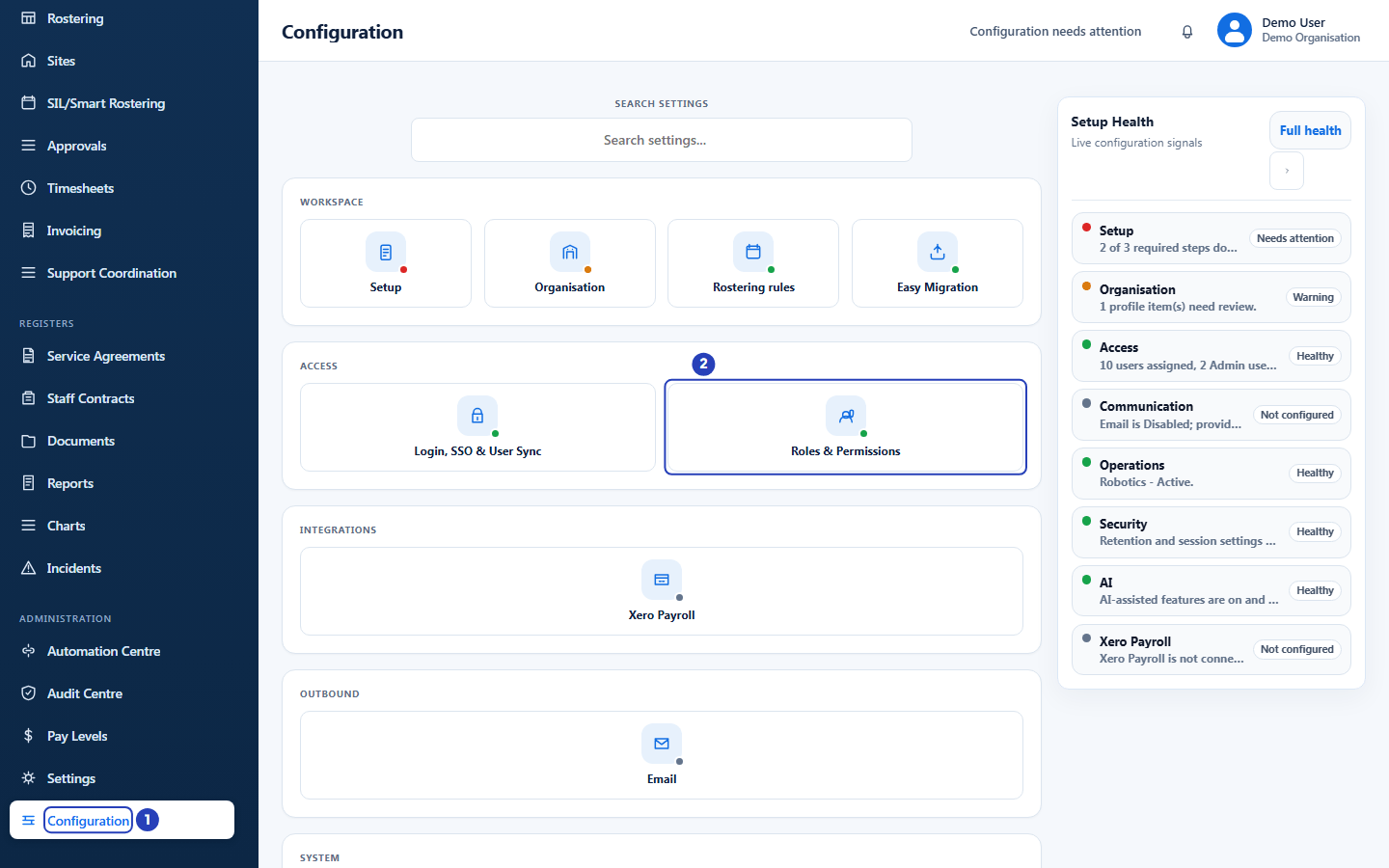
- In the left menu, under Administration, choose Configuration. The Configuration page opens with a tile for each group of settings.
- In the Access group, choose Roles & Permissions. The page that lists your roles opens.
What the Roles & Permissions page shows
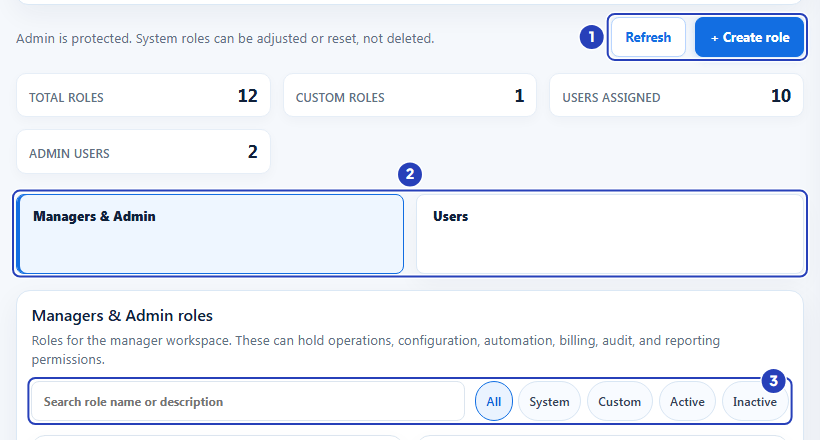
The page has Refresh and + Create role at the top right and a summary of Total roles, Custom roles, Users assigned and Admin users below them.
Two tabs split the roles. Managers & Admin holds the roles for the manager workspace. Users holds the roles for staff self-service.
Each role is a card that shows its name, whether it is a System or Custom role, a short description, the number of users and permissions, and its status. Use Search role name or description and the filters All, System, Custom, Active and Inactive to find a role.
Choose a role to open it. Its page has four tabs: Overview, Permissions, Assigned Users and Audit / History. Audit / History records the changes made to the role.
For the rest of the menu, see Find your way around BondiByte.
Give someone a role
Open the role, choose Assigned Users, pick the person under Add user to role and choose Add user. To take a role away, choose Remove next to the person, then confirm with Remove assignment. You cannot remove the last active Admin.
Only people who already have a BondiByte login can be given a role. Staff who do not have a login yet are listed as no login yet, and a note says that staff without login accounts cannot be assigned roles yet.
Change what a role can do
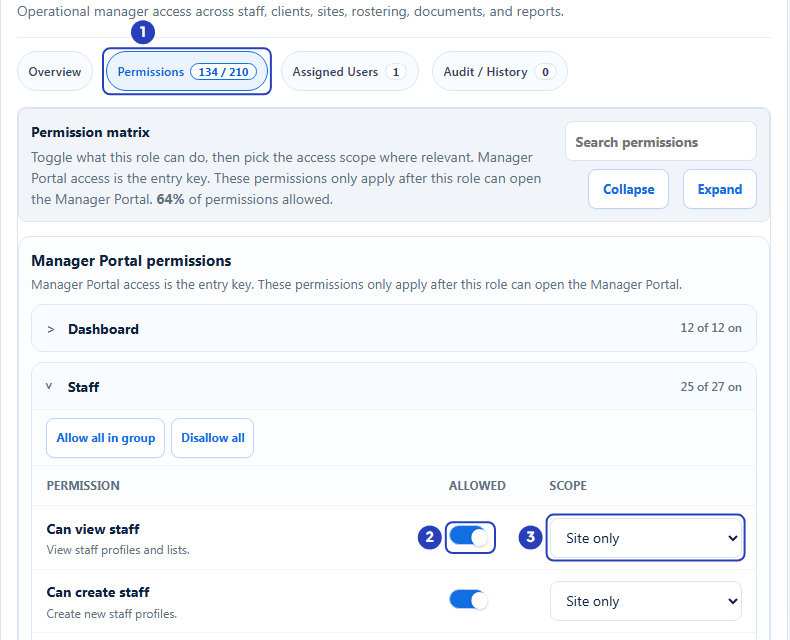
Open the role and choose Permissions. Switch permissions on or off, choose a scope where one is offered, then choose Save permissions. Allow all in group and Disallow all change a whole group at once, and Search permissions finds one by name.
A role needs Can access Manager Portal switched on before its other workspace permissions have any effect.
You can change built-in roles, except that Owner and Admin always keep full access. The Admin role's permissions cannot be edited. Built-in roles cannot be deleted. Choose Reset defaults on a built-in role to put it back to the standard BondiByte permissions.
Create your own role
Choose + Create role. Pick the Role area (Managers & Admin or Users), type a Role name and a Description, and under Start from preset choose Blank custom role or copy an existing role from the same area. Then choose Create role, adjust its permissions and give it to the right people.
A custom role can be deleted only when nobody is assigned to it.
Limit access to certain sites
Many permissions carry a scope: None, Own only, Assigned only, Site only or All tenant. Site only limits a person to the sites they are assigned to. Owners and Admins are never limited to sites.
Each built-in role starts with a scope. Manager starts with Site only. Coordinator and Auditor / External Read Only start with Assigned only. Staff and Support Worker start with Own only. The other built-in roles start with All tenant. You can change the scope on any permission that offers one.
To limit a person to certain sites, do these four things in order.
- Choose the site-limited option. Go to Configuration > Roles & Permissions, open the person's role, choose Permissions, set the scope to Site only on the permissions you want limited, and choose Save permissions. The Manager role already starts with Site only.
- Assign the person's sites. Open each site from Sites, choose its Staff tab, choose Assign staff and pick the person. You can also choose their Primary site / house in Edit staff on their record. Add staff asks for a site only when your own access is limited to certain sites. See Create a staff member.
- Check that their login is linked to their staff record. In the left menu choose Staff, open the person's record and choose the Login access tab. The heading under Organisation login account shows the person's login email.
- Check what they can see. Ask the person to sign in and open Sites, Staff and Clients in the left menu. Each list shows only the records at their own sites. When they create a client or a staff member, BondiByte uses their site, or asks them to choose one of their sites when they have several.
Important notes
Important: Every organisation must keep at least one active Admin. The Admin users count on the Roles & Permissions page shows a warning when there is none.
Tip: When you limit someone to certain sites, finish all four steps in Limit access to certain sites, then check what the person sees in Sites, Staff and Clients.
Good practice
- Start from the built-in roles and change only what you need. If an edit does not work out, choose Reset defaults on that built-in role to return to the standard permissions.
- Give each person the role that fits their job and no more. Open a role's Assigned Users tab to see who holds it, and its Audit / History tab to see what has changed and when.
- When you create a custom role, copy the closest existing role under Start from preset instead of starting blank, then adjust the permissions the role does not need.
- Before you limit a manager to certain sites, assign their sites and check their Login access tab, then ask them to confirm what they see in Sites, Staff and Clients.
- Check the Admin users count on the Roles & Permissions summary now and then. It should always show at least one active Admin.
Questions and answers
Why can I not give a role to a staff member?
Only people who already have a BondiByte login can be given a role. Staff without a login are listed as no login yet. Give them login access first, then add the role.
Can I delete a built-in role?
No. You can change the permissions of most built-in roles, or choose Reset defaults to restore the standard ones. Owner and Admin always keep full access, and the Admin role's permissions cannot be edited. You can delete a custom role when nobody is assigned to it.
Who can change roles?
People who have permission to manage roles. Owners and Admins have it. Everyone else sees a no-access message on the Roles & Permissions page.
What does Site only mean?
A permission with the Site only scope reaches only the records at the sites the person is assigned to. Managers start with this scope.
How do I check what a site-limited manager can see?
Ask them to sign in and open Sites, Staff and Clients in the left menu. Each list shows only the records at their own sites. To change their sites, open a site, choose its Staff tab and use Assign staff.