

Who this is for
This guide is written for Owner, Admin, Manager and Coordinator.
What a Chart is
A Chart helps your team record the same structured observation again and again for one client, for example food and fluid, sleep checks or behaviour monitoring. Each time someone records it, the result is one Chart entry.
A Chart is not a Report. A Report records one event, note or assessment, and a form is a template your whole organisation can use. A Chart belongs to one client and builds up a history of entries over time.
Charts help your team keep consistent records. They do not give clinical advice, and your organisation stays responsible for clinical decisions, policy and oversight.
How a Chart gets to a client
A Chart always follows the same path. Each step has to be done before the next one.
- Chart template. A template is the reusable design of a Chart: its fields and its choices. Start from one of BondiByte's built-in templates by cloning it, or build your own. Templates are kept in the Chart Library.
- Publish. A template can be given to a client only when its status is Published. In the Chart Library, the button that publishes a template is Activate. In the template builder it is Publish.
- Assign to a client. Assigning a template to a client creates that client's own Client Chart. Two clients never share one Client Chart.
Configuring and activating a Chart for a client
- Client-specific configuration. Some choices, such as the drinks one client prefers, are set for each client. You type that client's options when you assign the Chart. Choices that are the same for everyone are set once, in the template.
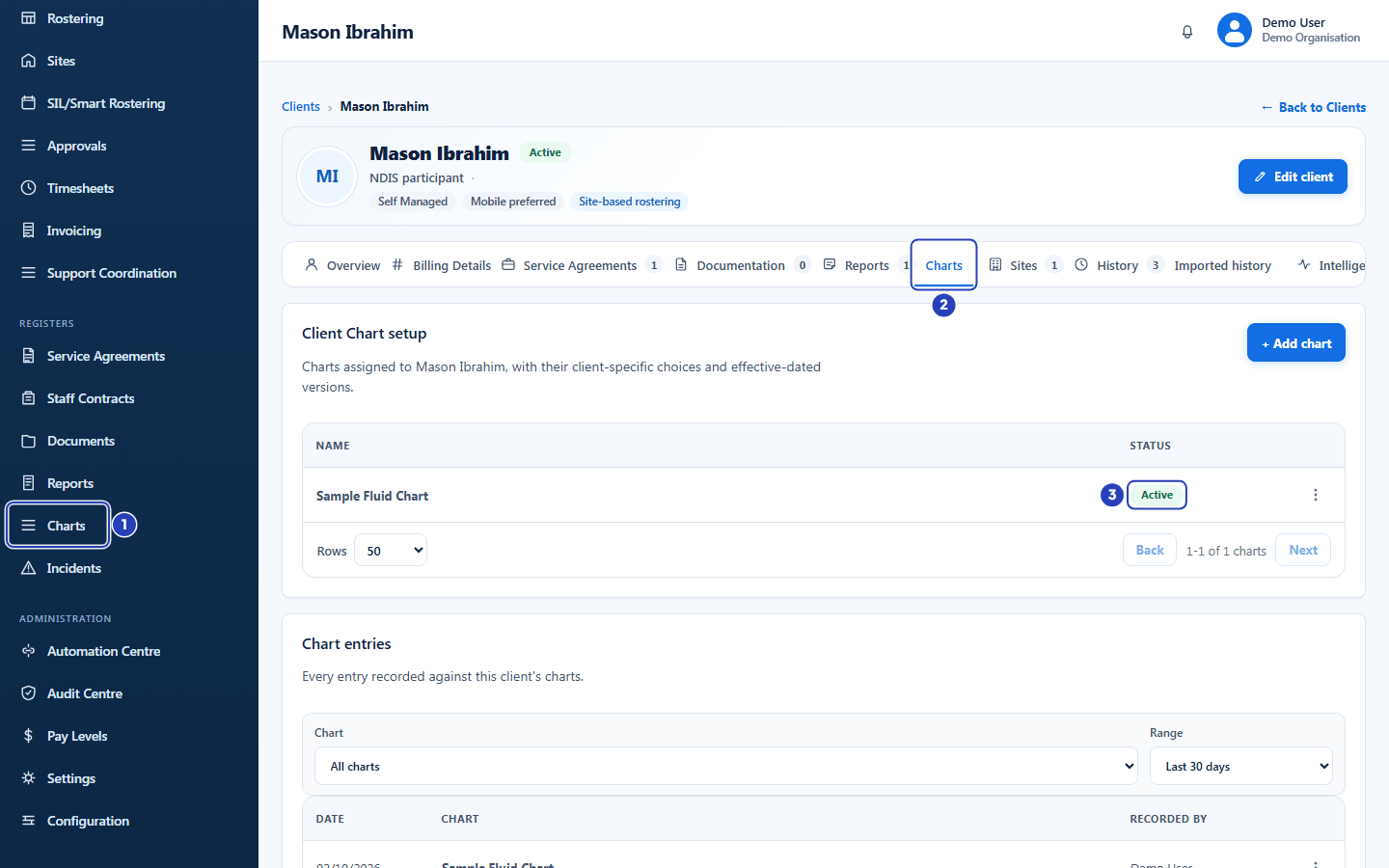
- Activate. A Client Chart is saved as a Draft unless you tick Activate now. Staff can only record entries once it is Active. A Client Chart has three statuses: Draft (added, not active yet), Active (staff can record entries) and Inactive (switched off). Deactivate asks Deactivate this chart?, sets the Status to Inactive and keeps the entries already recorded. Activate brings the Chart back.
- Staff App visibility. The template's Staff mobile app switch must be on. The window that assigns a Chart can turn it on for you.
A Chart is available only for the client it is assigned to, and only once all of these steps are done.
These guides walk through the steps:
Where Charts live in BondiByte
Configuration > Chart Library holds the Chart templates: BondiByte's built-in templates and your own. See The Chart Library.
Clients > the client's record > the Charts tab holds that client's own Charts. Client Chart setup lists the Charts assigned to the client, with their status and version, and is where you add a Chart, edit its configuration, activate it, deactivate it or download a PDF. Chart entries lists what has been recorded.
Charts, in the left menu under Registers, lists Chart entries across all your clients. You can filter it by Client, Chart and Range, and choose View on an entry to read it. The menu item is shown to people whose role has Can view chart entries.
Staff record entries on the Staff App. Staff self-service is the mobile Staff App, not the browser.
Charts are not forms
Charts and forms are two separate workflows. A form is a template that belongs to your whole organisation. It needs no assignment to a client, and it appears on the Staff App when its Staff mobile app switch is on. Shift Report and Incident Report are always available.
A Chart template does nothing on its own. It has to be assigned to a client, configured for that client, activated, and shown on the Staff App before anyone can record it. Do not look for a Chart in Reports & Forms, and do not look for a form in the Chart Library.
Who can do what
Owners and Admins manage Chart templates in the Chart Library. By default, only they can view or manage templates.
Managers and Coordinators can view the Charts assigned to clients, activate or deactivate them, and view Chart entries. Because they cannot view Chart templates by default, the + Add chart button and Edit configuration are not available to them. Ask an Owner or Admin to assign a Chart or change a client's options.
The Charts menu item under Registers, and the Chart entries list on a client's Charts tab, are available to people whose role has Can view chart entries. By default that includes Owners, Admins, Managers and Coordinators.
A manager whose access is limited to certain sites sees only the clients at those sites, and so only their Charts.
What makes a Chart appear on the Staff App
On the Staff App, staff open the shift, choose Write report and choose the client first. The What are you recording? list then shows, under Charts, only the Charts that are available for that client. A Chart is listed only when all of these are true:
- The Chart template is Published and its Staff mobile app switch is on.
- The client has a Client Chart from that template, and it is Active with a current version.
- Every client-specific choice has at least one option.
- The staff member is allowed to work with that client.
If any one of these is not true, the Chart is not listed for that client. Check them in the order above.
Entries and versions
Each Chart entry records the answers for one client, who recorded them and when. It stays with the version of the template and of the client's configuration that applied when it was recorded.
When you change a client's options, BondiByte saves a new version, effective now or from a date you choose. Entries already recorded are not changed.
Important notes
Important: A Chart is available only for the client it is assigned to. Giving a template to one client does not make it available for any other client.
Tip: New to Charts? Read this page, then follow the three task guides in order. Clone or create a template, assign it to a client, and activate it.
Good practice
- Keep one Chart template for each kind of observation, for example food and fluid, and assign it to each client who needs it. The client-specific lists then hold only what differs from client to client.
- Before you activate a Chart for a client, check that its template is published and shown on the Staff App. A Chart that is active but not shown on the Staff App cannot be recorded by staff.
- Deactivate a client's Chart when they no longer need it, instead of removing it. The entries already recorded stay on the client's record.