

Who this is for
This guide is written for Owner, Admin, Manager and Coordinator.
Before you begin
- The client already has a Chart assigned to them. See Assign a Chart to a client.
What a version is
A client's Chart is not fixed for ever. A client's needs change, so the options their Chart offers change too. BondiByte keeps a version for every setup instead of overwriting the old one, so you can always see what applied when an entry was recorded.
A version records how the Chart is set up for that client from a given date. It holds the Chart's questions and the client's own options for each client-specific choice, such as the drinks one client prefers. See Fixed and client-specific choices.
When you assign a Chart to a client, BondiByte creates version 1, effective from that moment. See Assign a Chart to a client. Each change you save with Edit configuration adds the next version: 2, 3 and so on. Every Chart counts its own versions, so one client's version 3 says nothing about another client's Chart.
Every version has an Effective from date. The version in use at any moment is the latest one whose date has arrived.
Where you see the version
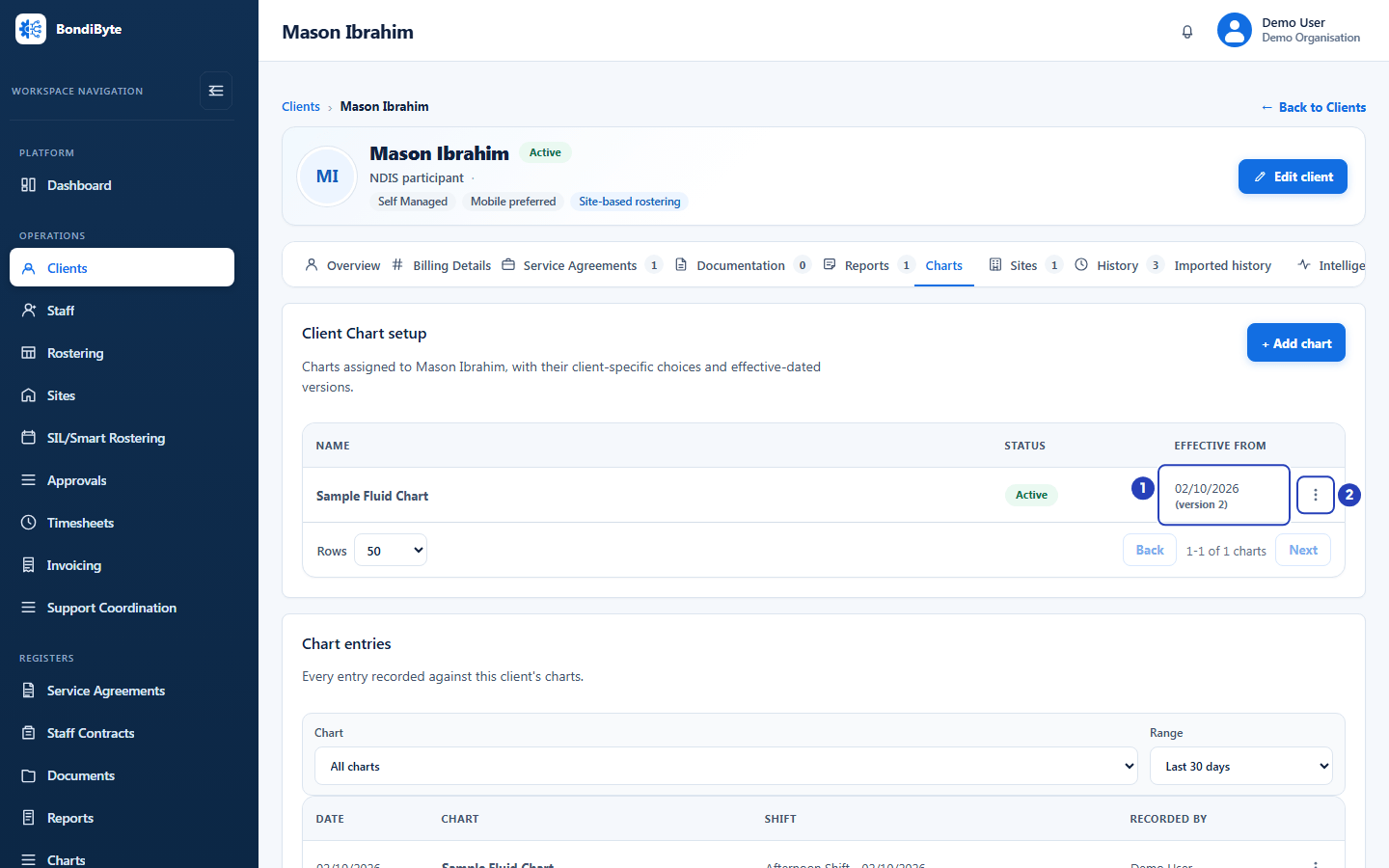
Go to Clients, open the client's record, choose the Charts tab and look at Client Chart setup. Each Chart assigned to the client has a row with its Name, its Status and an Effective from column. The actions button (three dots) at the end of the row opens the menu with Download PDF, Edit configuration and Activate or Deactivate. + Add chart at the top right assigns another Chart.
The Effective from column shows the date the version in use began, with its number beside it, for example 02/10/2026 (version 2).
Only the version in use is shown there. Earlier versions are not listed on a screen of their own. You see an older setup by opening an older entry, which shows the options that applied when it was recorded.
The Status of a Chart is separate from its version. A Chart is Draft (assigned but not yet switched on), Active (staff can record entries) or Inactive (switched off, with its entries kept). Activating or deactivating a Chart does not create a version. Only saving Edit configuration does.
How a new version is made
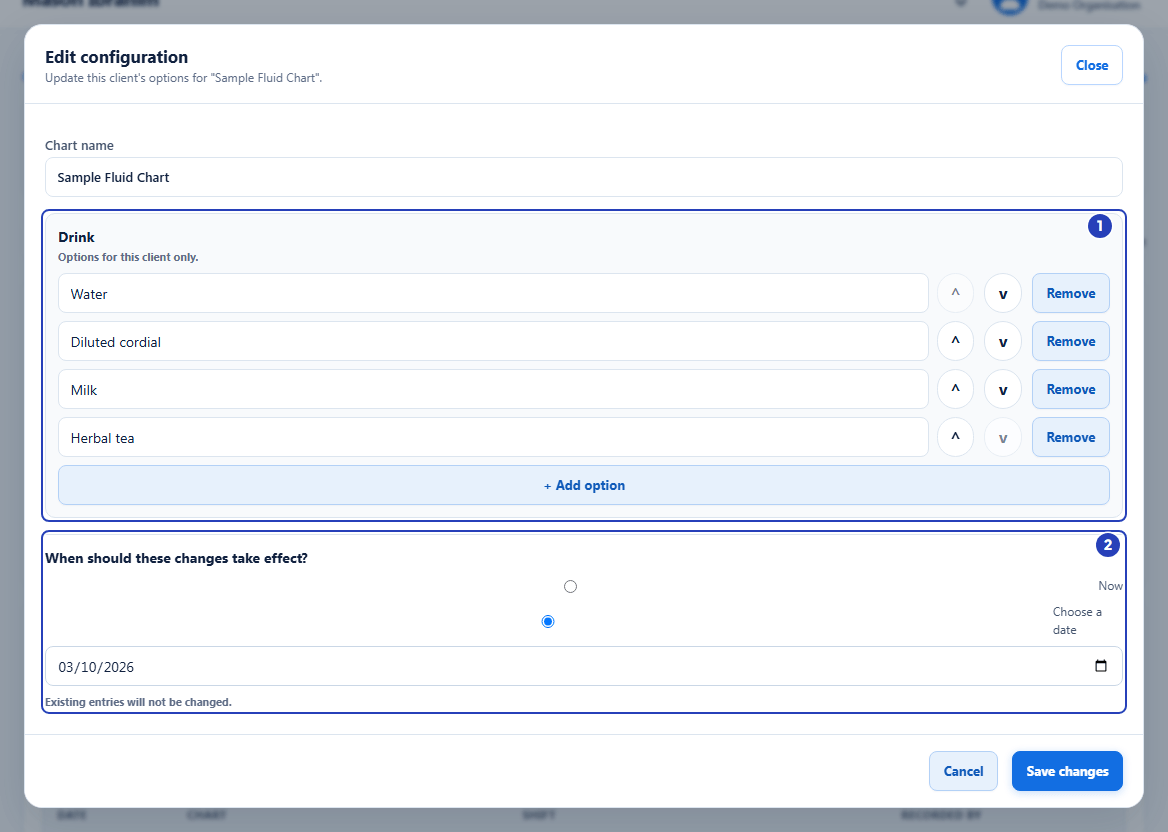
On the Chart's row in Client Chart setup, choose the actions button (three dots), then choose Edit configuration. The Edit configuration window opens, with the line Update this client's options for and the Chart's name. It shows the Chart name and one block of options for each client-specific choice, for example Drink. A Chart with no client-specific choices shows This chart has no client-specific choices to configure.
Change the options in each block. + Add option adds an empty option, and you type its name. Type over an option to rename it. The up and down buttons next to an option change the order, which is the order staff see. Remove deletes an option from the list.
Under When should these changes take effect?, choose Now or Choose a date. The two round buttons are in the order of their labels: the upper one is Now and the lower one is Choose a date. Now starts the new version as soon as you save. Choose a date shows a date field. The earliest date you can choose is tomorrow. The window reminds you with Existing entries will not be changed.
Choose Save changes. A message says Updated. Previous entries remain unchanged. and the Effective from column shows the new version number, or the same one until the chosen date arrives. Choose Cancel instead to close the window without saving.
The Chart name is not part of a version. A new name shows straight away, whichever date you chose.
Every option needs a name. If one is left empty, a message says Give every option a label before saving, followed by the choice it belongs to, and nothing is saved.
An Active Chart must keep at least one option in every client-specific choice. If you remove them all, a message says This chart cannot be activated yet - configure options for: followed by the choice, and the change is not saved. A Draft or Inactive Chart can be saved with no options, but cannot be activated again until each choice has one.
Saving also brings the Chart up to date with the Chart template. See When the Chart template changes, below.
Changes with a future date
When you choose a date, the version in use does not change until that date arrives. Client Chart setup keeps showing the current version, and staff keep recording against it. On the chosen day the new version takes over without anyone doing anything.
If you open Edit configuration again before then, the window shows the most recently saved options, including the change that has not started yet.
BondiByte keeps versions in date order. You cannot save a change that would start on or before a change that is already scheduled, and that includes choosing Now while a dated change is waiting. The window then says A future change is already scheduled for this chart. Reload and try again. Choose a date after the scheduled one, or wait until it has started.
Entries and versions
Each entry stays with the version that was in use when it was recorded. A later change never alters an earlier entry.
This shows when you open an entry. Its choice lists come from its own version. An option you removed later is still on the older entry, and an option you added later is not offered on it.
A Chart PDF shows each entry with the questions and options of its own version, so one PDF can contain entries from two setups. See Export a Chart as PDF.
Correcting an entry changes its answers only. It does not move the entry to a newer version. See View and correct Chart entries.
To read what has been recorded over time, see Client Charts history.
What staff see on the Staff App
Staff record Chart entries on the Staff App. The Staff App always uses the version in use at that moment, so a change made with Now applies to the next entry staff record, and a dated change applies from that date.
If you save a change while a staff member is part-way through recording that Chart, the Staff App tells them This chart has changed. Reload and try again. when they try to submit, and returns them to the list. They choose the Chart again and enter their answers again.
A Chart is offered for a client only while it is Active, every client-specific choice has at least one option, and its Chart template is published and shown on the Staff App. See Charts overview and The Chart Library.
When the Chart template changes
A client's Chart keeps the questions it had when its current version was saved. Publishing a changed Chart template does not alter the Charts already given to clients.
To bring a client's Chart up to date with the template's latest published version, open Edit configuration on that client's Chart and choose Save changes. That saves a new version with the template's current questions. Do this for each client who should have the change.
Edit configuration needs the Chart template to be published. If it is not, choosing Save changes shows This chart template is not published. Publish it before changing this client's chart. (the template was deactivated or archived) or This chart template has been removed. Restore it before changing this client's chart. (the template was removed). Nothing is saved until an Owner or Admin activates or restores the template in the Chart Library.
To change the template itself, see The Chart Library.
Who can do what
People who can view client charts can see the Charts tab, the Status and the Effective from column.
Edit configuration needs permission to manage client charts and to view chart templates. Owners and Admins have both by default. Managers and Coordinators can manage client charts, but they cannot view chart templates by default, so Edit configuration is greyed out for them. Ask an Owner or Admin to make the change.
A manager whose access is limited to certain sites sees only the clients at those sites, and so only their Charts.
Messages you may see and what to do
Edit configuration is greyed out in the Chart's menu. Your role does not include permission to manage client charts, or permission to view chart templates, which Edit configuration needs as well. Pointing at the greyed-out item shows which one is missing. Ask an Owner or Admin to check your role, or to make the change for you.
This chart was changed by someone else. Refresh and try again. Another person saved a change to the same Chart, or activated or deactivated it, while your Edit configuration window was open. The window closes. Open Edit configuration again to see the latest options, then make your change again.
A future change is already scheduled for this chart. Reload and try again. The Chart already has a change waiting for a future date, and the change you tried to save would start on or before it. Open Edit configuration to see the scheduled change, then choose Choose a date with a day after it, or wait until it has started.
This chart cannot be activated yet - configure options for: followed by a choice. The Chart is Active and that client-specific choice has no options left. Choose + Add option in the block for the choice, name at least one option, and choose Save changes again.
Give every option a label before saving. An option was added but left empty. Type a name in it, or choose Remove next to it, then choose Save changes again.
Effective from still shows the old version after you saved. You chose Choose a date, so the new version has not started yet. Open Edit configuration to see the change that is waiting. To start a change straight away, choose Now, once no other change is waiting.
This chart template is not published. Publish it before changing this client's chart. The Chart template this Chart came from was deactivated or archived in the Chart Library, so a new version cannot be saved. Ask an Owner or Admin to choose Activate on the template if it was deactivated, or Restore if it was archived. See The Chart Library.
This chart template has been removed. Restore it before changing this client's chart. The Chart template this Chart came from was removed, so a new version cannot be saved. Ask an Owner or Admin to restore it, as the message says. If you cannot find it in the Chart Library, contact BondiByte support.
Important notes
Important: A new version never changes an entry that was already recorded. Entries, and Chart PDFs of them, always show the answers and the options as they were when the entry was recorded.
Good practice
- Choose Choose a date when a change is planned, for example a new drink routine that starts on Monday. The change then starts on the right day without anyone having to remember to make it.
- Add the new option and remove the old one in the same change, rather than renaming an option to mean something different. Older entries keep the old name, so a renamed option can make the history confusing to read.
- After you publish a changed Chart template, make a list of the clients who use it and save Edit configuration on each. A client's Chart does not pick up the new template until you do.
- Save a change with Now when staff are not part-way through recording that Chart. Anyone who is recording at that moment has to open the Chart again and enter their answers again.
- Check Effective from after you save. A change that starts now shows a higher version number straight away, and a dated change shows the earlier version until its date arrives.