

Who this is for
This guide is written for Owner and Admin.
What the Chart Library is
The Chart Library is where your organisation looks after its Chart templates. A Chart template is the reusable design of a Chart. It does not belong to any client until you assign it.
To open it, choose Configuration in the left menu, then Chart Library under System. The page is called Chart Library Settings and has two tabs, Organisation templates and Built-in templates.
The Chart Library holds Chart templates only. Form templates are kept separately, in Reports & Forms.
Owners and Admins can view and manage Chart templates by default. If your role cannot, the page says You do not have permission to view the Chart Library. or the buttons that change something are greyed out.
Built-in templates
BondiByte provides five built-in templates, available to every organisation. Each is marked Built-in. You can choose Preview to look at one, or Clone to make your own copy. A built-in template cannot be edited or assigned to a client.
Behaviour Monitoring records the time, the behaviour observed, the trigger or context, the support provided, the outcome and notes.
Food & Fluid records the time, a meal or drink, a description, the amount taken, the fluid amount in mL and notes.
General Observation records the time, an observation, the action taken and whether follow-up is needed.
Medication Administration records the time, a medication or dose, a status or outcome, who witnessed it and notes. The list of medications or doses is empty in the template. Your organisation sets it for each client. The template does not hold medical information and is not medical advice.
Sleep Monitoring records a table of sleep checks, each with a time, a status and notes, and a summary.
See also:
Organisation templates
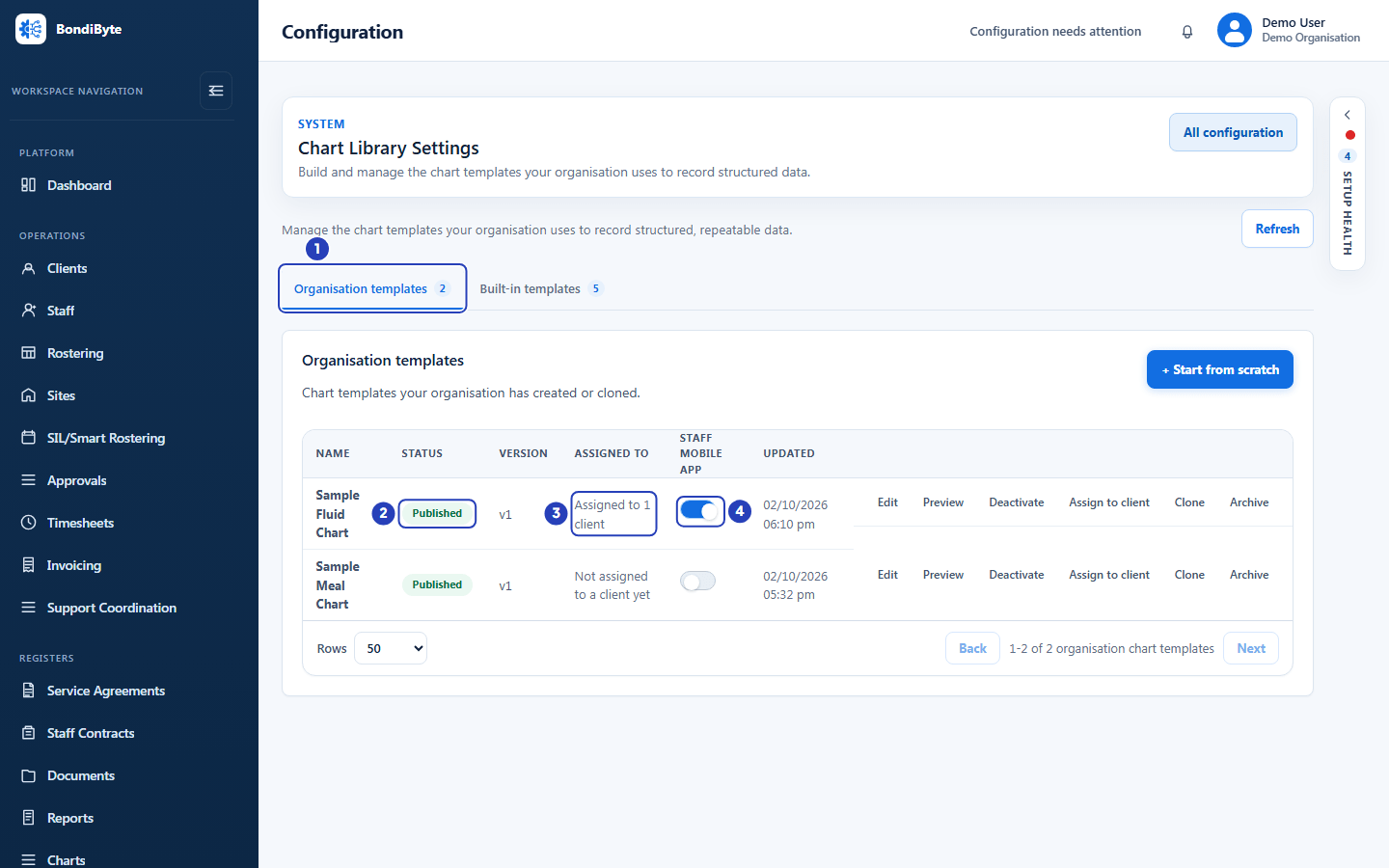
The Organisation templates tab lists the templates your organisation has cloned or built. The number on the tab counts them, not including archived templates. Each row shows the Name, Status, Version, Assigned to, the Staff mobile app switch and when the template was last Updated.
Assigned to says Not assigned to a client yet or how many clients the template has been assigned to.
The buttons on a row depend on its status. Edit opens the template builder. Preview shows the fields. Clone makes a copy. Activate publishes a Draft template. Deactivate and Assign to client are offered on a Published template. Archive hides a template, and Restore brings an archived one back.
Use + Start from scratch to build a new template. If you have archived templates, a switch labelled Show archived lists them.
Statuses and versions
Draft: the template is being built, has not been activated yet, or has been deactivated. A Draft template cannot be assigned to a client.
Published: the template can be assigned to clients. Publishing a template, or activating a Draft that has never been published, creates a version, shown in Version as v1, v2 and so on. Activating a template you deactivated, without changing it, makes the version it already had available again.
Archived: the template is hidden from the list. Turn on Show archived to see it, and choose Restore to use it again.
To change a Published template, choose Edit, change the fields and publish again. The changes are kept as a draft until you publish them, and publishing creates the next version. Entries already recorded keep the version they were recorded on.
Deactivating and archiving
A Chart is available for new entries only while its template is Published. When you deactivate or archive a template, its status is no longer Published, so it cannot be assigned and the Charts already given to clients from it are not available for new entries on the Staff App.
The Charts already assigned and the entries already recorded are kept. When the template is Published again, for example after you activate it or restore it, those Charts become available again.
Deactivate returns the template to Draft. Archive moves it to Archived. BondiByte asks you to confirm before it does either.
Restore returns an archived template to Published if it was published before, and to Draft if it was not.
The Staff mobile app switch
Each organisation template has a Staff mobile app switch. It is off for a new or cloned template. A Chart can appear on the Staff App only when the switch is on, as well as the template being Published and the Chart being assigned to the client and active for that client.
The window that assigns a Chart to a client offers Show on the staff app, which turns the switch on for you. Built-in templates have no switch. They show Clone to use on mobile.
See also:
Important notes
Important: The Chart Library holds the design of a Chart. Nothing in it is available to staff until the template is Published, assigned to a client, activated for that client and shown on the Staff App.
Tip: To see which clients have a Chart, open the client's record and choose its Charts tab.
Good practice
- Choose Preview before you activate a template, and activate it only when the fields are right. Each later change you publish makes a new version.
- Give a template a name that says what it records. The name becomes the Chart's name for each client you assign it to, until you rename it for a client.
- Before you deactivate or archive a template, look at its Assigned to column. While a template is not published, the Charts clients already have from it leave the Staff App and refuse new entries.