

Who this is for
This guide is written for Owner, Admin, Manager and Coordinator.
What Reports & Forms is
Reports & Forms is where your organisation manages the forms it uses to record structured information, such as shift reports, progress notes and your own checklists. You find it in Configuration, under System.
A form, which the library calls a template, is a set of questions. Someone fills it in to make a report. The completed reports are not kept here. They are listed on the Reports page, where each one is saved against a client or another record.
A form belongs to your whole organisation. You create it once, publish it, and choose whether it is also offered in the Staff App.
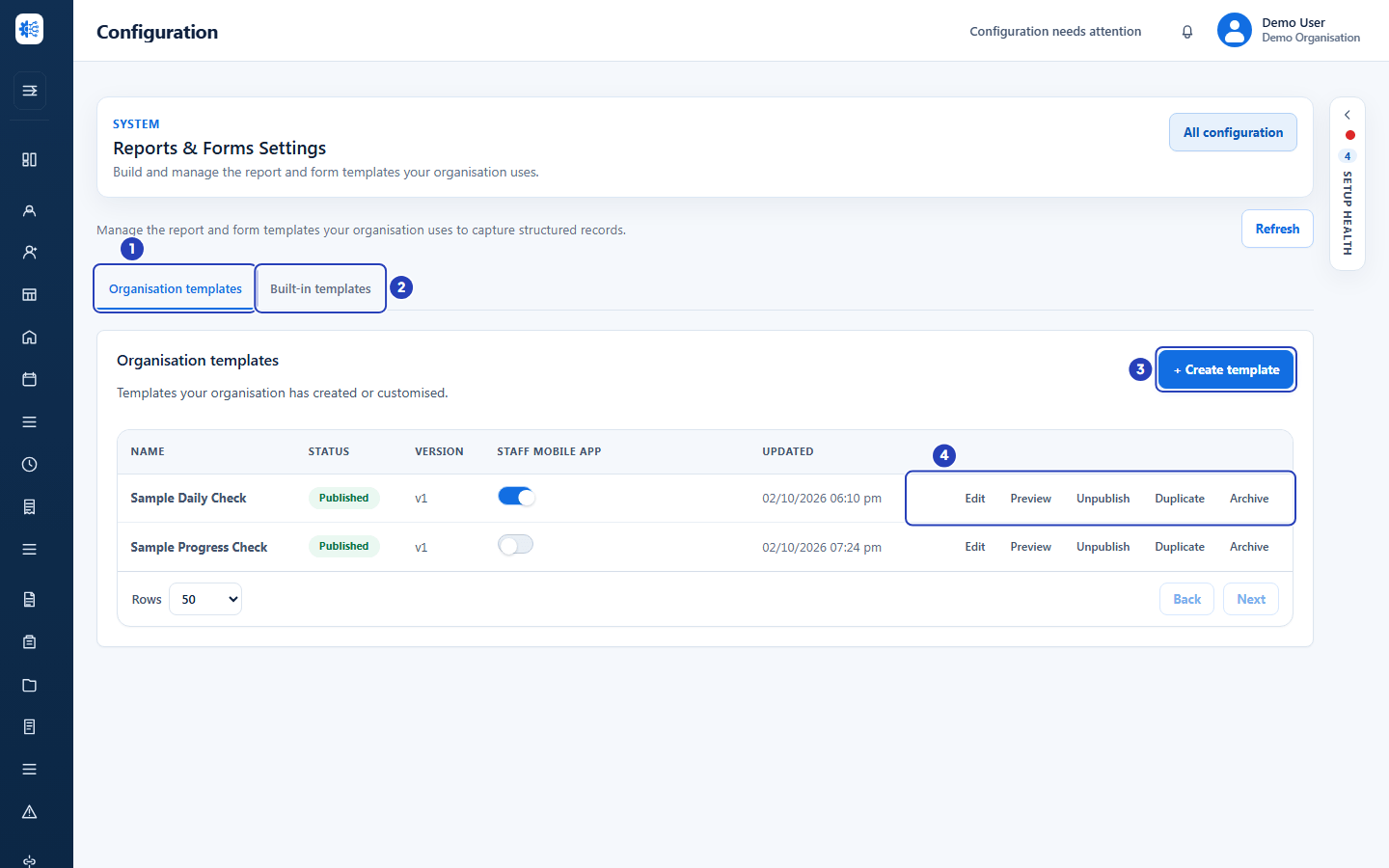
Built-in and organisation templates
The library has two tabs. The Built-in templates tab holds the ready-made BondiByte templates, such as Client progress, Client shift report, Incident report, Progress report and Risk observation. They are the same for every organisation. You can preview a built-in template, or duplicate it to make your own version. You cannot edit one directly.
The Organisation templates tab holds the forms your organisation has created or duplicated. Each row shows the form's Name, its Status (Draft, Published or Archived), its Version, its Staff mobile app switch and when it was last Updated. The buttons on a row depend on its status: a draft can be edited, previewed, duplicated, published, archived or deleted, a published form can be edited, previewed, unpublished, duplicated or archived, and an archived form can be previewed, duplicated, restored or deleted.
Delete is offered on drafts and archived forms only, never on a published form, and it cannot be undone. Reports already made from a deleted form are kept. Edit is not offered on an archived form, so restore it before you edit it. Show archived appears above the list once a form has been archived.
You do not need to duplicate a built-in template to use it. Duplicate one when you want your own version with different questions.
Status and versions
A new form starts as a Draft. A draft is not offered to anyone while you build it. Publish makes it available. Archive hides a form you no longer use, and Restore brings it back.
Publishing a draft that has changes creates a new version. Publishing a form again after Unpublish, without changes, brings the same version back into use. A report made from one of your organisation's forms keeps the version of the form it was completed on, so older reports still read the way they were written, even after the form changes.
A published form can be edited. Your changes to the questions wait as a draft until you choose Publish at the top right of the builder, and the row keeps the status Published meanwhile.
Unpublish takes a published form out of use and returns it to Draft. Delete removes a draft or archived form from the library. Reports already created from it are kept and still display.
The Staff mobile app switch
Every template in the library has a switch in the Staff mobile app column. When a form is published and its switch is on, support workers can choose it in the Staff App when they write a report.
Your own forms, and most built-in forms, are off until you turn the switch on. Client shift report and Incident report are always available in the Staff App, so their switch is on and locked.
The switch applies to your whole organisation. Turning it off only stops the form being offered in the Staff App. It does not delete any reports.
Where reports are completed
Managers and coordinators add reports on the Reports page with Add report. They choose the form, choose the client the report is about, answer the questions and create the report. Support workers complete reports in the Staff App, and what they submit appears in the same Reports list.
A report made from one of your organisation's forms, or from a BondiByte report template used for a client, can be downloaded as a PDF from the menu on its row.
A form in the Incident category belongs to the Incidents area instead of Reports. Charts are a separate area with their own Chart Library in Configuration.
Who can do what
Owners and Admins can see and manage the library by default. A role that can view templates but not manage them can look at the library, while the buttons that change a template are switched off.
Adding, reading and downloading reports uses the permissions for notes, which Owners, Admins, Managers and Coordinators have by default. If your access is limited to certain sites, you only see and report on records within your own sites.
Important notes
Important: Changing one of your organisation's forms never changes reports that were already completed. They keep the version of the form they were completed on.
Good practice
- A good order for a new form is to create it, preview it, publish it, switch it on for the Staff App if staff will use it, then complete a test report.
- Retire a form with Archive or Unpublish rather than Delete. Both can be undone, and delete cannot.