

Who this is for
This guide is written for Owner, Admin, Manager and Coordinator.
Before you begin
- You are signed in to BondiByte on a computer.
- The report has been completed. See Complete a report.
Steps
The screenshots show a demonstration organisation with made-up names. Your own screens show your organisation's details. Select a screenshot to open it full size.
-
Go to Reports > Search reports
1 In the left menu, choose Reports. The Reports page lists the reports your organisation has recorded.
2 Find Search reports at the top of the list.
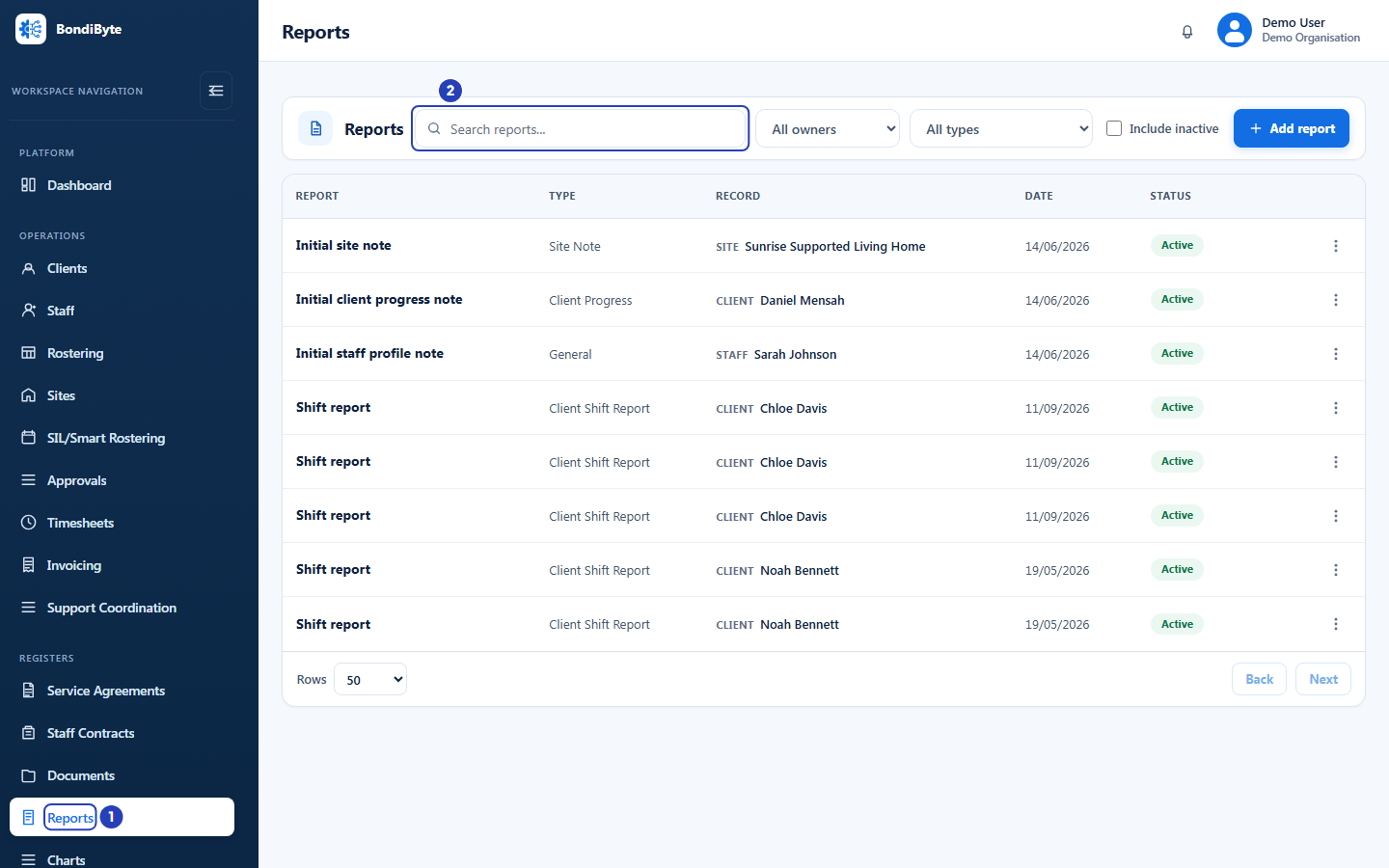
Choose Reports in the left menu (1) and find the Search reports box (2). -
Find the report
1 Type part of the report's title in Search reports. The list narrows as you type. Search finds words in the title and in the answers, and it finds the name of a BondiByte report type.
2 Find the report in the list. The name of the form is under Type, and the client or other record the report is about is under Record.
To narrow the list further, choose a record type in the list that starts on All owners, for example Client, or choose a form in the list that starts on All types.
Tip: Turn on Include inactive to find reports that have been deactivated.
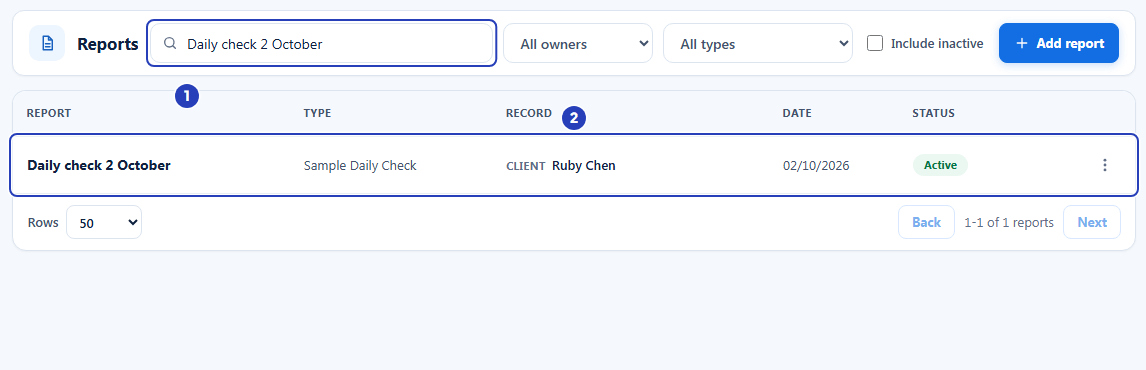
Type part of the title (1) and find the report in the list (2). -
Open the row menu and choose Download PDF
1 At the right end of the report's row, choose the three dots button. A menu opens.
2 Choose Download PDF. The word changes to Downloading... while BondiByte prepares the file.
Note: The menu also has View and, depending on your permissions, Edit and Delete. Download PDF is offered for reports made from your organisation's forms, and for BondiByte report templates used for a client. On this page it is not offered for plain notes, or for staff, site and shift notes. On a staff member's or a site's own Reports tab, every report has a Download PDF button.
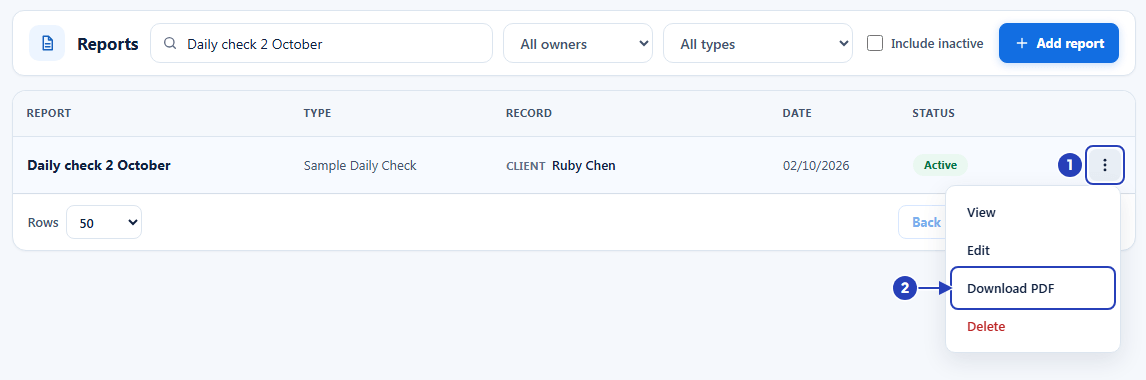
Choose the three dots button on the report's row (1), then Download PDF (2). -
Open the saved PDF
Your browser saves the file, or asks where to save it, depending on your browser settings.
The file name is made from the form name, the client or other record the report is about, and the report date, for example
Sample-Daily-Check_Ruby-Chen_2026-10-02.pdf.Open the file to read it, print it or share it. It has one page for a short report and more pages for a longer one.
Fields in step 4 Field What it means Header Your organisation's name, with your logo when one has been added, then the name of the form and the word Report. Summary Who or what the report is about, the Report date and the date it was Created. When a report is linked to a shift, the report date is the shift's date. The other lines appear only when there is something to show: Related shift (the shift's title, date and site), Completed by (who completed the report, when it is recorded), Status: Deactivated (when the report has been deactivated), and Updated (the date the report was changed after it was created, with the name of who changed it when that is known). Sections and answers Every section of the form, with the answers that were recorded, in the order the form shows them. Attachments When the report can have attachments, a list of the names of the files attached to it, or the words No attachments. Only the names are listed, not the files. Footer The date the PDF was generated, a note that the report is confidential and for authorised use only, and the page number.
What happens next
The PDF is a copy made at the moment you download it. Downloading does not change the report.
If the report is edited later, download the PDF again to get the new version of the report.
A report made from one of your organisation's forms keeps the version of the form it was completed on. Its PDF shows the questions of that version, even if the form has been changed and published again since. A report made from a BondiByte report template shows that template's current questions.
Important notes
Important: The PDF contains the information recorded in the report, which may be personal or sensitive. Store and share it in line with your organisation's privacy rules.
Tip: To read a report without downloading it, choose its title in the Reports list. The report opens in a panel beside the list.
Good practice
- Download the PDF when the report is final. The PDF is made at the moment you download it, so a later edit is not in a file you saved earlier. After any edit, download the report again and replace the old file.
- Check the client's name and the report date in the file name before you share or file the PDF. Keep it with your secure records, not in personal email or chat, because the footer marks it confidential and for authorised use only.
- Keep the day-to-day list tidy and turn on Include inactive only when you need to find a deactivated report.
Troubleshooting
The row menu does not have a Download PDF option.
Why it happens: The report is a plain note, or a staff, site or shift note, rather than a report made from a form. A PDF is offered for reports made from your organisation's forms, and for BondiByte report templates used for a client.
What to do: Use View to read the note. For a staff or site note, open that staff member's or site's record, choose its Reports tab and choose Download PDF on the report. Otherwise, to get a PDF, record the information again with one of your organisation's forms, or with a BondiByte template for a client. See Complete a report.
I chose Download PDF but no file appeared.
Why it happens: Your browser may have blocked the download, or saved it somewhere you did not expect.
What to do: Check your browser's downloads list and its settings for downloads from this site. Then choose Download PDF again.
A red message appears instead of a download.
Why it happens: The report could not be prepared, for example because your connection dropped, your sign-in has expired, or the report is outside the sites you can see.
What to do: Refresh the Reports page and try again. If the message comes back, ask an Owner or Admin to check your access.
The PDF shows older questions than the form has now.
Why it happens: A report made from one of your organisation's forms keeps the version of the form it was completed on, so its PDF shows that version.
What to do: Nothing needs fixing. Reports completed after the form was published again use the newer version.
I cannot find the report in the list.
Why it happens: It may be deactivated, filtered out by the lists that start on All owners and All types, or linked to a record outside your sites.
What to do: Set both lists back to All owners and All types, turn on Include inactive and search for part of the report's title.