

Who this is for
This guide is written for Owner, Admin, Manager and Coordinator.
Before you begin
- You are signed in to BondiByte on a computer.
- The client has at least one Chart assigned to them. See Assign a Chart to a client.
- Staff have recorded entries on the Staff App. Entries are recorded by staff when they write a report for a shift, so the history grows as staff work.
Steps
The screenshots show a demonstration organisation with made-up names. Your own screens show your organisation's details. Select a screenshot to open it full size.
-
Go to Clients > the client's record
1 In the left menu, choose Clients. The Client Records list opens.
2 Choose the name of the client whose Charts you want to look at. Their record opens.
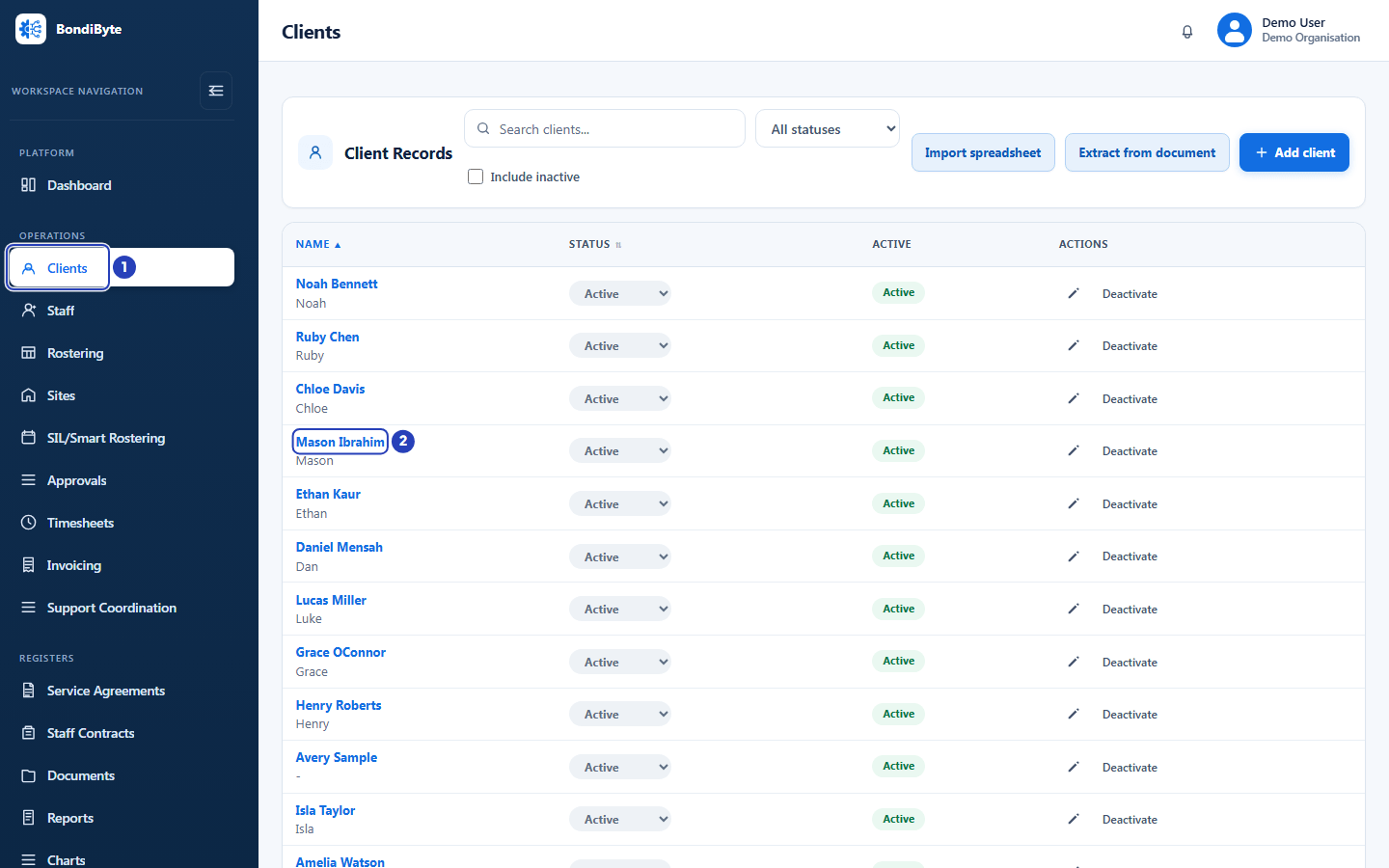
Choose Clients in the left menu (1), then the client's name (2). -
Open the Charts tab
1 On the client's record, choose the Charts tab.
The tab has two sections. Client Chart setup lists the Charts assigned to this client, with their Status and Effective from date. Chart entries, further down, lists every entry recorded against those Charts. This guide is about Chart entries.
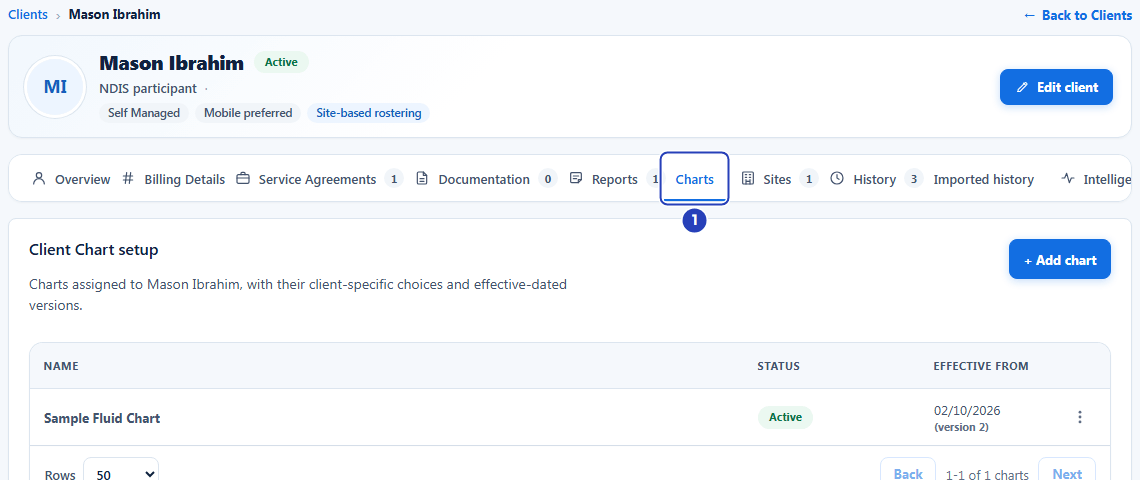
Choose the Charts tab (1). Chart entries is the section further down. -
Choose the Chart and the period
Scroll down to Chart entries. Two filters sit above the table.
1 In Chart, choose All charts to see the entries of every Chart, or choose one Chart by name to see only its entries.
2 In Range, choose how far back to look. The list is Last 7 days, Last 30 days, Last 90 days and Custom.
3 If you chose Custom, a From field appears. Choose the first day you want to see.
4 A To field also appears. Choose the last day you want to see.
The table updates as soon as you change a filter, and returns to its first page.
Fields in step 3 Field What it means Chart A list that starts on All charts. It then lists each Chart assigned to this client by the name shown in Client Chart setup, including a Chart that is Inactive, so you can still read its history. Choosing a Chart shows only that Chart's entries. Range A list that starts on Last 30 days. Last 7 days, Last 30 days and Last 90 days count back from today and include today. Custom shows two date fields so you can pick your own period, for example the weeks before a review. From Appears only when Range is Custom. The first day of the period. It starts 30 days before today. It cannot be later than the To date. To Appears only when Range is Custom. The last day of the period, included. It starts on today's date. It cannot be earlier than the From date. 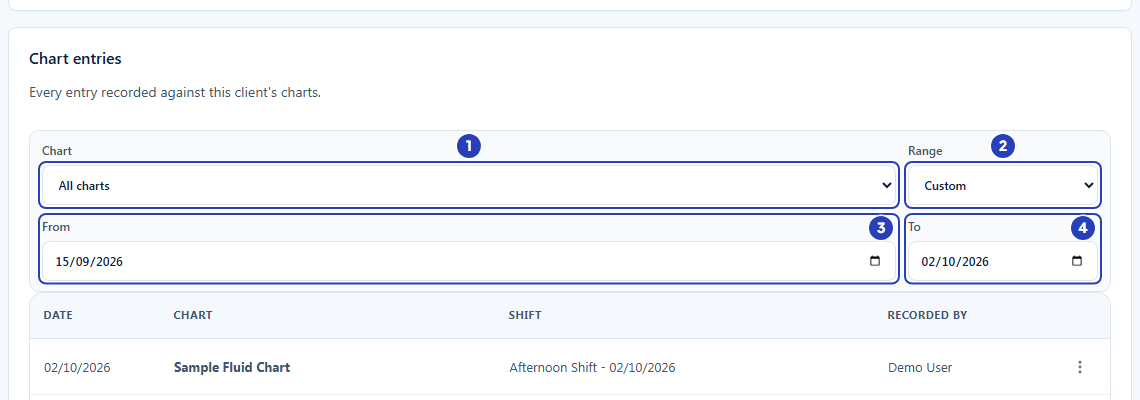
Choose the Chart (1) and the range (2). With Custom, choose the first day (3) and the last day (4). -
Read the Chart entries table
Choose Last 30 days again in Range if you want to follow the next steps on the same screen. The table lists the entries, newest first.
1 Read each row from left to right, under the headings Date, Chart, Shift and Recorded by.
2 Check the line under the table. It says which entries you are looking at, for example 1-4 of 4 chart entries. Use Back and Next to move between pages.
Fields in step 4 Field What it means Date The day the entry was recorded. Chart The name of the Chart the entry belongs to, as shown in Client Chart setup. Shift The shift the entry was recorded against, shown as the shift's name and date, for example Afternoon Shift - 02/10/2026. It says No shift when the entry is not linked to a shift. Recorded by The name of the person who recorded the entry. Actions (three dots) Opens the menu for that entry. View is always there. Edit and Deactivate are offered only to people who can manage chart entries. Rows How many entries each page can hold. Choose 50, 100 or 200 from the list. Back and Next Move to the previous or the next page when there are more entries than fit on one page. Back is greyed out on the first page and Next on the last page. Note: The table lists active entries only. An entry that has been deactivated no longer appears, and it is not counted in the line under the table.
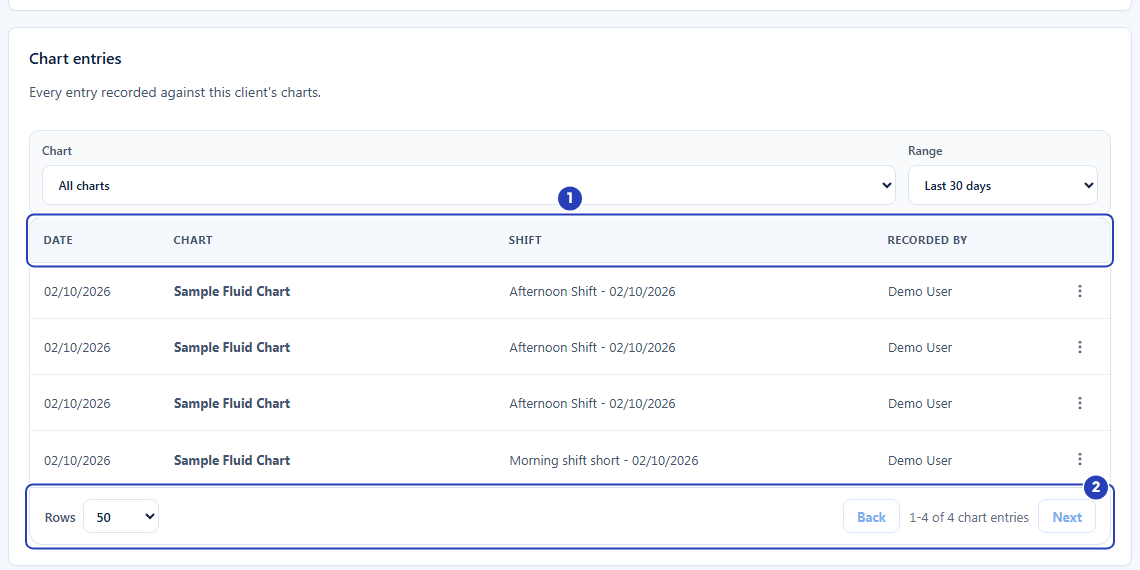
Read each row under its headings (1), then check the count and page buttons under the table (2). -
Open an entry
1 On the row of the entry you want to read, choose the actions button (three dots).
2 Choose View. The entry opens in a window on the right of the screen.
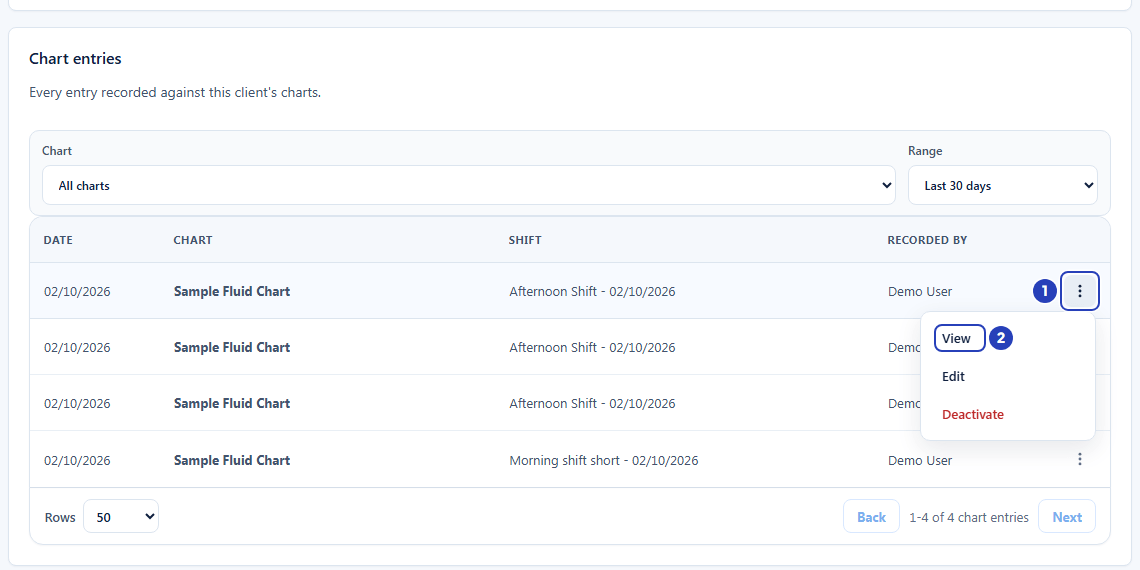
Choose the actions button on the entry's row (1), then View (2). -
Read the entry
The window is headed with the Chart's name.
1 Read the line under the heading. It gives the date and time the entry was recorded and who recorded it, for example 02/10/2026 07:37 pm - Recorded by the person's name.
2 Read the answers. Each question from the Chart is listed with the answer that was recorded. A question that was not answered shows a dash.
Choose Close, or the cross at the top right of the window, when you have finished. The table behind it is unchanged.
Fields in step 6 Field What it means Answers Shown in the order of the Chart. A choice shows the option's name, a Yes or No question shows Yes or No, a date shows the day, and a table question lists its rows. The window shows the entry as it was recorded, using the questions and options the Chart had at that time, even if the Chart has been changed since. 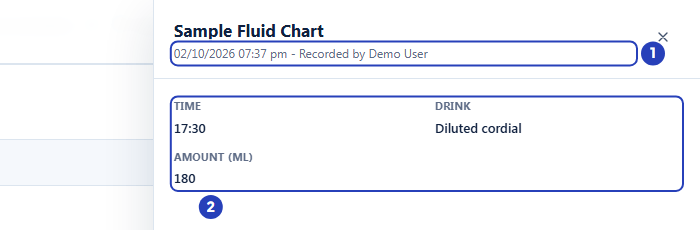
The line that says when the entry was recorded and by whom (1), and the answers (2).
What happens next
Looking at the history changes nothing. Use View as often as you like.
To correct an answer that was recorded wrongly, or to remove an entry that should not be there, see View and correct Chart entries.
To keep a copy of a period's entries as a document, see Export a Chart as PDF.
To look across all your clients at once, choose Charts under Registers in the left menu. It lists entries for every client you can see and has the same Range list, with Client and Chart lists to narrow it down. The menu item is shown to people whose role includes Can view chart entries.
Important notes
Important: A client's history belongs to that client's own Charts only. An entry is never shared between clients, and a Chart assigned to one client does not show anything for another client.
Good practice
- Use Custom to match the period you are reviewing, for example the weeks since the last review meeting, instead of reading the default 30 days and scrolling.
- When a client has several Charts, choose one in Chart before you read the table. Entries from different Charts then never get mixed up when you check a pattern, such as drinks over a week.
- Look at the Shift column when something needs checking. It tells you which shift the entry belongs to, so you can ask the right team member or look at that shift on the roster.
- If the table looks short, check the Range list before anything else. The default is only the last 30 days, and entries from earlier are not listed until you choose Last 90 days or Custom.
Troubleshooting
The table says No entries in this range.
Why it happens: No entry was recorded in the period you chose, or the Chart filter is set to a Chart that has no entries in that period. Entries that were deactivated are not listed.
What to do: Choose Last 90 days or Custom and widen the dates, and set Chart to All charts. If staff say they have recorded entries, check that the Chart is Active in Client Chart setup, because staff can only record on an Active Chart.
The Charts tab says You do not have permission to view this client's charts.
Why it happens: Your role does not include permission to view client charts.
What to do: Ask an Owner or Admin to check your role.
I cannot find a client that a colleague can see.
Why it happens: A manager whose access is limited to certain sites sees only the clients at their own sites.
What to do: Ask an Owner or Admin to check which sites you manage, or to look at the history for you.
I cannot see Charts in the left menu under Registers.
Why it happens: The menu item is shown only to people whose role includes Can view chart entries.
What to do: Ask an Owner or Admin to check your role. The Chart entries table on a client's Charts tab needs the same permission, so it will not list entries for you either.
An entry I expected is not in the list.
Why it happens: It may be in another Chart, outside the period, or it may have been deactivated. An entry is also listed only for the client it was recorded for.
What to do: Set Chart to All charts, widen the Range, and check that you have the right client open.