

Who this is for
This guide is written for Owner and Admin.
Two ways to give a field its choices
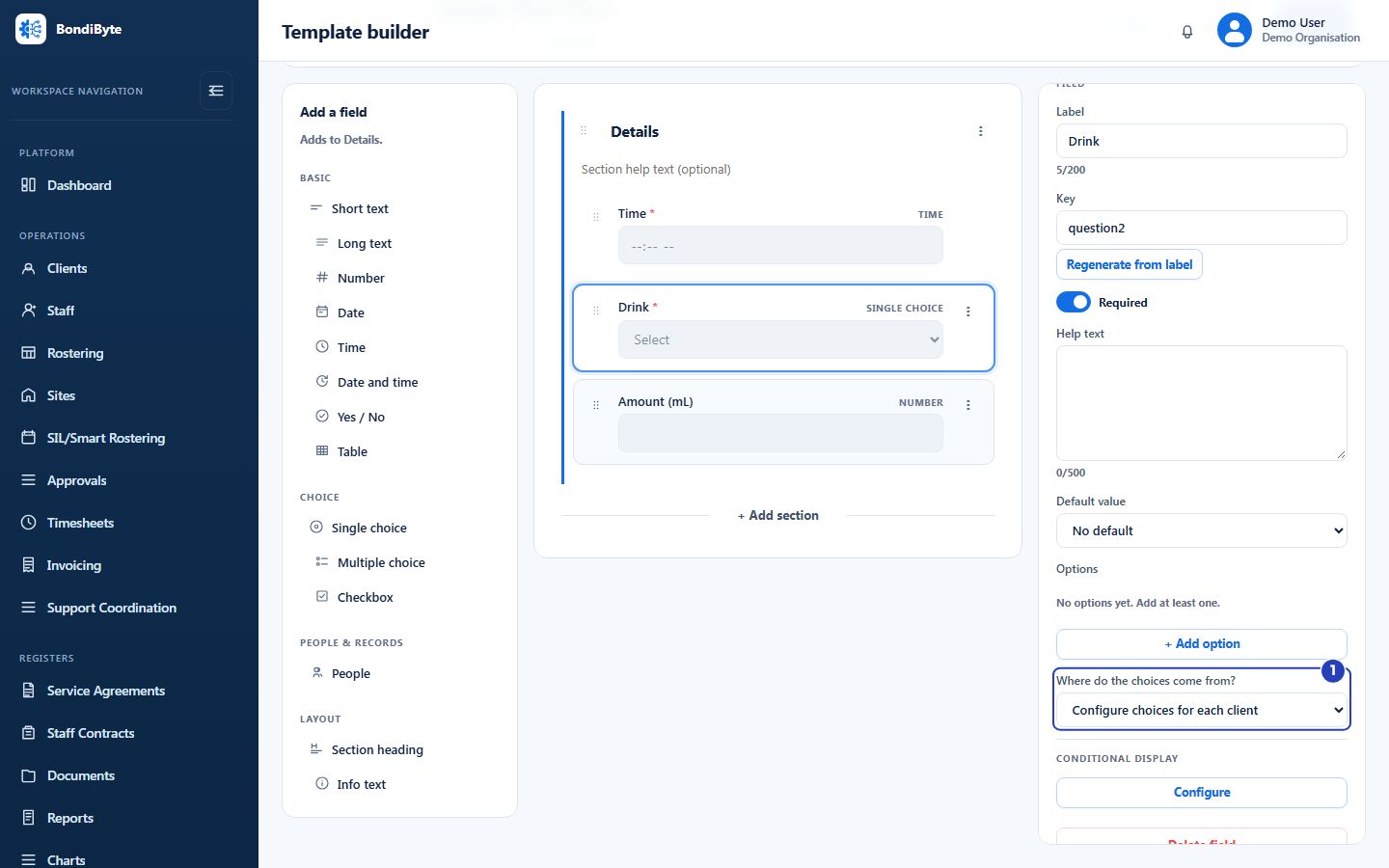
Single choice and Multiple choice fields in a Chart template let people pick from a list. When you build a Chart template, each of these fields asks Where do the choices come from? There are two answers.
Same choices for everyone is the default. You type the options into the template, and every client given that Chart sees the same list.
Configure choices for each client leaves the list empty in the template. Each client's own Chart gets its own list, which you type when you assign the Chart.
This question appears only in Chart templates. Report and form templates always use the same choices for everyone.
Same choices for everyone
Use this when the list does not depend on the client. Examples are the five built-in amounts in Food & Fluid, such as All, Most, Half, Some and None, or an outcome list.
You type the options in the field settings of the template builder, using + Add option. The template needs at least one option before it can be published.
Changing the list means editing the template and publishing it again, which creates a new version. Entries already recorded keep the version they were recorded on.
Configure choices for each client
Use this when each client needs a different list, for example the drinks a client prefers, or the medications and doses your organisation records for that client. The built-in Medication Administration template uses this for its medication or dose field.
The template can be published with an empty list for such a field. BondiByte does not ask for options at that point.
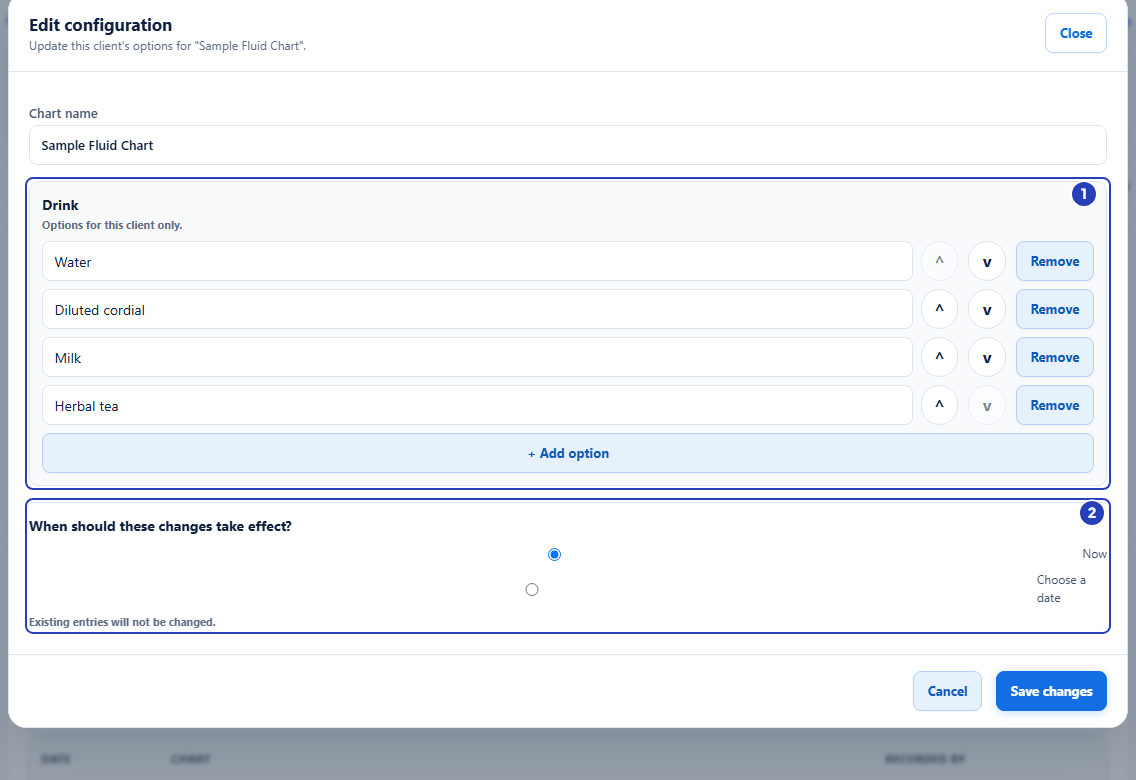
When you assign the Chart to a client, the Configure chart for this client window shows one block for each of these fields, with the note Options for this client only. Add at least one option for each before you activate the Chart. Another client given the same template starts with an empty list and sets their own.
On the Staff App, the form for that client shows that client's list.
Changing a client's options later
On the client's Charts tab, choose Edit configuration in the Chart's actions menu. The same option lists open, filled in with the current options.
Choose when the changes take effect: Now, or Choose a date for a date in the future. BondiByte then saves a new version of the client's Chart. Existing entries are not changed.
An active Chart must keep at least one option in each client-specific list.
Where to set each one
To choose where a field's choices come from, open the template in the template builder, select the field, and use Where do the choices come from? in the field settings. Table columns that are choices have the same setting.
To type a client's own options, use the Configure chart for this client window when you assign the Chart, or Edit configuration afterwards.
Choosing where a field's choices come from needs permission to manage chart templates. Typing a client's own options needs permission to manage that client's charts and to view chart templates. Owners and Admins have these by default.
See also:
Important notes
Important: Client-specific options belong to that client's Chart, not to the template. Changing one client's list never changes another client's list or the template.
Tip: If you are unsure which to choose, use Same choices for everyone when the list is the same for every client, and Configure choices for each client when the list differs from client to client.
Good practice
- Use Configure choices for each client only for lists that really differ between clients. Each client then needs their own options added before their Chart can be activated.
- Use Same choices for everyone when the list is the same for every client, so there is one list to keep up to date.
- When a client's routine changes, add the new option and remove the old one rather than renaming it to mean something different. Entries already recorded keep the old name.