

Who this is for
This guide is written for Support Worker.
Before you begin
- Your organisation has set up the Chart for the client you are recording for. An Owner or Admin publishes the Chart template, turns on its Staff mobile app switch in Configuration > Chart Library, assigns it to the client and activates it. See Assign a Chart to a client. If you cannot see the Chart, see Why a Chart shows for one client only.
- You are signed in to the Staff App. See Sign in to the Staff App.
- You are assigned to the shift, and the shift is dated today or earlier. A shift appears in the app once you are assigned to it, or, in SIL/Smart Rostering, once your organisation has published its roster. See View your shifts.
Steps
The screenshots show a demonstration organisation with made-up names. Your own screens show your organisation's details. Select a screenshot to open it full size.
-
Open Shifts > your shift > Write report
In the menu at the bottom of the screen, tap Shifts. Shifts that are happening today are listed under Today in Upcoming. Finished shifts are in Past.
Tap the shift you are working.
1 Scroll down to Reports and tap Write report. The Write report screen opens. You record a Chart from this screen, with reports.
Tip: You can also start from More > Reports > Write a report, which lists your recent shifts, or from Reports to do on the Today screen.
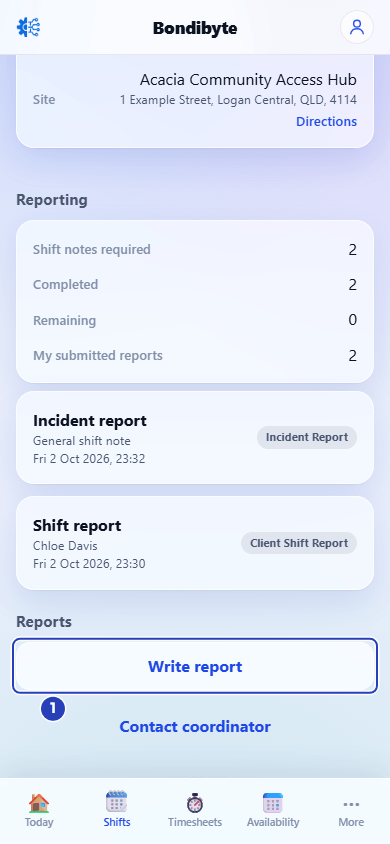
On the shift, scroll to Reports and tap Write report (1). -
Choose the client and the Chart
1 In Client, choose the client the Chart is for. A Chart belongs to one client, so choose the client first.
2 Open What are you recording? and choose the Chart under Charts. The Chart opens below, with its name as the heading.
Note: Charts appears in the list only when a Chart has been set up and switched on for this client. If it is not there, see Why a Chart shows for one client only.
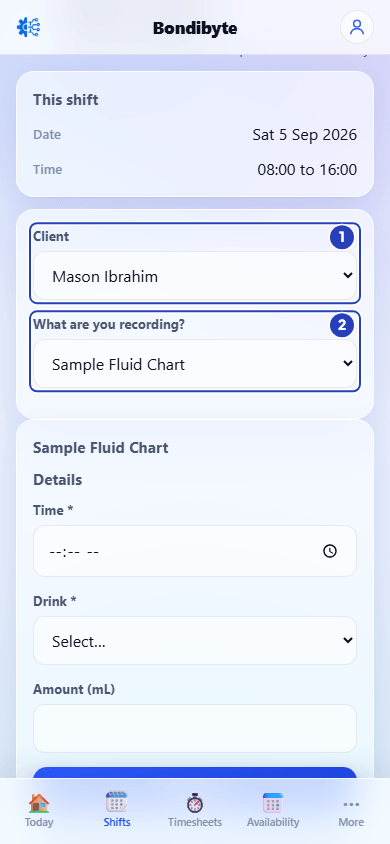
Choose the client (1), then the Chart under Charts (2). The Chart opens below. -
Answer the questions
The questions come from your organisation's Chart, so yours may be different from the picture. A star (*) after a name means the box is required. For a choice, open the list and choose an answer. For a time or date, tap the box and choose it.
The picture shows a food and fluid example.
1 In Time, choose the time the entry is for.
2 In Drink, choose the drink from the list.
3 In Amount (mL), type the amount as a number.
Fields in step 3 Field What it means Text boxes Type your answer. A longer box takes more words. Number boxes Type a number only, for example 200. Date, Time and Date and time Tap the box and choose the date or time. Yes or No Open the list and choose Yes or No. Choice lists and tick boxes Open the list and choose one answer, or tick every answer that applies. The answers shown are the ones your organisation chose for this client. A person Open the list and choose the client or yourself, as the question asks. Tables Tap + Add another row to add a row of answers. Each row is called Row 1, Row 2 and so on. Tap Remove row to take a row out. Until you add one it says No rows yet. Note: If a required box is empty when you submit, a message names it, for example Time is required.
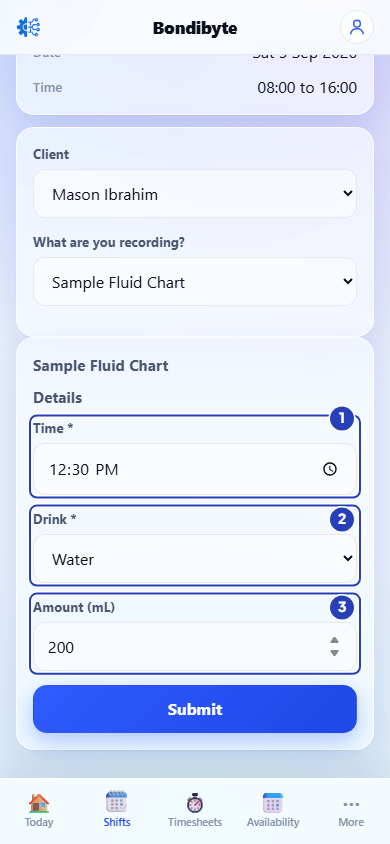
Fill in the Time (1), choose the Drink (2) and type the Amount (3). A star means the box is required. -
Tap Submit
Check the client at the top and your answers.
1 Tap Submit at the bottom of the Chart.
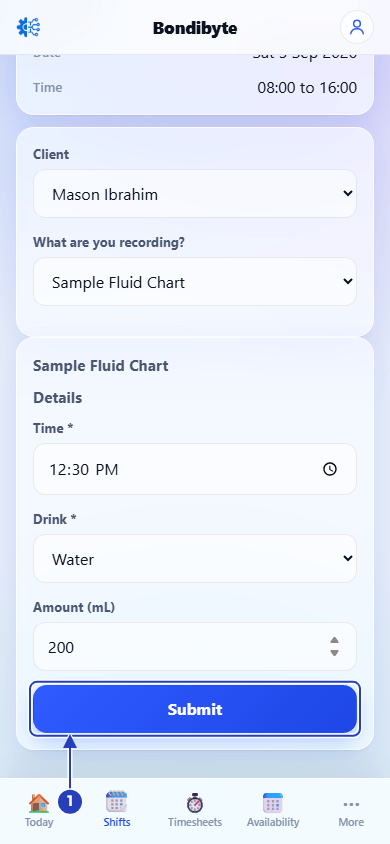
Check your answers, then tap Submit (1). -
Check that the entry was submitted
A message says Chart entry submitted. and the app returns to the shift.
A Chart entry is not counted under Reporting and is not listed in My submitted reports. Your coordinator can see it on the client's Charts tab in BondiByte.
1 To record another entry, for example at the next drink, scroll down to Reports, tap Write report again and repeat the steps.
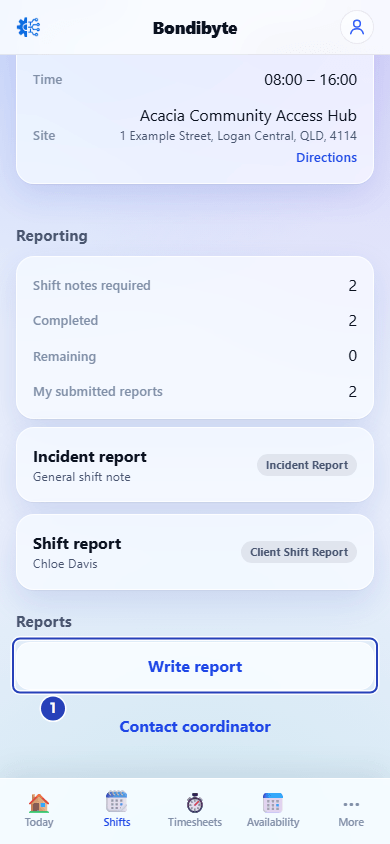
You are back on the shift. Tap Write report (1) to record another entry.
What happens next
The entry is saved for the client, with your name and the time you submitted it. Your organisation's office team can see it on the client's Charts tab in BondiByte. See Complete Chart entries.
Each time you submit, a new entry is saved. Record one entry each time the Chart asks for it, for example each drink or each check.
If your organisation changes the Chart while you are filling it in, a message says This chart has changed. Reload and try again. The Chart closes. Choose it again in What are you recording? and enter your answers again.
Important notes
Important: A Chart is available only for the client it was set up for. If you choose a different client, the Chart is cleared and you must choose again.
Note: Charts and reports are different. Shift report and Incident report are always available. A Chart appears only when your organisation has set it up for the client.
Tip: You can record a Chart and write a Shift Report on the same shift. Each time, choose the client first, then choose what you are recording. A Chart entry does not replace your Shift Report.
Good practice
- Record each entry as soon as it happens, and use the Time question if the Chart has one, so the entry shows when it really happened.
- Check the client's name before you submit. An entry cannot be moved to another client from the Staff App.
- Type numbers without units. If the question says Amount (mL), type 200, not 200 mL.
Troubleshooting
There is no Charts heading in What are you recording?.
Why it happens: No Chart has been set up and switched on for the client you chose, or the client is not the one you meant.
What to do: Check the name in Client. If it is right, tell your coordinator. See Why a Chart shows for one client only.
What are you recording? says Choose a client first.
Why it happens: A Chart belongs to one client, so the list stays empty until you choose one.
What to do: Choose the client in Client. See Choose the client first when recording.
A message says That chart is not set up for this client. Choose again.
Why it happens: You changed the client after choosing a Chart. The Chart belongs to the first client.
What to do: Choose the right client, then choose the Chart again in What are you recording?.
A message names a box, for example Time is required.
Why it happens: A required box (marked with a star) is empty.
What to do: Fill in that box, then tap Submit again.
A message says This chart has changed. Reload and try again.
Why it happens: Your organisation changed the Chart while you were filling it in.
What to do: Choose the Chart again in What are you recording? and enter your answers again.
A message says This chart is not active for this client.
Why it happens: Your organisation switched the Chart off for this client while you were filling it in.
What to do: Tell your coordinator. You can write what happened in a Shift Report in the meantime. See Record a Shift Report.
A message says Chart entries can only be added for shifts dated today or in the past.
Why it happens: The shift is dated in the future.
What to do: Open the shift again once its date has arrived.
A message says That chart is not available in your staff portal.
Why it happens: The Chart is no longer available for this client or this shift.
What to do: Go back, choose the client again and check the list. If the Chart is gone, tell your coordinator.