

Who this is for
This guide is written for Support Worker.
Before you begin
- You are signed in to the Staff App. See Sign in to the Staff App.
- You are assigned to the shift, and the shift is dated today or earlier. A shift appears in the app once you are assigned to it, or, in SIL/Smart Rostering, once your organisation has published its roster. See View your shifts.
- Everyone involved is safe. In an emergency, call 000 first and write the report afterwards.
Steps
The screenshots show a demonstration organisation with made-up names. Your own screens show your organisation's details. Select a screenshot to open it full size.
-
Open Shifts > your shift > Write report
In the menu at the bottom of the screen, tap Shifts. Shifts that are happening today are listed under Today in Upcoming. Finished shifts are in Past.
Tap the shift the incident happened on.
1 Scroll down to Reports and tap Write report. The Write report screen opens.
Tip: You can also start from More > Reports > Write a report, which lists your recent shifts, or from Reports to do on the Today screen.
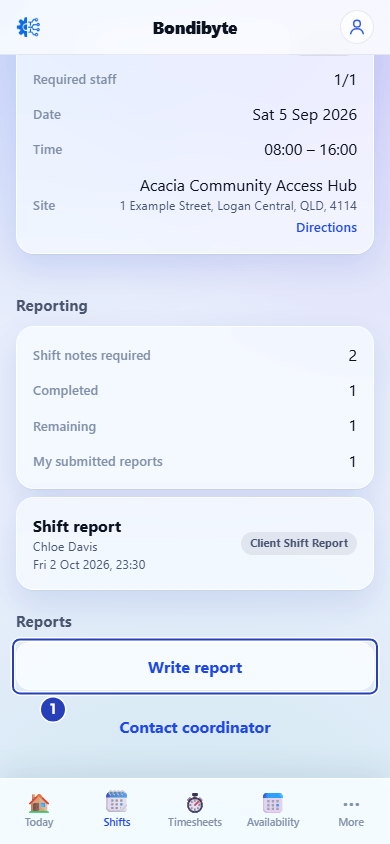
On the shift, scroll to Reports and tap Write report (1). -
Choose the client and Incident report
1 In Client, choose a client from the shift. If the shift has only one client, the name is already chosen.
2 Open What are you recording? and choose Incident report. It is listed under Reports. The form opens below.
Note: The list stays empty and says Choose a client first. until you choose a client. See Choose the client first when recording.
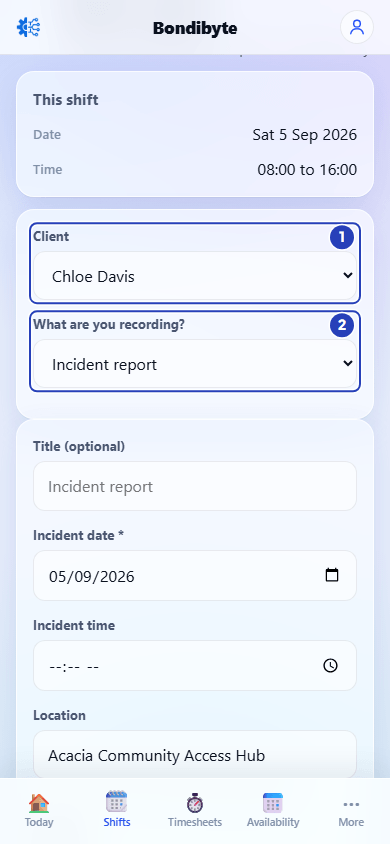
Choose the client (1), then Incident report (2). -
Say what happened
1 Check Incident date. It starts as the date of the shift. Change it if the incident was on another day. This is required.
Add the Incident time if you know it. Location shows the site of the shift and cannot be changed.
2 Choose the Severity. It starts as Low. This is required.
3 Choose the Incident category that fits best. This is required.
4 In What happened, describe the incident in your own words. Say who was involved, including the client's name if they were. This is required.
In Immediate response, say what you did straight away. Use Injury / harm sustained for any injury or harm, to anyone.
Fields in step 3 Field What it means Title (optional) A short name for the report. If you leave it empty, the report is called Incident report. Incident date * Required. It starts as the date of the shift. Incident time Optional. The time the incident happened. Location The site of the shift. The screen says Location comes from the selected assigned shift. Severity * Required. Choose Low, Medium, High or Critical. It starts as Low. Incident category * Required. Choose Injury, Behaviour, Medication, Missing person / absence, Property damage, Restrictive practice concern, Safeguarding concern or Other. What happened * Required. What happened, in plain words. Immediate response Optional. What you did straight away. Injury / harm sustained Optional. Any injury or harm, to anyone. Important: Write facts only, such as what you saw, heard and did. Do not guess why it happened.
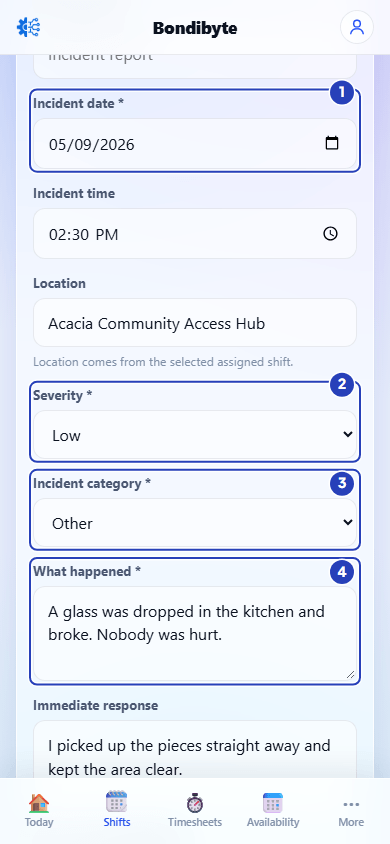
Check the date (1), choose the severity (2) and the category (3), then describe what happened (4). -
Say who was told and what should happen next
1 Emergency services involved starts as No. Choose Yes if they were called.
2 Family/guardian notified starts as No. Choose Yes once someone has told them.
3 Manager notified starts as No. Choose Yes once you have told your manager.
4 Choose Reportable incident. It starts as Unsure. Choose Yes or No only if you know. Otherwise leave Unsure and tell your coordinator.
5 In Follow-up action required, say what still needs to be done, if anything.
In Preventive action / recommendation, say what could stop it happening again.
Fields in step 4 Field What it means Emergency services involved Choose No or Yes. Family/guardian notified Choose No or Yes. It records whether someone has told them. Manager notified Choose No or Yes. It records whether you have told your manager. Choosing Yes is not the same as telling them, so contact them yourself. Reportable incident Choose Unsure, No or Yes. Follow-up action required Optional. Anything that still needs to be done. Preventive action / recommendation Optional. Your suggestion to stop it happening again. Warning: Submitting the report is not the same as telling someone. If someone needs help, or your manager needs to know now, contact them straight away. You can use Contact coordinator on the shift.
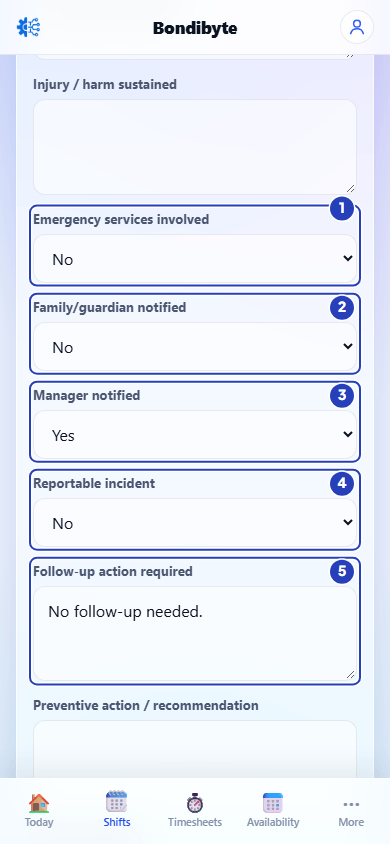
Answer who was told (1 to 3), choose Reportable incident (4) and say what follow-up is needed (5). -
Add photos if you need to, then tap Submit report
1 If a photo helps, tap Photos (optional) and choose images from your phone. Each photo is listed with a Remove link in case you chose the wrong one.
2 Check what you wrote, then tap Submit report.
The report is saved. A message says Report submitted. and the app returns to the shift. If you added photos, the message also says how many were attached.
Fields in step 5 Field What it means Photos (optional) Images only (JPG, PNG, GIF or WEBP), up to 25 MB each. The photos are uploaded when you submit the report. 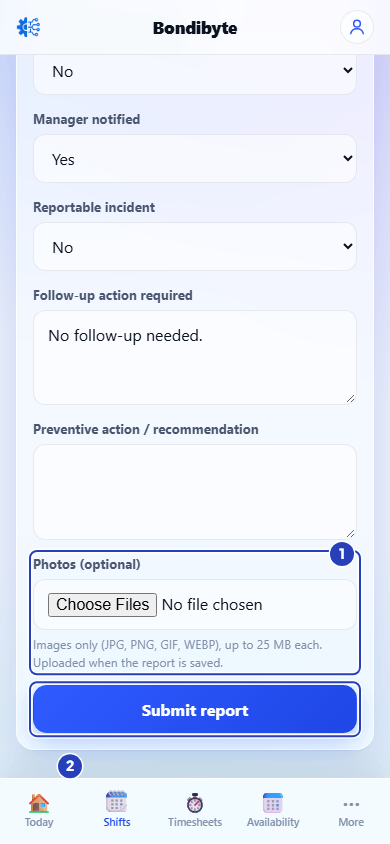
Add photos if you need to (1), then tap Submit report (2). -
Check that your report was saved
On the shift, scroll to Reporting.
1 My submitted reports shows a higher number.
2 Your incident is listed underneath, with its title and a label for the type of report.
To read it later, tap More, then Reports, then tap the report. Tap Edit report to change it.
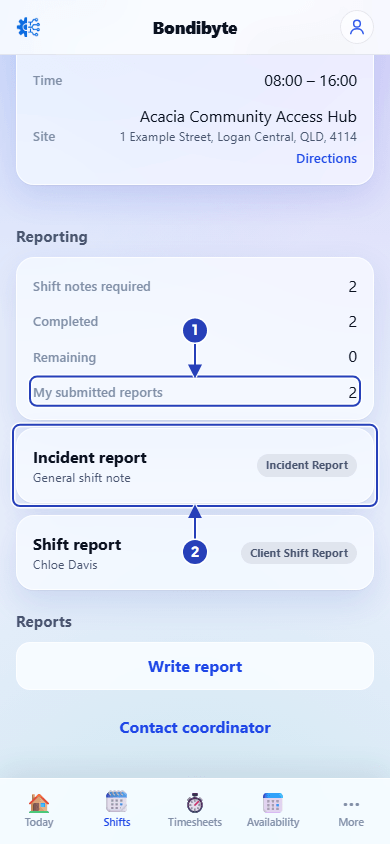
My submitted reports (1) goes up and the Incident Report is listed (2).
What happens next
Your Incident Report is saved against the shift. Your organisation's office team can read it in BondiByte, in their list of reports.
It is a report. A manager decides whether to record it on the organisation's Incidents register. See The incident workflow.
If a second incident happens on the same shift, write another Incident Report. On a shift with no client, the form opens your existing report, so add it there.
Important notes
Important: An Incident Report is always available. It does not need to be switched on by your organisation. It is the only report you can write on a shift that has no client.
Warning: Writing an Incident Report does not replace telling your coordinator. If someone is hurt, or you think the incident is serious, contact your coordinator or manager straight away.
Good practice
- Make sure everyone is safe first. Write the report when you can, on the same day, while you remember the details.
- Be specific. Say where, when and who was there, and what you saw and did. Leave out opinions.
- Name the client in What happened if the incident involved them. The report is saved against the shift, so the client's name should be in your words.
Troubleshooting
Incident report is not in the What are you recording? list, and the list says Choose a client first.
Why it happens: The list stays empty until you choose a client.
What to do: Choose a client in Client. See Choose the client first when recording.
There is no Client box, and Incident report is the only choice.
Why it happens: The shift has no client linked to it. Only an Incident Report can be written on a shift like that.
What to do: Choose Incident report and write the report. Tell your coordinator that the shift has no client.
Write report is missing, or a message says Reports can only be added for shifts dated today or in the past.
Why it happens: The shift is dated in the future, or it was cancelled.
What to do: Open the shift again once its date has arrived. If you need to report something now, tell your coordinator.
A message says Incident date is required., Severity is required., Incident category is required. or What happened is required.
Why it happens: A required box is empty.
What to do: Fill in the box named in the message, then tap Submit report again.
I cannot change Location.
Why it happens: The location is the site of the shift you chose, so the box is locked.
What to do: Describe the exact place in What happened, for example the room.
A photo is missing from the report.
Why it happens: The photo was not an image, or it was over 25 MB. A message names the file that was skipped.
What to do: Choose a JPG, PNG, GIF or WEBP image under 25 MB. If the report is already saved, open it from More > Reports, tap Edit report, add the photo and tap Update report.
I need to correct something in a report I already submitted.
Why it happens: A submitted report can be edited by the person who wrote it.
What to do: Tap More, then Reports, then the report, then Edit report. Change the text and tap Update report.