

Who this is for
This guide is written for Support Worker.
Before you begin
- You are signed in to the Staff App. See Sign in to the Staff App.
- You are assigned to a shift dated today or earlier. See View your shifts.
Steps
The screenshots show a demonstration organisation with made-up names. Your own screens show your organisation's details. Select a screenshot to open it full size.
-
Open Shifts > your shift > Write report
In the menu at the bottom of the screen, tap Shifts, then tap the shift. Finished shifts are in Past.
Scroll down to Reports and tap Write report. The Write report screen opens.
1 Look at the Client box below the This shift box. It says Choose a client….
2 What are you recording? says Choose a client first. Nothing can be recorded until you choose a client.
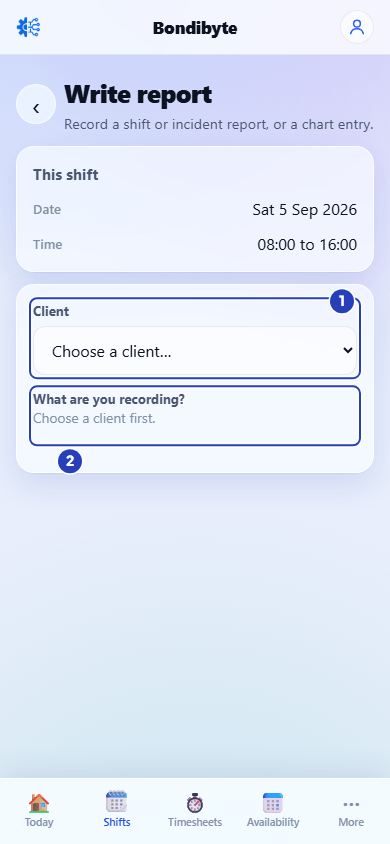
The Client box (1) says Choose a client. What are you recording says Choose a client first (2). -
Choose the client
1 Tap Client and choose the client you are recording for. The list shows only the clients linked to this shift. A shared house or a community activity can have more than one.
2 What are you recording? now shows a list for that client.
Tip: If the shift has only one client, the name is already chosen. Check that it is the right person.
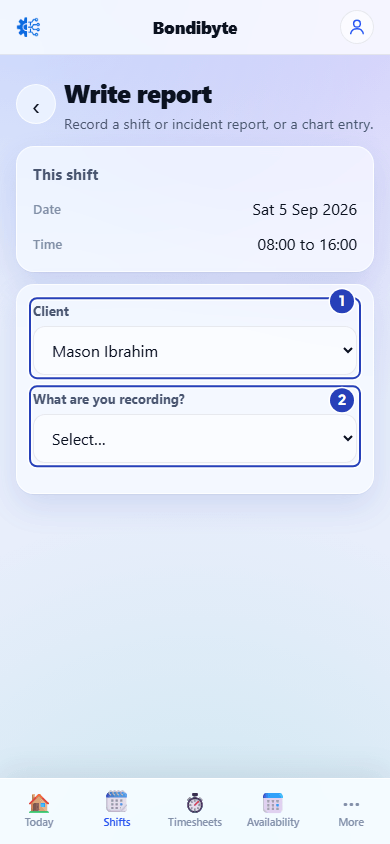
Choose the client (1). What are you recording (2) is now ready. -
Choose what you are recording
1 Tap What are you recording?. Under Reports, choose Shift report or Incident report. Any form your organisation has switched on for the Staff App is listed there too. Under Charts, choose a Chart. This heading appears only when a Chart has been set up for this client. Another client on the same shift may have different Charts, or none.
2 The form opens below. See Record a Shift Report, Record an Incident or Record a Chart.
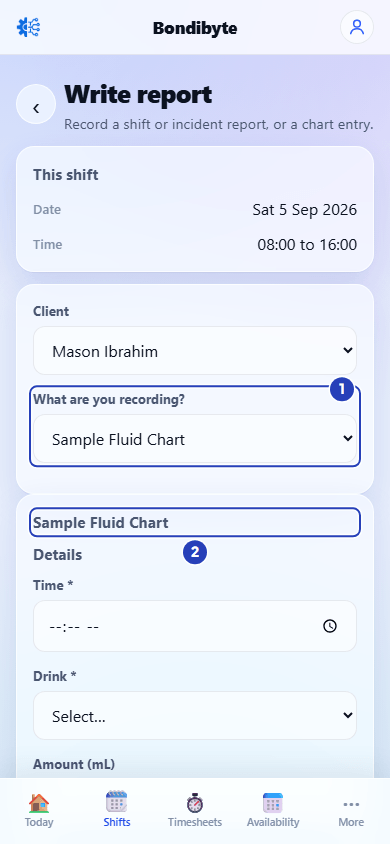
Choose what you are recording (1). A Chart's form opens below (2). -
Change the client if you chose the wrong one
1 Tap Client and choose the right name.
2 If you had chosen a Chart, it is cleared. A red message says That chart is not set up for this client. Choose again. and What are you recording? goes back to Select…. Choose the Chart again.
If you had chosen Shift report or Incident report, the form starts again for the new client and what you typed is cleared. If you already wrote a Shift Report for the new client on this shift, the form opens that report for editing. A form from your organisation stays open for the new client.
Warning: Change the client before you start typing, because Shift report and Incident report start again when the client changes.
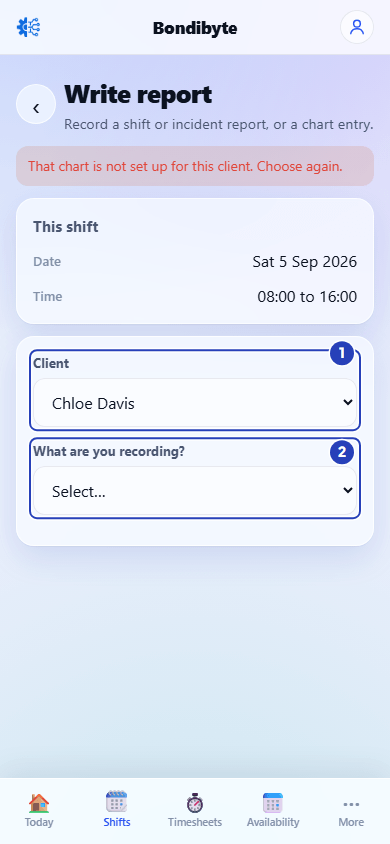
Choose another client (1). A red message says the Chart was cleared, and What are you recording (2) goes back to Select. -
Shifts with one client or no client
A shift with one client already has that client chosen.
A shift with no client has no Client box. Only Incident report is offered, because a Shift Report, a form from your organisation and a Chart each need a client.
What happens next
Once the client is chosen, you can fill in the form and submit it. The report or Chart entry is saved for the client you chose.
You write one Shift Report for each client on a shift. To report on another client, come back to Write report and choose that client.
Important notes
Important: A Chart is available only for the client it was set up for. Choosing the client first is how the app knows which Charts to offer.
Note: Shift report and Incident report are always in the list. Your organisation decides which other forms and Charts appear.
Good practice
- Choose the client before you type anything. Changing the client later can clear what you wrote.
- On a shift with more than one client, check the name in Client each time you start a new report, before you choose what to record.
- If a list is missing something you expect, check the client first. Different clients can have different Charts.
Troubleshooting
What are you recording? says Choose a client first.
Why it happens: No client is chosen yet.
What to do: Tap Client and choose the client.
The client I need is not in the Client list.
Why it happens: The list shows only the clients linked to the shift you opened.
What to do: Check that you opened the right shift. If it is the right shift, tell your coordinator. You can use Contact coordinator on the shift. A message may also say The selected client is not linked to this shift's site.
There is no Client box on the Write report screen.
Why it happens: The shift has no client linked to it.
What to do: Only Incident report is offered. Write that if you need to, and tell your coordinator that the shift has no client.
A Chart I chose has gone, and a message says That chart is not set up for this client. Choose again.
Why it happens: You changed the client after choosing a Chart. A Chart belongs to one client.
What to do: Make sure the right client is chosen, then choose the Chart again.
The words I typed in a report have gone after I changed the client.
Why it happens: Shift report and Incident report start again when you change the client.
What to do: Type the report again. Next time, choose the client before you type.
A Chart shows for one client but not for another.
Why it happens: Charts are set up for one client at a time.
What to do: See Why a Chart shows for one client only.