

Who this is for
This guide is written for Support Worker.
Before you begin
- You are signed in to the Staff App. See Sign in to the Staff App.
- Notifications arrive as things happen, so the list can be empty at first.
Steps
The screenshots show a demonstration organisation with made-up names. Your own screens show your organisation's details. Select a screenshot to open it full size.
-
Go to More > Notifications
1 In the menu at the bottom of the screen, tap More.
2 In the list, tap Notifications. The Notifications screen opens.
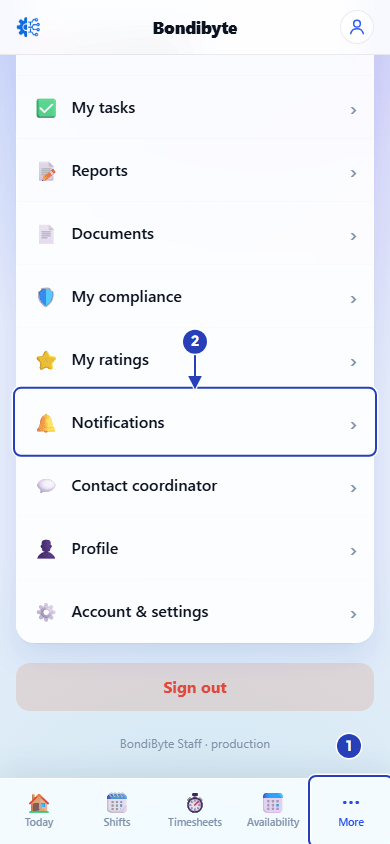
Tap More (1), then Notifications (2). -
Read your notifications
The newest notification is at the top. Each one is a card with a title, a small label, a message and the date and time.
1 The number under Notifications says how many are unread, for example 24 unread.
2 Read the card. The small label in capitals, such as ROSTER, TIMESHEETS or SYSTEM, tells you what the notification is about. Titles you may see include Roster published, New shift assigned to you, Your shift has changed, Shift removed from your roster and Timesheet ready to review.
A blue dot next to the title means you have not read that notification yet.
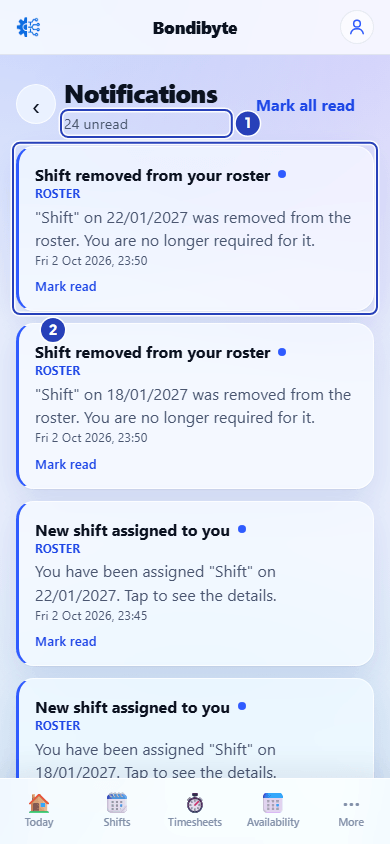
The number of unread notifications (1) and the newest notification (2). A blue dot by a title means it is unread. -
Open what a notification is about
Tap a card to go to the screen it is about. For example, a shift notification opens that shift and a timesheet notification opens that timesheet. Tapping a card also marks it as read.
Some notifications cannot be opened from the app. The screen then says This area can't be opened from the mobile app. The card still tells you what happened.
-
Mark a notification as read
1 On a card with a blue dot, tap Mark read. The dot changes to a Read label.
2 The unread number under Notifications goes down by one.
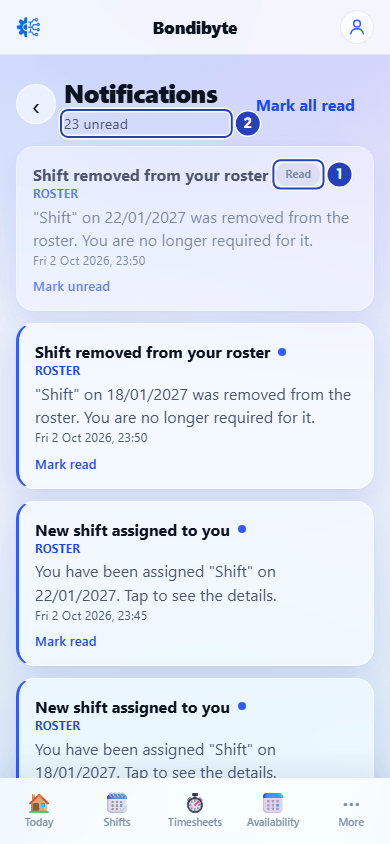
After Mark read, the card shows a Read label (1) and the unread number goes down by one (2). -
Mark a notification as unread again
Use this to keep a reminder to come back to a card.
1 On a card that says Read, tap Mark unread. The blue dot comes back.
2 The unread number under Notifications goes up by one.
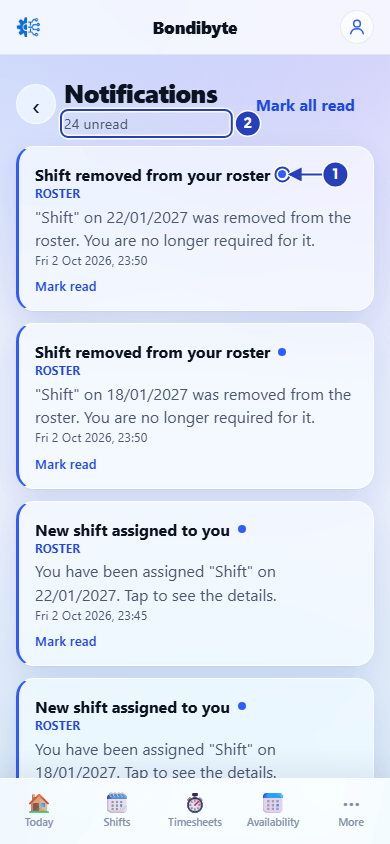
After Mark unread, the blue dot is back on the card (1) and the unread number goes up again (2). -
Mark everything as read
At the top right of the Notifications screen, tap Mark all read. Every card changes to Read.
The Mark all read button shows only while at least one notification is unread.
-
Allow notifications on your phone
The Staff App can also send notifications to your phone, so you see them even when the app is closed.
1 After you sign in, your phone may ask whether BondiByte Staff can send you notifications. Choose the option that allows them.
2 When a notification arrives on your phone, tap it. The app opens on the matching screen. If there is no matching screen, it opens the Notifications list.
3 If you chose not to allow them, open your phone's settings, find BondiByte Staff and allow notifications there. The words depend on your phone.
What happens next
New notifications appear at the top of the Notifications list as things happen, such as a new shift, a change to a shift or a timesheet that is ready.
Next, see View your shifts and Timesheets in the Staff App.
Important notes
Note: Which notifications you get depends on what your organisation uses. For example, roster notifications come when your office publishes a roster, and interest notifications come when your office asks staff for interest in shifts.
Good practice
- Open Notifications before a shift, in case a Your shift has changed notification has new times.
- Use Mark unread on a card you want to deal with later, so the dot reminds you.
- Keep phone notifications switched on for BondiByte Staff, so a new shift or change reaches you quickly.
Troubleshooting
The screen says You're all caught up and New notifications will show here.
Why it happens: You have no notifications yet.
What to do: Nothing is wrong. Notifications appear as things happen. Open the screen again later.
A message says This area can't be opened from the mobile app. when I tap a card.
Why it happens: That notification is about something that the app does not have a screen for.
What to do: Read the title and message on the card. If you need to act on it, contact your coordinator.
Mark all read is missing.
Why it happens: Every notification is already read. The button shows only while something is unread.
What to do: Nothing to do. Use Mark unread on a card if you want it to show as unread again.
I do not get notifications on my phone.
Why it happens: Notifications for BondiByte Staff are switched off in your phone's settings.
What to do: Open your phone's settings, find BondiByte Staff and allow notifications. Open the app again afterwards.
I did not get a notification when my roster was published, or when my office asked for interest in shifts.
Why it happens: Your organisation has switched off Roster publish notifications or Staff interest notifications, or its automation capacity is used up.
What to do: Ask an Owner or Admin to check those switches in Account settings under Automation & Capacity Controls. See Automation Capacity.