

Who this is for
This guide is written for Support Worker.
Before you begin
- You are signed in to the Staff App. See Sign in to the Staff App.
- You are assigned to the shift, and the shift is dated today or earlier. A shift appears in the app once you are assigned to it, or, in SIL/Smart Rostering, once your organisation has published its roster. See View your shifts.
- The shift has at least one client. A Shift Report is always about one client.
Steps
The screenshots show a demonstration organisation with made-up names. Your own screens show your organisation's details. Select a screenshot to open it full size.
-
Open Shifts > your shift > Write report
In the menu at the bottom of the screen, tap Shifts. Shifts that are happening today are listed under Today in Upcoming. Finished shifts are in Past.
Tap the shift you want to write about. The next screen shows the shift's Date, Time and Site, so you can check it is the right one.
1 Scroll down to Reports and tap Write report. The Write report screen opens.
Tip: You can also start from More > Reports > Write a report, which lists your recent shifts, or from Reports to do on the Today screen.
Note: A shift dated in the future shows You can write a report once the shift has started. instead of the button.
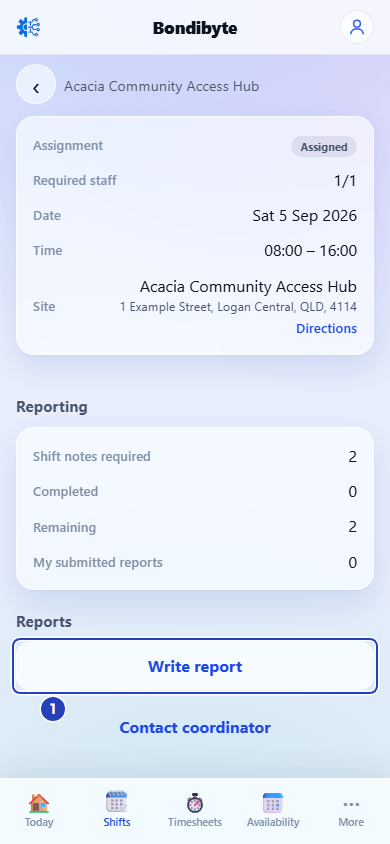
On the shift, scroll to Reports and tap Write report (1). -
Choose the client and Shift report
1 In Client, choose the client the report is about. If the shift has only one client, the name is already chosen.
2 Open What are you recording? and choose Shift report. It is listed under Reports. The form opens below.
3 If you drove for work on this shift, type the total distance in Mileage travelled (km). It appears in the This shift box once you choose Shift report.
Fields in step 2 Field What it means Mileage travelled (km) Optional. One total for the whole shift. It is shared by every report you write for this shift, so enter it once. Note: Until you choose a client, What are you recording? says Choose a client first. See Choose the client first when recording.
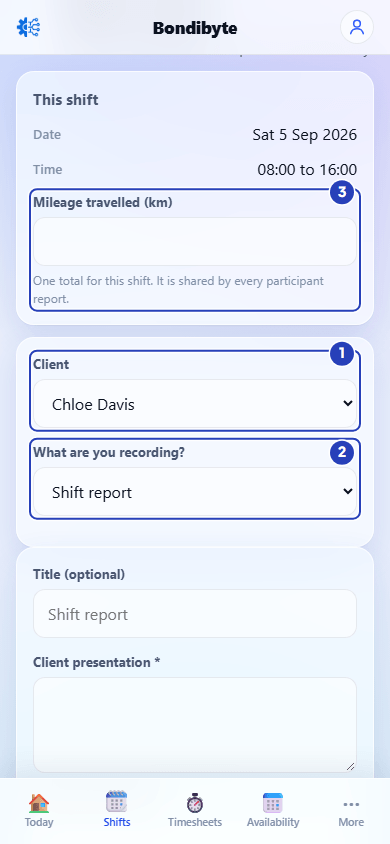
Choose the client (1) and Shift report (2). The Mileage travelled box (3) appears in the This shift box. -
Write the report
1 In Client presentation, describe how the client was during your shift. This is required.
2 In Supports provided, describe the support you gave. This is required.
3 Fill in any of the other boxes that apply to your shift.
A star (*) after a name means the box is required. If you leave a required box empty, a message tells you, for example Client presentation is required.
Fields in step 3 Field What it means Title (optional) A short name for the report. If you leave it empty, the report is called Shift report. Client presentation * Required. How the client was during your shift. Supports provided * Required. What you did to support the client. Activities / participation Optional. Activities the client took part in. Meals / personal care Optional. Meals and personal care you helped with. Medication relevant to shift Optional. Anything about medication that matters for this shift. Incidents / notable events Optional. Anything out of the ordinary. If something serious happened, also write an Incident Report. Handover notes Optional. What the next worker needs to know. Action required / follow-up Optional. Anything that still needs to be done. Tip: For an incident, use Incident report as well. See Record an Incident.
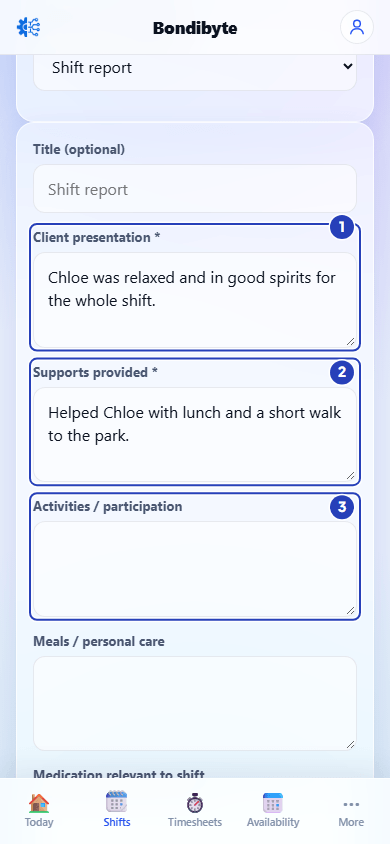
Fill in Client presentation (1) and Supports provided (2). Then use the other boxes (3) if they apply. -
Add photos if you need to, then tap Submit report
1 If a photo helps, tap Photos (optional) and choose images from your phone. Each photo is listed with a Remove link in case you chose the wrong one.
2 Check what you wrote, then tap Submit report.
The report is saved. A message says Report submitted. and the app returns to the shift. If you added photos, the message also says how many were attached, for example 1 photo attached.
Fields in step 4 Field What it means Photos (optional) Images only (JPG, PNG, GIF or WEBP), up to 25 MB each. The photos are uploaded when you submit the report. Note: If a photo cannot be uploaded, the report is still saved. The message says how many photos failed and that you can try again from Edit.
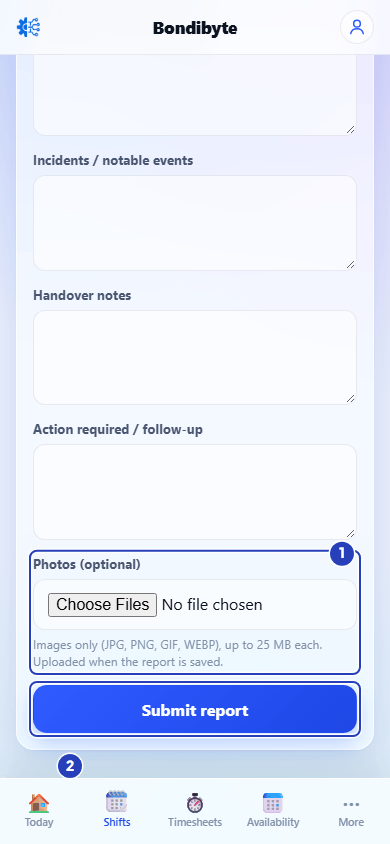
Add photos if you need to (1), then tap Submit report (2). -
Check that your report was saved
On the shift, scroll to Reporting.
1 My submitted reports now shows a higher number. Completed and Remaining show how many of the Shift notes required you have done.
2 Your report is listed underneath with its title, the client's name and a label for the type of report.
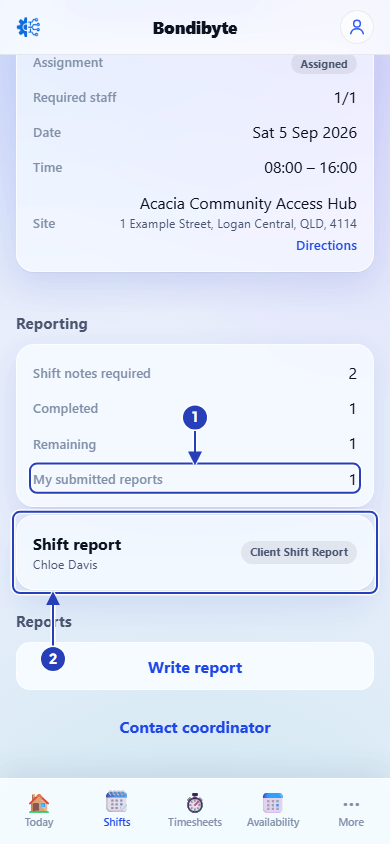
My submitted reports (1) goes up and the new report is listed (2). -
Find or change your report later
Tap More in the menu at the bottom, then tap Reports. The list shows the reports you have submitted in the last 30 days. Older reports are still listed under Reporting on their shift.
1 Tap a report to read it. The top shows the client, the shift, the site and the shift time.
2 Your answers are under Report details. Any photos are shown below them.
Tap Edit report at the bottom to change it. The form shows Existing report details. Make your change and tap Update report.
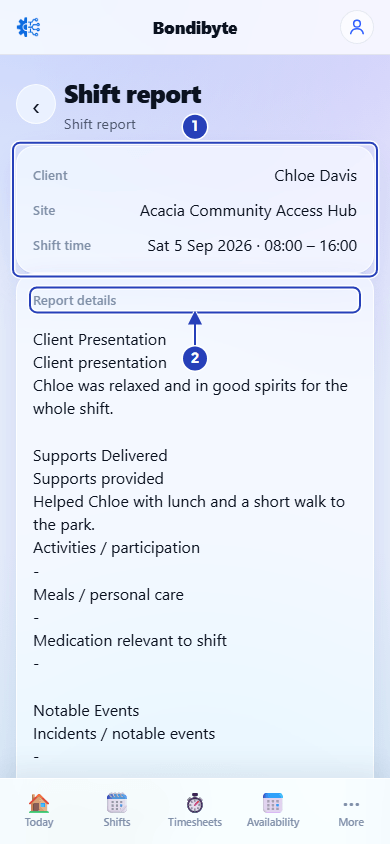
Open the report from More, then Reports. The top shows the client and the shift (1). Your answers are under Report details (2).
What happens next
Your report is saved against the client and the shift. Your organisation's office team can read it in BondiByte, in their list of reports.
You write one Shift Report for each client on a shift. If the shift has two clients, repeat these steps and choose the other client.
If you choose the same client again, the form opens your existing report with Existing report details, so you edit it instead of writing a second one.
Important notes
Important: A Shift Report is always available. It does not need to be switched on by your organisation.
Note: Mileage travelled (km) is one total for the shift. It is not one total for each client. If you enter an impossible number, a message tells you, for example Mileage cannot be negative.
Tip: The Reports to do box on the Today screen shows how many reports are still to do for your completed shifts. Tap it to open your list of shifts and choose one.
Good practice
- Write the report as soon as you can after the shift, while you remember the details. Short, clear sentences are enough.
- Say what you saw and did, not what you think. For example, write that the client ate half their lunch, not that they were unwell.
- Use Handover notes for anything the next worker needs before they start, and Action required / follow-up for anything the office needs to do.
Troubleshooting
Write report is missing from the shift.
Why it happens: The shift is dated in the future, or it was cancelled. The screen says You can write a report once the shift has started. or Reports can't be added for this shift.
What to do: Try again once the shift's date has arrived. If the shift was cancelled and you did work, tell your coordinator. You can use Contact coordinator at the bottom of the shift.
A message says Reports can only be added for shifts dated today or in the past.
Why it happens: The shift is dated in the future, so the form is switched off.
What to do: Go back and open the shift again after its date has arrived.
What are you recording? says Choose a client first.
Why it happens: A report is always started from a client, so the list stays empty until you choose one.
What to do: Choose the client in Client. See Choose the client first when recording.
Shift report is not in the list, and there is no Client box.
Why it happens: The shift has no client linked to it. A Shift Report is always about a client, so only Incident report is offered.
What to do: Tell your coordinator. They can check the shift. If something happened that you must report, write an Incident Report.
A message says Client presentation is required. or Supports provided is required.
Why it happens: A required box is empty.
What to do: Fill in the box named in the message, then tap Submit report again.
A message says Mileage cannot be negative. or Mileage must be 9999.99 km or less.
Why it happens: The number in Mileage travelled (km) is not allowed.
What to do: Type the distance as a plain number of kilometres, for example 12.5, or clear the box.
Opening Shift report shows Existing report details instead of the empty form.
Why it happens: You have already written a Shift Report for this client on this shift. The app opens it for editing instead of starting a second one.
What to do: Make your change and tap Update report. To report on another client, choose that client first.
A photo is missing from the report.
Why it happens: The photo was not an image, or it was over 25 MB. A message names the file that was skipped.
What to do: Choose a JPG, PNG, GIF or WEBP image under 25 MB. If the report is already saved, open it, tap Edit report, add the photo and tap Update report.