

Who this is for
This guide is written for Support Worker.
Before you begin
- The BondiByte Staff app is on your phone. Install it from the App Store (iPhone) or Google Play (Android).
- Your organisation has given you login access and you have set your password from the email it sent you. If you have not, see Give a staff member login access.
- You know the work email address your organisation set up for you.
Steps
The screenshots show a demonstration organisation with made-up names. Your own screens show your organisation's details. Select a screenshot to open it full size.
-
Open BondiByte Staff > Sign in
On your phone, open the BondiByte Staff app.
1 If you are signed out, the sign-in screen opens. It shows the heading BondiByte Staff and the line Sign in with your work email and password.
Note: If the app opens on the Today screen with your name, you are already signed in. Go to step 6.
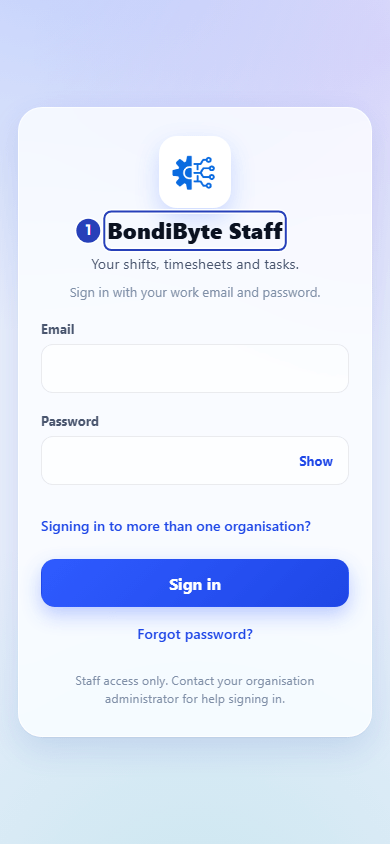
The sign-in screen opens (1). -
Type your email and password
1 In Email, type your work email address.
2 In Password, type your password. Tap Show to see what you typed. Tap Hide to cover it again.
3 Tap Sign in.
Fields in step 2 Field What it means Email The work email address your organisation set up for you. Password The password you chose from the email your organisation sent you. Tip: If a red message appears under a box, for example Enter your work email. or Enter your password., fill in that box and tap Sign in again.
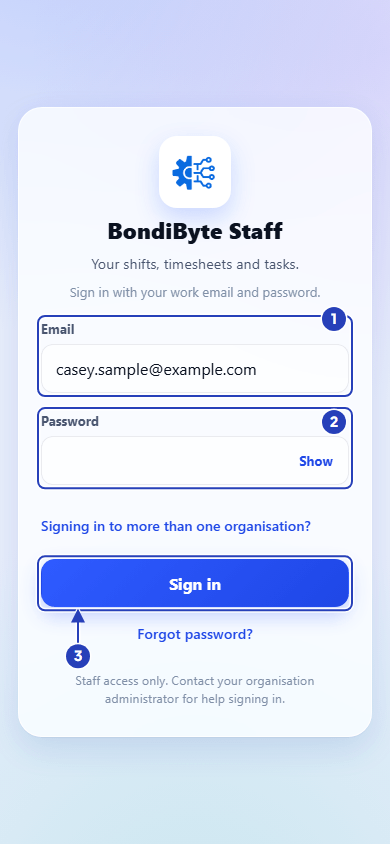
Type your email (1) and your password (2), then tap Sign in (3). -
Reset your password if you forgot it
Skip this step if you remember your password.
Under the Sign in button, tap Forgot password? A box opens that says Enter your email and we'll send a password reset link.
1 Check the address in Email. The app fills it in from the sign-in screen.
2 Tap Send reset link. The app says If an account exists for that email, we've sent a reset link.
Open the link in the email and set a new password. Then tap Back to sign in and sign in with it.
Note: If your email is used at more than one organisation, also type your organisation's code in Organisation code (optional).
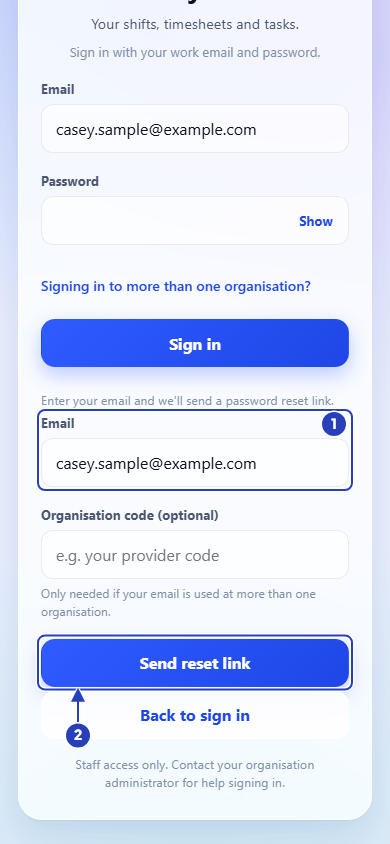
Check your email (1), then tap Send reset link (2). -
Choose your organisation if the app asks
Most people skip this step. You need it only when your email is used at more than one organisation.
To type your organisation's code yourself, tap Signing in to more than one organisation? under Password.
1 In Organisation code, type the code your organisation gave you.
If you do not type a code and your email is used at more than one organisation, the app shows Choose your organisation to continue. and a list called Organisation. Choose your organisation, then tap Sign in again.
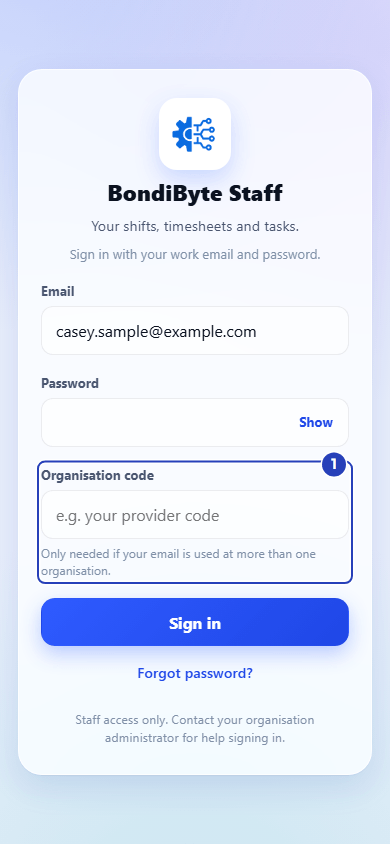
Type your organisation's code in Organisation code (1). -
Type your verification code if the app asks
Skip this step unless a box asking for a code appears after you tap Sign in. It appears only when two-step sign-in is switched on for your login.
1 Open the authenticator app on your phone and find the 6-digit code.
2 In Verification code, type the code. If you cannot use your phone, type one of your recovery codes instead.
3 Tap Verify and sign in. Tap Back to return to the sign-in screen.
-
Check you are signed in
1 The Today screen opens. It says Hello and your first name, then Here's what needs your attention.
2 The menu at the bottom has Today, Shifts, Timesheets, Availability and More.
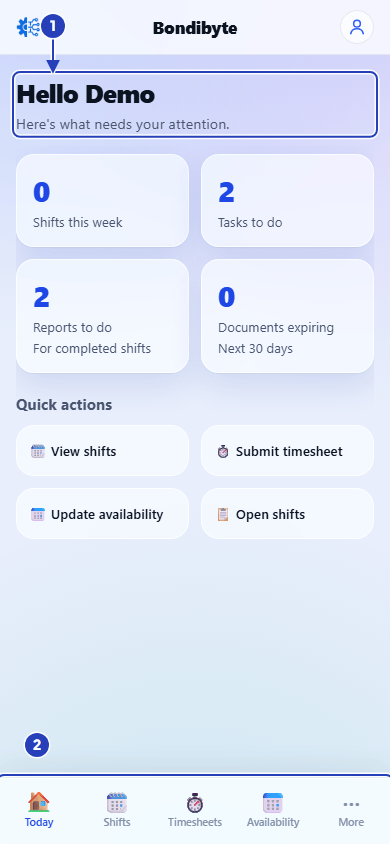
The Today screen opens with your name (1). The menu at the bottom (2) takes you to Shifts, Timesheets, Availability and More. -
Sign out when you need to
1 Tap More in the menu at the bottom.
2 Scroll down and tap Sign out. The sign-in screen opens.
Note: You do not need to sign out each time. Sign out if you share your phone or if your organisation asks you to.
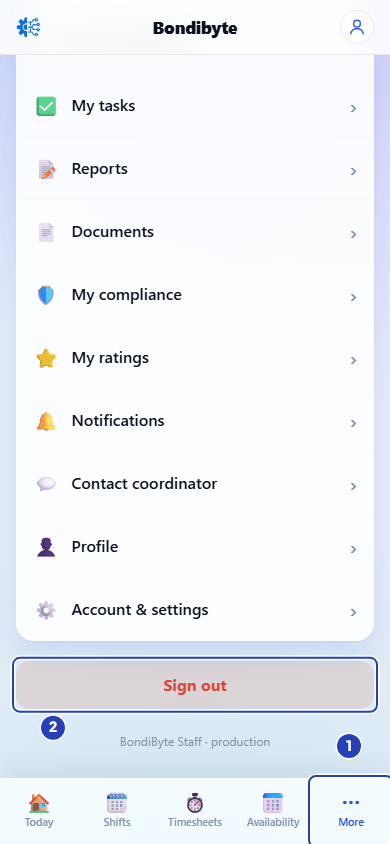
Tap More (1), then scroll down and tap Sign out (2).
What happens next
The Staff App keeps you signed in on your phone until you sign out. If the sign-in screen opens again later, sign in again with your email and password.
If you work for more than one organisation, sign in to each one. Once you are signed in to two, the name of your current organisation shows at the top of each screen. Tap it to switch, or tap Add another workspace to sign in to another organisation.
Next, read View your shifts, Notifications and Timesheets in the Staff App.
Important notes
Important: Keep your password private and sign in only with your own login. If you lose your phone, tell your coordinator straight away.
Good practice
- Tap Show to check your password before you tap Sign in, then tap Hide so nobody near you can read it.
- If you work for more than one organisation, type your organisation's code in Organisation code before you sign in, so the app does not have to ask.
- Open the setup email from your organisation soon after it arrives. If the app says the setup link could not be used, ask your coordinator to send a new one.
Troubleshooting
A message says Incorrect email or password. Please try again.
Why it happens: The email or the password does not match your login. A typing mistake is the most common reason.
What to do: Tap Show to check the password you typed and check your email. If you still cannot sign in, tap Forgot password? and send yourself a reset link.
A message under a box says Enter your work email., Enter a valid email address. or Enter your password.
Why it happens: The box is empty, or the email is not written as an email address.
What to do: Fill in the box and tap Sign in again.
A message says Too many attempts. Please wait a moment and try again.
Why it happens: There have been several sign-in attempts in a short time, so the app asks you to pause.
What to do: Wait a moment. Check your email and password, then try again.
A message says Choose your organisation to continue.
Why it happens: Your email is used at more than one organisation, so the app needs to know which one to open.
What to do: Choose your organisation in the Organisation list and tap Sign in again. Next time, type your code in Organisation code first.
A screen with a lock is headed Staff portal access not available and asks you to contact your organisation administrator.
Why it happens: Your organisation has not given your login access to the Staff App, or it has turned that access off.
What to do: Ask your coordinator or an Owner or Admin to check your login. They can do this from your staff record, as explained in Give a staff member login access. Tap Sign out on that screen to go back.
A message says your organisation uses Microsoft single sign-on, which the mobile app does not support yet.
Why it happens: Your organisation requires single sign-on, so a password cannot be used in the Staff App for your login.
What to do: Tell your coordinator or an Owner or Admin what the message says. It asks them to allow password sign-in for your account.
A message says We couldn't reach the server. Please try again in a moment. or We could not reach BondiByte. Check your connection and try again.
Why it happens: Your phone has no signal or Wi-Fi, or BondiByte is busy for a moment.
What to do: Check your connection, then try again in a minute.