

Who this is for
This guide is written for Owner, Admin and Manager.
Before you begin
- You have a BondiByte login from your organisation.
- You know your organisation's company code, or you use a work email address on a domain your organisation has verified. Owners and Admins find the company code in Configuration > Login, SSO & User Sync, in the Tenant login URL tab, and add their email domains in the Tenant domains tab.
- You are on a computer with a current web browser. Staff who work in the field use the Staff App on their phones instead.
Steps
The screenshots show a demonstration organisation with made-up names. Your own screens show your organisation's details. Select a screenshot to open it full size.
-
Go to Login > Open App Login on the BondiByte website
Open the BondiByte website at bondibyterobotics.com.au, choose Login in the top menu, then choose Open App Login. If your organisation has given you its own sign-in link, open that link instead and go straight to step 3.
1 The page headed Sign in to your NDIS workspace opens.
Note: This page is for people who work in the BondiByte workspace on a computer. Staff who check shifts, timesheets and reports from the field use the Staff App on their phones.
Note: The Sign up as a new customer button at the top right is only for organisations that do not have a BondiByte workspace yet. You do not need it to sign in.
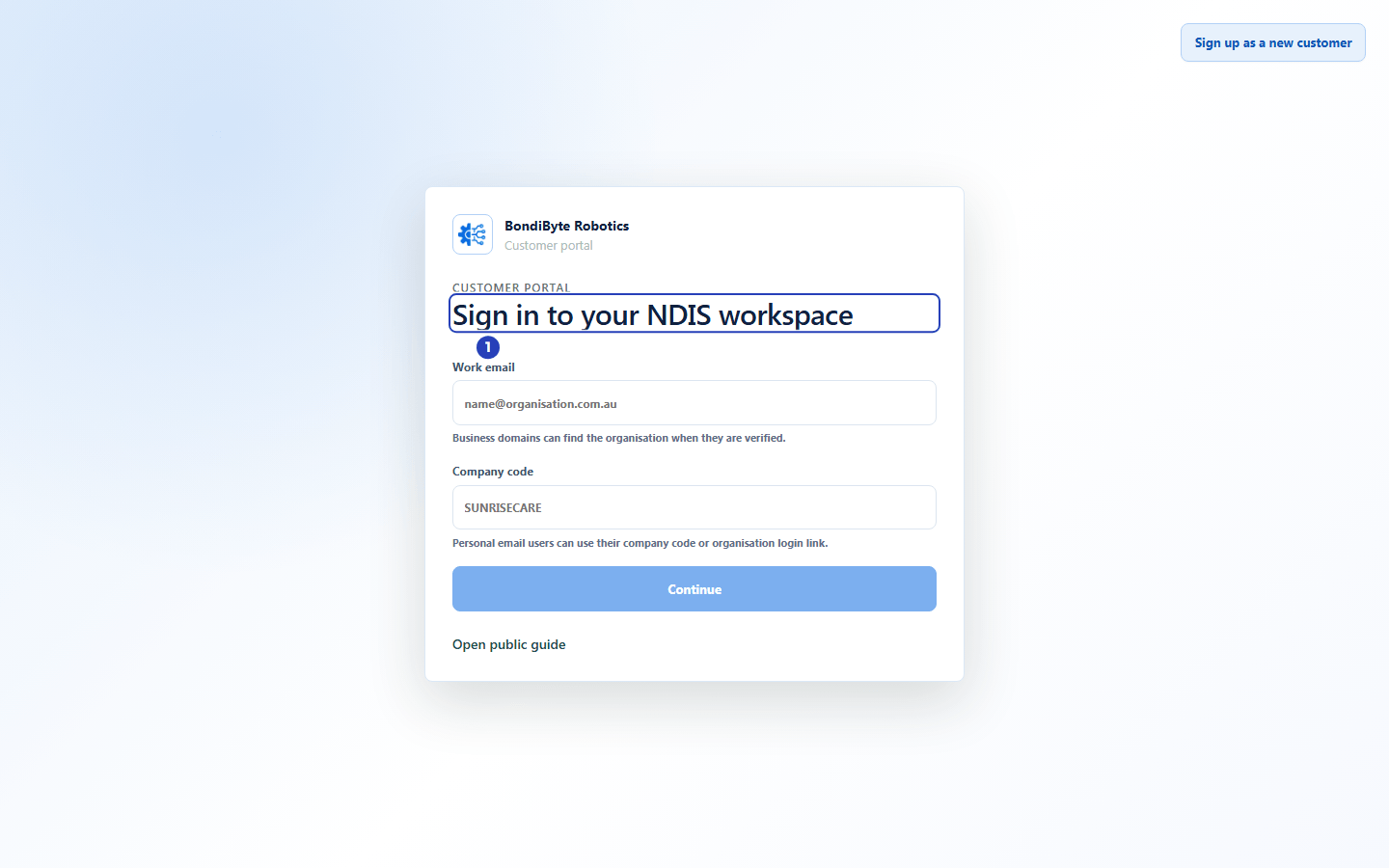
The sign-in page opens (1). -
Find your organisation
BondiByte asks which organisation you belong to before it asks for a password. You only need one of the first two details below, and Continue stays greyed out until you have typed one of them.
1 In Work email, type your work email address. BondiByte finds your organisation from a work email address on a domain your organisation has verified.
2 If you use a personal email address, or BondiByte cannot find your organisation from your email, type your organisation's company code in Company code instead.
3 Choose Continue.
Fields in step 2 Field What it means Work email Your work email address. It finds your organisation only when your organisation has verified that email domain with BondiByte. Company code The short code that belongs to your organisation. Use it when you have a personal email address, or when your work email does not find your organisation. Tip: Your Owner or Admin can find the company code and your organisation's own sign-in link in Configuration > Login, SSO & User Sync, in the Tenant login URL tab.
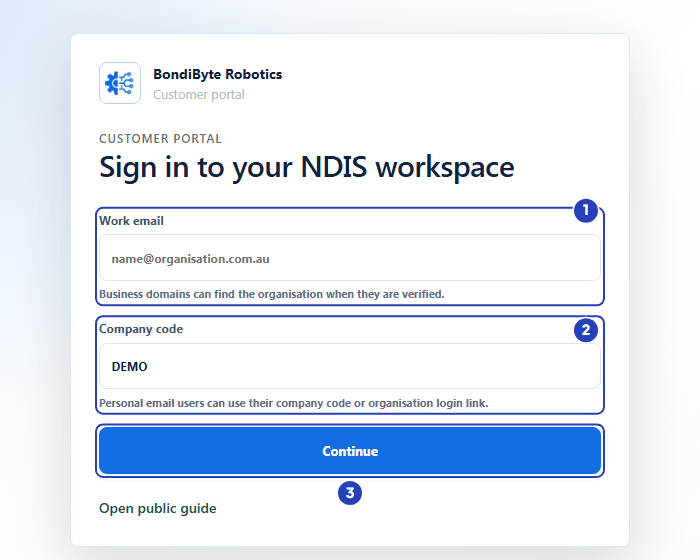
Type your work email (1) or your company code (2), then choose Continue (3). -
Enter your email and password
The page heading usually reads Sign in to followed by your organisation's name. Your organisation may have customised it. A box under the heading shows the organisation's name and its company code, so you can check you are in the right place.
1 In Email, type the email address of your BondiByte login.
2 In Password, type your password. Choose the eye icon at the right of the box to show or hide what you typed.
3 Choose Sign in.
Note: If your organisation uses single sign-on, the page also shows a Continue with organisation sign-in button. Choose it and sign in with your organisation's Microsoft account instead of typing a password here. The button appears once an Owner or Admin has switched on Enable Microsoft Entra SSO in Configuration > Login, SSO & User Sync, in the Microsoft Entra SSO tab.
Important: If your organisation requires single sign-on, always sign in with Continue with organisation sign-in.
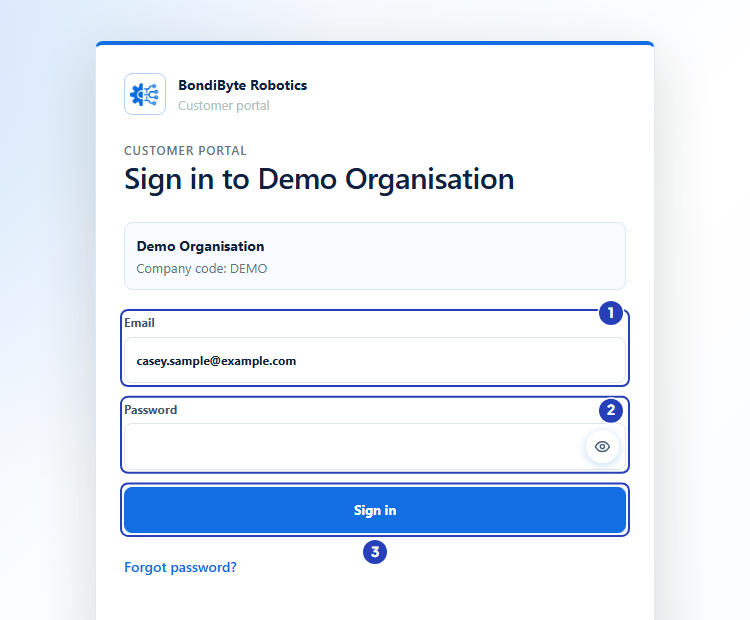
Type your email (1) and password (2), then choose Sign in (3). -
Enter your authentication code if BondiByte asks for one
If multi-factor authentication is turned on for your login, a box headed Multi-factor authentication required appears after you choose Sign in. Skip this step if it does not appear.
1 Open the authenticator app on your phone and find the 6-digit code for BondiByte.
2 Type the code in Authenticator or recovery code.
3 Choose Verify and sign in.
If you cannot use your phone, choose Use a recovery code instead, type one of the recovery codes you saved when you set up multi-factor authentication, then choose Verify and sign in. Choose Use my authenticator app instead to go back to the code from your phone.
Tip: You set up multi-factor authentication after you have signed in. Choose your name at the top right, then Account settings, and use the Multi-factor authentication card.
-
Check you are signed in
1 The Dashboard opens, with its name at the top left of the page.
2 Your name and your organisation's name show at the top right, in the account menu.
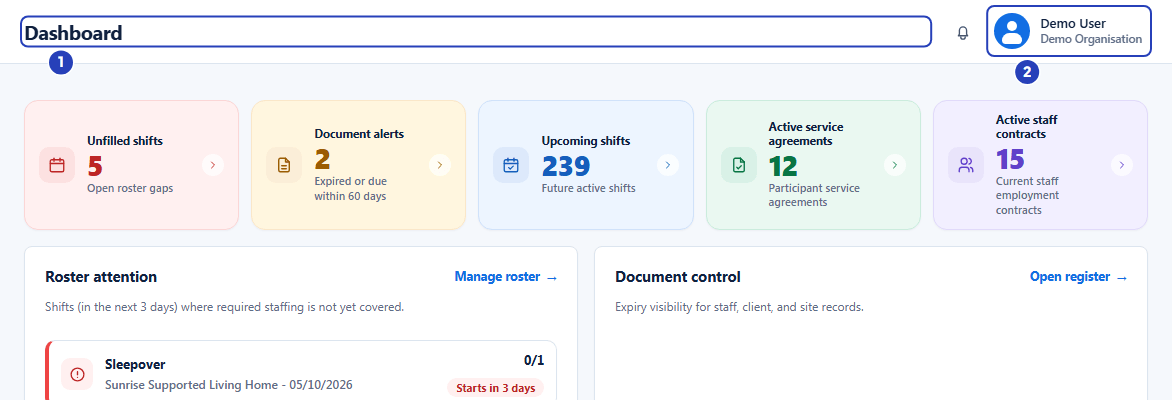
The Dashboard opens (1), and your name and organisation show in the account menu (2).
What happens next
You stay signed in on this browser until you sign out or your session ends. When a session ends, the sign-in page shows Your session has expired. Please sign in again. After you sign in again, BondiByte takes you back to the page you were on.
To sign out, choose your name at the top right, choose Sign out, then choose Sign out again on the page that opens.
Next, read Find your way around BondiByte and, if you are the Owner, Set up your organisation.
Important notes
Important: Keep your password and your authenticator codes private, sign in with your own login and never a shared one, and sign out when you finish on a shared computer.
Good practice
- Ask your Owner or Admin to copy your organisation's own sign-in link (Configuration > Login, SSO & User Sync, Tenant login URL tab, Copy) and bookmark it. The link opens your organisation's sign-in page directly, so you do not need to type the company code each time.
- Set up multi-factor authentication soon after your first sign-in, in Account settings under Multi-factor authentication. Keep the recovery codes it shows you somewhere safe and separate from your phone. Regenerate recovery codes makes a new set and the old codes stop working, so use it only when you need new ones.
- Check the organisation name in the box under the heading before you type your password, so you know you are signing in to the right workspace.
- Use your work email address in Work email whenever you can. BondiByte then finds your organisation for you once your Owner or Admin has verified your email domain, and you do not need the company code.
- Start a password reset from your own organisation's sign-in page, the one that shows your organisation's name, so the reset link is for the right organisation.
- If Email or password is incorrect appears, choose the eye icon to check what you typed, then use Forgot password? instead of trying again and again.
Troubleshooting
A message says We could not find an organisation with that company code.
Why it happens: The company code has a typing mistake, or it belongs to a different organisation.
What to do: Check the code with your Owner or Admin. They can see it in Configuration > Login, SSO & User Sync, in the Tenant login URL tab. You can also use your organisation's own sign-in link, which they can copy from the same place.
A message says We could not identify your organisation from this email. Please enter your company code or use your organisation login link.
Why it happens: Your email address is a personal address, or your organisation has not verified its email domain.
What to do: Leave Work email empty, type your company code in Company code, and choose Continue again.
A message says Email or password is incorrect.
Why it happens: The email or password does not match a login for this organisation. A typing mistake is the most common reason.
What to do: Choose the eye icon to check the password you typed, and check that the page shows your own organisation's name. If you still cannot sign in, choose Forgot password? under Sign in, type your email in Email or Login UPN, and choose Send password reset link. BondiByte sends a reset link if an eligible account exists for that email.
A message says Too many attempts. Please wait a few minutes and try again.
Why it happens: Sign-in has paused for a few minutes.
What to do: Wait a few minutes, check your company code, email and password, then try again.
A message says Your organisation requires Microsoft SSO. Please sign in with Microsoft.
Why it happens: Your organisation requires single sign-on, so a password cannot be used.
What to do: Choose Continue with organisation sign-in. If the button is missing, ask your Owner or Admin to check the single sign-on settings.
The Continue with organisation sign-in button is not on the page.
Why it happens: Single sign-on has not been switched on for your organisation, so people sign in with an email and password.
What to do: Sign in with your Email and Password. If you expect to use organisation sign-in, ask an Owner or Admin to switch on Enable Microsoft Entra SSO in Configuration > Login, SSO & User Sync, in the Microsoft Entra SSO tab.
A message says Your account is inactive. Contact your organisation admin.
Why it happens: Your login has been turned off in your organisation.
What to do: Ask your Owner or Admin to turn your login back on.
A page headed MFA setup required opens instead of the Dashboard.
Why it happens: Your organisation requires multi-factor authentication, and your login does not have it set up yet.
What to do: Choose Open account security, set up the Multi-factor authentication card, then sign out and sign in again.
A page headed MFA verification required opens instead of the Dashboard.
Why it happens: Your organisation requires multi-factor authentication, and the code check for this sign-in is not finished.
What to do: Choose Back to sign in and sign in again with your authenticator code.