

Who this is for
This guide is written for Support Worker.
Before you begin
- You are signed in to the Staff App. See Sign in to the Staff App.
- Your shifts appear in the Staff App once you are assigned to them. A shift in SIL/Smart Rostering appears once its roster has been published. Your coordinator or roster officer does both. See Publish a roster and Assign and publish from Smart Rostering.
Steps
The screenshots show a demonstration organisation with made-up names. Your own screens show your organisation's details. Select a screenshot to open it full size.
-
Open BondiByte Staff > Shifts
1 In the menu at the bottom of the screen, tap Shifts. The screen says My shifts and Shifts you are assigned to.
2 Check that Upcoming is selected. It is the highlighted button.
3 Under Upcoming, your next shifts are listed in date order. Each shift is a card with the shift name, the site, the date, the times and a label such as Tomorrow or In 3 days.
Shifts that are today are listed under Today. If there are none, it says No shifts today.
Note: If the screen says No assigned shifts, you have no upcoming shifts. A shift appears here once you are assigned to it, and, for a SIL/Smart Rostering roster, once that roster is published.
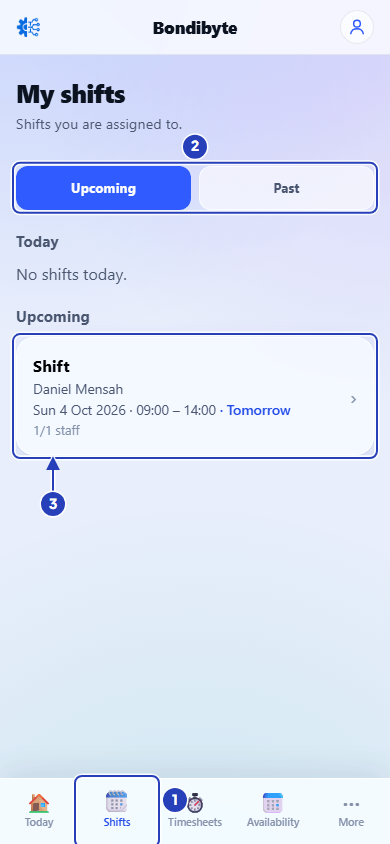
Tap Shifts (1). Upcoming (2) is selected. Each shift is a card (3). -
Open a shift to see its details
Tap a shift card. The shift opens with its name and site at the top.
1 The box shows Assignment (your own status, for example Assigned), Required staff (for example 1/1), Date, Time and Site. Notes shows if your coordinator wrote any.
Tap Directions, next to Site, to open the site's address in a map. Under Reporting, the shift says how many shift notes are needed (Shift notes required), how many you have Completed and how many are Remaining. Tap the arrow at the top left to go back to your shifts.
Note: Depending on the shift, you may also see Accept shift and Decline (when a shift is offered to you), Request cancellation, Request a swap, Clock in and Write report. A shift that is managed by your coordinator says it can't be cancelled from the app. Contact your coordinator if you can't work it.
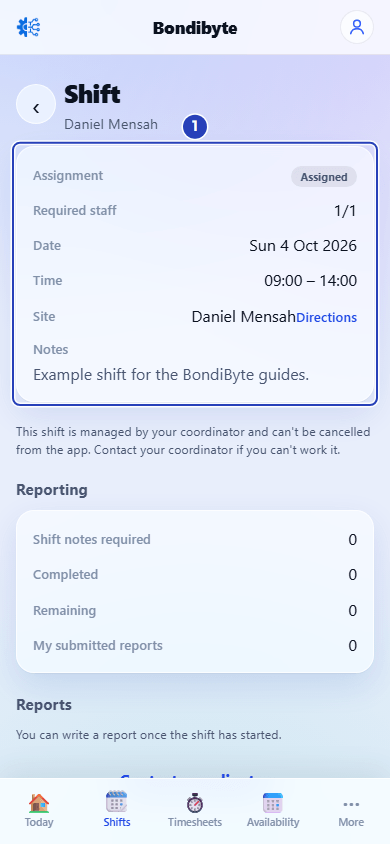
The details of the shift (1). -
See your past shifts
1 At the top of My shifts, tap Past.
2 Finished shifts are grouped by date, newest first. Each card shows a label such as Completed. Tap a card to open it.
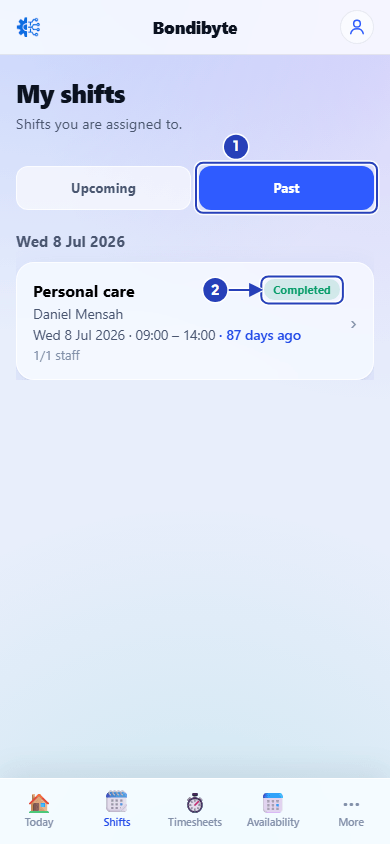
Tap Past (1). A finished shift shows a label such as Completed (2). -
See your next shift on Today
Tap Today in the menu at the bottom.
1 Shifts this week shows how many shifts you have this week. Tap it to open My shifts.
2 Your next shift shows your next shift, with Assigned or Confirmed for your own status and a line such as You're the only staff member scheduled. or 2 of 3 staff scheduled. Tap the card to open the shift.
Note: Your next shift appears only when you have an upcoming shift.
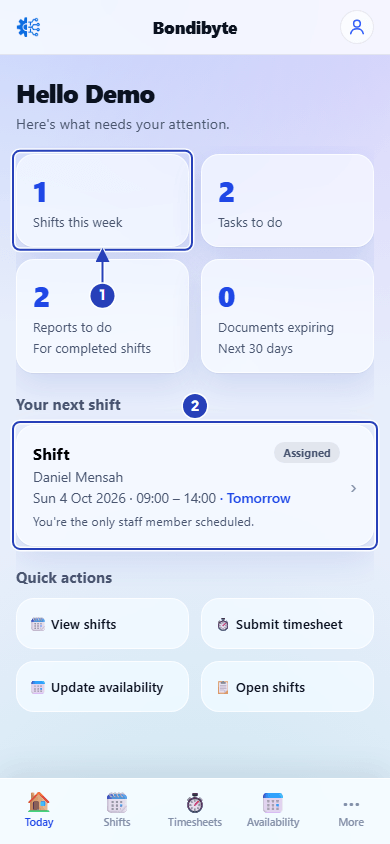
Shifts this week (1) and your next shift (2).
What happens next
When your organisation publishes a roster, your shifts on it appear in Upcoming. You may also get a notification such as Roster published. If you are assigned to a shift on a roster that is already published, the notification is New shift assigned to you. See Notifications.
After you have worked a shift, check your hours on Timesheets in the Staff App.
Important notes
Important: You see only your own shifts. If a shift changes, Your shift has changed appears in your notifications, so check the shift again before you travel.
Good practice
- Check Upcoming at the start of each week, and again before you leave for a shift, in case a time or site has changed.
- Tap Directions the first time you go to a site, so you know where to park and which entrance to use.
- Read Notes on the shift. Your coordinator uses it for anything you need to know before you arrive.
Troubleshooting
No assigned shifts shows, but I was told I have a shift.
Why it happens: You are not assigned to the shift yet, the shift is on a SIL/Smart Rostering roster that has not been published, or the shift is assigned to someone else.
What to do: Ask your coordinator or roster officer whether you are assigned and, for a SIL/Smart Rostering roster, whether it has been published. Pull down on the list to refresh it.
A shift I worked is not under Past.
Why it happens: Past lists only shifts you were assigned to. A shift on a SIL/Smart Rostering roster is listed only once that roster has been published.
What to do: Ask your coordinator to check the shift and your assignment to it.
The screen shows Offline: showing last synced data.
Why it happens: Your phone has no connection, so the app shows the shifts it saved last time.
What to do: Connect to Wi-Fi or mobile data, then pull down on the list to refresh it.
The screen says Something went wrong.
Why it happens: The app could not load your shifts.
What to do: Tap Try again. If it keeps happening, check your connection or sign in again.