

Who this is for
This guide is written for Owner, Admin, Manager and Rostering Officer.
Before you begin
- Rostering is in your left menu. It shows for roles that include Can view roster. An Owner or Admin can add that permission to a role in Configuration > Roles & Permissions.
- There is at least one active client who is not attached to a site and does not have a standalone site of their own. Without one, Add shift cannot be used.
- There is at least one active staff member who has finished onboarding, so there is someone to assign.
- To email staff their shifts with Publish, Roster publish notifications is switched on in Account settings under Automation & Capacity Controls. It is on unless an Owner or Admin has switched it off.
What the Rostering screen is for
The Rostering screen is a simple calendar for scheduling shifts. You see one week or two weeks at a time, add a shift for a client, choose who works it, and tell staff when you are ready. There are no roster periods to create and no automation to turn on.
It is for active clients who are not attached to a site and do not have a standalone site of their own. The screen calls them simple clients, or community clients. Each shift belongs to one client and takes one staff member.
What needs to be set up first
Rostering in the left menu. The menu item shows for people whose role includes Can view roster. If you cannot see it, an Owner or Admin can add that permission to your role in Configuration > Roles & Permissions. If your access is limited to certain sites, the screen opens but lists no clients.
Clients. The screen lists active clients who are not attached to a site and do not have a standalone site of their own. With none, the screen says No simple clients yet. and Add shift is greyed out. Add the client first.
Staff. You can assign only active staff who have finished onboarding.
Emailing staff. Publish emails staff their shifts when Roster publish notifications is switched on. It is on unless an Owner or Admin has switched it off in Account settings under Automation & Capacity Controls.
Invoice line items. To attach line items to a shift, the client needs an Active Service Agreement that covers the date of the shift.
Which screen is which
Rostering (the Rostering menu item) is the hand-made calendar for clients who are not attached to a site (community clients): you add each shift yourself.
SIL/Smart Rostering (the SIL/Smart Rostering menu item) is for sites (SIL houses): shifts belong to the site, several workers can be on one shift, sleepovers and roster periods apply, and Smart Rostering can build the roster for you.
What you see on the screen
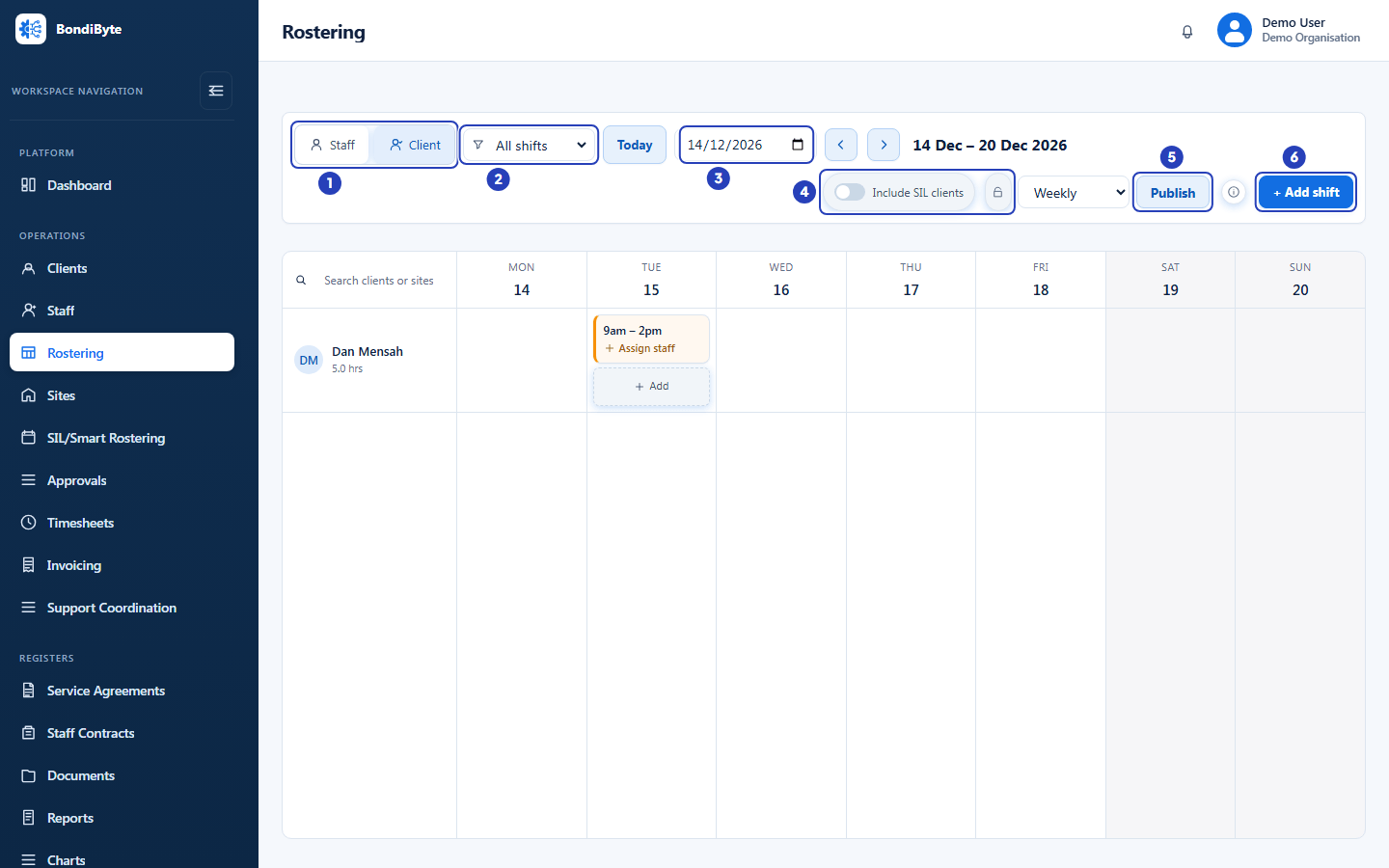
Client and Staff views. The Staff and Client buttons at the top left switch the view. The screen opens in the Client view, where each row is a client with the shifts scheduled for them. The Staff view is described below.
Dates. The calendar shows a week, Monday to Sunday, and opens on the current week. Change Weekly to Fortnight to see two weeks. Today returns to the current week, Jump to date shows the week that holds the date you choose, and the arrow buttons move one week at a time, or two weeks in Fortnight. The dates you are looking at are written beside the arrows.
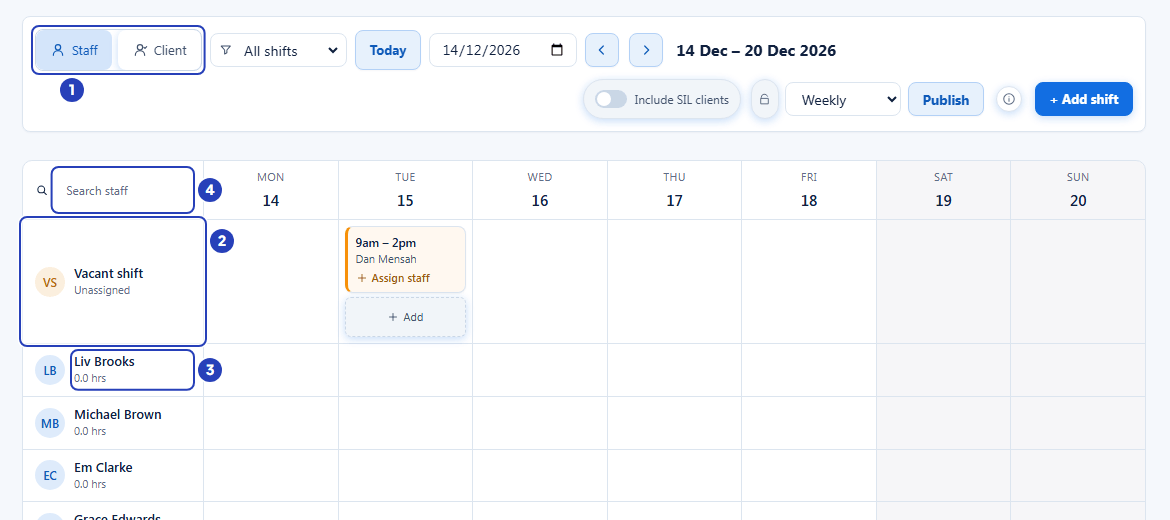
Filter and search. Filter shifts by staffing fades the shifts that do not match Unassigned or Assigned, and does not hide them. The search box above the names narrows the rows to the clients, or staff, you type.
Include SIL clients. Turn this on to see the sites and shifts you manage in SIL/Smart Rostering as grey rows beneath your own, and as grey shifts in each person's row in the Staff view, so you can see when someone is already working. The padlock beside it locks this setting and the Weekly or Fortnight choice so they cannot be changed by accident. Manage those rosters in SIL/Smart Rostering.
Add shift and Publish are at the top right. Add shift shows for people who can create shifts. Publish and the round information button beside it show for people who can edit shifts.
The Staff view
In the Staff view each row is a staff member, with the shifts they are working. Each shift shows the client's name. The hours under each name add up the shifts in the dates you are looking at, and a person who is on leave is marked On leave under their name.
The Vacant shift row at the top holds the shifts nobody is assigned to yet. An Other staff row appears when a shift is assigned to someone who is not in your staff list.
To add a shift from here, choose an empty day in a person's row. Add shift opens with that person already chosen in Assigned staff. Check Client, because it starts on the first client in the list.
How a shift works
A shift has a client, a start and end date and time, optional notes, optional invoice line items from the client's active Service Agreement, and one staff member, or nobody yet. You add a shift with Add shift, or by choosing a day in the client's row, and you can repeat it daily or weekly.
A shift with nobody assigned is amber and shows Assign staff. Once someone is assigned, the card shows their name.
To change a shift, choose its card. You can change the dates, times, notes, line items and the person. You cannot change the client.
BondiByte warns you, but does not stop you, when the person you choose is already booked, unavailable or on leave. It refuses someone who is inactive or not onboarded.
There is no cancel action for a shift. You delete the shift, or you replace or remove the person on it.
What staff are told, and when
Adding a shift notifies nobody. A shift becomes visible to a staff member as soon as they are assigned to it.
When you assign someone, change the date or times of their shift, take them off it, replace them or delete the shift, the person affected gets an in-app notification. None of these send an email.
Publish is separate. It emails each assigned staff member their shifts for the dates you choose, and sends an in-app notification as well. It changes nothing else about the shifts. Staff review their shifts in the Staff App.
Who can do what
Opening the screen needs Can view roster. Adding a shift needs Can create shift. Changing a shift, and publishing, need Can edit shift. Choosing a person needs Can assign staff to shift, and taking a person off a shift needs Can remove staff from shift. Deleting a shift needs Can edit shift, to open it, and Can cancel shift. Owners, Admins, Managers and Rostering Officers hold these by default.
Someone who can only view the roster sees the calendar without Add shift or Publish, and cannot open shifts.
If your access is limited to certain sites, the Rostering screen shows no clients and says No community clients in your scope, because it schedules clients who are not attached to a site. Ask an Owner or Admin if you need access to them.
Important notes
Note: These guides cover the Rostering menu item. SIL/Smart Rostering is a different screen, with its own roster periods, Publish button and guides.
Tip: Start with Create a shift, then Assign staff to a shift, then Publish a roster. That is the usual order for a week of shifts.
Good practice
- Work through a week in the same order each time. Add the shifts, assign people, check the Staff view for each person's hours and any On leave label, then publish once. Staff then receive one email with the finished roster.
- At the start of each week, choose Unassigned in Filter shifts by staffing. The shifts that still need a person stand out and the rest fade.
- Check a person's hours under their name in the Staff view before you give them more shifts, so nobody ends up with more hours than you intended.
- Use Fortnight when you plan two weeks at a time, and use the padlock beside Include SIL clients to keep the view the way you like it.
Questions and answers
Why can I not see Rostering in the left menu?
Your role does not include Can view roster. Ask an Owner or Admin to add it to your role in Configuration > Roles & Permissions.
Why does the screen say No simple clients yet. and why is Add shift greyed out?
The screen lists active clients who are not attached to a site and do not have a standalone site of their own, and there are none. Add a client, or check the client's record in Clients. A client who lives at a site is rostered in SIL/Smart Rostering.
Why does the screen say No community clients in your scope?
Your access is limited to certain sites, and this screen schedules clients who are not attached to a site. Ask an Owner or Admin if you need access to those clients.
Why can I not see Add shift or Publish?
Your role does not include Can create shift or Can edit shift. Ask an Owner or Admin to check your role.
Why do some shifts look faded?
Filter shifts by staffing is set to Unassigned or Assigned, and fades the shifts that do not match. Choose All shifts to see every shift normally.