

Who this is for
This guide is written for Owner, Admin, Manager and Rostering Officer.
Before you begin
- To see or change the cycle, you are an Owner or Admin, and Configuration is in your left menu. A Manager who opens Configuration sees only the Overview, Sites and Templates tabs, so the cycle settings are not shown to a Manager.
- Roster periods are used on the SIL/Smart Rostering screen. The Rostering screen works week by week and has no roster periods. See Rostering overview.
- The setting that decides who creates the periods is Enable automatic roster periods, in Configuration > Rostering rules > Organisation Settings > Roster period automation. An Owner or Admin switches it on or off. It is on unless someone has switched it off. See Create and manage roster periods.
- The Automatic draft timesheets and Automatic draft client invoices switches on the same tab work only after an Owner or Admin has turned on the matching automation in Account settings, under Automation & Capacity Controls. See Find your way around BondiByte.
What a roster cycle is
A roster period is a block of dates for one site. It holds that site's shifts, has its own status, and is published on its own. Roster periods are shown on the SIL/Smart Rostering screen, one site (or one standalone client) at a time.
The roster cycle is the repeating pattern those periods follow. It is one setting for the whole organisation, so every site gets periods of the same length that start on the same weekday. You choose the cycle in Period cycle, and there are two choices: Fortnightly and Monthly. There is no weekly cycle. The Rostering screen is separate, and shows one week or two weeks at a time without roster periods.
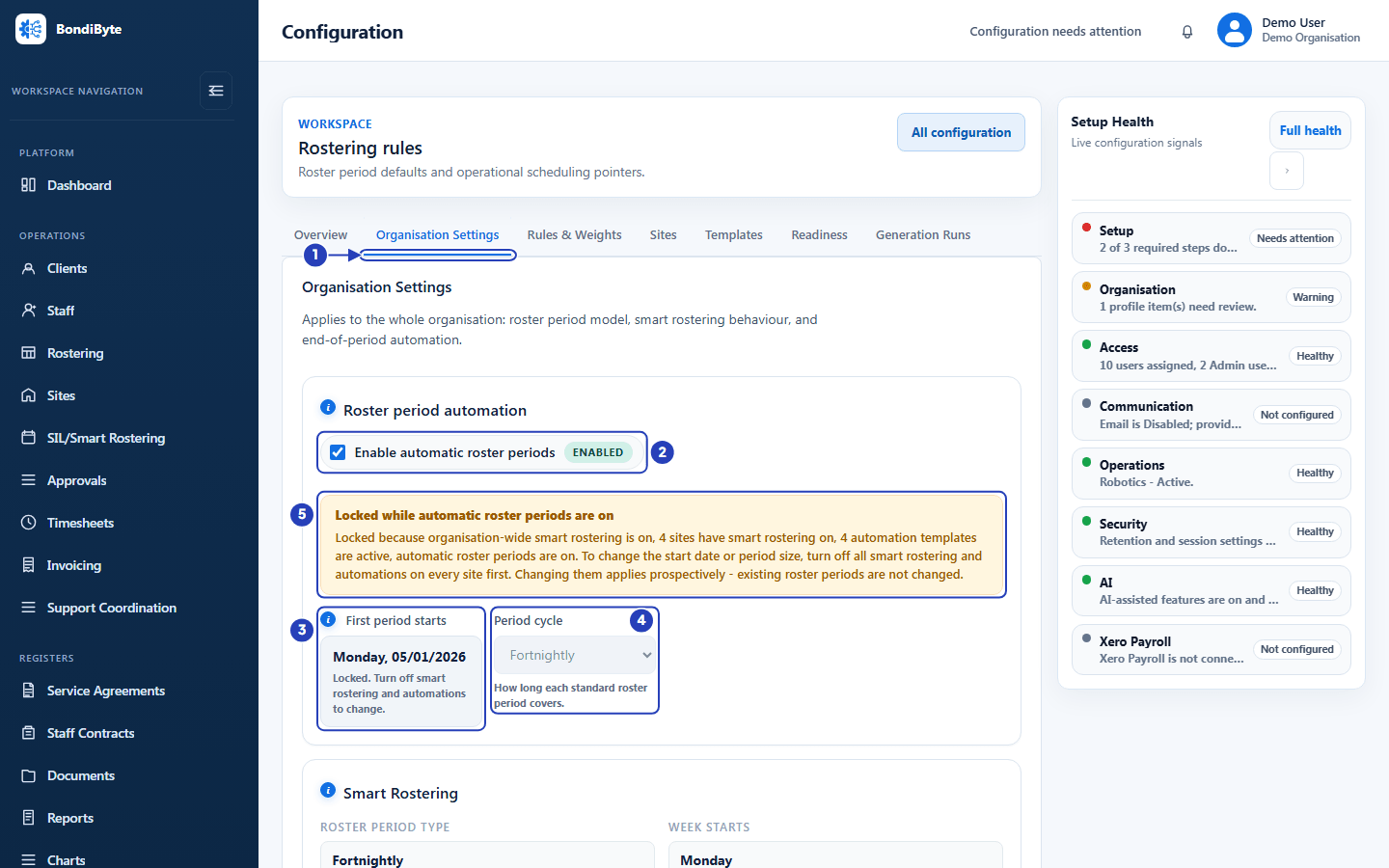
The card that holds the cycle is called Roster period automation. It sits at the top of the Organisation Settings tab in Configuration > Rostering rules. The picture below shows it, as an Owner or Admin sees it.
Fortnightly
A Fortnightly period lasts 14 days. The first period starts on the date in First period starts, the second starts 14 days later, and so on, without a break between them.
For example, with First period starts set to Monday 5 January 2026, the periods run 05/01/2026 to 18/01/2026, then 19/01/2026 to 01/02/2026, then 02/02/2026 to 15/02/2026.
Every period starts on the same weekday, and ends on the day before the next one starts. That makes a Fortnightly cycle the easiest to plan around if your pay run or rostering already works in two-week blocks.
Monthly
A Monthly period is made of whole weeks, so it lasts four or five weeks (28 or 35 days). Each period starts on the same weekday, which is your week start, on or just after the same date each month. Periods never overlap, and there is never a gap between one period and the next.
For example, with First period starts set to Monday 5 January 2026, the periods run 05/01/2026 to 08/02/2026 (five weeks), then 09/02/2026 to 08/03/2026 (four weeks), then 09/03/2026 to 05/04/2026 (four weeks), then 06/04/2026 to 10/05/2026 (five weeks).
Because a Monthly period is not always the same length, the hours and shifts in two Monthly periods can differ more than they would in two fortnights.
The first period start date and the week start
First period starts is the start of the first period of the cycle. Every other period is counted from it. Only a Sunday or a Monday can be chosen. The calendar greys out every other day, and the Type or paste a date box answers Choose a Sunday or Monday. if you type a different weekday, or Enter a valid date. if the date does not exist.
The weekday you choose is also the week start for your whole organisation. Under the calendar, a line reads, for example, Week starts: Monday. The Smart Rostering card below it shows the same two facts as read-only boxes, Roster period type and Week starts, and says Managed in Roster period settings above.
Choose a date that matches your current rostering period. The card says so itself: Set this to match your current rostering period.
Who creates the periods
Enable automatic roster periods decides who creates the periods. The box shows Enabled or Disabled beside it.
When it is on, BondiByte creates each site's periods for you, following the cycle, and the Create roster period button is not shown. When it is off, the button appears on the SIL/Smart Rostering screen for people who can create roster periods, and each period is created by hand with dates you choose.
The SIL/Smart Rostering screen also reminds you, while the setting is off: If this is your roster cycle, BondiByte can continue creating it for you without you having to create it manually. The link Set your roster cycle opens this card.
What follows the cycle
The card explains it this way: the start date and period size define the cycle every roster, timesheet and invoice runs on. Two other cards on the same tab use the end of each period:
Automatic draft timesheets can create draft timesheets after each roster period ends, and Automatic draft client invoices can create draft client invoices after each roster period ends. Each has Generate after period end, a number of hours from 0 to 24 after the period ends, which appears once its switch is ticked. Staff still review and submit their timesheet, managers still approve it, and invoices stay editable and are never sent automatically.
Both switches are greyed out until an Owner or Admin has turned on the matching automation, Automatic draft timesheet generation or Automatic client invoice generation, in Account settings under Automation & Capacity Controls. While one is off, a note beside its switch says so and offers the link Enable in Profile.
Roster periods that already exist keep their dates when you change the cycle. Only periods created afterwards follow the new cycle.
When the cycle is locked
First period starts and Period cycle cannot be changed while the cycle is locked. The card then shows an amber notice titled Locked while automatic roster periods are on, shows the date as a plain value, and greys out Period cycle.
The notice names the reasons. It can say that organisation-wide Smart Rostering is on, that some number of sites have Smart Rostering on, that some number of automation templates are active, or that automatic roster periods are on. If only Enable automatic roster periods is holding the lock, the notice says Turn off automatic roster periods to change the cycle. If Smart Rostering or automation templates are also involved, it adds To change the start date or period size, turn off all smart rostering and automations on every site first.
A new organisation has to set its cycle before it adds its first site. Until then the Sites screen shows Set your roster period first and Add site is greyed out. Once Smart Rostering runs, the cycle is locked, so check that it matches your current rostering period before you save it.
If you change the cycle when it is not locked, the card previews the result first, and Save organisation settings asks you to confirm with Change rostering calendar. If you already have shifts, a second box, Re-anchor your roster calendar?, asks for Re-anchor calendar. Existing roster periods are not changed by either.
Important notes
Important: The cycle applies to the whole organisation. You cannot give one site a Monthly cycle and another site a Fortnightly cycle. Sites can adjust how Smart Rostering behaves for them, but not their roster period model.
Note: A Manager can see roster periods on the SIL/Smart Rostering screen but cannot see the cycle settings. If a change is needed, ask an Owner or Admin.
Good practice
- Set the cycle before you add your first site, and make it match the rostering period you already run. Once Smart Rostering is on, you cannot change the start date or the cycle without turning Smart Rostering off for every site first.
- Choose the week start your team already thinks in. Every roster period starts on that weekday, so a Sunday start suits a team that rosters Sunday to Saturday.
- Pick the cycle you want your timesheets and invoices to follow. They run on the same cycle as your rosters.
- Leave Enable automatic roster periods on unless you want to create each period by hand. With it on, nobody has to remember to create the next period.
- Before you save a changed cycle, read the Current setup, New setup and Next period lines under the card, and read any message about an overlap or a gap in coverage.
Questions and answers
Can I choose a weekly cycle or a three-week cycle?
No. Period cycle offers Fortnightly and Monthly only.
Why can I not change First period starts or Period cycle?
The cycle is locked. The amber notice on the card names the reason, for example that Enable automatic roster periods is on, or that Smart Rostering is on for the organisation or for some sites.
Will changing the cycle change my existing roster periods?
No. The card says Existing roster periods will not be changed. Only periods created after the change follow the new cycle.
Why does the SIL/Smart Rostering screen not show Create roster period?
Enable automatic roster periods is on, so BondiByte creates the periods. The button appears only while that setting is off, and only for people who can create roster periods.
Does the Rostering screen use the cycle?
The Rostering screen works week by week and does not use roster periods. Timesheets and invoices follow the cycle.