

Who this is for
This guide is written for Owner, Admin, Manager and Rostering Officer.
Before you begin
- Your organisation's subscription or trial is active. An Owner or Admin switches Smart Rostering on for the organisation (Configuration > Rostering rules > Organisation Settings > Enable Smart Rostering), then for each site (the site's Site settings tab > Enable smart rostering automation for this site). See Set up Smart Rostering.
- Smart Rostering automation is on in Account settings > Automation & Capacity Controls. It is on unless an Owner or Admin has switched it off. While it is off, BondiByte does not build rosters by itself.
Smart Rostering in three sentences
Smart Rostering is BondiByte's automatic roster builder for a site, such as a supported independent living (SIL) house, and it lives on the SIL/Smart Rostering screen.
You describe the site's usual shifts once (a template), set the rules, and switch it on for the site.
From then on BondiByte builds each roster by itself, and you review the result.
What BondiByte does by itself
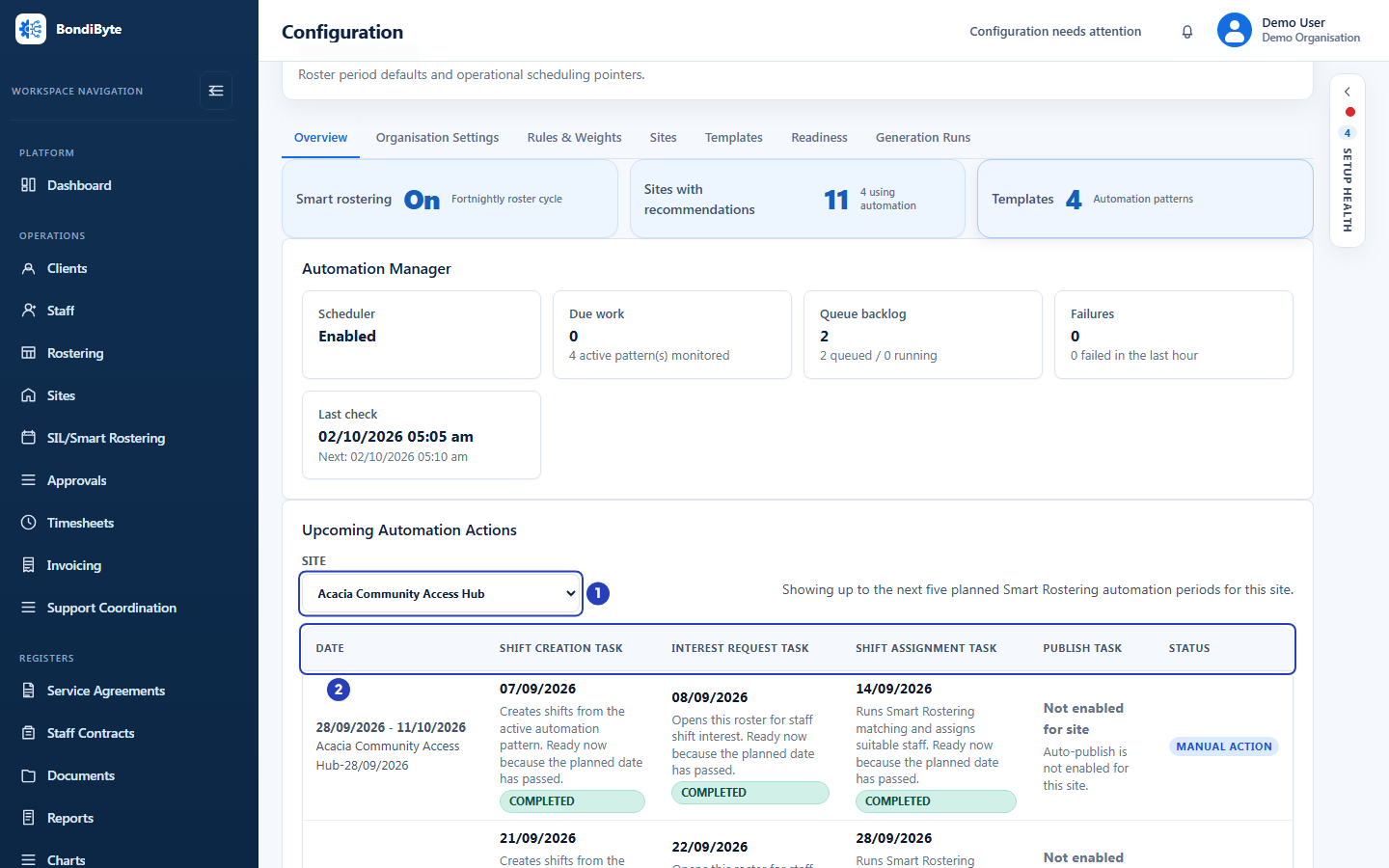
A roster period is the fortnight or month a roster covers. For every upcoming roster period of a site that has Smart Rostering on, BondiByte works through four steps on dates it plans ahead. The four steps together are the automation plan.
- Create shifts (Shift Creation Task on screen). BondiByte copies the site's template into the new roster period, a set number of days before it starts.
- Ask staff for interest (Interest Request Task, optional). If your organisation and the site allow it, staff say in the Staff App which shifts they would like.
- Build the draft roster (Shift Assignment Task). BondiByte assigns suitable staff to every shift, fairly across your whole organisation, and records why each person was or was not chosen. A shift it cannot fill stays open.
- Publish (Publish Task). If the site publishes by itself, staff see the roster on the planned date. Otherwise the roster waits for a manager to review and publish it.
Each step has a planned date, fixed when BondiByte first plans the roster period. Later changes to the timing settings apply to future periods only. BondiByte checks every few minutes whether a step is due, so nobody has to start anything.
The plan grid under Upcoming Automation Actions shows each roster period as a row, with the planned date of each step and whether it is Completed.
What you do
- Set it up once. Switch Smart Rostering on, give each site a team and a template, and choose the rules. The Setup checklist shows what is still missing.
- Keep it current. Edit the template when the house's regular pattern changes. Update the site team when people join or leave. Keep staff availability up to date.
- Review and publish. Open each draft roster, check unfilled shifts and warnings in the Report, change anything by hand, then publish. Or let BondiByte publish for you once you trust the results.
Which screen is which
Rostering (the Rostering menu item) is the hand-made calendar for clients who are not attached to a site (community clients): you add each shift yourself.
SIL/Smart Rostering (the SIL/Smart Rostering menu item) is for sites (SIL houses): shifts belong to the site, several workers can be on one shift, sleepovers and roster periods apply, and Smart Rostering can build the roster for you.
Smart Rostering works only on SIL/Smart Rostering. You can still add and edit shifts by hand there, and you can switch Smart Rostering on for one site and leave another site off.
When you would run it by hand
The automation plan is the normal path. Three items in the More roster actions menu (the three dots) on SIL/Smart Rostering are for exceptions.
Run smart rostering builds a roster period now, instead of waiting for its planned date. Request interest and Undo interest request open or close the staff interest step by hand.
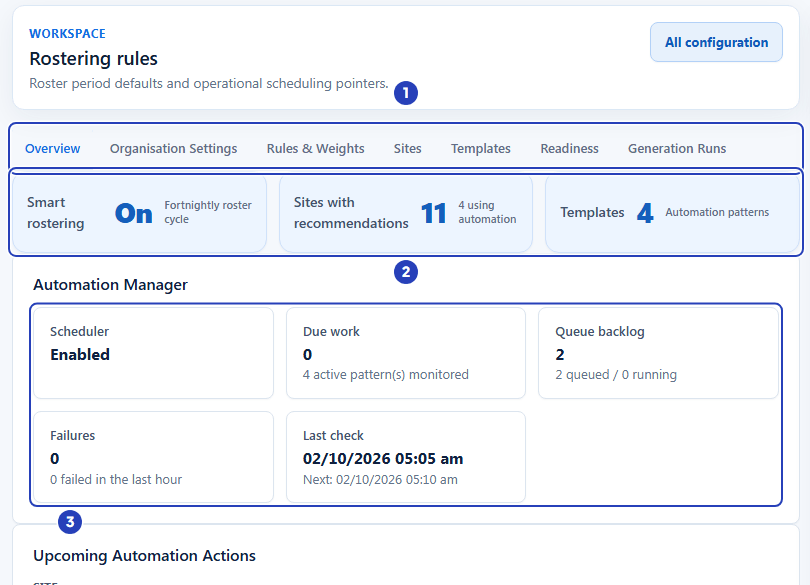
You never need to start the automatic checks yourself. The Automation Manager on the Overview tab shows the Last check and the next one.
What you set up, and where
Organisation Settings (Configuration > Rostering rules). The switch for the whole organisation, when each step happens, staff interest and manager review.
Rules & Weights. What must never happen (hard rules), and what matters most when BondiByte chooses between people (weights).
Sites. Each site's own switch, its team and whether it publishes by itself.
Templates. The site's regular fortnight or month of shifts. On the roster, a padlock beside an assigned person keeps them on that shift in later periods.
Readiness. What is still missing before automation can run for a site.
Generation Runs. The history of what the automation did, with unfilled shifts, warnings and errors.
Recommendations. On the roster, the Report and the Assign staff window show, shift by shift, who was considered, who was chosen and why others were not.
Who can use it
Owners and Admins can use every part. Managers can open the Overview, Sites and Templates tabs and the pages of the sites they manage. A Rostering Officer can run Smart Rostering by hand and see recommendations, and by default cannot change its settings. Your organisation can adjust these in its roles.
Important notes
Important: Smart Rostering builds the roster by itself, and a manager reviews the result. It applies the rules and weights your organisation chooses and does not promise that a roster meets every legal, award or funding requirement, so the manager remains responsible for the final roster.
Good practice
- Start with one site. Switch it on, build its template and check its first few drafts before you add more sites.
- Keep Require manager review ticked until you have checked several drafts and are happy with how staff were chosen. Then decide whether the site should publish by itself.
- When a shift is left unfilled, open the Report before you change any weights. It says why, so you change the right thing.
Questions and answers
Do I have to press Run smart rostering?
No. BondiByte builds each roster period by itself on the planned dates. Run smart rostering is for exceptions, such as building a period right now instead of waiting for its planned date.
Does Smart Rostering publish rosters by itself?
Only when you allow it. A roster publishes by itself only for a site with Allow auto-publish on, and only when Require manager review is off for the organisation and the site. Otherwise the roster waits for a manager to publish it.
What is the difference between Rostering and SIL/Smart Rostering?
Rostering is the hand-made calendar for clients who are not attached to a site. SIL/Smart Rostering is for sites, where shifts belong to the site, several workers can share a shift and Smart Rostering can build the roster for you.
Why did a person not get a shift?
Open the Report on the roster, or the shift's Recommended staff list. They show who was considered and why others were not chosen, for example not on the site team, already booked, over their hours or ranked lower. See Review recommendations.
Why can I not see the Setup, Organisation Settings or Rules & Weights tabs?
Those tabs are shown only to people who can open the full Configuration page. Managers and Rostering Officers see only the Overview, Sites and Templates tabs. The Setup tab also disappears once all eight setup checks are done. Ask an Owner or Admin.
Why does the roster show Enable Smart Rostering instead of Disable Smart Rostering?
Smart Rostering is switched off for the site you are looking at. Choose Enable Smart Rostering. It opens the site settings with the automation switch already on. If the button is greyed out, ask an Owner or Admin.
The Automation Manager says the Scheduler is Disabled. What does that mean?
Automatic checks are switched off, so BondiByte is not building rosters by itself. Contact BondiByte support. You can still build a period with Run smart rostering.
Can I use recommendations without the automation?
Yes. Each site has a separate setting, Enable smart recommendations for this site, that ranks staff when someone assigns people to shifts. It does not create shifts or run the automation plan.
What happens if I turn Smart Rostering off?
Automatic shift creation and assignment stops. Existing shifts and published rosters are not changed, and you can turn it back on at any time.