

Who this is for
This guide is written for Owner and Admin.
Before you begin
- Enable Smart Rostering is ticked on Configuration > Rostering rules > Organisation Settings. While it is off, the Rules & Weights tab shows only a message. See Smart Rostering organisation settings.
- Read the Smart Rostering overview. BondiByte applies these rules and weights each time it builds a draft roster.
- You know what matters most to your organisation when shifts are filled, for example continuity of support or fairness between staff.
Steps
The screenshots show a demonstration organisation with made-up names. Your own screens show your organisation's details. Select a screenshot to open it full size.
-
Go to Configuration > Rostering rules > Rules & Weights
1 In the left menu, choose Configuration.
2 Choose the Rostering rules card.
3 Choose the Rules & Weights tab.
The tab holds two kinds of control, and they do different jobs. Hard rules say what must never happen. A person who breaks one is never put on a shift, whatever the weights say. Weights say what BondiByte prefers among the people who are allowed.
For example, a person who is already working an overlapping shift is never offered another one. That is a hard rule. Among everyone who is free, a higher Fairness weight makes BondiByte favour the person with fewer shifts so far. That is a weight.
The tab has four parts: a preset list, a slider for each weight, Capability Requirements and System-Level Hard Rules.
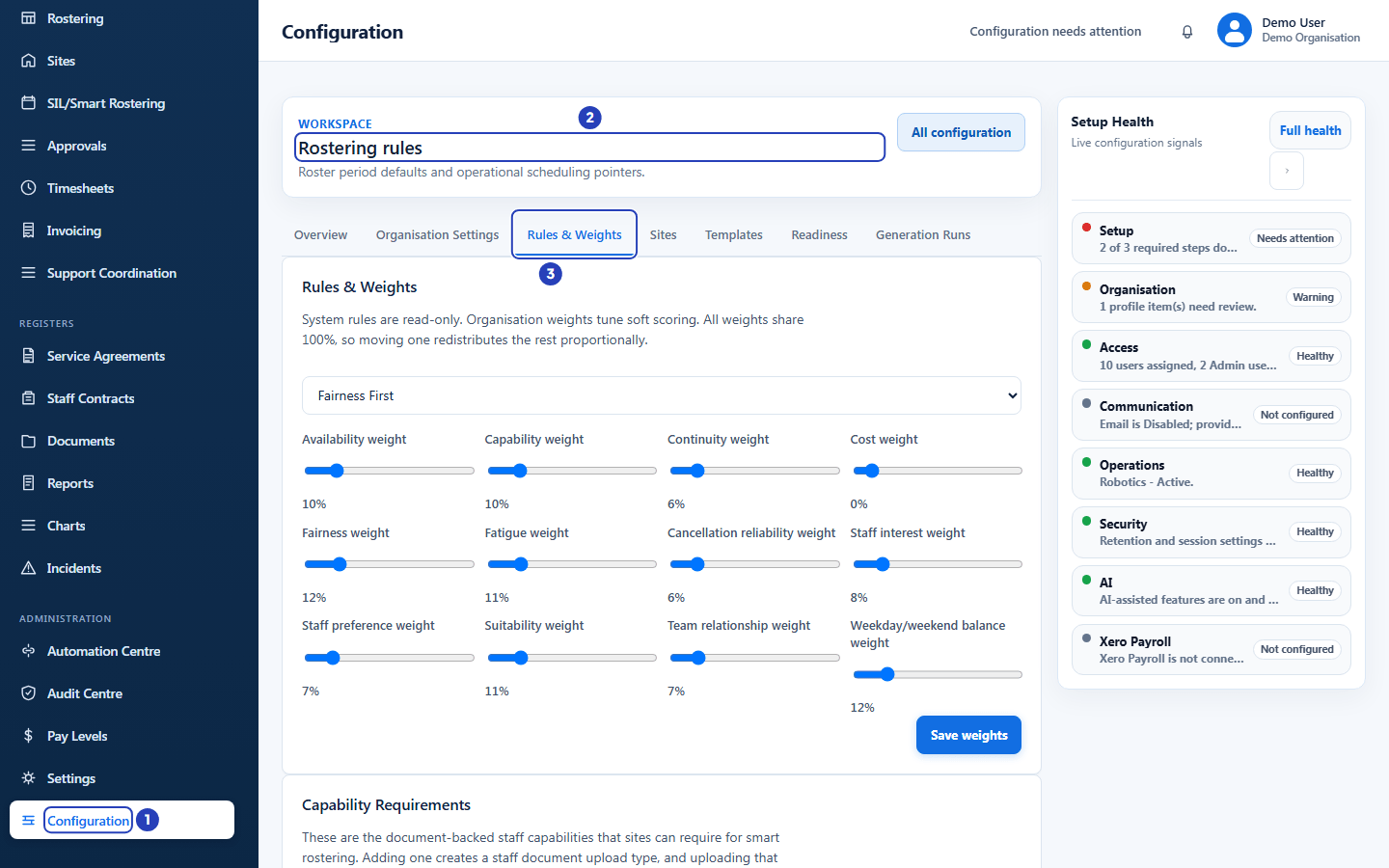
Choose Configuration (1), then the Rostering rules card (2, shown here as the page heading once it is open), then the Rules & Weights tab in the row of tabs (3). -
Choose a starting preset
1 Open the list at the top of the tab and choose a built-in preset.
2 Look at the sliders. Each is a weight, shown as a percentage, and together they always add up to 100 percent.
Fields in step 2 Field What it means Balanced An even mix. Suitability, availability and capability count most. Compliance First Puts the most weight on suitability, capability, availability and fatigue. Continuity First Favours staff who already work with the site and its clients. Fairness First Spreads shifts evenly, including weekday and weekend shifts. Availability First Puts the most weight on availability and staff interest. Cost Aware Adds weight for the staff member's pay rate while keeping safety and eligibility high. Custom Shown after you move a slider without choosing a preset. 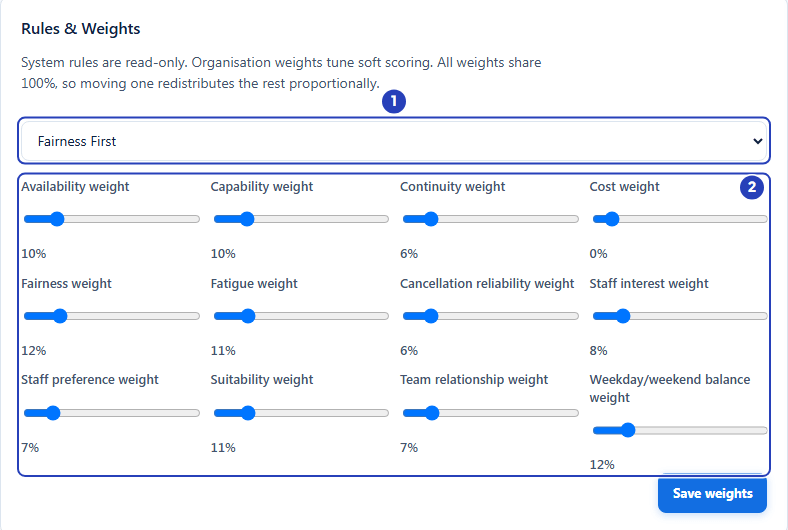
Choose a preset from the list (1). The sliders (2) move to its values and always add up to 100 percent. -
Adjust the weights and save
1 Drag a slider to change how much that factor counts. The other sliders move so the total stays at 100 percent, and the list changes to Custom.
2 To keep your own mix under a name, choose Save As..., type a name and choose Save. It then appears under My presets.
3 Choose Save weights. A message confirms the weights are saved.
Fields in step 3 Field What it means Availability weight How much a person's availability for the shift counts. Capability weight How much it counts that the person holds the capabilities the shift needs. Continuity weight How much it counts that the person already belongs to the site's team, primary team first. Cost weight How much the staff member's pay rate counts. It is 0% in every built-in preset except Cost Aware. Fairness weight How much it counts that shifts are spread evenly across the team. Fatigue weight How much it counts to avoid tiring patterns such as double shifts. Cancellation reliability weight How much recent cancellations count against a person. Staff interest weight How much it counts that the person said they are interested in the shift. Staff preference weight How much it counts that the shift falls in time the person marked as available or preferred. Suitability weight How much the overall suitability rating counts, after the checks and any warnings. Team relationship weight How much it counts whether the person is on the site's primary, secondary or relief team. Weekday/weekend balance weight How much it counts that weekday and weekend shifts are shared fairly. Important: A preset you save with Save As... is kept in this web browser on this computer only. It is not shared with other people in your organisation and does not follow you to another computer.
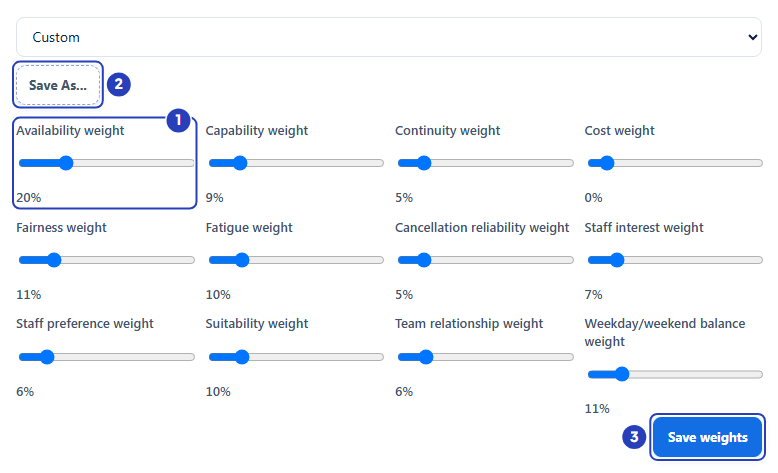
Drag a slider (1). The list changes to Custom. Choose Save As... (2) to keep your mix under a name, then Save weights (3). -
Add a capability requirement if you need one
Capability Requirements lists the staff capabilities that sites can require, such as checks, licences and training. The built-in ones are marked Built-in and cannot be edited.
1 In Capability name, type the name, for example Diabetes Management Training.
2 In Capability type, choose Training, Qualification, Skill or Capability.
3 Tick Requires expiry date if the evidence must be renewed, such as a check, licence or certificate.
4 Choose Add capability. The button stays greyed out until you type a name.
Note: Adding a capability also creates a staff document upload type, so uploading a matching document updates the person's capability record. Each site then chooses which capabilities it requires. See Prepare sites for Smart Rostering.
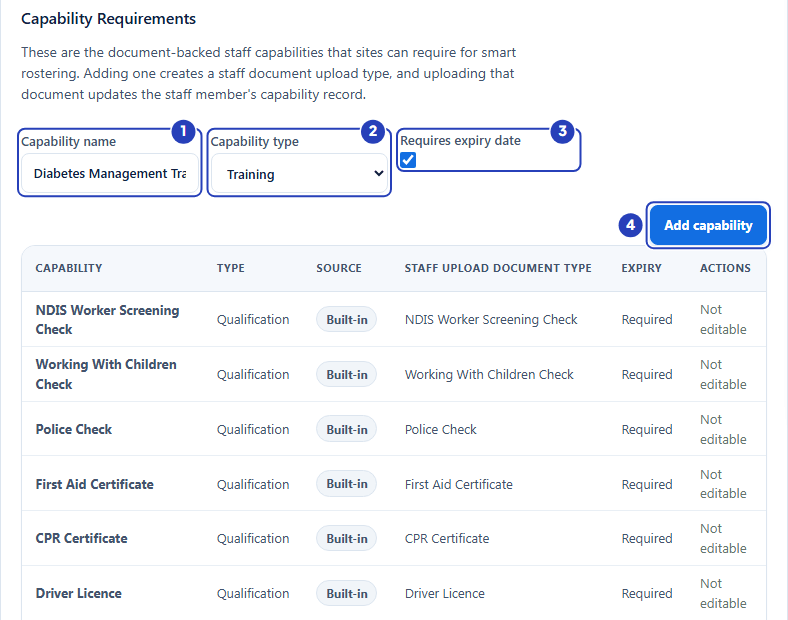
Type the capability name (1), choose its type (2), tick Requires expiry date if needed (3), then choose Add capability (4). -
Read the hard rules
1 Scroll to System-Level Hard Rules. Each row gives a Rule, its Category and its Behaviour. They are No blocked availability, Mandatory capability match, No assignment beyond required count, No cancelled or completed shift assignment, No double booking, No inactive staff and No overlapping assignments.
They are read-only, so there is nothing to change here. Weights only rank the people who have passed every hard rule.
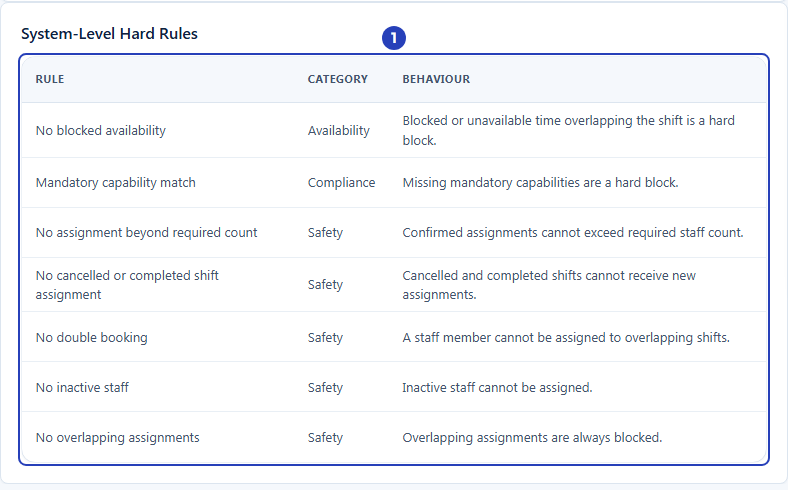
The System-Level Hard Rules (1) are read-only. They are the limits that weights never override.
What happens next
The weights apply to the whole organisation and are used the next time BondiByte builds a draft roster. Each site can also set its own priorities in its Site settings. See Prepare sites for Smart Rostering.
To see how the ranking treated a particular shift, open the Report or the shift's Recommended staff list. See Review recommendations.
Important notes
Important: Weights never allow a person who breaks a hard rule to be offered a shift. They only decide the order of the people who are allowed.
Good practice
- Start with the built-in preset closest to what matters most to you, check a few draft rosters, and only then fine-tune.
- Change one weight at a time. Because all the weights share 100 percent, moving one slider moves the others.
- Leave Cost weight at 0% unless pay rates should really influence who is chosen.
Troubleshooting
The tab says to enable Smart Rostering first and there are no sliders.
Why it happens: The tab shows Enable organisation-level smart rostering before tuning scoring weights. while Smart Rostering is off. Saved weights are kept.
What to do: Tick Enable Smart Rostering on the Organisation Settings tab and save, then come back to Rules & Weights.
When I move one slider, the others move as well.
Why it happens: All the weights share 100 percent, so raising one lowers the rest in proportion.
What to do: This is expected. Move the sliders one at a time and check the percentages shown under each one.
A preset I saved with Save As... is missing on another computer or browser.
Why it happens: Presets saved with Save As... are kept in the web browser you used, not in your organisation's account.
What to do: Set the sliders again on the other computer, or use a built-in preset. Built-in presets are always available.
Add capability is greyed out.
Why it happens: The Capability name is empty.
What to do: Type a name for the capability. The button turns on as soon as there is a name.
I cannot change a capability in the table. It says Not editable.
Why it happens: Built-in capabilities are fixed. Only capabilities marked Created by you have an Edit button.
What to do: Add your own capability with a different name, or edit one you created.