

Who this is for
This guide is written for Owner, Admin, Manager and Rostering Officer.
Before you begin
- Smart Rostering is on for the site, Enable smart recommendations for this site is on in its Site settings tab, and the site has a team. See Prepare sites for Smart Rostering.
- The roster period has shifts. BondiByte creates them and builds the draft on its planned dates. See How Smart Rostering builds a roster.
- Read the Smart Rostering overview. Reading never changes the roster. Only choosing a person does.
Steps
The screenshots show a demonstration organisation with made-up names. Your own screens show your organisation's details. Select a screenshot to open it full size.
-
Go to SIL/Smart Rostering > choose the site and the Unfilled filter
1 In the left menu, choose SIL/Smart Rostering. Use the Previous period and Next period arrows until the heading shows the roster period you want.
2 In Site (called Site/Client if your organisation rosters clients without a site), choose the site.
3 Open the filter at the left of the toolbar and choose Unfilled. Shifts with nobody assigned stay bright and the rest fade.
4 Read the note near the bottom of a shift that needs staff. Recommendation available means BondiByte has someone to suggest. No recommendation available means nobody can be recommended, and the Report says why. Site staff available means there is no suggestion but people on the team are not yet on the shift. Recommendations disabled means the site has recommendations switched off.
Tip: A shift with a green edge has all its staff. An amber edge means it still needs someone. If many shifts say No recommendation available, open the Report first, because one cause usually sits behind many of them.
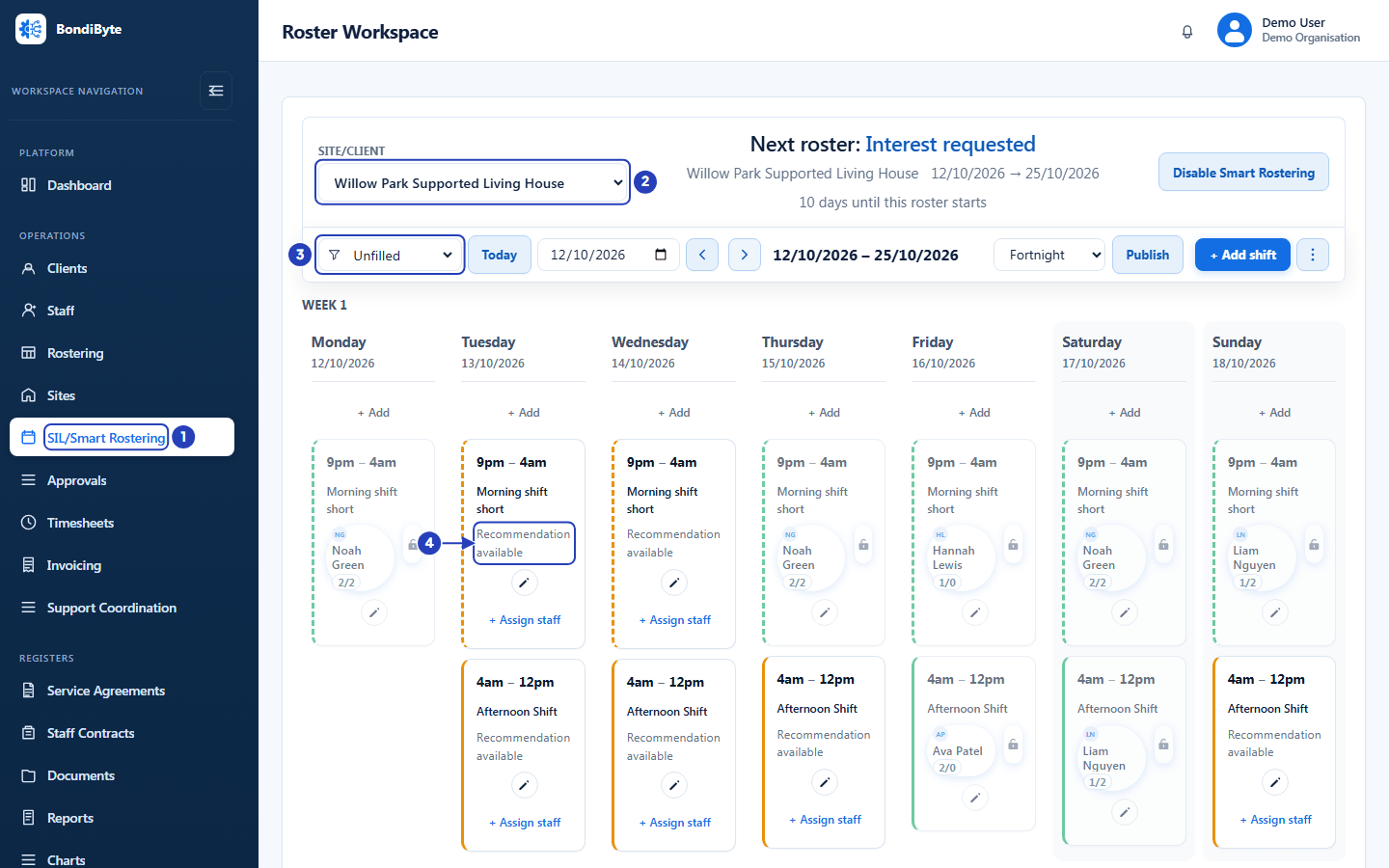
Choose SIL/Smart Rostering (1), choose the site (2) and use the filter (3). The note on a shift (4) says whether Smart Rostering has a recommendation. -
Open More roster actions > Report and read the summary
Choose More roster actions, the three dots at the right of the toolbar, then Report. Wait for Loading the roster report... to finish.
1 The banner's large percentage is how much of the period is staffed, with the slots still open, for example 25 open slots still need staff. A slot is one place for one person.
2 Fully staffed counts shifts that have all their people.
3 Partly staffed counts shifts that have some of their people.
4 No staff yet counts shifts with nobody assigned.
5 Roster status shows Draft, OpenForInterest (staff have been asked for interest), Published, Closed or Cancelled, and whether the roster is Published to staff or Not published yet.
Note: Report is in the menu only when Smart Rostering is on for the site, or a run has already been recorded for the period.
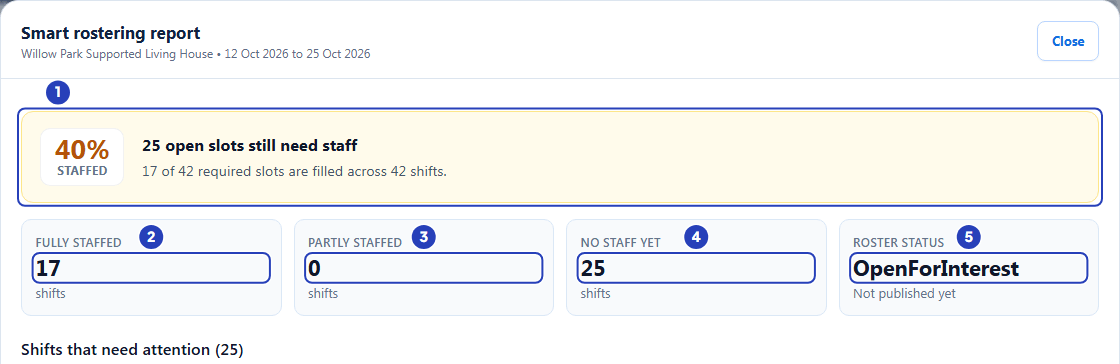
The banner (1) shows how much of the period is staffed. The tiles count fully staffed shifts (2), partly staffed shifts (3) and shifts with no staff yet (4), and show the roster status (5). -
Read Shifts that need attention and the reasons
This list holds every shift that does not yet have all its people. If there are none, the report says Nothing outstanding. Every shift in this fortnight has the staff it needs.
1 A label such as 0/1 staffed shows how many of the people a shift needs are assigned. A shift that already has someone also shows Assigned:.
2 Under it are the reasons the shift could not be filled, the most common first. Blocker means a person could not be used. Warning means a person could be used but needs a look. Note is for information.
Fields in step 3 Field What it means Blocker: not on the site team Staff is not assigned to this site. Add them on the site's Staff tab, or choose Add to site and assign on the shift. Blocker: over their hours The message says the assignment would put staff at a number of hours above their capacity for the roster period. The limit is the person's Max rostered hours, or the site's Default staff capacity. Blocker: already working or unavailable Staff member is already assigned to an overlapping shift. or Staff has unavailable or blocked time overlapping this shift. If every person on the team is booked elsewhere, the report lists them with the site and time. Blocker: a requirement or setting Missing mandatory requirement names what the person lacks. Staged staff must be activated means their record is not active yet. Messages that say the site does not allow relief staff, or same-day double shifts, point to the site settings Allow relief staff and Allow double shifts. Blocker: the primary team still has hours Secondary and relief people are used only when no Primary Team member has hours left. Warning and Note A warning, for example This assignment would put staff near capacity, means the person can still be used. Smart rostering has not scored this shift yet. means it has no recommendations yet. 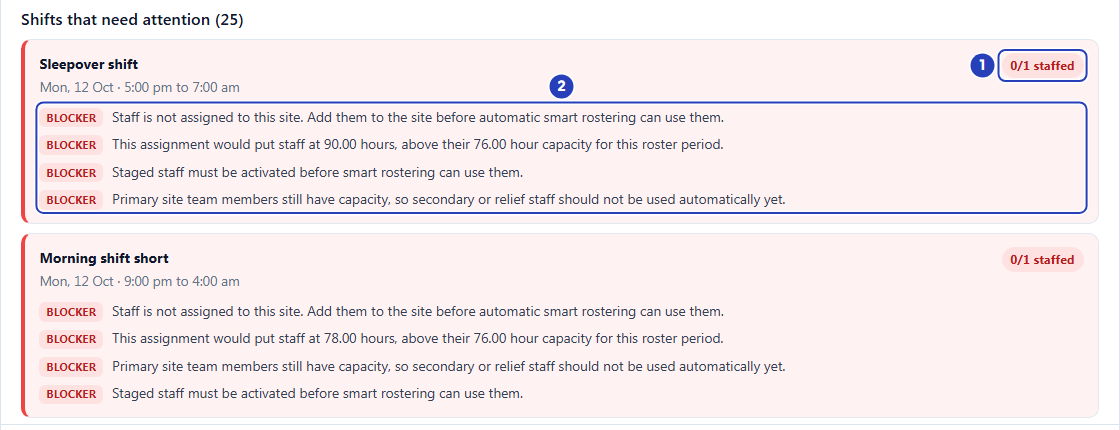
Each shift in the list shows how many of its people are assigned (1). Under it are the reasons it could not be filled, each marked Blocker, Warning or Note (2). -
Check Staff availability this fortnight
Scroll to Staff availability this fortnight. It shows the hours already rostered for each person on this site's team, across every site. Someone already loaded elsewhere may be why a shift here was not filled with them.
1 Each row is a person, with how they are linked to this site, for example Primary Team.
2 The labels in the middle show their hours at each site. The site you are reviewing is shaded differently.
3 The number at the right is their total hours in this period.
Below it, Fully staffed shifts starts closed, and What happens next lists the automatic steps with a date for each. Choose Close when you have finished.
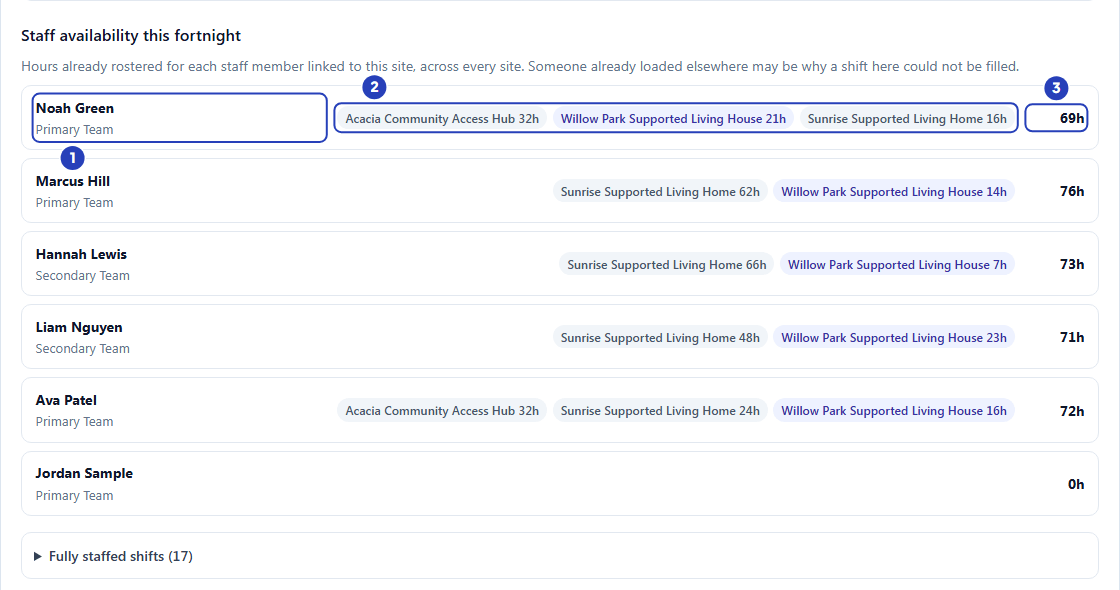
Each person shows how they are linked to the site (1), their hours at each site (2) and their total hours in the period (3). The Fully staffed shifts list is below. -
Choose + Assign staff to see the recommendations for one shift
Choose + Assign staff at the bottom of a shift that needs staff. A window opens beside the shift, headed Assign staff. If it says Recommendations are being prepared..., wait for the list to fill in.
1 Use Search all staff to narrow the list by name.
2 A person marked Available, in green, has nothing to review. Choosing the name assigns them at once, with no confirmation. If you choose by mistake, choose the person's name on the shift and then Remove.
3 Any other status needs a look. A row shows the first status that applies.
Fields in step 5 Field What it means Already booked The person is working another shift at the same time. Its times are shown. On leave or Unavailable The person is on leave, or has blocked time that overlaps the shift. Not on site team The person is not on this site's team. You can add them from the shift if you may edit sites. Missing requirements The person lacks a mandatory requirement the shift needs. Review There is a warning or another concern to read first. Choose the person to see it. 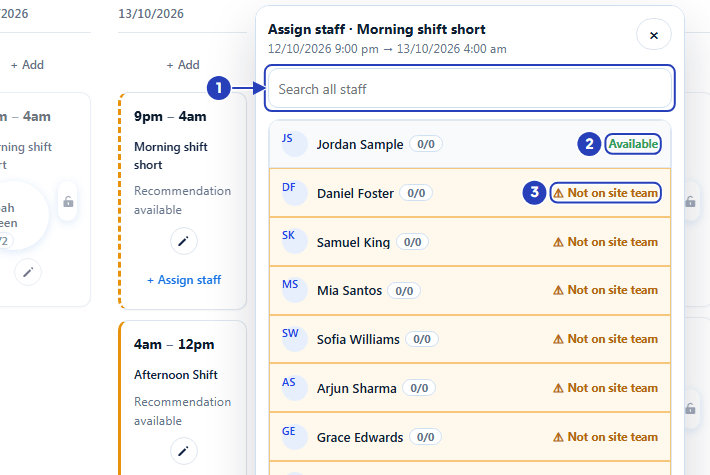
Search the list (1). A person marked Available (2) has nothing to review. A person with another status, such as Not on site team (3), needs a look. -
Choose a person with a status to read why
A row with a status other than Available opens instead of assigning.
1 Choose the person's row. The first line shows the person's group, their link to the site, and the numbers Warnings and Hard blocks. The groups are Recommended staff (Primary Team), Secondary, Relief and Others (active staff not linked to this site). A person with warnings can still be assigned. Hard blocks stop the person being used under the site's rules.
2 Read the reasons in words.
3 Override and assign is at the bottom. It is greyed out when the person cannot be assigned, for example when they are already booked, unavailable or inactive.
For a person who is not on the site team, the panel also offers Add to site and assign. See Assign and publish from Smart Rostering.
Warning: Override and assign assigns the person even though BondiByte warned against it. Use it only when you have read the reason and decided.
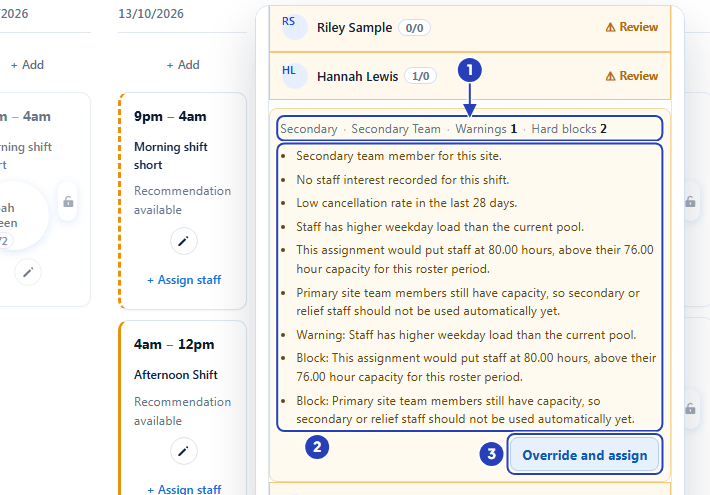
The opened row shows the group and site link with the warning and block counts (1), the reasons in words (2) and, at the bottom, Override and assign (3). -
Open Full shift details to see the whole Recommended staff list
Close the assign window, choose the pencil at the bottom left of the shift, then Full shift details, and scroll to Recommended staff.
1 Read when the list was worked out, for example Recommendations calculated 5 minutes ago.
2 Choose Refresh to work it out again. It appears only with the Can run smart rostering permission.
3 Tick Include blocked to also list the people who cannot be used, and why.
4 The people are grouped as Recommended staff, Secondary, Relief and Others. Choose a group's name to open it.
A person who needs a look has a card with a band, Strong, Good or Usable (best first), or NotRecommended, then Decision (Suitable, SuitableWithWarnings or Blocked), the counts and the reasons. The button at the bottom reads Assign, or Override and assign for someone blocked or in Others.
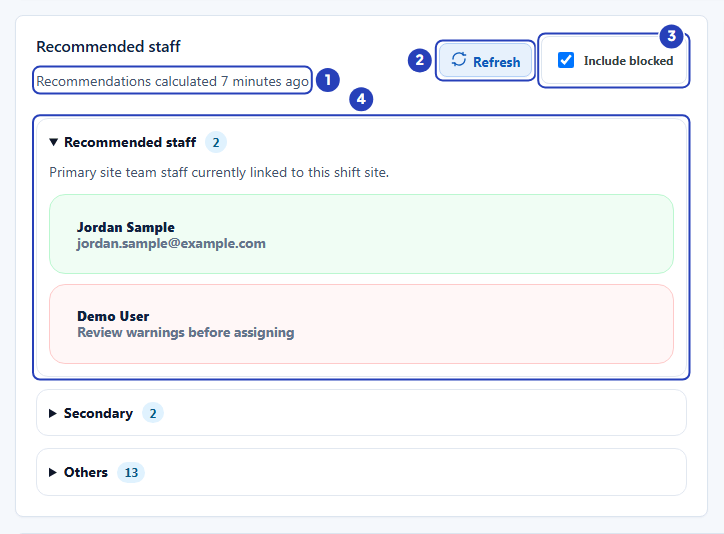
The time the list was worked out (1), Refresh (2), Include blocked (3) and the groups of people (4). -
Use the Suitability checker to ask why a particular person was not chosen
Use this when someone asks why a person did not get a shift. The usual reasons are in the earlier steps: not on the site team, already booked, unavailable, over their hours, a missing requirement, or another person ranked higher.
On the shift's page, scroll to Suitability checker and choose Check staff. Choose the person from the list that starts with Select staff, then choose Check suitability.
1 The result card shows the person's decision, such as Suitable.
2 Under it are four counts: Suitable (Yes or No), Hard blocks, Missing mandatory and Warnings, each listed below.
A person who shows Suitable with no blocks was allowed to work the shift. If someone else was chosen, that person ranked higher on your weights, for example by having fewer shifts so far. See Rules and Weights.
Note: The checker only reports. It never assigns the person.
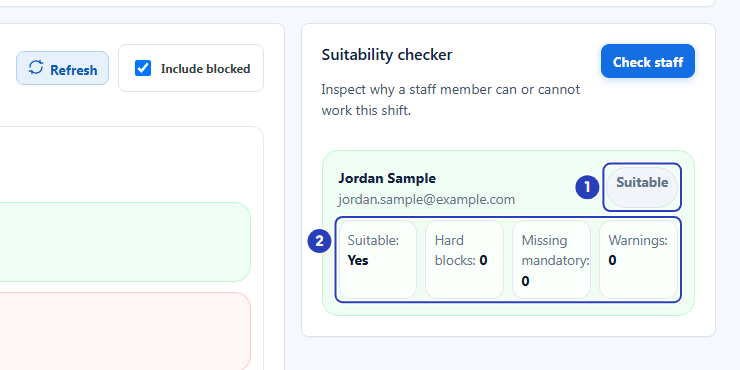
The decision (1) and the counts (2). Any hard blocks, missing requirements and warnings are listed below them.
What happens next
Nothing has changed in the roster. You now know which shifts are open, why, and who you could use.
To fill a shift, choose a person, or use Override and assign after you have decided. See Assign and publish from Smart Rostering.
Important notes
Important: Recommendations are advice for a person to review. They assign nobody, except that a row or card with nothing to review assigns the person as soon as you choose it.
Good practice
- Start with the Report. A repeated Blocker such as Staff is not assigned to this site. is one setup problem behind many open shifts, and fixing it once is faster than fixing each shift.
- If a person keeps showing Not on site team, add them to the site with the right relationship instead of using Override and assign shift by shift.
Troubleshooting
I cannot find Report in More roster actions.
Why it happens: Report appears only when Smart Rostering is on for the site, or a run has already been recorded for the period.
What to do: Check the button at the top right of the roster. If it says Enable Smart Rostering, switch it on for the site, or wait for the period to be built.
The note on every shift says Recommendations disabled.
Why it happens: Smart recommendations are switched off for this site.
What to do: Switch on Enable smart recommendations for this site on the site's Site settings tab. See Prepare sites for Smart Rostering.
The + Assign staff window says No recommendations or assigned site staff are available for this shift.
Why it happens: No staff are on the site team.
What to do: Add staff on the site's Staff tab with a relationship such as Primary Team, then open the window again.
Override and assign is greyed out.
Why it happens: The person cannot be assigned to this shift, for example they are already booked, have blocked time, are inactive, or the shift already has all its people.
What to do: Choose someone else, or fix the cause first.