

Who this is for
This guide is written for Owner, Admin, Manager and Rostering Officer.
Before you begin
- Rostering is in your left menu and the shift cards open when you choose them. They do for roles that include Can view roster and Can edit shift. An Owner or Admin can add these permissions to a role in Configuration > Roles & Permissions. See Roles and permissions basics.
- You are signed in to BondiByte on a computer.
- The shift is on the Rostering screen.
- To replace the worker, the new person is an active staff member who has finished onboarding. See Staff.
Steps
The screenshots show a demonstration organisation with made-up names. Your own screens show your organisation's details. Select a screenshot to open it full size.
-
Go to Rostering > the shift
1 In the left menu, choose Rostering.
2 Choose a date in Jump to date, or use the arrow buttons beside it, until you can see the week that holds the shift.
3 Choose the shift card. The Edit shift window opens on the right.
Important: Shifts on the Rostering screen are deleted, not cancelled. There is no separate cancel button for a shift. The Cancel button in these windows only closes the window without making a change.
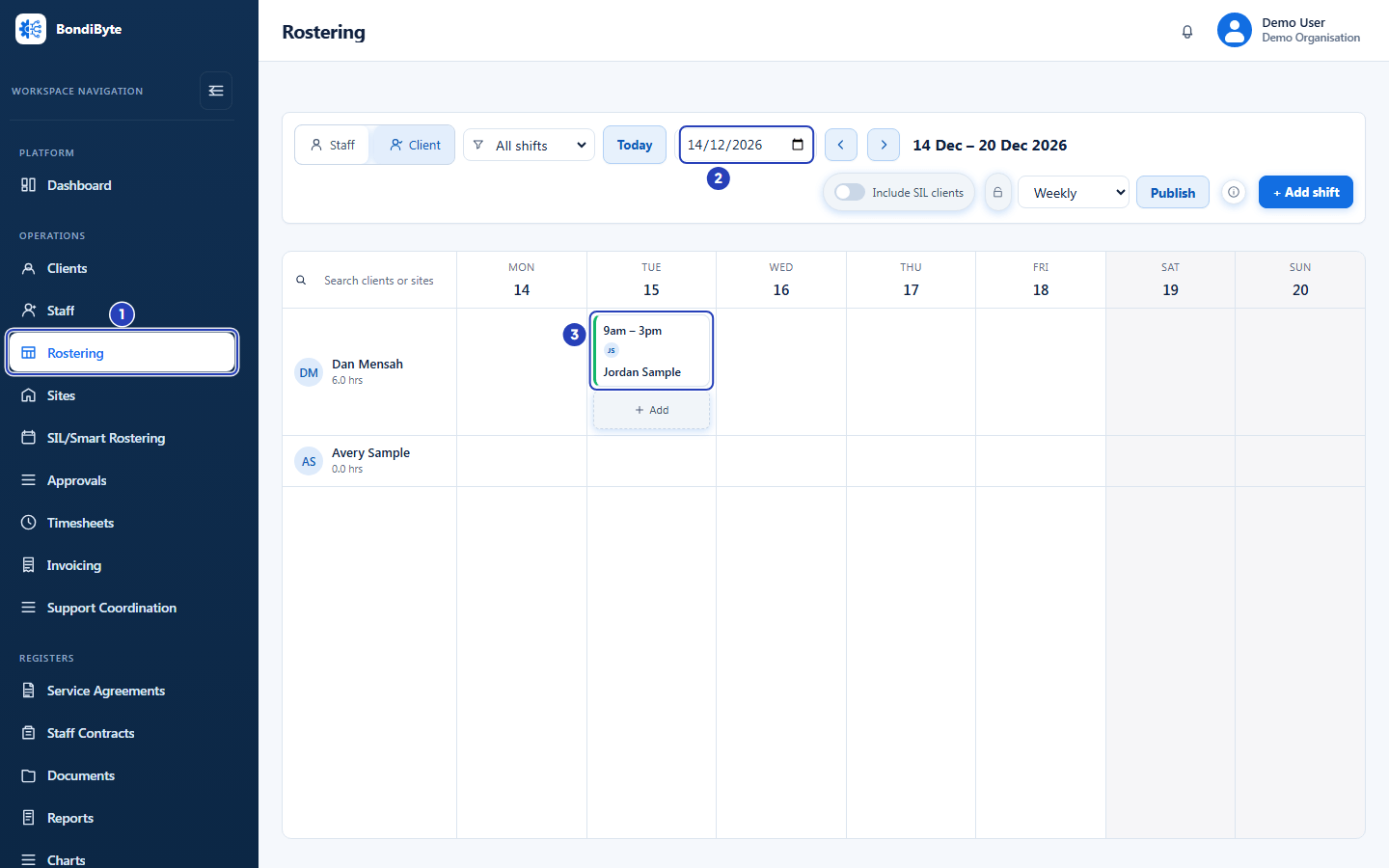
Choose Rostering, the highlighted item in the left menu (1). Show the week (2), then choose the shift card (3). -
Replace the worker in Assigned staff
1 Choose the Assigned staff field. It shows the picture or initials of the person who is on the shift now.
2 Type part of the new person's name in Search all staff.
3 Choose the person who is taking over.
Tip: To take the person off the shift without replacing them, choose Unassigned at the top of the list instead, then choose Save shift. The shift goes back to amber and shows Assign staff.
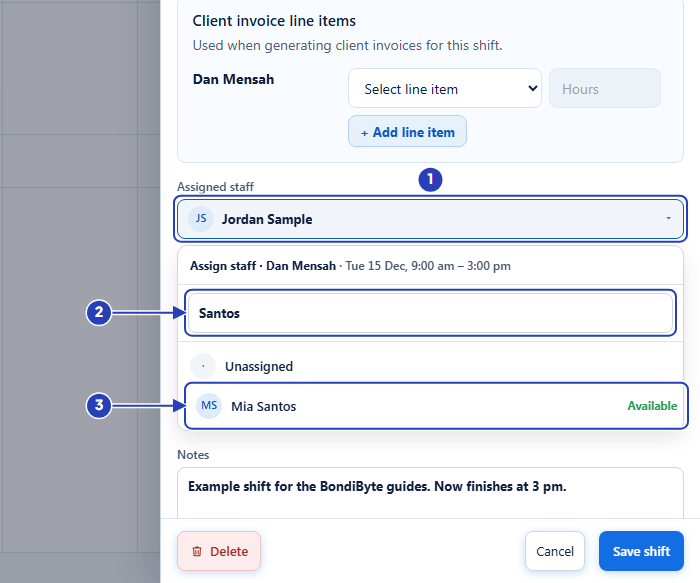
The field shows who is on the shift now (1). Search for the new person (2) and choose them (3). -
Choose Save shift
1 Check that Assigned staff now shows the new person's picture or initials.
2 Choose Save shift. This can take a few seconds.
3 Choose Cancel instead to close the window and keep the first person.
Note: If a Heads up before assigning box appears, it is a warning about the new person, such as a clash with another shift. See Assign staff to a shift for what to do. To keep the first person instead, choose Cancel at the bottom of the window.
Warning: If a message says the new person could not be assigned, the shift may now have nobody on it. Choose someone who can be assigned in Assigned staff and choose Save shift again. To check where the shift stands, refresh the page in your browser. A shift with nobody on it shows Assign staff. To put the first person back, refresh the page, open the shift and assign them again. You get a message of this kind too if you choose Cancel in an Override compliance block? window. See Troubleshooting below.
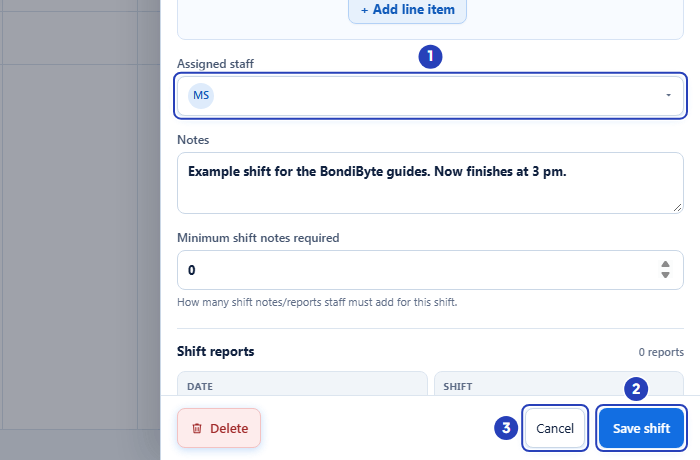
Check the new person (1). Choose Save shift (2), or Cancel (3) to keep the first person. -
Check the new worker
1 A message confirms Shift updated.
2 The window closes and the shift card shows the new person's name.
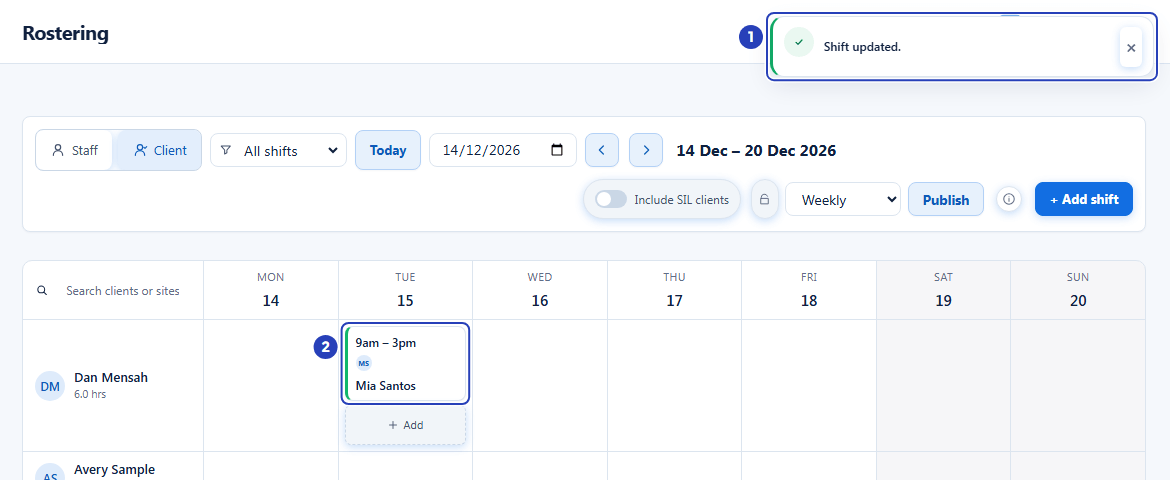
The confirmation message (1) and the shift with the new person's name (2). -
To delete the shift, open it and choose Delete
1 Choose the shift card to open the Edit shift window again.
2 Choose Delete, at the bottom left of the window. A confirmation window opens.
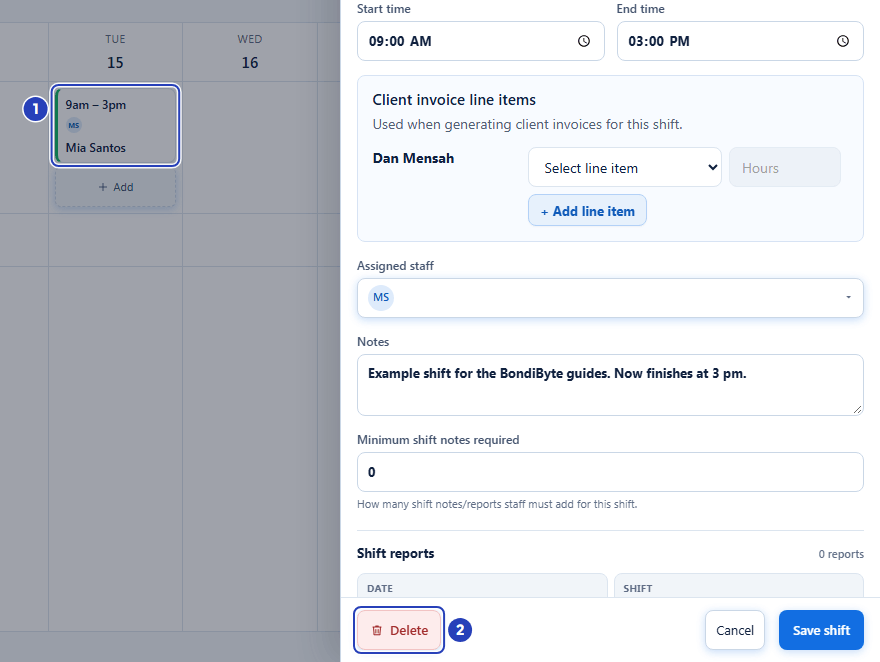
Choose the shift card (1) to open it, then choose Delete (2). -
Confirm in the Delete shift window
1 Read the message. It says the shift and its staff assignment are removed, that this can't be undone, and that records are retained for audit history. Choose Delete this shift.
2 Choose Cancel instead to keep the shift.
Warning: A shift that was added with Repeat this shift asks what to delete. Choose Delete this shift only, This and future shifts in this series or All shifts in this series (past and future). The button then names your choice, for example Delete this + future.
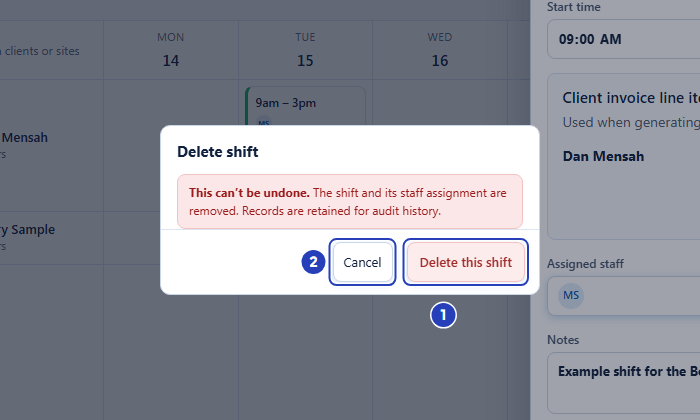
Choose Delete this shift (1) to remove it, or Cancel (2) to keep it. -
Check the calendar
1 A message confirms Shift deleted. If you chose This and future shifts in this series or All shifts in this series (past and future), it says Shifts deleted. instead.
2 The shift is gone from the calendar and the hours total in the client's row goes down.
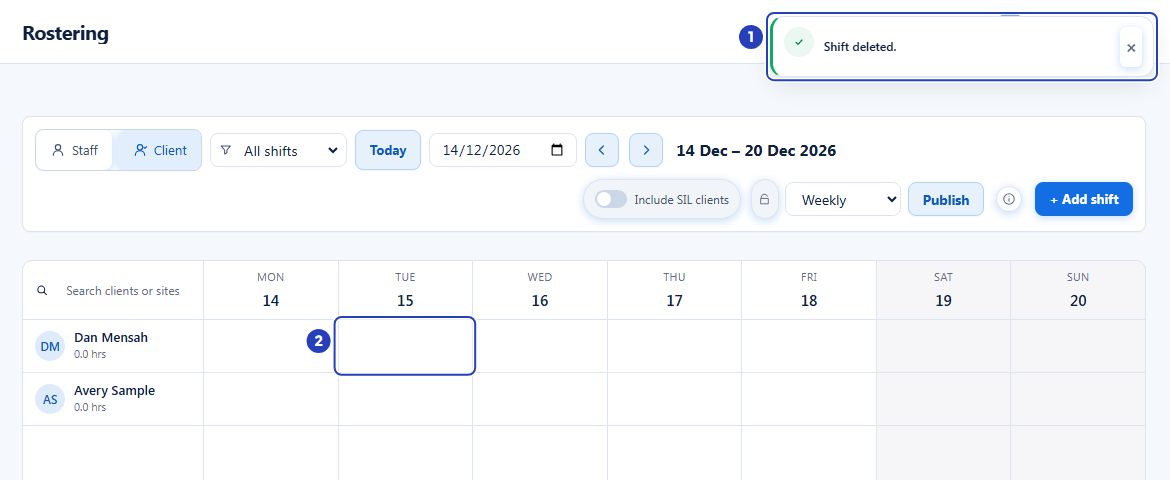
The confirmation message (1) and the empty day in the client's row (2).
What happens next
When you replace a worker, the person who was on the shift gets an in-app notification that they were removed from it, and the new person gets one that a shift has been assigned to them. Neither is emailed.
When you delete a shift, the person assigned to it gets an in-app notification that the shift was removed from their roster. The confirmation window says records are retained for audit history.
To email the new worker their shifts, see Publish a roster.
Important notes
Important: Deleting a shift cannot be undone from the screen. If you delete a shift by mistake, add it again and assign the person again.
Good practice
- If the shift still has to happen, replace the person or take them off it instead of deleting the shift. Deleting removes the shift and its hours from the calendar.
- After you replace a worker, check that the shift card shows the new person's name. If a message said the new person could not be assigned, refresh the page and look at the shift.
- Before you delete a shift from a repeating series, decide how much to remove. Delete this shift only is the safest choice.
- Tell the people affected. They get an in-app notification but no email. To email the new worker their shifts, publish the week.
Troubleshooting
I cannot see Rostering in the left menu.
Why it happens: Your role does not include Can view roster.
What to do: Ask an Owner or Admin to add the permission to your role in Configuration > Roles & Permissions.
I deleted the wrong shift.
Why it happens: A deleted shift is removed from the calendar and its staff assignment is removed with it.
What to do: Add the shift again and assign the person again. See Create a shift and Assign staff to a shift.
I deleted a shift from a repeat series, but the other shifts are still there.
Why it happens: Delete this shift only removes just the shift you opened.
What to do: Open another shift in the series, choose Delete, and choose This and future shifts in this series or All shifts in this series (past and future).
A message says This staff member is inactive or not onboarded and can't be assigned., This shift is already assigned. or that a mandatory compliance requirement is missing, when I replace the worker.
Why it happens: The new person cannot be assigned. They are inactive or not onboarded, the shift already has someone on it, or they are missing a mandatory compliance requirement.
What to do: Choose someone who can be assigned and choose Save shift again. To check the shift, refresh the page in your browser. A shift with nobody on it shows Assign staff. To put the first person back, refresh the page, open the shift and assign them again. See Assign staff to a shift. If an Override compliance block? window appears and you choose Cancel, you get the same result. A clash with another shift brings up the Heads up before assigning box instead of a message.
The shift card does not open, or Delete is refused.
Why it happens: Your role does not include Can edit shift or Can cancel shift.
What to do: Ask an Owner or Admin to check your role.