

Who this is for
This guide is written for Owner and Admin.
Before you begin
- You are signed in to BondiByte on a computer.
- The form is published. See Publish a form.
- Your support workers use the BondiByte Staff App on their phones.
Steps
The screenshots show a demonstration organisation with made-up names. Your own screens show your organisation's details. Select a screenshot to open it full size.
-
Go to Configuration > Reports & Forms
1 In the left menu, under Administration, choose Configuration. The Configuration page opens with a card for each area.
2 Under System, choose Reports & Forms. The template library opens.
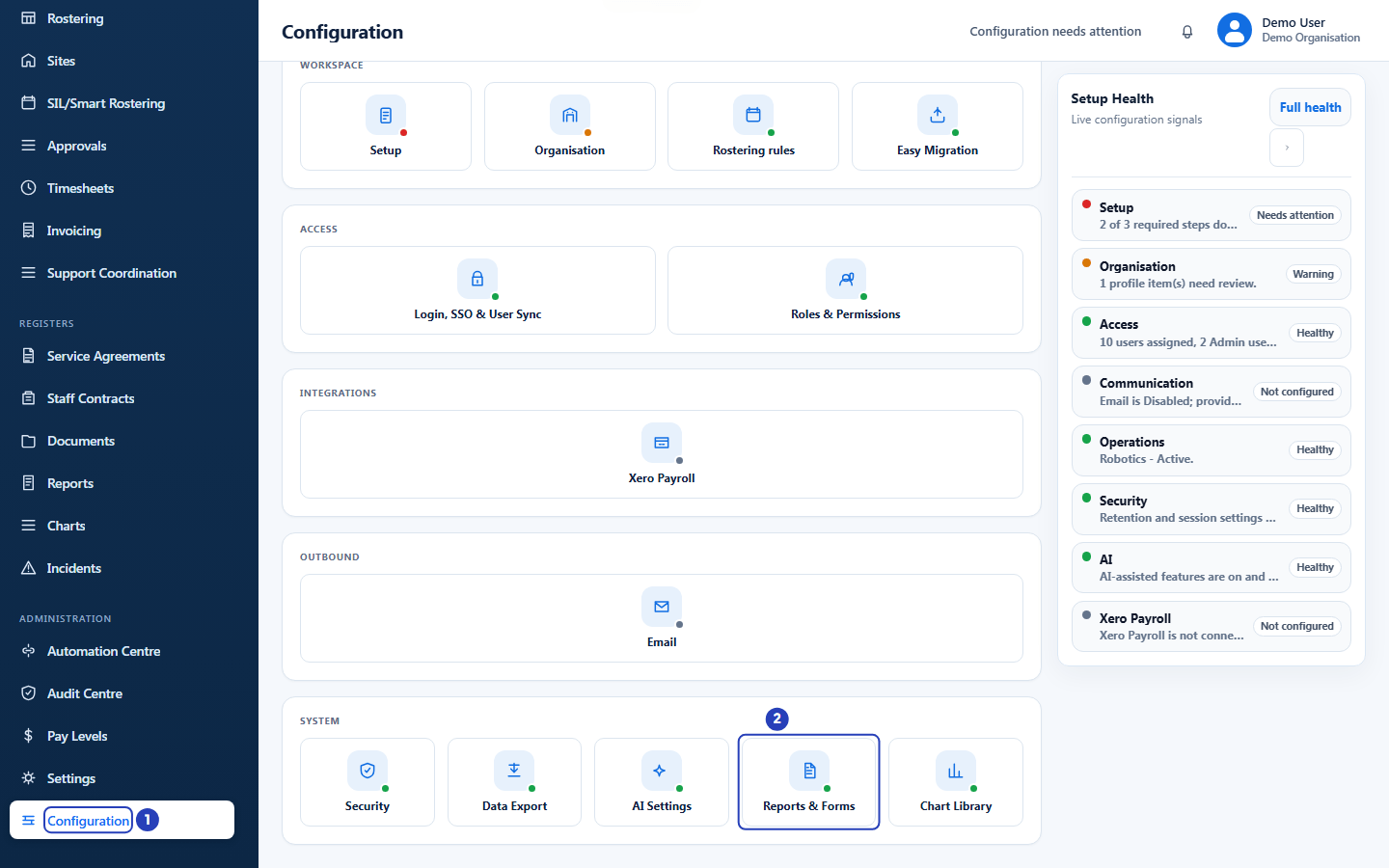
Choose Configuration in the left menu (1), then Reports & Forms under System (2). -
Check that the form is published
1 On the Organisation templates tab, find the form by its name, for example
Sample Progress Check, the form published in Publish a form.2 Check that its Status says Published.
3 Find the switch in the Staff mobile app column. It is off until you turn it on.
Important: A form only reaches the Staff App when it is published and its switch is on. If the Status says Draft, publish the form first.
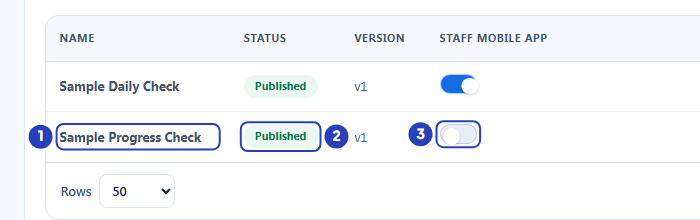
Find the form (1), check that its status is Published (2) and find its Staff mobile app switch (3). -
Turn on the Staff mobile app switch
1 On the form's row, choose the switch in the Staff mobile app column. It turns on.
A message at the top right of the page confirms that the form is now shown on the staff mobile app.
Note: The switch applies to your whole organisation. It is saved as soon as you choose it, so there is no Save button. Pointing at a switch shows Allow support workers to create this form from the mobile app.
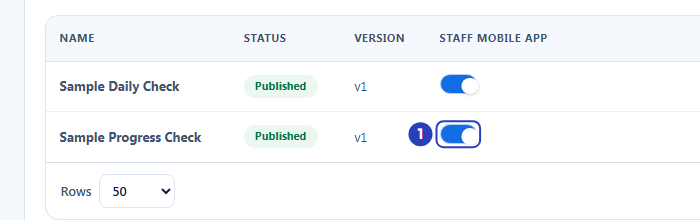
Choose the switch on the form's row (1). It turns on. -
Check the built-in forms on the Built-in templates tab
1 Open the Built-in templates tab. Every BondiByte form has the same switch, so you do not need to duplicate a built-in form to show it on the Staff App.
2 A built-in form such as Client progress is off until you turn its switch on, in the same way as your own forms.
3 Client shift report and Incident report show Always available on the staff app. Their switch is on and cannot be changed.
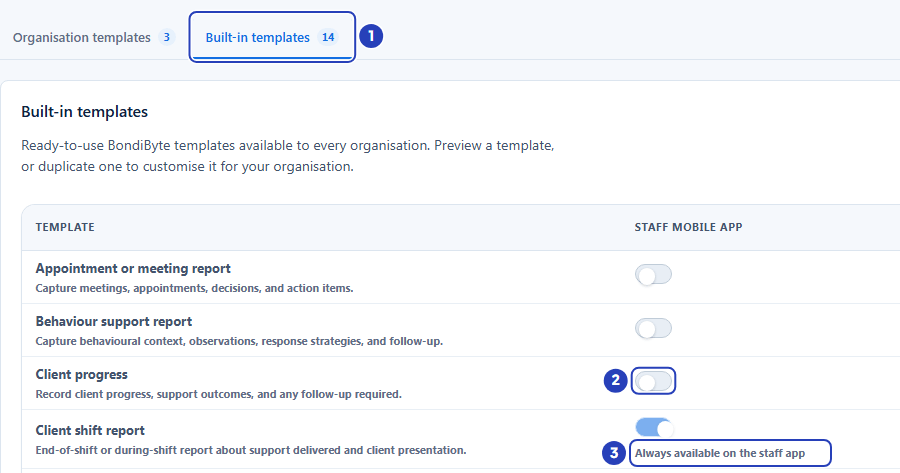
Open the Built-in templates tab (1). Client progress has a switch (2). Client shift report is always available (3). -
Check the form in the Staff App
In the Staff App, a support worker writes a report from one of their shifts.
1 The support worker opens the shift and chooses Write report.
2 In Client, they choose the client the report is about. The What are you recording? list stays empty and says Choose a client first. until a client is chosen.
3 They open What are you recording?. The forms you have switched on appear under Reports, next to the built-in report types. They choose the form and fill it in.
A support worker can write a report from the day of the shift. If the form is missing, check the Staff mobile app switch and the form's status in Reports & Forms.
Note: Forms are recorded against a client. On a shift that has no client linked, there is no Client list and only Incident report is offered, so your forms do not appear there.
What happens next
Support workers who write a report from one of their shifts in the Staff App now find the form in the What are you recording? list, under Reports, once they have chosen a client.
To stop offering the form in the Staff App, turn its Staff mobile app switch off. Reports that were already completed are not deleted. Managers can still add reports from the form on the Reports page.
If you unpublish or archive a form, it is no longer offered in the Staff App, even when its switch is still on. Publish it again to bring it back.
Important notes
Important: A built-in form is switched on for your organisation only. You do not need to duplicate it first, and turning its switch on does not change what other organisations see.
Good practice
- Switch on only the forms your team will really use, so the What are you recording? list stays short for support workers. Turn the switch off for a form nobody uses. Reports already written are kept.
- After you switch a form on, ask one support worker to open a current shift in the Staff App, choose the client and check that the form is listed under Reports, before you tell the whole team.
- Preview and publish a form before you switch it on. The switch decides who can use the form on a phone, and the form only appears once it is published.
Troubleshooting
The switch is greyed out.
Why it happens: There are three possible reasons. Your role can view report templates but not manage them. Or the form is Client shift report or Incident report, whose switch is always on. Or BondiByte is still saving another change.
What to do: For the first reason, ask an Owner or Admin to change the switch. For the second, nothing is needed, because those two forms are always available. For the third, wait a moment and try again.
I turned the switch on but staff cannot see the form in the Staff App.
Why it happens: The form must be published as well as switched on. A draft, an unpublished form or an archived form is not offered, even with its switch on.
What to do: Check that the Status says Published. If it does not, publish the form. Then ask the support worker to open the shift again, choose Write report and choose the client.
In the Staff App, the What are you recording? list is empty and says Choose a client first.
Why it happens: The list stays empty until the support worker chooses a client in Client.
What to do: Choose the client in Client. The list then shows the forms that are switched on.
The form is missing on a shift that has no client.
Why it happens: Forms are recorded against a client. On a shift with no client linked, only Incident report is offered.
What to do: Use a shift that has a client linked. A manager can also add the report on the Reports page of BondiByte.
A support worker cannot find Write report on a shift.
Why it happens: A report can be written from the day of the shift. For a shift dated in the future, the shift screen says You can write a report once the shift has started.
What to do: Ask the support worker to try again on the day of the shift. The Write a report button on the Reports page of the Staff App also lists the recent shifts they can report on.
I switched a form on by mistake.
Why it happens: The switch saves as soon as you choose it.
What to do: Choose the switch again to turn it off. A message confirms that the form is now hidden from the staff mobile app.