

Who this is for
This guide is written for Owner, Admin, Manager and Coordinator.
Before you begin
- You are signed in to BondiByte on a computer.
- The client has a Chart with entries in the period you want. See Client Charts history to check what has been recorded.
- You know the period you need, for example the last 30 days or the dates of a review.
Steps
The screenshots show a demonstration organisation with made-up names. Your own screens show your organisation's details. Select a screenshot to open it full size.
-
Go to Clients > the client's record
1 In the left menu, choose Clients. The Client Records list opens.
2 Choose the name of the client whose Chart you want to export. Their record opens.
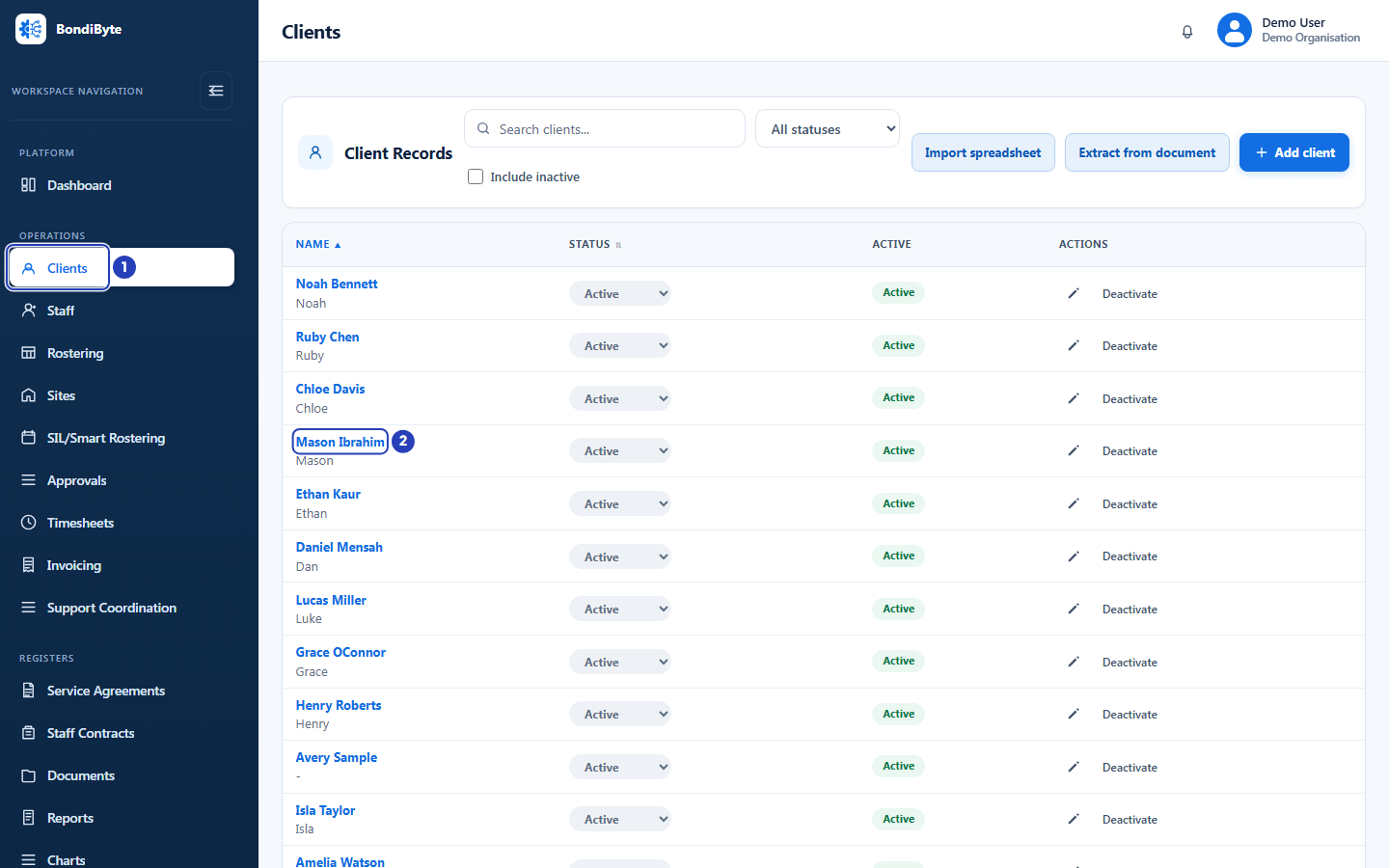
Choose Clients in the left menu (1), then the client's name (2). -
Open the Charts tab
1 On the client's record, choose the Charts tab.
2 In the Client Chart setup section, find the Chart you want to export. Each Chart assigned to this client has its own row, and each Chart is exported on its own.
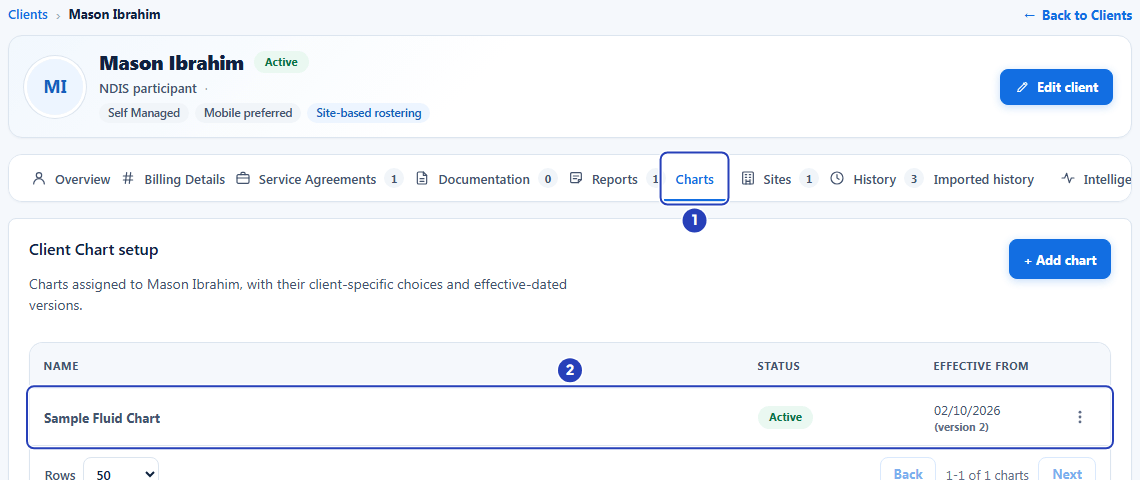
Choose the Charts tab (1), then find the Chart in Client Chart setup (2). -
Open the Chart's menu and choose Download PDF
1 On the Chart's row, choose the actions button (three dots).
2 In the menu, choose Download PDF. A window called Download chart PDF opens.
The menu also offers Edit configuration and Activate or Deactivate. They are not needed for an export. Download PDF is offered for every Chart, whether it is Draft, Active or Inactive, so you can still export an old Chart.
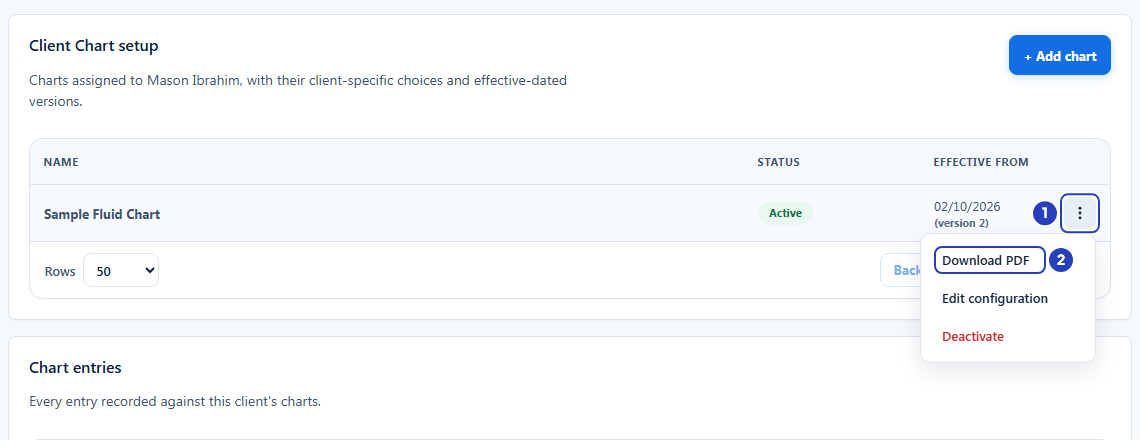
Choose the actions button on the Chart's row (1), then Download PDF (2). -
Choose the date range
The window says it will export the recorded entries for the Chart you chose.
1 In Date range, choose Last 30 days or Last 90 days, or choose Custom to pick your own dates.
Last 30 days and Last 90 days count back from today and include today. To pick your own dates, go to the next step.
Fields in step 4 Field What it means Date range A list that starts on Last 30 days. The other choices are Last 90 days and Custom. Custom adds two date fields to the window. 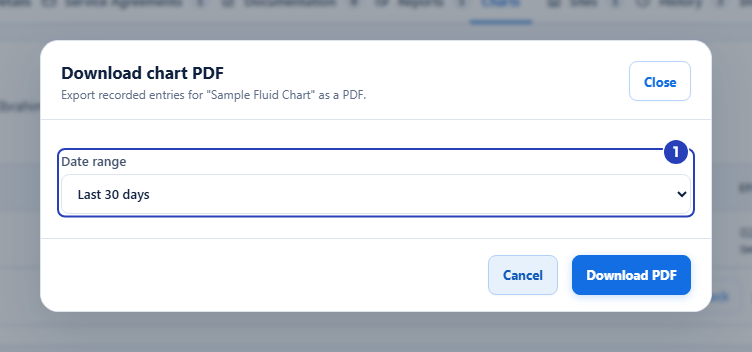
Choose the date range (1). -
Choose the dates for a custom period
Skip this step if you chose Last 30 days or Last 90 days.
1 In Date range, choose Custom. Two date fields appear.
2 In From, choose the first day of the period.
3 In To, choose the last day of the period. The last day is included.
Fields in step 5 Field What it means From Required. The first day to include. It starts 30 days before today. It cannot be later than the To date. To Required. The last day to include. It starts on today's date. It cannot be earlier than the From date. 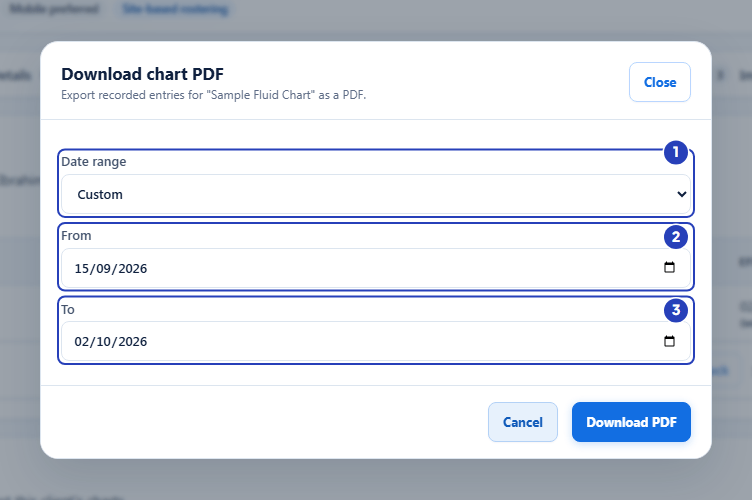
With Custom chosen (1), choose the first day (2) and the last day (3). -
Download the file
At the bottom of the window, choose Download PDF. The button changes to Downloading... while the file is prepared. Choose Cancel instead to close the window without downloading.
1 When the file is ready, the window closes and a message confirms Chart PDF downloaded. Your browser saves the file, usually in your Downloads folder.
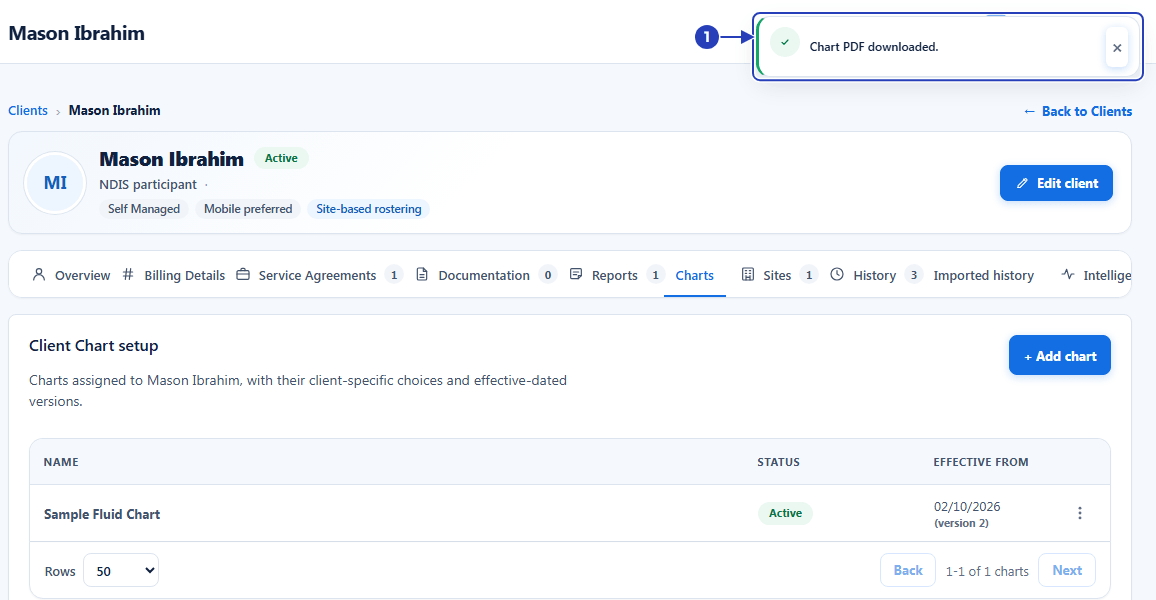
The message that confirms the download (1). -
Open the downloaded file and check it
Open the file from your browser's downloads or from your Downloads folder. The file name starts with the Chart's name, then the client's name, then the first and last dates of the period, for example Sample-Fluid-Chart_Mason-Ibrahim_2026-09-02_to_2026-10-02.pdf.
The document starts with your organisation's name, with your logo above it if your organisation has one, then the Chart's name and the label Chart. Under that are the client's name and the Period that you chose.
Each entry follows, oldest first, under its own heading Entry and the day it was recorded. Each entry gives Recorded by, the Related shift (the shift's name, date and site) when it was recorded for a shift, and then the Chart's questions under their section headings with the answers. Each entry shows the questions and options the Chart had when the entry was recorded.
A question that is required shows Not provided when it has no answer. A question that is not required and has no answer is left out of that entry.
Every page ends with the date the file was generated, the words Confidential. For authorised use only. and the page number.
Note: If there are no entries in the period, the document says No entries in this period. under the client's name.
What happens next
The PDF is a copy of the entries at the moment you downloaded it. If you correct or deactivate an entry later, download a new PDF.
Only active entries are included. An entry that was deactivated is not in the file.
Downloading a PDF does not change anything on the client's record, and nothing is sent to anyone.
To look at the entries on screen before or after you export, see Client Charts history.
Important notes
Important: A Chart PDF is part of a client's record. The file name and the pages carry the client's name, so keep the file where only the people who are entitled to see the record can open it.
Good practice
- Choose Custom and enter the exact first and last day of the review or audit period. The result is then easy to label and compare, instead of the last 30 days, which changes every day.
- Look at the entries on screen first, in Chart entries, and correct or deactivate any that are wrong. A PDF includes only active entries, and it shows the answers as they are when you download it.
- Download each Chart on its own. If a client has more than one Chart, repeat these steps for each, and keep the files together under the client's name.
- Check the Period at the top of the PDF before you share it. It shows the dates you chose, so you can confirm you exported the period you meant.
Troubleshooting
Download PDF is greyed out in the Chart's menu.
Why it happens: Your role does not include permission to view chart entries.
What to do: Ask an Owner or Admin to check your role, or to download the PDF for you.
The document says No entries in this period.
Why it happens: No active entry was recorded between the first and last day you chose. Entries that were deactivated are not included.
What to do: Choose Custom and widen the dates. Check Chart entries on the client's Charts tab to see which days have entries.
I chose Last 30 days, but an older entry is missing.
Why it happens: Last 30 days and Last 90 days cover only the days counting back from today.
What to do: Download again and choose Custom with a From date early enough to include the entry.
The window stays open and shows an error message instead of closing.
Why it happens: The file could not be prepared, for example because the connection was interrupted.
What to do: Check the dates and choose Download PDF again. If it keeps happening, contact BondiByte support.
The Charts tab says You do not have permission to view this client's charts.
Why it happens: Your role does not include permission to view client charts.
What to do: Ask an Owner or Admin to check your role.
I cannot find the file after the message Chart PDF downloaded.
Why it happens: Your browser saved the file in its usual downloads folder, or asked where to save it.
What to do: Open the downloads list in your browser, or check your Downloads folder for a file that starts with the Chart's name.