

Who this is for
This guide is written for Owner and Admin.
Before you begin
- You are signed in to BondiByte on a computer.
- You have a draft form. See Create or clone a form.
Steps
The screenshots show a demonstration organisation with made-up names. Your own screens show your organisation's details. Select a screenshot to open it full size.
-
Go to Configuration > Reports & Forms
1 In the left menu, under Administration, choose Configuration. The Configuration page opens with a card for each area.
2 Under System, choose Reports & Forms. The template library opens.
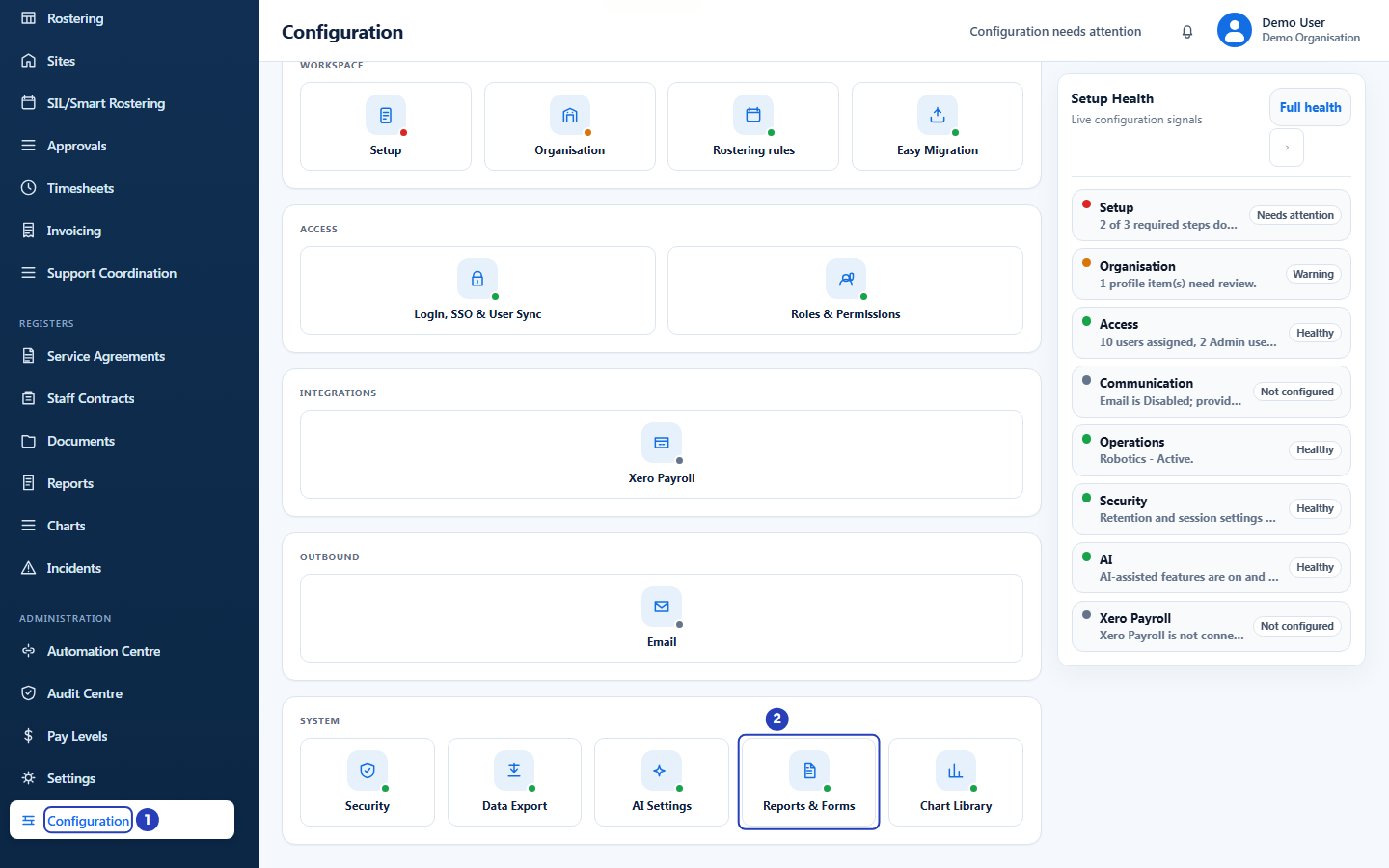
Choose Configuration in the left menu (1), then Reports & Forms under System (2). -
Find your draft on the Organisation templates tab
1 On the Organisation templates tab, find the form by its name, for example
Sample Progress Check, the copy of the built-in Client progress template made in Create or clone a form.2 Check that its Status says Draft. The Version column shows a dash for a form that has never been published. A form that was published and then unpublished keeps its last version number there, as in the picture.
3 Choose Preview to check the form before you publish it.
Fields in step 2 Field What it means Name The form's name. People choose a form by this name. Status Draft means the form is not offered to anyone yet. Published means it is offered for new reports. Archived means it is hidden. Archived forms are listed only when you turn on Show archived, which appears once at least one form has been archived. Version A dash until the form has been published for the first time, then v1, v2 and so on. The number stays on the row if the form is unpublished, so you can see which version was last in use. Staff mobile app The switch that decides whether a published form is also offered in the Staff App. See Show a form on the staff mobile app. Updated The date and time the form was last changed. Point at it to see who changed it. Row buttons The buttons depend on the status. A Draft row has Edit, Preview, Duplicate, Publish, Archive and Delete. A Published row has Edit, Preview, Unpublish, Duplicate and Archive. An Archived row has Preview, Duplicate, Restore and Delete. 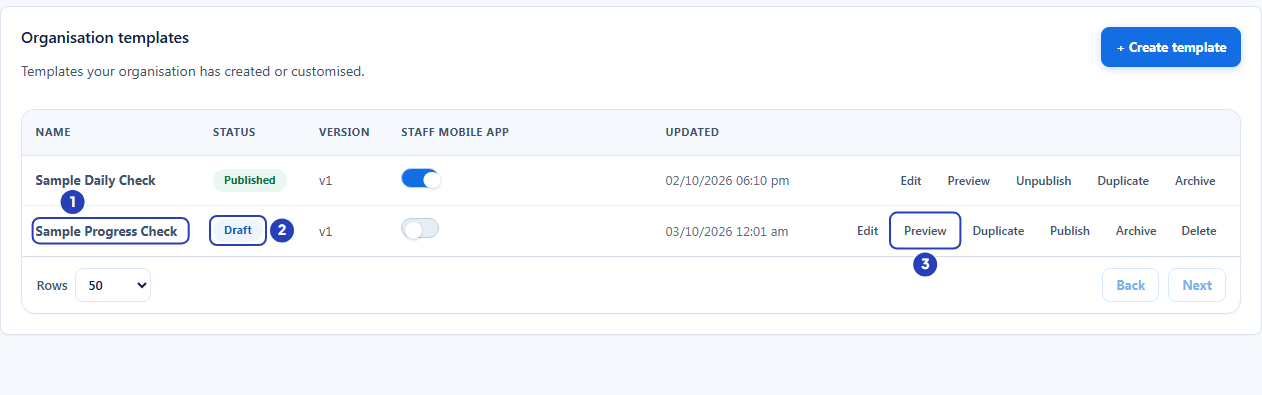
Find the form (1), check that its status is Draft (2) and choose Preview (3). -
Check the preview
A window shows the form as the person filling it in sees it. Preview does not save any answers.
1 Look through the questions. A star marks a question that must be answered.
2 Choose Narrow width to see the form on a narrower screen, and Desktop width to go back.
3 Choose Close when you are happy with the form. If something is wrong, choose Edit on the row to change it first.
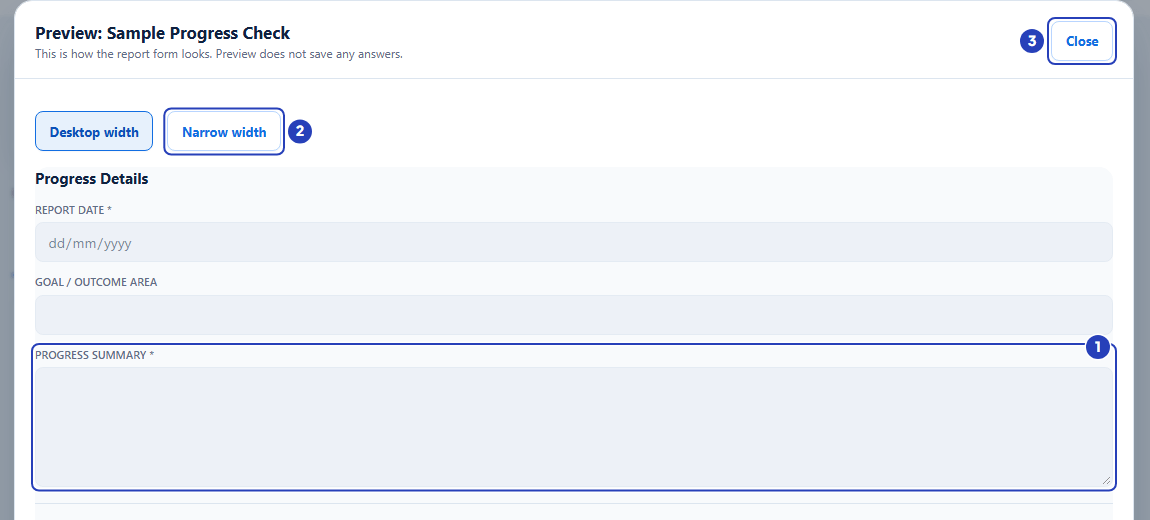
Look through the questions (1), try Narrow width (2), then choose Close (3). -
Choose Publish
1 On the draft's row, choose Publish. A window asks you to confirm.
Tip: You can also choose Publish at the top right of the builder. It asks the same question, and takes you back to Reports & Forms once the form is published.
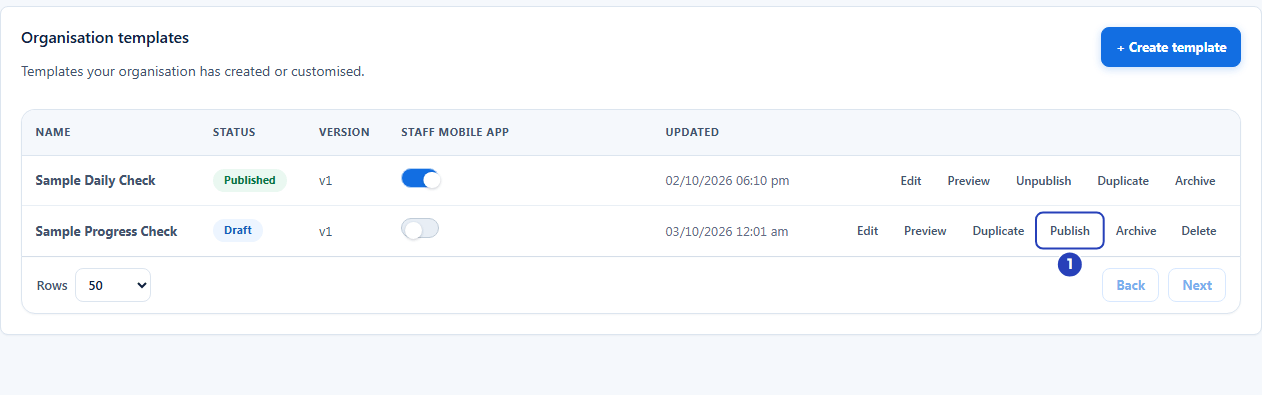
Choose Publish on the draft's row (1). -
Confirm that you want to publish
1 Read the message. It names the version number that publishing creates.
2 Choose Publish to go ahead.
3 Choose Cancel instead if you are not ready. The form stays a draft.
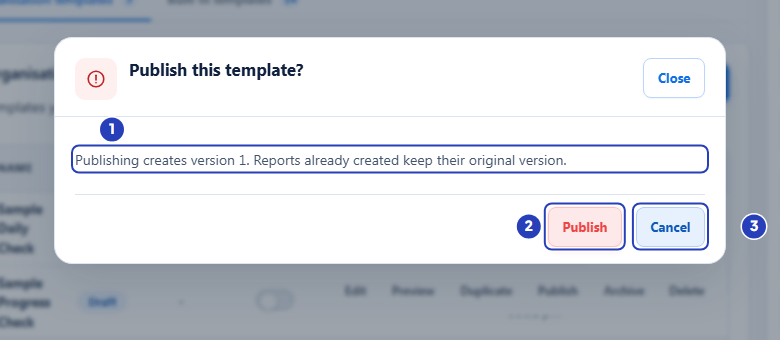
Read the message (1), then choose Publish (2), or Cancel (3). -
Check that the form is published
A message at the top right of the page confirms that the form was published as version 1.
1 In the list, the Status changes to Published.
2 The Version column shows v1.
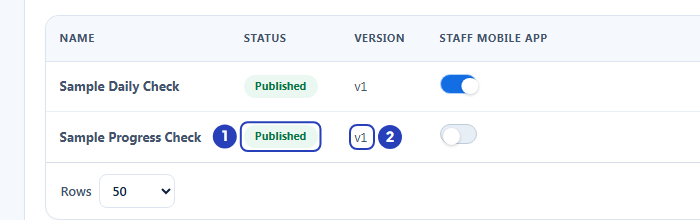
The status changes to Published (1) and the version shows v1 (2). -
Publish later changes to a published form
A published form can still be edited. Its row keeps the status Published and people keep using the current version while you work.
1 On the form's row, choose Edit. The builder opens. Make your changes and choose Save draft. The changes are saved, but they are not in use yet.
2 When you are ready, choose Publish at the top right of the builder and confirm. The row has no Publish button of its own while its status is Published.
3 After the message confirms the new version, the Version column shows the new number.
Note: A new name, description or category applies as soon as you save. Only changes to the questions wait for Publish.
Note: The row does not show that changes are waiting. If you are not sure, open the form with Edit and choose Publish. If nothing is waiting, BondiByte says There are no draft changes to publish.
What happens next
The form is now a published template. It is offered when someone chooses Add report on the Reports page, under Organisation templates.
Publishing does not put the form on the Staff App. That is a separate switch for each form, in the Staff mobile app column of the same list. See Show a form on the staff mobile app.
Publishing a draft that has changes creates a new version. Publishing a form again after Unpublish, without changes, brings the same version back into use, so check the Version column afterwards. Reports already completed keep the version of your form they were completed on.
To change a published form, choose Edit on its row. Your changes to the questions wait as a draft, and people keep using the current version, until you choose Publish at the top right of the builder.
To take a form out of use for now, choose Unpublish on its row and confirm. It goes back to Draft and is no longer offered for new reports. Reports already created are not affected. Archive hides a form you no longer use and can be undone with Restore.
Delete is offered on draft and archived forms only, never on a published one, and it cannot be undone. Reports already made from a deleted form are kept. Edit is not offered on an archived form, so restore it first.
Important notes
Important: A form in the Incident category belongs to the Incidents area. Publishing it makes it available there, not in the Add report window under Reports.
Note: Publishing asks you to confirm every time, because people start using the form straight away.
Good practice
- Preview the form, and complete one test report, before you publish it or switch it on for the Staff App. Every report keeps the version of the form it was completed on, so a mistake in a published version stays in the reports written with it until a corrected version is published.
- Make several changes to a published form, then publish once. Each publish with changes adds a version, so publishing after every small edit leaves many versions of the same form.
- To retire a form, choose Archive, or Unpublish for a break, instead of Delete. Archive can be undone with Restore and Unpublish with Publish, but Delete cannot be undone. Reports already made from the form are kept either way.
- Give each form a name your team will recognise, and keep its description current. People choose a form by its name and description when they add a report, and the Reports page search finds the name.
- After you publish, check the Staff mobile app switch on the form's row. A published form is offered in the Staff App only when its switch is on.
- Tell your team before you publish a change to a form that is in daily use. People start using the new version straight away, and the confirmation window asks every time for that reason.
Troubleshooting
The Publish button is greyed out.
Why it happens: Your role can view report templates but not manage them. Pointing at the button shows the message You do not have permission to manage report templates.
What to do: Ask an Owner or Admin to publish the form, or to give your role the permission to manage report templates.
A message says This template has validation errors and cannot be published yet. Open it in the builder to fix them.
Why it happens: Something in the form is incomplete, for example a choice field with no options or a question with no label.
What to do: Choose Edit on the row. Read the box above the builder, which lists what to fix, correct each item and save the draft. Then publish again.
In the builder, a message says Fix the highlighted issues before publishing.
Why it happens: The box above the builder lists problems with the form, and the fields concerned are outlined in red.
What to do: Correct each item in the box, then choose Publish again.
In the builder of a published form, a message says There are no draft changes to publish.
Why it happens: Nothing has changed since the current version was published, so there is nothing new to publish.
What to do: Make a change to the form first, then choose Publish. You do not need to choose Save draft first, because Publish saves your changes.
I edited a published form but staff and new reports still show the old questions.
Why it happens: Changes to the questions are saved on top of the published form and are not in use until you publish them.
What to do: Choose Edit on the row, then Publish at the top right of the builder, and confirm.
After I unpublished a form, its row still shows a version number.
Why it happens: The version number stays so you can see what was last published. The status is Draft, and the form is not offered for new reports.
What to do: Choose Publish on the row when you want the form back in use. The Version column then shows which version is in use.
I published the form but staff cannot see it in the Staff App.
Why it happens: Publishing and the Staff App switch are separate. The form appears in the Staff App only when it is published and its Staff mobile app switch is on.
What to do: Turn on the Staff mobile app switch on the form's row. See Show a form on the staff mobile app.
I cannot find my published form when I add a report.
Why it happens: The form may be in the Incident category, which belongs to the Incidents area, or the Report context in the Add report window is not Client.
What to do: Check the form's category in the builder. In the Add report window, set Report context to Client and look under Organisation templates.