

Who this is for
This guide is written for Owner and Admin.
Before you begin
- Pay Levels must be switched on first. An Owner or Admin switches it on in Account settings > Automation & Capacity Controls > Pay Levels and automatic interpretation, by choosing Enable. See Enable Pay Levels. Until it is on, the Pay Levels page says Pay Levels are not enabled for this organisation.
What Pay Levels are
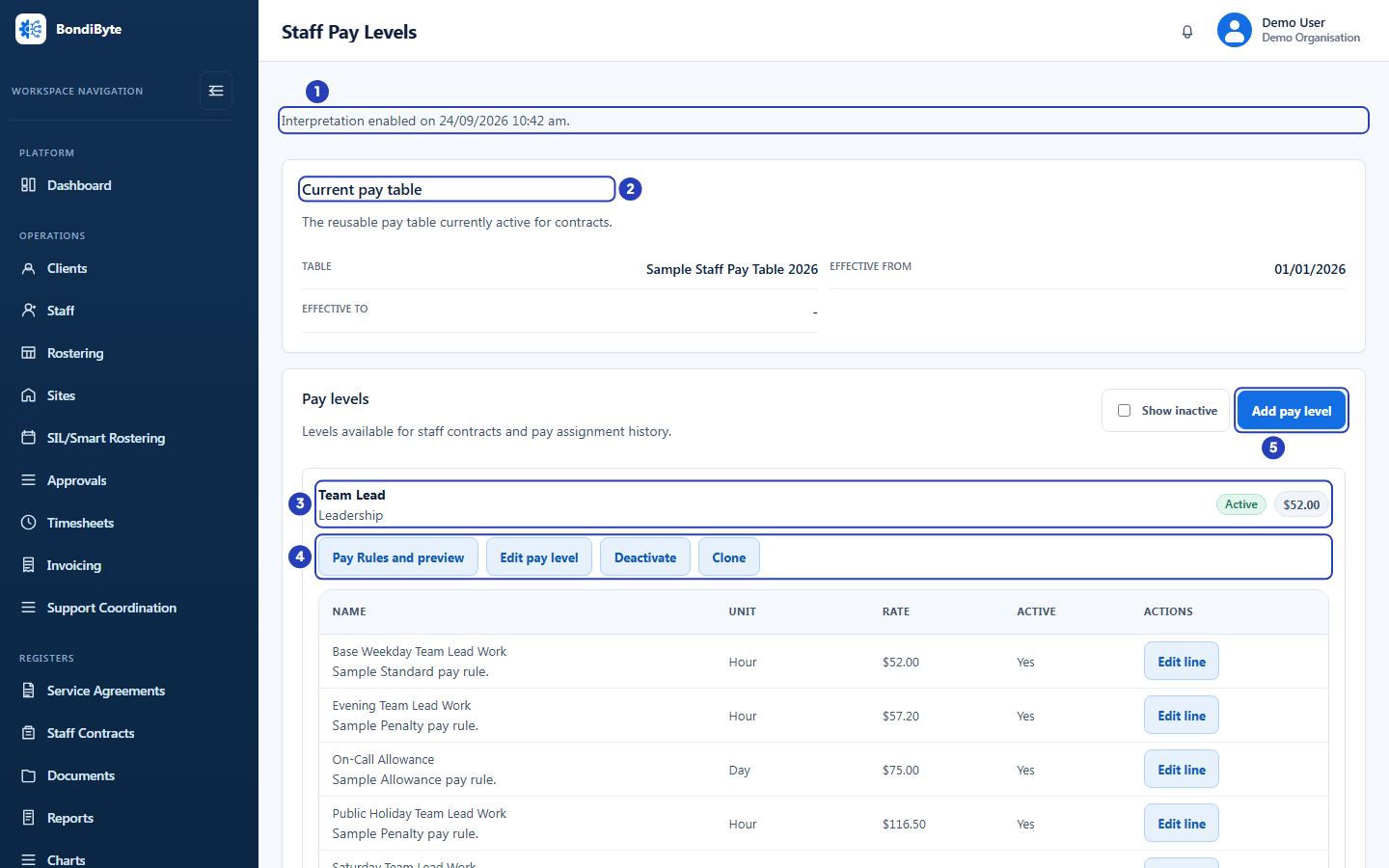
A Pay Level is a named group of pay rates, such as Support Worker Level 1 or Team Lead. Each Pay Level has rate lines. A rate line is one pay item, for example a base weekday rate, an evening rate, a Saturday rate, a sleepover allowance or a travel allowance. Each line has a unit, such as hour, day or kilometre, and a rate in dollars.
Pay Levels sit in a pay table. The pay table is the reusable table that is currently active for contracts. It has an Effective from date and, if your organisation needs one, an Effective to date.
Pay Rules say when each rate line applies: on which days, at which times, and whether it is a public holiday. Pay Rules have effective dates, so a rate can change from a date without rewriting what came before.
How the pieces fit together
Pay table: holds your Pay Levels. Your organisation has one current pay table.
Pay Level: a named group of rate lines. You can create your own, copy an existing one, switch one off, or change the rates of its lines. A rate line is locked once it has its own published Pay Rule, and the base weekday line is also locked once the level has any published rule or has interpretation turned on. Other lines, such as allowances without a rule, can still be edited.
Rate line: one pay item inside a level, with a unit and a rate.
Pay Rule: a dated rule that says when a rate line applies. Once published, a Pay Rule and its rate are locked, and a change is made by publishing a new dated version.
Staff: the Pay level field, in the Edit staff window and on a staff contract, records a staff member's Pay Level. It does not on its own switch on automatic interpretation.
Staff assignment: for BondiByte to work out a staff member's pay automatically, the level must have interpretation turned on and the staff member needs a dated assignment to it. You record dated assignments in Pay Rules and preview, on the Staff assignment part of the window.
Timesheets: when a timesheet is reviewed, the Pay interpretation section works out pay from your published Pay Rules, for a staff member who has a current dated assignment to a level with interpretation turned on. Amounts that cannot be worked out are left blank, and they are not treated as ready for payroll.
What BondiByte does and what you remain responsible for
BondiByte applies the Pay Levels and Pay Rules that your organisation configures. It helps you keep rates consistent and shows how a rate was applied. The Pay Rules window says it plainly: This is not a complete award interpreter.
BondiByte does not check your rates against an Award or agreement, and it does not tell you which rates are correct. Your organisation is responsible for checking its rates and rules against its industrial instrument, and for keeping them up to date.
The starter setup contains example Pay Levels, rates and rules. They are labelled Starter example, review for your organisation. They are not a copy of any Award or agreement.
Where to find Pay Levels
Choose Pay Levels under Administration in the left menu. The page is titled Staff Pay Levels. It shows the Current pay table, then the Pay levels list. Each level has a table of its rate lines and the buttons Pay Rules and preview, Edit pay level, Deactivate or Activate, and Clone.
The switch that turns Pay Levels on is in Account settings, in Automation & Capacity Controls, on the control Pay Levels and automatic interpretation. Only an Owner or Admin can use it. While it is off, the Pay Levels page says Pay Levels are not enabled for this organisation. If the Pay Levels item is missing from the left menu, your role does not include Can view pay levels or your organisation's subscription is not active.
Pay Levels belong to your organisation as a whole. They are not set up for each site.
Who can use Pay Levels
Owners and Admins can open and manage Pay Levels, and only Owners and Admins can turn Pay Levels on or off.
Another role can open the Pay Levels page only if its permissions include Can view pay levels, and can change anything only if they include Can manage pay levels.
The Pay Levels guides
Follow these guides in order when you set Pay Levels up for the first time, or pick the task you need.
Important notes
Important: BondiByte applies the Pay Levels and Pay Rules that your organisation configures. It is not a complete Award interpreter. Your organisation is responsible for checking every rate and rule against its industrial instrument.
Good practice
- Keep a record of where each rate came from, and the date you last checked it, so you can show how a rate was set.
- Review every Pay Level, including any that are switched off, before you confirm the starter setup. See Review provisioned Pay Levels.
- Record a dated assignment for each staff member before their first timesheet is prepared, so their hours can be priced.
Questions and answers
Why does the Pay Levels page say Pay Levels are not enabled for this organisation?
Pay Levels has not been switched on yet. An Owner or Admin switches it on in Account settings > Automation & Capacity Controls > Pay Levels and automatic interpretation, by choosing Enable. If the Pay Levels item is missing from the left menu, your role does not include Can view pay levels or your organisation's subscription is not active.