

Who this is for
This guide is written for Owner, Admin and Manager.
Before you begin
- Pay Levels must be switched on first. An Owner or Admin switches it on in Account settings > Automation & Capacity Controls > Pay Levels and automatic interpretation, by choosing Enable. See Enable Pay Levels. Until it is on, the Pay Levels page says Pay Levels are not enabled for this organisation. and timesheets show no Pay interpretation section.
- You are signed in to BondiByte on a computer as an Owner or Admin, or as someone with the Can manage pay levels permission.
- The sleepover allowance is a rate line on the Pay Level with the unit Unit, or you add it in step 2. See Edit rates on a Pay Level.
- You have your pay agreement to hand. BondiByte does not check the sleepover amount for you.
- Sleepover shifts have their active and sleep times set in Rostering. This guide does not cover that setup; the note at the end says what the timesheet shows when they are missing.
- The Pay Level says Interpretation enabled. See step 10 of Weekday, weekend and Public Holiday rules.
- The staff member has a dated assignment to the Pay Level. See Understand Pay Rules.
- The staff member has a payroll jurisdiction on an Active contract. See Payroll jurisdiction.
Steps
The screenshots show a demonstration organisation with made-up names. Your own screens show your organisation's details. Select a screenshot to open it full size.
-
Go to Administration > Pay Levels > Pay Rules and preview
1 In the left menu, under Administration, choose Pay Levels. The Staff Pay Levels page opens.
2 Find the Pay Level you want to add a sleepover rule to and choose Pay Rules and preview on its card. In this guide we use a Pay Level called Sample Level 1. The Pay Rules window opens on the Rules part.
Check the heading under the three buttons. A level prices timesheets only while it says Interpretation enabled. See Understand Pay Rules.
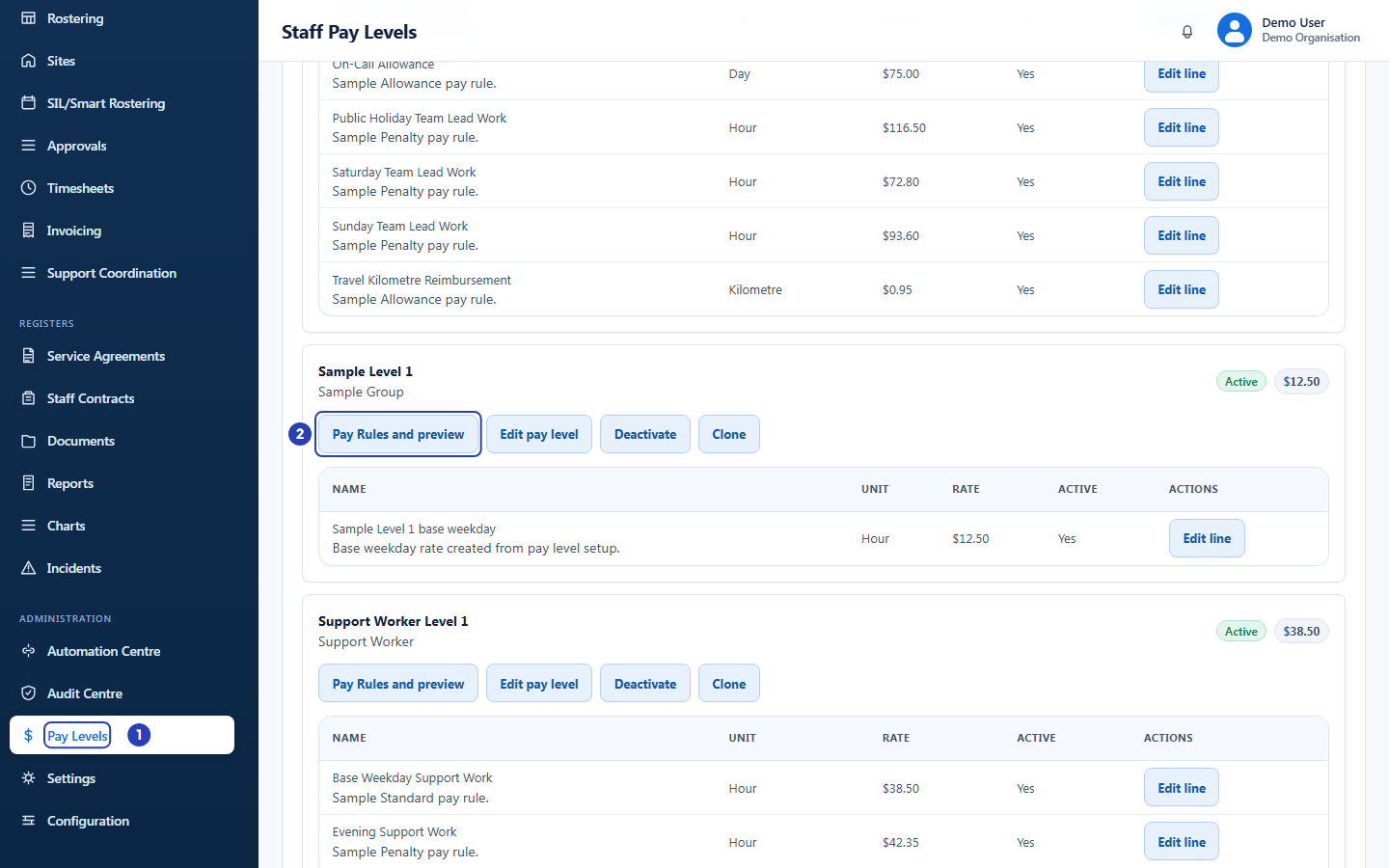
Choose Pay Levels under Administration (1), then Pay Rules and preview (2) on the level you want. -
Choose the sleepover rate line
Choose Add rule line. A form titled Publish dated rule version opens under the table.
1 In Pay level rate line, choose the sleepover allowance line. Its entry in the list ends with the line's unit, which must be Unit. If the level has no sleepover line yet, choose New rate line for this pay level instead.
2 For a new line, type a Stable item code in capitals, numbers and underscores, such as SAMPLE_SLEEPOVER.
3 For a new line, type the Display name, such as Sample sleepover allowance. Managers see it in the Pay item list and the Rules table; the tables on a timesheet show the code.
Fields in step 2 Field What it means Pay level rate line Required. The rate line this rule prices. The list shows every active rate line on the level as its name, unit, rate and code. A line whose unit is not Unit cannot take a Sleepover classification, so a sleepover line should show Unit. The one exception is a line with the code SLEEPOVER from an older starter setup. The last choice, New rate line for this pay level, adds a new line as you publish. Selected rate line Appears after you choose an existing line. You cannot type in it. It repeats the line's name, code and unit so you can check you picked the right one. Stable item code Appears only for a new rate line. Required. Capital letters, numbers and underscores only, up to 80 characters. It identifies the line, so choose it carefully. Display name Appears only for a new rate line. Required. Up to 200 characters. It is the name shown for the line in the Pay item list and the Rules table. The tables on a timesheet show the item code instead. Important: A sleepover line must have the unit Unit. A line with the code SLEEPOVER from an older starter setup can still take a Sleepover rule, even when the Unit column on the Pay Levels page shows something else, such as Shift. For any other line the unit must be Unit. Correct it with Edit line first, as long as it has no published rule, or add a new line here.
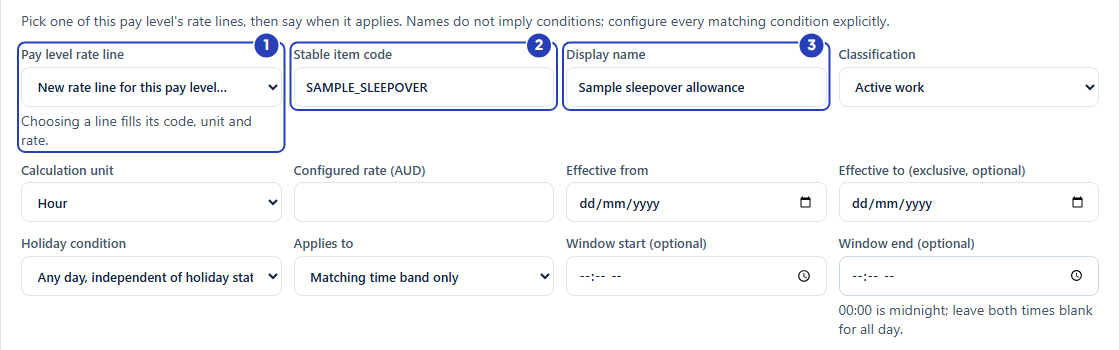
Choose the rate line or a new line (1), then type the item code (2) and the display name (3). -
Set the classification, rate and dates
1 In Classification, choose Sleepover. Its full label ends with the words one existing allowance component.
2 For a new line, check that Calculation unit says Unit. It changes to Unit by itself when you choose Sleepover.
3 In Configured rate (AUD), type the allowance for one sleepover, as a number such as 120 with no dollar sign. For an existing line it is already filled in.
4 In Effective from, choose the first day the rule applies.
5 In Effective to (exclusive, optional), choose the day the rule stops applying, or leave it blank for no end date.
Fields in step 3 Field What it means Classification Active work is ordinary paid hours, Sleepover is the single allowance for one sleepover, and Separate allowance is another extra amount added on top of pay. Choose Sleepover here. The timesheet prices its Sleepover allowance part only from a rule with this classification. Starts as Active work. Calculation unit Appears only for a new rate line. Hour or Unit. A Sleepover rule needs Unit, so the box sets itself to Unit when you choose Sleepover. Configured rate (AUD) Required. The dollars for one sleepover, with up to four decimal places and no dollar sign. A missing rate is not treated as zero. Effective from Required. The first day the rule applies. A rate line can have only one version starting on any one date, and a published date can never be used again for a different rate. Effective to (exclusive, optional) The day the rule stops applying. That day is not covered. It must be after Effective from. Leave it blank for a rule with no end date. 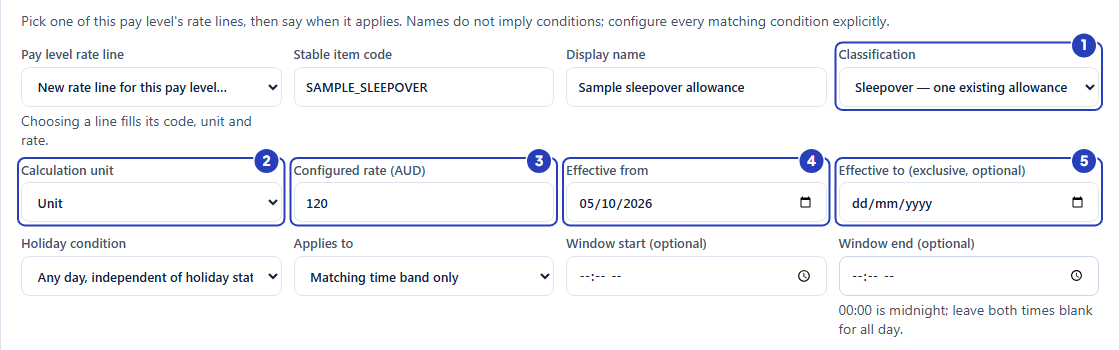
Choose Sleepover (1), check the unit (2), type the rate (3), then set Effective from (4) and, if needed, Effective to (5). -
Say when the rule applies
1 In Holiday condition, choose Any day, independent of holiday status unless your allowance is different on public holidays.
2 Leave Applies to as it is. For a sleepover it does not change the result.
3 Leave Window start (optional) and Window end (optional) blank, so the rule covers the whole day.
4 Under Applicable weekdays, tick every day a sleepover can fall on.
Fields in step 4 Field What it means Holiday condition Any day, independent of holiday status applies the rule on every day. Verified public holiday applies it only on a public holiday for the staff member's payroll jurisdiction. Verified non-holiday applies it only on days confirmed as not public holidays. The two verified choices need the staff member's payroll jurisdiction and BondiByte's public holiday information. Starts as Any day, independent of holiday status. Applies to Matching time band only or Whole shift. A sleepover rule is judged by the day of the sleepover, so leave it as Matching time band only. If you choose Whole shift, a Whole-shift condition box also appears. Window start (optional) A time of day. Leave both window boxes blank for a sleepover rule so it covers the whole day. Window end (optional) A time of day. Leave it blank together with Window start (optional). Applicable weekdays Tick boxes for Sun, Mon, Tue, Wed, Thu, Fri and Sat. Tick at least one. Only Monday to Friday start ticked, so tick Sat and Sun as well if sleepovers happen on weekends. Note: If you need a different amount on public holidays, publish two Sleepover rules: one with Verified non-holiday and one with Verified public holiday. Two rules that both say Any day would match the same sleepover.
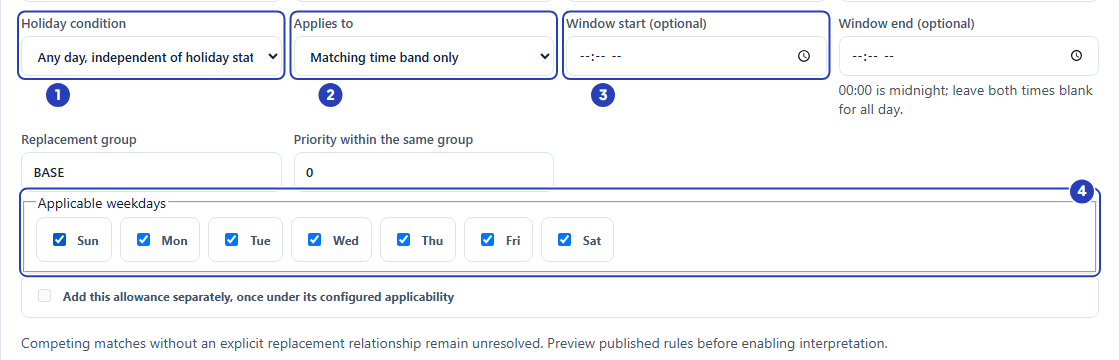
Choose the holiday condition (1) and what the rule applies to (2), leave the window blank (3) and tick the weekdays (4). -
Set the replacement group and priority
1 In Replacement group, type a short name such as sleepover. It starts as BASE.
2 Leave Priority within the same group at 0.
3 Leave Add this allowance separately, once under its configured applicability unticked. It is greyed out for a Sleepover rule.
Fields in step 5 Field What it means Replacement group Required. A short name for the rule's group. Starts as BASE. Use one name, such as sleepover, for all Sleepover rules on the level. Priority within the same group Required whole number. Starts at 0. If two Sleepover rules match the same sleepover, BondiByte does not choose between them, so make sure only one matches each day. Add this allowance separately, once under its configured applicability A tick box that is only available for Separate allowance. Leave it unticked for a sleepover. Note: The form ends with a reminder that competing matches without an explicit replacement relationship remain unresolved. Preview only runs for a staff member whose assigned level already says Interpretation enabled.
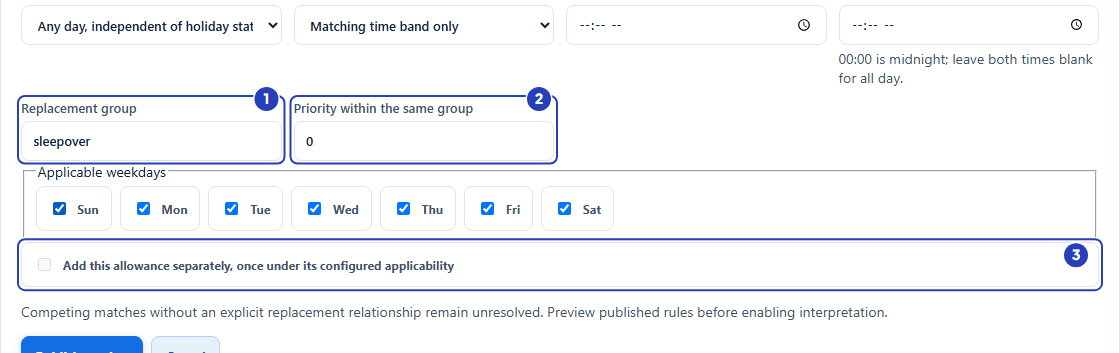
Type a replacement group (1), leave the priority at 0 (2) and leave the allowance tick box (3) alone. -
Choose Publish version
Check the form against your pay agreement first. Published rules cannot be edited afterwards.
1 Choose Publish version. The window shows Published a dated rule version. Existing approved earnings remain unchanged. The rule appears in the table with the type SLEEPOVER and the unit UNIT.
2 Choose Cancel instead to close the form without publishing anything.
Warning: A published rule cannot be edited or deleted. To change it, publish a new dated version with New version, or retire it. Choose the dates and the amount carefully before you publish.
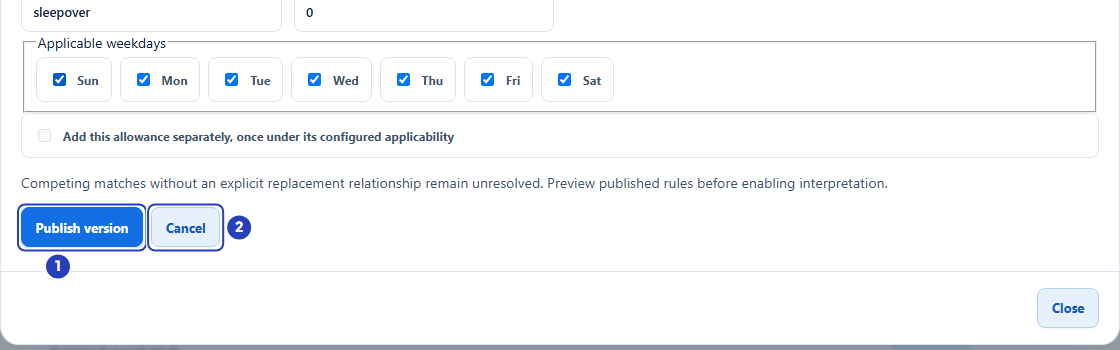
Choose Publish version (1) to publish the rule, or Cancel (2) to close the form without publishing. -
Go to Timesheets > Review on the person's row
1 In the left menu, choose Timesheets. The Timesheet review page opens on a pay period.
2 Use Previous and Next to reach the period you want.
3 Choose a status button such as Submitted, then choose Review on the person's row. For any timesheet that is not submitted the button says View. The review window opens.
-
Check the sleepover allowance on the timesheet
1 Scroll to Pay interpretation, below Manager review. A sleepover shift is shown in three parts: Active hours before sleepover, Sleepover allowance and Active hours after sleepover. Find the Sleepover allowance heading.
2 Read the table under it. The Local interval is the sleep time, Quantity is 1 UNIT (the table may show it with decimals, such as 1.000000), and Item, Rate and Amount are filled in when a Sleepover rule matched.
3 Read the Explanation column. CONFIGURED_RULE_MATCH means BondiByte matched a rule, and MANAGER_SELECTION means a manager chose the item. Amounts BondiByte could not work out are blank, with the reason in this column and in a list above the table.
Note: The Pay interpretation section is not shown when Pay Levels is switched off. Without Can view pay levels it says Detailed pay interpretation requires Staff Pay view permission; hours review remains available.
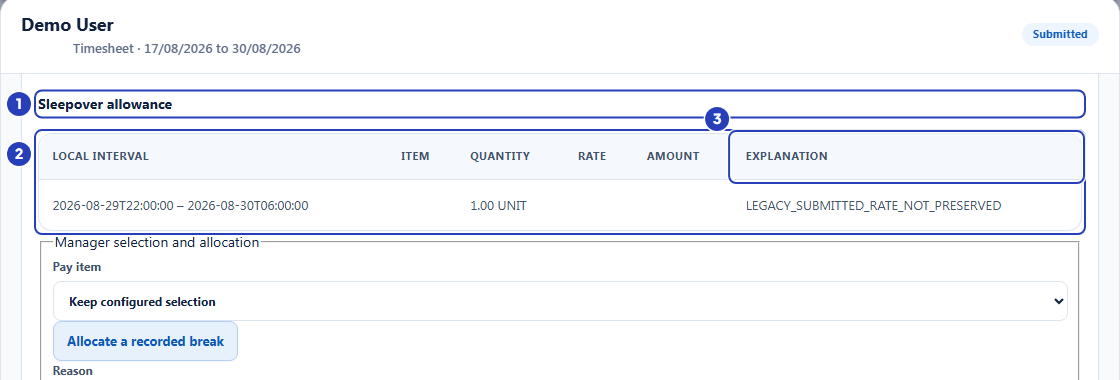
The Sleepover allowance heading (1) and its table (2), with the Explanation column (3). This sample timesheet was submitted before interpretation was switched on, so its amounts are blank. -
Choose the sleepover item when no rule matched
If no Sleepover rule matched, the list above the table says Sleepover pay item not configured and manager selection required. A manager can choose the item. Under the Sleepover allowance table, find Manager selection and allocation.
1 In Pay item, choose the sleepover rule. The list shows the rules of the Pay Levels the person is assigned to, each with its unit, rate and dates. It starts on Keep configured selection.
2 In Reason, type why you chose it. A reason is required.
3 Choose Save pay review. The button stays greyed out until you have typed a Reason and chosen a Pay item other than Keep configured selection. BondiByte then works the timesheet out again with your choice and the section shows the new revision.
Fields in step 9 Field What it means Pay item The rule to use for this part of the timesheet. For a sleepover only a rule classified Sleepover is accepted. Keep configured selection leaves BondiByte's own choice in place. Allocate a recorded break Adds a row with Break start and Break end for a break that crosses rates. It is not used for the sleepover allowance. Reason Required. Your reason for the selection. It is kept with the timesheet. Note: Save pay review is only available while the timesheet is submitted or returned for changes. Once it is approved, the section is read-only. See Approval and frozen interpretation.
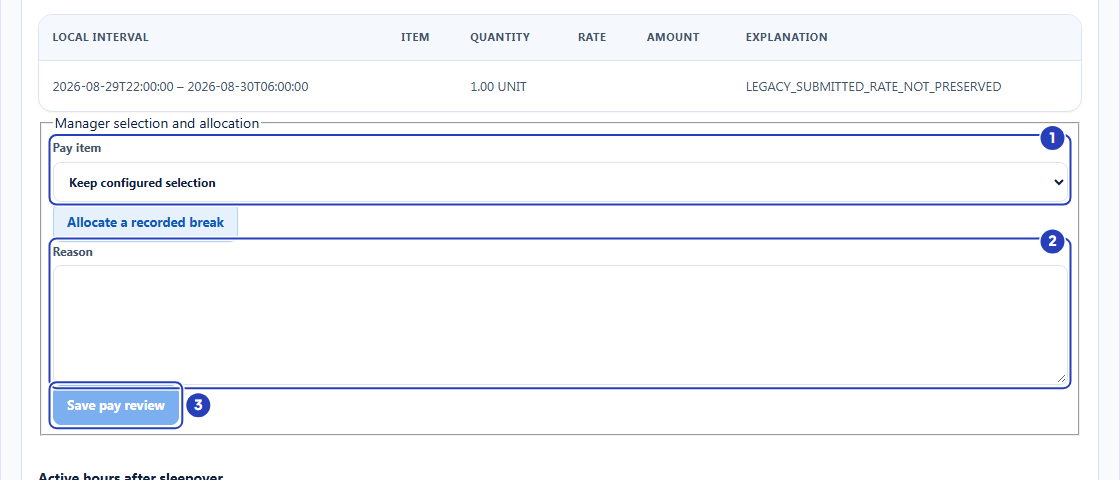
Choose the Pay item (1), type the Reason (2) and choose Save pay review (3).
What happens next
A published Sleepover rule is saved with its dates and appears in the table of the Rules part, with the type SLEEPOVER and the unit UNIT. It cannot be edited or deleted. To change the amount from a later date, choose New version on its row.
From then on, a sleepover on a timesheet is priced at one allowance when exactly one Sleepover rule on the person's assigned Pay Level matches the day of the sleepover. The person also needs a dated assignment to the level, and interpretation must be enabled for it. See How pay interpretation works.
Timesheets that are already approved keep the pay they were approved with. Publishing a rule does not change them.
Important notes
Important: BondiByte applies the rules your organisation configures. It does not check a sleepover allowance against an Award or agreement, and your organisation is responsible for checking every rule.
Note: A sleepover shift is only priced as three parts when its active and sleep times were set when the shift was rostered. If they are missing, the timesheet says This sleepover shift has not been split into first active work, one sleepover allowance and second active work. and tells you to correct the roster sleepover times and regenerate the draft.
Good practice
- Keep exactly one Sleepover rule matching each day. Two matching rules leave a manager to choose by hand on every timesheet.
- Leave the time window blank on a Sleepover rule, and tick every day sleepovers can fall on, so the allowance never misses a night.
- Choose an Effective from date that starts a pay period, so a period is not split between two allowance amounts.
- Check the first timesheet that has a sleepover after you publish the rule, and look for the amount under Sleepover allowance before approving.
- Give the rate line a clear display name, such as Sleepover Allowance, because managers see it in the Pay item list.
Troubleshooting
I cannot see Add rule line, New version or Retire.
Why it happens: Your role does not have the Can manage pay levels permission. The window shows Read-only access. Managing rules and staff payroll configuration requires Staff Pay management permission.
What to do: Ask an Owner or Admin to give you the permission, or to publish the rule for you.
A general message says We could not complete that request. Please try again, or contact support if it keeps happening. when I choose Publish version.
Why it happens: The classification does not suit the rate line's unit. A Sleepover rule needs a line whose unit is Unit, and Active work needs a line whose unit is Hour.
What to do: Choose a line whose unit is Unit, or choose New rate line for this pay level. A line with the code SLEEPOVER from an older starter setup can still take a Sleepover rule even when it shows Shift. For any other line that shows another unit, correct it with Edit line first, as long as it has no published rule.
A message says A pay rate for this item is already published effective from this date, and a published date can never be reused for a different rate. Choose a later effective date for this change, or wait until tomorrow to republish.
Why it happens: A version of this rate line already starts on the Effective from date you chose. A date that has been used cannot be used again, even if that version was later retired.
What to do: Choose a later Effective from date and publish again.
The Sleepover allowance table on a timesheet says Sleepover pay item not configured and manager selection required.
Why it happens: No Sleepover rule on the person's assigned Pay Level matched the day of the sleepover, or the person has no dated assignment to a level with interpretation enabled.
What to do: Publish a Sleepover rule that covers the day, check the person's assignment on the Staff assignment part of Pay Rules and preview, or choose the item by hand as in step 9.
A message says Select an explicitly classified Sleepover item. when I choose Save pay review.
Why it happens: The Pay item you chose for the sleepover allowance is not a rule with the Sleepover classification.
What to do: Choose a rule whose type is SLEEPOVER, or leave Keep configured selection and publish one.
Save pay review is greyed out.
Why it happens: It stays unavailable until you have typed a Reason and either chosen a Pay item other than Keep configured selection or added a break with Allocate a recorded break.
What to do: Do both, then choose Save pay review. A break does not apply to the sleepover allowance, so choose a Pay item here. If a message ever says Record a reason for the pay selection or break allocation., the Reason box is empty.
A message says Pay review changed. Reload before saving.
Why it happens: Someone else saved a pay review on the same timesheet after you opened it.
What to do: Close the review window, open it again, check the new revision and then make your choice.
The Manager selection and allocation box is missing.
Why it happens: The timesheet is approved, or it is still a draft that the staff member has not submitted, or you do not have Can generate timesheets and Can manage pay levels.
What to do: Ask the staff member to submit the timesheet, or ask an Owner or Admin to make the choice.
The sleepover allowance is unresolved with a reason such as sleepover selection ambiguous or sleepover effective boundary review.
Why it happens: More than one Sleepover rule matched the same sleepover, or a rule date or an assignment date falls inside the sleepover.
What to do: Choose the right item by hand as in step 9, then correct the overlapping rules so that only one matches each day. See Troubleshoot an unresolved interpretation.