

Who this is for
This guide is written for Owner and Admin.
Before you begin
- This guide is about the switch itself. Pay Levels is switched on in Account settings > Automation & Capacity Controls > Pay Levels and automatic interpretation, by choosing Enable. Only an Owner or Admin can switch it on or off.
- You are signed in to BondiByte on a computer as an Owner or Admin. If your organisation requires multi-factor sign-in, you have completed it.
- Your organisation's BondiByte subscription is active. While it is, the Pay Levels item appears under Administration in the left menu for roles that include Can view pay levels.
- You are ready to review the Pay Levels, rates and rules that BondiByte prepares. They are starter examples, and your organisation is responsible for checking them.
Steps
The screenshots show a demonstration organisation with made-up names. Your own screens show your organisation's details. Select a screenshot to open it full size.
-
Open the account menu > Account settings
1 At the top right of any page, choose your name and picture. The account menu opens.
2 Choose Account settings. The Account settings page opens.
Note: The Account settings item is also described as Automation and capacity controls in the menu.
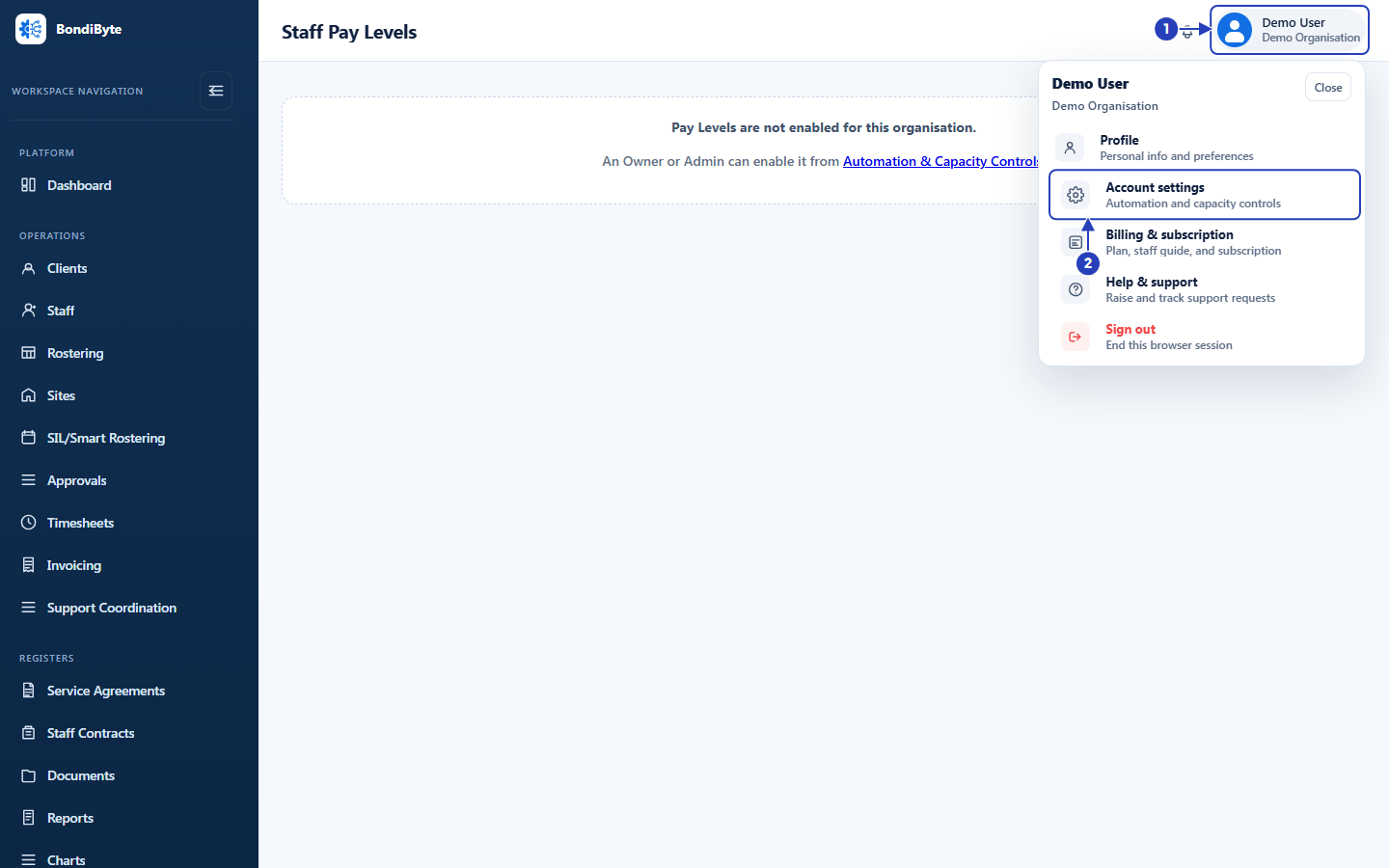
Choose your name and picture at the top right (1), then Account settings (2). -
Find Pay Levels and automatic interpretation
1 Scroll down to Automation & Capacity Controls. Under Automation controls, find Pay Levels and automatic interpretation. Under its title, a description says what the control does, and a small line below the description says how it affects Automation Capacity.
2 Read the badge on the right of its title. It says Off until Pay Levels has been turned on.
3 Look at the button next to the badge. It says Enable while the badge says Off.
Fields in step 2 Field What it means Off Pay Levels is not turned on. The button says Enable. Preparing BondiByte is preparing your Pay Levels and rules. The button says View progress. Ready to confirm The setup is ready for your review. The button says Review and confirm. On The setup was confirmed. The button says Disable. Failed Preparing the setup did not finish. The button says Retry. Note: While the badge says Preparing or Ready to confirm, a line under the description says that the switch is on but interpretation is not enabled until the setup is reviewed and confirmed on the Pay Levels page.

The Pay Levels and automatic interpretation control (1), its badge, which says Off (2), and its Enable button (3). -
Choose Enable and confirm
Choose Enable on the control. A window titled Enable and prepare Pay Levels opens.
1 Read the message. It says that BondiByte will prepare your organisation's Pay Levels and rules, and that you confirm the setup before automatic interpretation starts. It also says how Automation Capacity applies. If Pay Levels was set up before, it adds that your existing Pay Levels and rates are preserved and that setup adds only missing configuration.
2 Choose Enable and prepare to go ahead.
3 Choose Cancel instead to stop without turning Pay Levels on.
After you choose Enable and prepare, a message tells you what is happening, for example Preparing your Pay Levels and rules. The Staff Pay Levels page opens.
Important: Choosing Enable and prepare does not start automatic interpretation. It prepares starter examples for you to review. Interpretation starts only after you confirm the setup on the Pay Levels page.
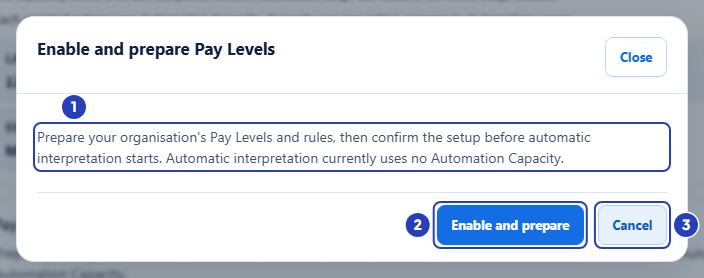
Read the message (1), then choose Enable and prepare (2) to go ahead, or Cancel (3) to stop. -
Follow the preparation on the Pay Levels page
1 While the setup is being prepared, the page shows Preparing your Pay Levels. with a list of Pay table, Pay levels, Line items and Draft rules. Each one reads Done or In progress.
2 You can keep using BondiByte. The page says You can continue using BondiByte. Setup continues in the background.
When the preparation is finished, the page says Your Pay Levels are ready. Review and adjust the rates and rules below. Review the rates and rules, then choose I've reviewed the setup: enable interpretation at the top of the page. Until you do, the control in Account settings stays on Ready to confirm. For the review, go on to Use the starter setup.
Note: If the preparation fails, the page shows the reason with a Retry button. The same Retry button is on the control in Account settings.
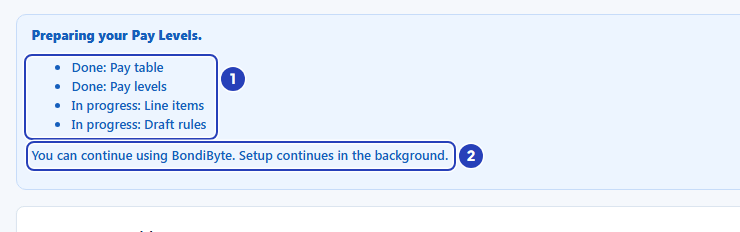
The preparation message and its list of parts (1), and the line saying you can keep using BondiByte (2). -
Turn Pay Levels off later, if you need to
1 On the Pay Levels and automatic interpretation control, choose Disable.
2 Read the message in the window Turn off Pay Levels interpretation? It says that automatic interpretation stops for new timesheets, and that rates, rules, assignments and saved interpretations are preserved.
3 Choose Turn off to go ahead, or Cancel to leave Pay Levels on.
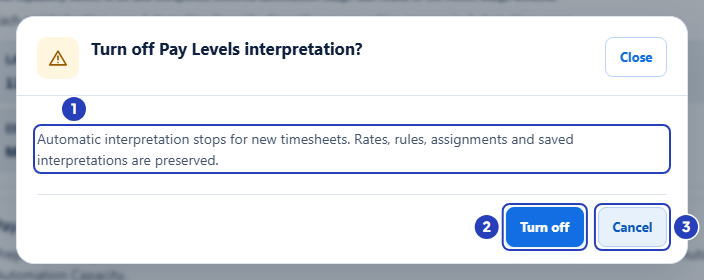
Read the message (1), then choose Turn off (2) to go ahead, or Cancel (3) to leave Pay Levels on.
What happens next
BondiByte prepares a pay table, six starter Pay Levels, their rate lines and draft rules. They are examples, labelled as a starter example to review for your organisation.
Automatic interpretation does not start yet. It starts when you review the setup and confirm it. See Use the starter setup.
Turning Pay Levels off later stops automatic interpretation for new timesheets. It does not remove your rates, rules or assignments.
If you turn Pay Levels on again and none of your rates have changed since you confirmed the setup, the control goes straight back to On and a message says Interpretation re-enabled; your confirmed setup was kept. Nothing new is prepared. If a rate has changed, BondiByte prepares the setup again and you review and confirm it again.
Important notes
Important: BondiByte applies the Pay Levels and Pay Rules that your organisation configures. It is not a complete Award interpreter, and the starter rates are examples, not a copy of any Award or agreement. Your organisation is responsible for checking every rate against its industrial instrument.
Note: Turning Pay Levels on is a setting for the whole organisation. Only Owners and Admins can change it.
Good practice
- Choose a time to turn Pay Levels on when the person who knows your pay agreement can review the setup straight away. The control shows Preparing and then Ready to confirm, and nothing is interpreted until someone confirms, so the setup waits for you.
- Turn Pay Levels off only when you mean to pause automatic interpretation. It stops for new timesheets straight away, while your rates, rules, assignments and saved interpretations are kept, so turning it back on later does not lose your setup.
Troubleshooting
I cannot see Automation & Capacity Controls on the Account settings page.
Why it happens: Only Owners and Admins see it, and an Owner or Admin sees it only after completing any multi-factor sign-in your organisation requires.
What to do: Ask an Owner or Admin to turn Pay Levels on for your organisation. If you are an Owner or Admin, finish the multi-factor sign-in and open Account settings again.
The control says Preparing and the button says View progress.
Why it happens: BondiByte is still preparing your Pay Levels and rules in the background.
What to do: Choose View progress to open the Pay Levels page. You can keep using BondiByte while you wait.
The control says Ready to confirm and the button says Review and confirm.
Why it happens: The setup is prepared. Automatic interpretation starts only after you review and confirm it.
What to do: Choose Review and confirm, then follow Use the starter setup.
The control says Failed.
Why it happens: Preparing the setup did not finish. The control shows the reason below its description.
What to do: Choose Retry. If it fails again, contact BondiByte support with the reason shown.
The Pay Levels page says Pay Levels are not enabled for this organisation.
Why it happens: Pay Levels has not been turned on. If your organisation has no Pay Levels yet, this message is all the page shows. If it already has Pay Levels, they stay on the page with the line Automatic interpretation is off. Existing pay levels remain visible and editable.
What to do: An Owner or Admin can turn it on from Automation & Capacity Controls by following this guide.