

Who this is for
This guide is written for Owner and Admin.
Before you begin
- Pay Levels must be switched on first. An Owner or Admin switches it on in Account settings > Automation & Capacity Controls > Pay Levels and automatic interpretation, by choosing Enable. See Enable Pay Levels. Until it is on, the Pay Levels page says Pay Levels are not enabled for this organisation. and timesheets show no pay interpretation.
- You are signed in to BondiByte on a computer as an Owner or Admin, or as someone with the Can view pay levels or Can manage pay levels permission.
What a Pay Rule is
A Pay Rule says when one rate line of a Pay Level applies. A rate line is one pay item on a Pay Level, for example Base Weekday Team Lead Work or a sleepover allowance. The rule gives the days of the week, the times of day, whether public holidays matter, the rate, and the dates the rule is in force.
BondiByte uses the rules to work out pay for each worked interval on a timesheet. See How pay interpretation works.
Every rule belongs to one Pay Level and every rule is dated. A rule is published, not saved as a draft. Once it is published it cannot be edited or deleted. To change a rate or a condition you publish a new dated version, and to stop a rule you retire it.
What must be switched on and set up first
A Pay Rule only prices a timesheet when six things are all in place for the person who worked it. If one is missing, the hours stay unresolved. See Troubleshoot an unresolved interpretation.
First, Pay Levels is switched on. An Owner or Admin switches it on in Account settings > Automation & Capacity Controls > Pay Levels and automatic interpretation. The Pay Levels item appears under Administration in the left menu while your organisation's subscription is active and your role includes Can view pay levels.
Second, the Pay Level exists and has the rate line the rule is for. See Create a Pay Level and Edit rates on a Pay Level.
Third, the level has published rules. Publishing is covered in Weekday, weekend and Public Holiday rules and Sleepovers.
Fourth, interpretation is enabled for that level. Each level has its own setting. The Rules part of the Pay Rules window reads Interpretation enabled or Interpretation disabled.
Fifth, each staff member has a dated assignment to the level, recorded on the Staff assignment part of the same window.
Sixth, the staff member has a payroll jurisdiction on an Active contract. BondiByte needs it to apply public holidays, and the hours stay unresolved without it. See Payroll jurisdiction.
The Pay Rules window
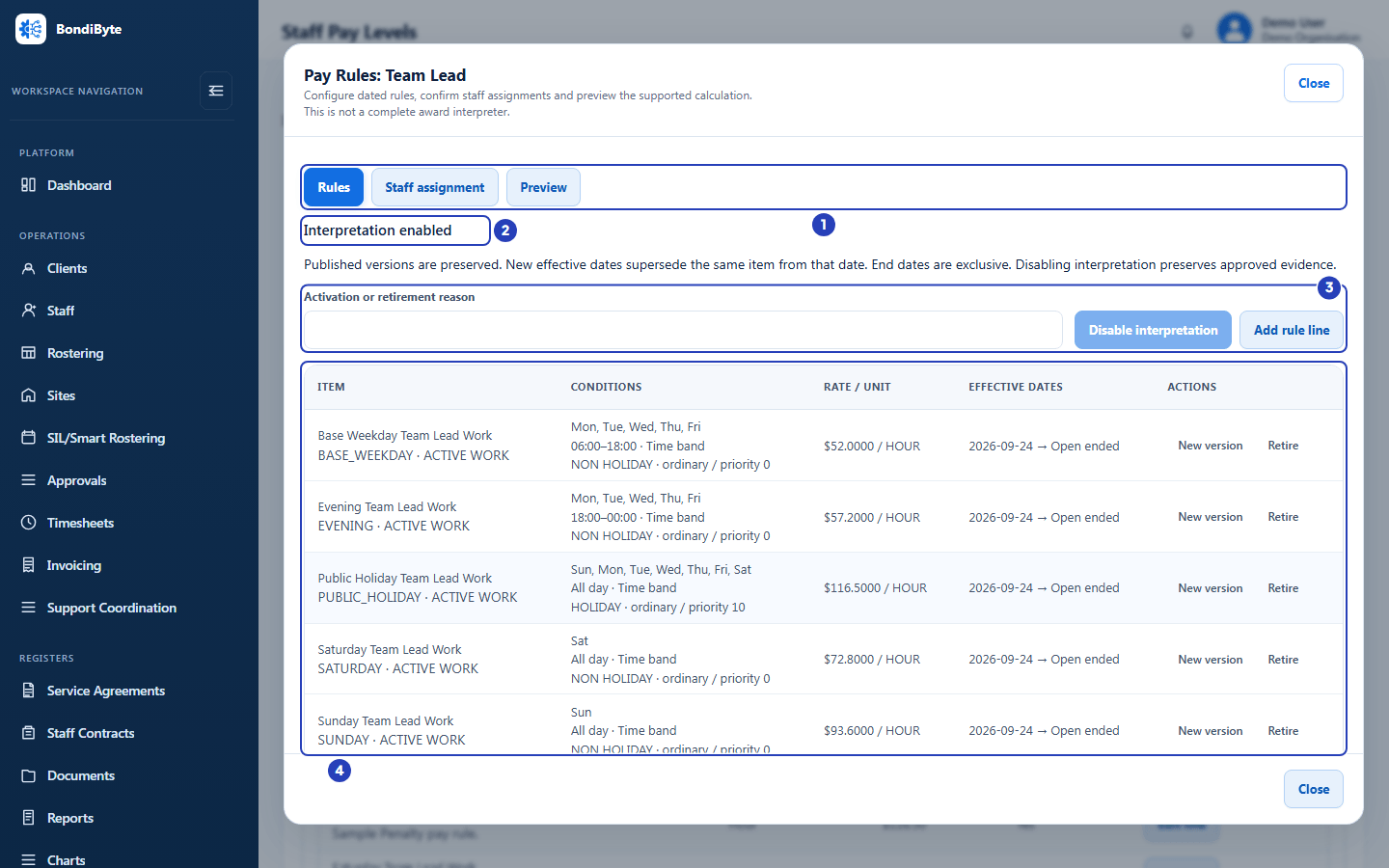
To open it, go to Administration > Pay Levels and choose Pay Rules and preview on a level's card. A window titled Pay Rules: Team Lead (with the name of your level) opens. Under the title it says that you can configure dated rules, confirm staff assignments and preview the supported calculation, and that this is not a complete award interpreter.
Three buttons at the top choose the part of the window: Rules, Staff assignment and Preview. Close is at the top right and the bottom right.
The Rules part starts with a heading that says Interpretation enabled or Interpretation disabled, and a line explaining that published versions are preserved, that new effective dates supersede the same item from that date, that end dates are exclusive, and that disabling interpretation preserves approved evidence.
Below that, the Activation or retirement reason box and the Enable interpretation or Disable interpretation button switch interpretation on or off for this level. The button stays unavailable until you have typed a reason, and Enable interpretation needs at least one published rule. Add rule line starts a new rule.
If you only have Can view pay levels, none of these controls are shown and the window says Read-only access. Managing rules and staff payroll configuration requires Staff Pay management permission.
How to read a rule
The table on the Rules part has one row for each published rule. A level with no rules shows No configured rule versions. instead.
Item gives the name of the rate line, and under it the code of the line and its type: ACTIVE WORK for ordinary paid hours, SLEEPOVER for the sleepover allowance, or ALLOWANCE for a separate extra amount.
Conditions lists the weekdays the rule covers, then the time window (or All day) and whether the rule is a Time band or a Whole shift. A last line gives the holiday condition (ANY, HOLIDAY or NON HOLIDAY), then the replacement group and priority, or Additional allowance for a separate allowance.
Rate / unit gives the rate with four decimal places and the unit, HOUR or UNIT. Effective dates gives the first day, an arrow and the last day, or Open ended. The end date is not covered by the rule.
Actions holds New version and Retire, shown only to people who hold Can manage pay levels.
How rules compete
More than one rule can match the same hours, for example a weekday rule and a public holiday rule. Two settings decide which one wins. Rules that compete for the same hours share a Replacement group, and the rule with the highest Priority number in that group is used.
If two matching rules are in different groups, or have the same priority, BondiByte does not guess. The hours stay unresolved until a rule is corrected.
A separate allowance does not compete. It is added on top of ordinary pay when its own conditions match. A sleepover allowance is chosen separately from ordinary hours.
The starter setup shows a good pattern. Weekday, evening, Saturday and Sunday rules all use the group ordinary with priority 0 and a NON HOLIDAY condition. The public holiday rule uses the same group with priority 10 and a HOLIDAY condition, so it takes over on a public holiday.
Staff assignment and payroll jurisdiction
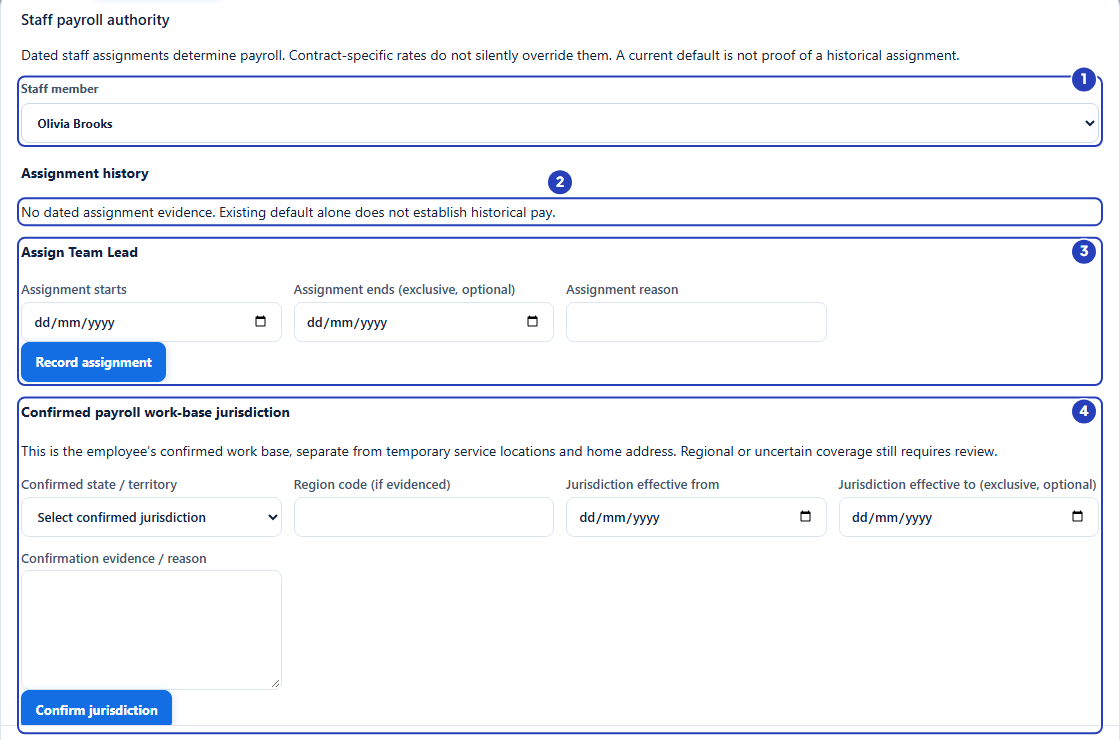
The Staff assignment part says that dated staff assignments determine payroll, and that a current default on a staff record is not proof of a historical assignment. Choose a Staff member to see their Assignment history. A person with no dated assignment shows No dated assignment evidence. Existing default alone does not establish historical pay.
To assign the level, use the form headed Assign followed by the level name. Fill in Assignment starts, optionally Assignment ends (exclusive, optional), and an Assignment reason, then choose Record assignment. A message says Dated staff assignment recorded. If the person already has an open-ended assignment that started earlier, it ends on the day the new one starts. Recorded history is never rewritten: to change it you add a new dated assignment.
The second form, Confirmed payroll work-base jurisdiction, records the state or territory where the person works, with Region code (if evidenced), Jurisdiction effective from, an optional Jurisdiction effective to (exclusive, optional) and the Confirmation evidence / reason. Choose Confirm jurisdiction to save. The Preview part uses this confirmed jurisdiction. Timesheets use the Payroll jurisdiction on the staff member's contract. See Payroll jurisdiction.
If two dated records overlap, a message says These dates conflict with existing dated records. Refresh the history and choose dates that do not overlap.
Preview
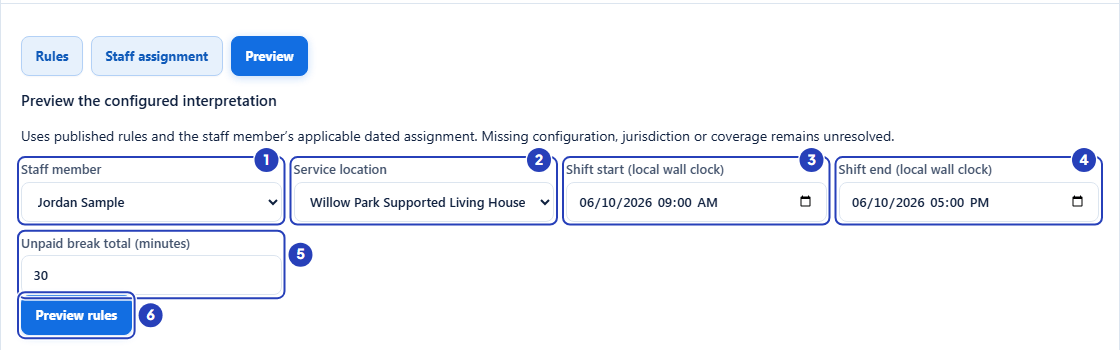
Preview tests a made-up shift against the published rules and a staff member's assignment without creating anything. It only runs when three things are in place: Pay Levels is switched on, the staff member has an assignment that covers today, and the level they are assigned to already says Interpretation enabled. So publish the rules, enable interpretation for the level and record the assignment first. Choose the Staff member and the Service location (the person must be assigned to that site), type the Shift start (local wall clock) and Shift end (local wall clock), enter the Unpaid break total (minutes), then choose Preview rules.
The result is headed Resolved preview with a total, or Manager review required with Unresolved when something is missing. Any problems are listed under the heading. A table then lists each interval with its Matched item, Quantity / unit, Rate, Amount and Explanation. A line at the bottom says Preview only. It does not create, submit, approve or export a timesheet.
If the person has no assignment that covers today, a message says No current Pay Level assignment covers this staff member. If the level they are assigned to does not say Interpretation enabled, it says The staff member's assigned Pay Level is not activated for interpretation. If the Service location is a site the person is not assigned to, it says Site is not assigned to this staff member. If a rule you published depends on public holidays and BondiByte cannot confirm whether the day is one, the result says Holiday coverage is unknown for the confirmed payroll jurisdiction. Check such a rule on a real timesheet.
Changing and ending rules
To change a published rule from a later date, choose New version on its row. The rule form opens with the earlier version's conditions filled in and a blank Effective from. Publish it with the new date. The earlier version stops applying on the day the new one starts.
To stop a rule altogether, type a reason in Activation or retirement reason, choose Retire on its row, pick the date it stops applying in Stop applying from (exclusive end) and choose Record retirement. The window says Retirement boundary recorded; original evidence preserved.
Publishing, retiring or disabling never changes timesheets that are already approved. See Approval and frozen interpretation.
What BondiByte does and what you remain responsible for
BondiByte applies the Pay Rules that your organisation configures. It helps you keep rates consistent and shows how a rate was applied. It is not a complete Award interpreter, and the Pay Rules window says so.
BondiByte does not check your rates, days or times against an Award or agreement. Your organisation is responsible for checking every rule against its industrial instrument and for keeping the rules up to date.
The Pay Rules guides
Pick the guide for the task in front of you.
Important notes
Important: BondiByte applies the Pay Rules your organisation configures. It is not a complete Award interpreter, and it does not check your rates or times against an Award or agreement. Your organisation is responsible for checking every rule.
Note: Pay Rules belong to your organisation as a whole. They are not set up for each site. A manager whose access is limited to some sites chooses from the staff members and sites they can see in the Staff assignment and Preview parts.
Good practice
- Keep your pay agreement beside you when you publish a rule, and note in your own records where each rate and time came from, so you can show how a rule was set.
- Publish a rule for every day and time you pay. Hours that match no rule stay unresolved until you add one.
- Use one Replacement group name for rules that compete for the same hours, such as ordinary, and give the public holiday rule a higher Priority.
- Choose an Effective from date that starts a pay period, so a period's hours are not split between two rates.
- Record each staff member's dated assignment before the first timesheet is prepared, and check Assignment history if a person's pay looks wrong.
Questions and answers
Why does the Pay Levels page say that Pay Levels are not enabled for this organisation?
Pay Levels has not been switched on yet. If your organisation has no Pay Levels yet, the page shows only that message and there is nothing to open. If Pay Levels already exist, they stay listed with the note Automatic interpretation is off. Existing pay levels remain visible and editable., and Pay Rules and preview still opens, but timesheets are not priced until an Owner or Admin switches it on. An Owner or Admin switches it on in Account settings > Automation & Capacity Controls > Pay Levels and automatic interpretation, by choosing Enable. If the Pay Levels item is missing from the left menu, your role does not include Can view pay levels or your organisation's subscription is not active.