

Who this is for
This guide is written for Owner, Admin, Manager and Finance.
Before you begin
- Timesheets is in your left menu, under Operations. It shows for roles that include Can view timesheets. An Owner or Admin can add that permission to a role in Configuration > Roles & Permissions. See Roles and permissions basics.
- A timesheet is built from the shifts assigned to a staff member in the period. Without assigned shifts there is nothing to put on a timesheet. See Rostering overview.
- Optional: so that BondiByte creates draft timesheets for you at the end of each period, an Owner or Admin makes sure Automatic draft timesheet generation is on in Account settings > Automation & Capacity Controls (open the account menu at the top right and choose Account settings), and then ticks Automatically create draft timesheets at the end of each period in Configuration > Rostering rules > Organisation Settings and chooses Save organisation settings. Without it, staff or managers create each draft by hand.
- Optional: the Pay interpretation section on a timesheet appears only when Pay Levels is switched on. An Owner or Admin switches it on in Account settings > Automation & Capacity Controls > Pay Levels and automatic interpretation, by choosing Enable and then Enable and prepare. The card shows Preparing and then Ready to confirm. Choose Review and confirm, look over the setup on the Pay Levels page and choose I've reviewed the setup: enable interpretation. The section appears when the card says On. See Pay Levels.
What timesheets are for
A timesheet is the record of the hours one staff member worked in one pay period, built from the shifts assigned to them. Staff check their hours and submit the timesheet in the Staff App. Managers review it on the Timesheets screen in BondiByte, approve it or return it for changes, and then export the approved timesheets for payroll.
BondiByte helps you prepare payroll. It does not pay anyone and it does not run your payroll. Export Payroll makes a file that you take to your payroll system. Send to Xero sends approved timesheets to Xero Payroll as draft timesheets for you to check there.
How a timesheet moves from draft to payroll
Draft. A draft is made from the shifts assigned to the person in the period. It is made in one of three ways: BondiByte creates it at the end of the period (when automatic drafts are switched on), the staff member generates it in the Staff App, or a manager chooses Create for staff. A manager can look at a draft but cannot change it. Nothing is waiting for a manager yet.
Submitted. The staff member checks their hours, gives a reason for any hours they changed, and submits the timesheet. It now needs a manager. A timesheet cannot be submitted while it still includes shifts that have not been worked yet.
Returned. A manager returned the timesheet with a reason because something needs fixing. The staff member is told, updates it and submits it again. Everyone who can approve timesheets is told when it comes back. You may also see Rejected on an older timesheet. It shows only under All, and the staff member can fix it and submit it again in the same way.
Approved. A manager approved the timesheet. It cannot be approved again or returned. Approved timesheets are the only ones that go into a payroll export.
A timesheet that is not yet submitted counts under Not submitted, together with the staff who have shifts in the period but no submitted timesheet.
The Timesheets screen
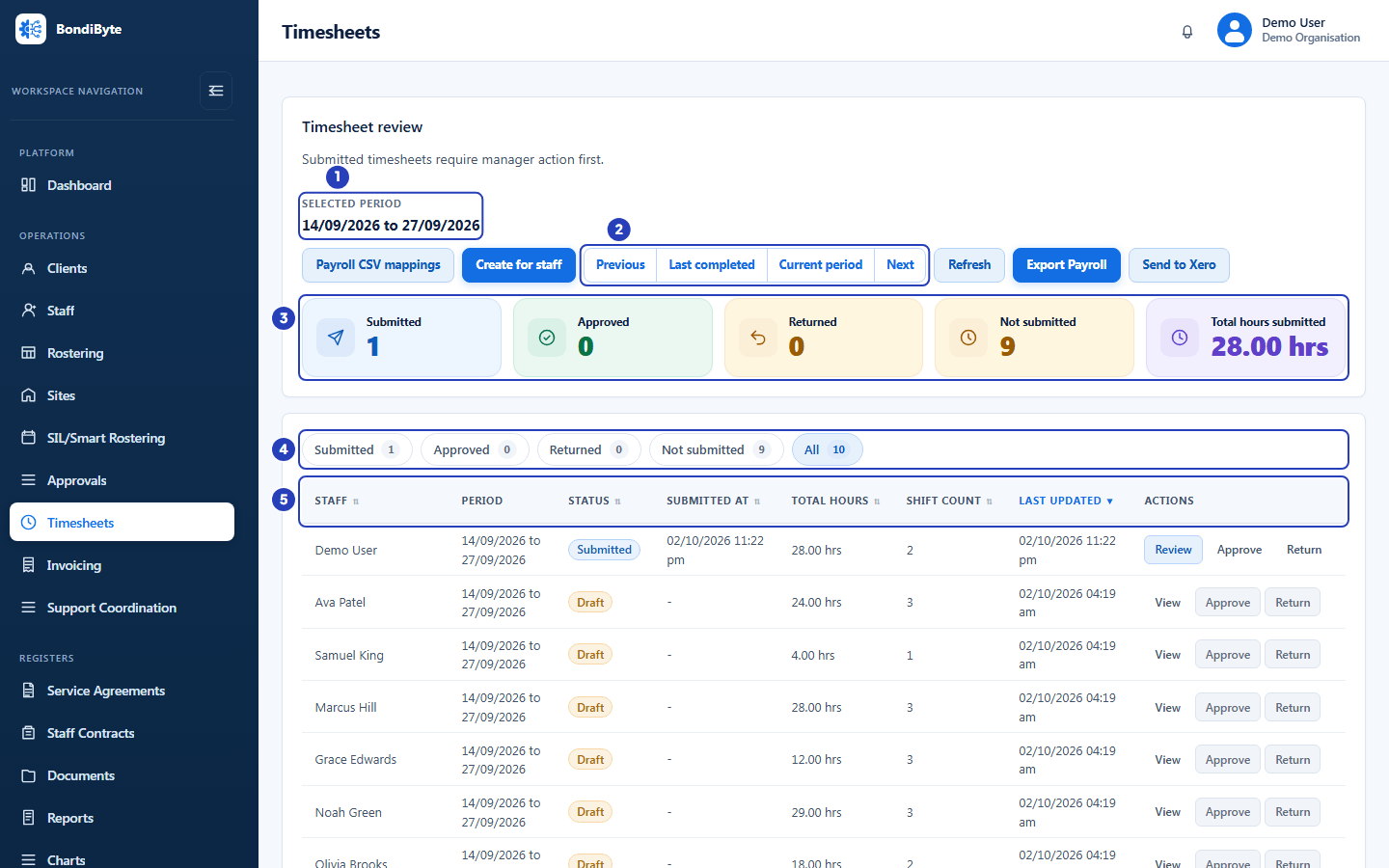
Choose Timesheets in the left menu, under Operations. The screen is called Timesheet review, and its first line says that submitted timesheets need manager action first.
Selected period. The dates of the period you are looking at are written under Selected period. The screen opens on the last period that has finished. Previous and Next move one period at a time, Last completed goes back to the most recent finished period, and Current period shows the period that includes today.
Summary cards. Five cards count the timesheets of the selected period: Submitted, Approved, Returned, Not submitted, and Total hours submitted. The last card adds up the hours of the submitted and approved timesheets only.
Status buttons. The buttons Submitted, Approved, Returned, Not submitted and All sit under the cards, each with a count. Choose one to show only those timesheets. The screen opens on Submitted.
The table. It shows Staff, Period, Status, Submitted at, Total hours, Shift count, Last updated and Actions. Choose a heading with the small arrows to sort by it. The newest changes show first until you choose another sort. Not submitted has its own table, with Staff, Period, Eligible shifts, Status and Actions.
Row buttons. Review opens a submitted timesheet. View opens any other timesheet. Approve and Return are on the same row, and they work only while the status is Submitted. For other statuses they are greyed out. Approve on the row opens the review window first, so that you check the timesheet before you approve it. Return asks for a reason, and then opens the review window on the returned timesheet. Without Can approve or return timesheets you see only Review or View.
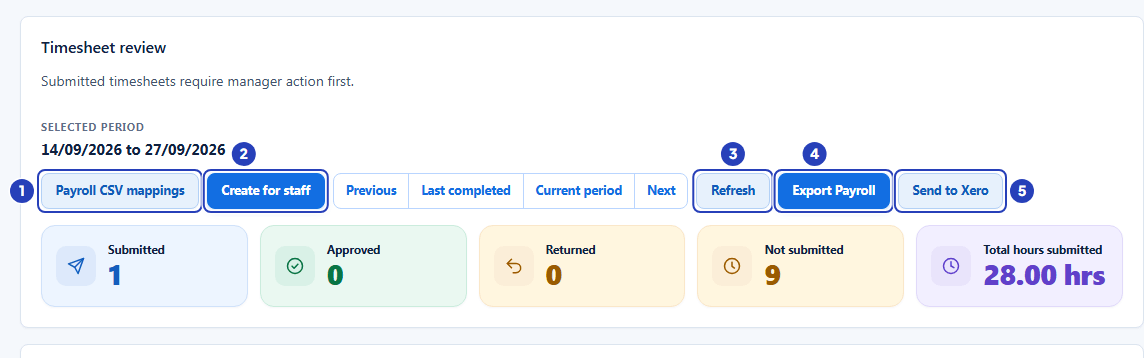
The buttons along the top
Payroll CSV mappings opens a window where you enter your payroll system's own numbers or codes for staff, sites and pay categories, once for MYOB and once for Employment Hero. You need them only when an export file includes dollar amounts. It shows for people with Can manage pay levels.
Create for staff makes a draft timesheet for a staff member from their assigned shifts, in case they have not generated one themselves. The staff member still has to check and submit it. It shows for people with Can generate timesheets.
Previous, Last completed, Current period and Next change the selected period. Refresh loads the timesheets of the selected period again, so you see changes made by other people.
Export Payroll makes a file of the approved timesheets in the selected period, in a MYOB or an Employment Hero layout. Send to Xero sends them to Xero Payroll instead. Send to Xero shows for people with Can export payroll timesheets. Export Payroll always shows, and is greyed out without that permission, and until the period has loaded.
How pay periods work
Every timesheet covers one period of your organisation's roster cycle. The cycle is Fortnightly or Monthly, and it starts on the date chosen in First period starts. An Owner or Admin sets both in Configuration > Rostering rules > Organisation Settings, in Roster period automation. Rosters, timesheets and invoices all follow the same cycle, so the period on the Timesheets screen always matches the roster period.
You cannot choose a different start or end date for one timesheet. To see another period, use Previous, Next, Last completed or Current period.
Staff can generate their timesheet once the period has ended. They cannot submit it while it still includes shifts that have not been worked.
What to switch on first
Nothing has to be switched on to use the Timesheets screen. Three optional switches, and one connection, change what you see. The switches are in Account settings under Automation & Capacity Controls. To open Account settings, open the account menu at the top right and choose Account settings.
Automatic drafts. If Automatic draft timesheet generation is off, an Owner or Admin switches it on in Account settings > Automation & Capacity Controls, by choosing Enable. Then, in Configuration > Rostering rules > Organisation Settings, they tick Automatically create draft timesheets at the end of each period under Automatic draft timesheets, and choose Save organisation settings at the bottom of the tab. Generate after period end sets how many hours after the period ends the drafts are made, from 0 to 24. Email staff when a draft is ready tells each person by email. Staff still review and submit, and managers still approve.
Staff generate their own. Staff smart-generate timesheets, in Account settings > Automation & Capacity Controls, lets staff build their timesheet from their shifts with one tap in the Staff App. If it is off, an Owner or Admin can switch it on there. When it is off, staff add their shifts by hand.
Pay interpretation. The Pay interpretation section of a timesheet appears only when Pay Levels is switched on, in Account settings > Automation & Capacity Controls > Pay Levels and automatic interpretation. An Owner or Admin chooses Enable and then Enable and prepare. The card shows Preparing and then Ready to confirm. They then choose Review and confirm, look over the setup on the Pay Levels page and choose I've reviewed the setup: enable interpretation. The section appears when the card says On. Until then the review window shows hours only.
Xero Payroll. Send to Xero needs Xero Payroll to be connected. See the Xero Payroll guide.
Automatic drafts and staff generating their own use your included Automation Capacity. Once it is used up, scheduled automations are skipped and staff add their shifts by hand.
Who can do what
Opening the screen needs Can view timesheets. Create for staff needs Can generate timesheets. Saving manager notes, mileage or a pay selection needs Can generate timesheets as well. Approve and Return need Can approve or return timesheets. Export Payroll and Send to Xero need Can export payroll timesheets. Payroll CSV mappings and choosing a Pay Level on a shift line need Can manage pay levels. Seeing the pay amounts needs Can view pay levels.
Owners and Admins hold all of these, and Managers hold them by default. A Finance / Billing role holds Can view timesheets and Can export payroll timesheets. A Viewer role can only look.
Whose timesheets you see. Owners and Admins see every timesheet. A Manager sees the timesheets of the staff whose Manager / supervisor is that Manager. If nobody is chosen in Manager / supervisor on a staff record, no Manager sees that person's timesheets. Other roles, such as Finance / Billing, see the people their access allows.
Your own timesheet. A manager cannot return their own timesheet, and cannot approve it unless they are an Owner or Admin. For everyone else the Approve button is not shown on their own timesheet.
Who is told what
When a manager approves a timesheet, the staff member gets a notification, which also reaches them in the Staff App, and an email when your organisation's email is set up.
When a manager returns a timesheet, the staff member gets the same kind of notification and email, with the reason the manager wrote.
When a staff member submits a returned timesheet again, everyone who can approve timesheets gets a notification that it is ready for review.
Important notes
Important: Only approved timesheets go into a payroll export. Check that the Submitted, Returned and Not submitted cards for the period show what you expect before you export.
Note: Timesheets are reviewed and approved on the Timesheets screen. The Approvals item in the left menu does not hold timesheets.
Good practice
- Check the dates under Selected period before you review or export. It is easy to work on one period while thinking about another.
- Work through each period in the same order: look at Not submitted first and follow up with those staff, then Returned, then Submitted. Export only when the cards show that everyone is done.
- Choose Manager / supervisor on every staff record, so each manager sees their team's timesheets and nobody's timesheet waits where no manager can see it.
- Return a timesheet with a clear reason, for example which shift and which time needs fixing. The staff member reads the reason in their notification and email, and a clear one saves a second round.
- Look at the Submitted card at the start and end of each working day. Then submitted timesheets do not wait for review longer than they need to.
- Keep Email staff when a draft is ready switched on if you use automatic drafts. Staff then know when to check their hours, and timesheets reach you sooner.
Questions and answers
Why can I not see Timesheets in the left menu?
Your role does not include Can view timesheets. Ask an Owner or Admin to add it to your role in Configuration > Roles & Permissions.
Why does the screen say No timesheets found?
No timesheet has the status you chose in the selected period. Try All, or move to another period with Previous, Next or Last completed.
Why does a staff member appear under Not submitted with a status of Draft?
A draft timesheet exists but the person has not submitted it. A manager cannot submit it for them. Follow up with the staff member, who submits it in the Staff App.
Why is the Pay interpretation section missing from a timesheet?
Pay Levels is not switched on for your organisation, or its setup has not been confirmed yet. An Owner or Admin switches it on in Account settings > Automation & Capacity Controls > Pay Levels and automatic interpretation. If the card says Ready to confirm, finish the setup on the Pay Levels page.
Where do I approve a timesheet?
On the Timesheets screen. Choose Review on a submitted timesheet, then choose Approve in the review window. See Approve timesheets.