

Who this is for
This guide is written for Owner, Admin and Manager.
Before you begin
- Timesheets is in your left menu, under Operations. It shows for roles that include Can view timesheets. An Owner or Admin can add that permission, and Can approve or return timesheets, to a role in Configuration > Roles & Permissions. See Roles and permissions basics.
- You are signed in to BondiByte on a computer.
- The timesheet has the status Submitted. A draft, a returned timesheet and an approved timesheet cannot be approved. See Timesheets overview for what each status means.
- You have checked the timesheet. Review timesheets explains every part of the review window.
- Optional: the Pay interpretation section in the review window appears only when Pay Levels is switched on. An Owner or Admin switches it on in Account settings > Automation & Capacity Controls > Pay Levels and automatic interpretation, by choosing Enable and then Enable and prepare. The card shows Preparing and then Ready to confirm. Choose Review and confirm, look over the setup on the Pay Levels page and choose I've reviewed the setup: enable interpretation. The section appears when the card says On. See Pay Levels. Approving works with or without it.
Steps
The screenshots show a demonstration organisation with made-up names. Your own screens show your organisation's details. Select a screenshot to open it full size.
-
Go to Timesheets > Submitted
1 In the left menu, under Operations, choose Timesheets. The Timesheet review screen opens on the last period that has finished.
2 Check the dates under Selected period. To reach another period, choose Previous, Next, Last completed or Current period.
3 Choose Submitted. The number on the button is how many timesheets are waiting for a manager.
Note: You see only the timesheets of staff you are allowed to see. A Manager sees the staff whose Manager / supervisor is that Manager.
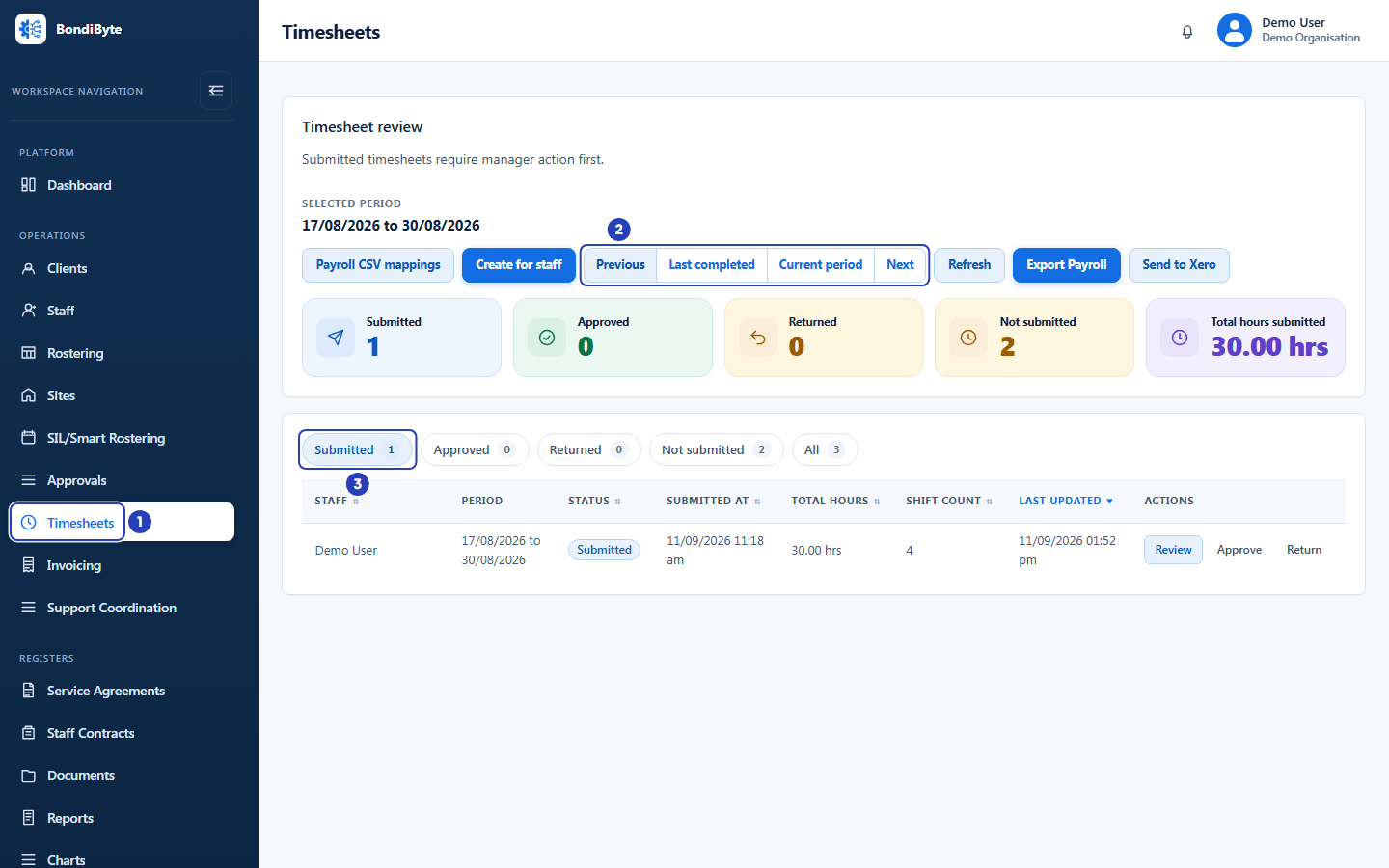
Choose Timesheets in the left menu (1), use the period buttons to reach the period (2) and choose Submitted (3). -
Open the timesheet with Review
Each submitted row ends with three buttons.
1 Review opens the review window, where you check the timesheet before you decide.
2 Approve on the row does not approve straight away. It opens the review window and a message says Review the loaded pay version before approving. Check the timesheet, then choose Approve in the window.
3 Return on the row asks for a reason first. After you choose Return in that window, the timesheet is returned and the review window opens on it. See step 7, Return a timesheet for changes instead.
Important: The Approve button is not shown on your own timesheet unless you are an Owner or Admin. Nobody can return their own timesheet. If you try, a message says Staff cannot approve or reject their own timesheet.
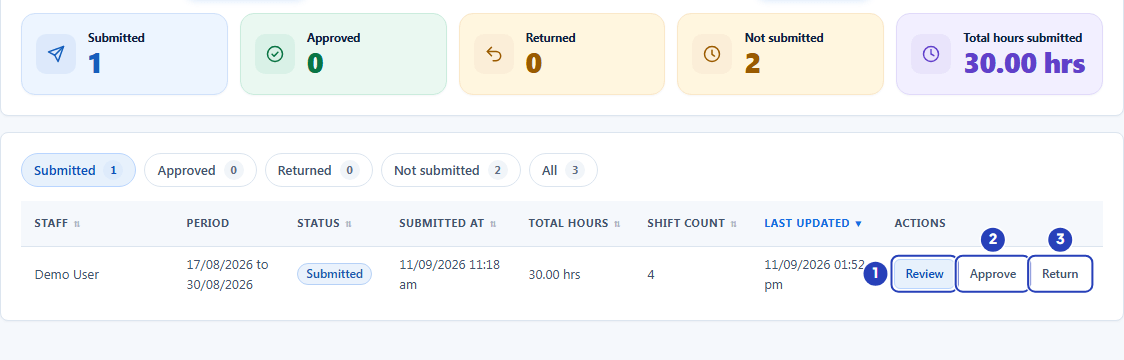
Choose Review (1) to open the timesheet. Approve (2) opens it first, and Return (3) asks for a reason. -
Check the timesheet before you decide
In the review window, check what matters for payroll. Review timesheets explains every part.
1 Read the tiles under the name. Total hours, Shift count and Total mileage should be what you expect for that person and period.
2 Read Hours check on each card under Shift lines. A highlighted card says Roster hours and different from entered hours. It means the staff member changed the hours, so read the Adjustment reason before you approve.
If the window has a Pay interpretation section, read its first line. UNRESOLVED means some amounts have no rate. You can still approve, but decide first: the pay cannot be changed after approval.
If something needs correcting, you can add Manager notes and choose Save manager notes, or return the timesheet for changes.
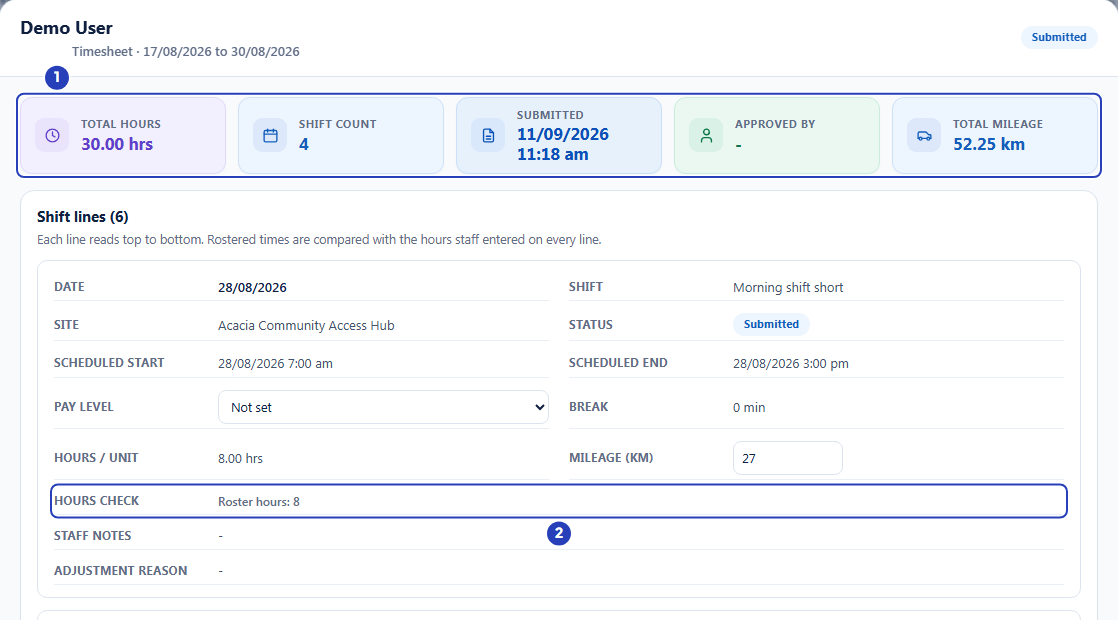
Check the tiles (1) and the Hours check of each shift line (2). -
Choose Approve
The buttons at the bottom of the review window are Close, Save manager notes, Return for changes and Approve. Close and Save manager notes do not change the status.
1 Choose Approve at the bottom right. The button is greyed out until the pay version has loaded.
2 Choose Return for changes instead when the timesheet needs fixing. See step 7, Return a timesheet for changes instead.
Warning: Approving cannot be undone from the Timesheets screen. An approved timesheet cannot be approved again or returned, and its manager notes are locked. Check the hours first.
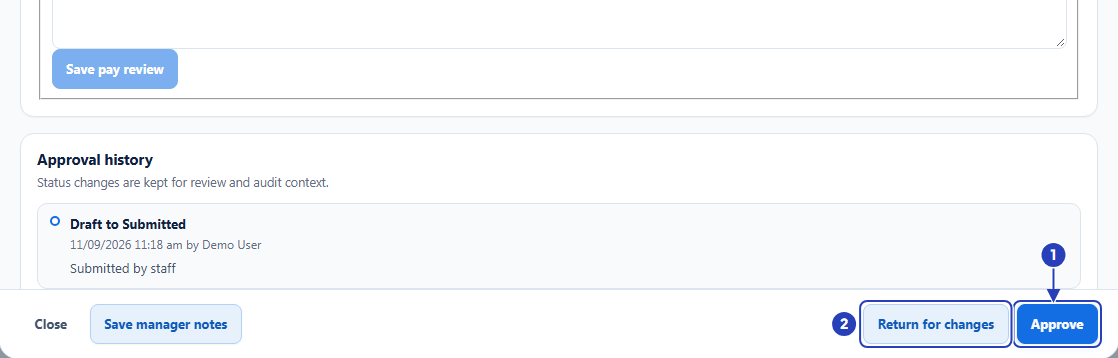
Choose Approve (1), or Return for changes (2) when the timesheet needs fixing. -
Check that the timesheet is approved
1 A message at the top right says Timesheet approved. The review window stays open.
2 The Approved by tile shows your name.
Scroll to Approval history in the window. A new line says Submitted to Approved with the date, time and your name.
The staff member is told that the timesheet was approved. They get a notification, which also reaches them in the Staff App, and an email when your organisation's email is set up.
Note: If another manager saved a pay selection while your window was open, approval is refused with The reviewed pay revision changed. Reload before approving. Close the window, open the timesheet again, read the new Revision and choose Approve again.
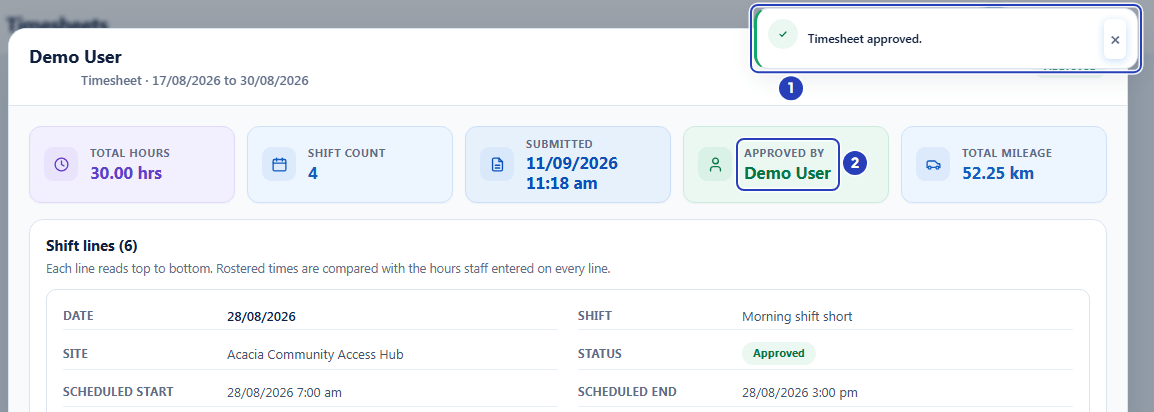
The message Timesheet approved. (1) and your name under Approved by (2). -
Close the window and check the list
1 Choose Close at the bottom left of the window. The cards at the top of the screen now show one fewer under Submitted and one more under Approved.
2 Choose Approved to see the approved timesheets of the period.
3 Find the person's row. The status says Approved, and Approve and Return are greyed out, because only submitted timesheets can be approved or returned.
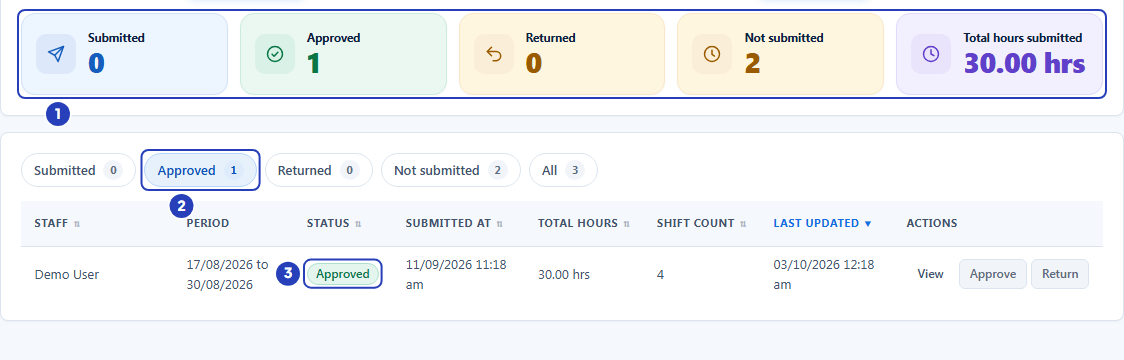
The summary cards now count the timesheet as approved (1). Choose Approved (2) to see it, with the Approved label (3). -
Return a timesheet for changes instead
Return a timesheet when the hours need fixing before you can approve it. Choose Return on the row, or Return for changes in the review window. Both open a window titled Return timesheet.
1 In Reason for returning this timesheet, say what needs fixing: the shift, the day and what to change. The staff member reads this reason, so be specific.
2 Choose Return. A message says Timesheet returned to staff. The status becomes Returned and the staff member is told, with your reason.
3 Choose Cancel to close the window without returning the timesheet.
The staff member updates the timesheet in the Staff App and submits it again. It then shows under Submitted again, and everyone who can approve timesheets gets a notification that it is ready for review.
Important: A reason is required. If you choose Return without one, the timesheet is not returned and a message says Please check the information you entered and try again.
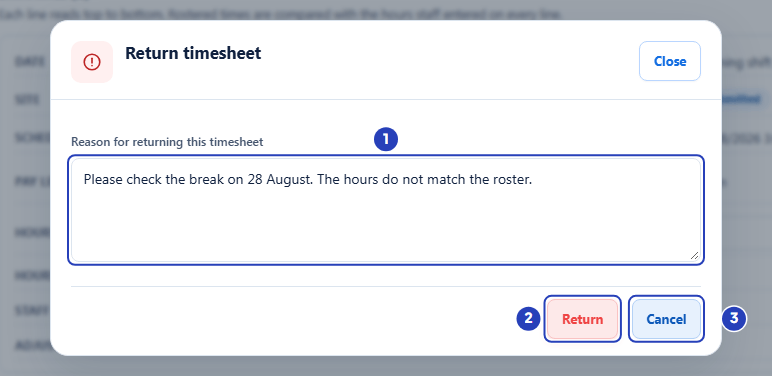
Write the reason (1), choose Return (2), or choose Cancel to close the window without returning (3).
What happens next
An approved timesheet is ready for payroll. When every timesheet in the period you need is approved, export them. See Export payroll.
The staff member is told the timesheet was approved. A returned timesheet goes back to the staff member, who updates it and submits it again.
The approval is recorded in Approval history on the timesheet, with the date, time and who approved it.
Important notes
Important: Only approved timesheets go into a payroll export. A timesheet that is still Submitted, Returned or Not submitted is left out of the file.
Note: You can approve a timesheet whose Pay interpretation is UNRESOLVED. Unresolved amounts stay blank, and a payroll export with dollar amounts is refused until they are resolved. An export of approved hours only still works.
Good practice
- Read Hours check on every card before you choose Approve. Approval cannot be undone from the screen, so a highlighted card with no adjustment reason is the moment to ask the staff member.
- Write Manager notes and choose Save manager notes before you approve. Notes are locked once the timesheet is approved.
- When you return a timesheet, name the shift, the day and what to fix. A vague reason such as please check sends the staff member back to ask you.
- Approve in one sitting for the whole period, then check the Submitted, Returned and Not submitted cards. When they are all zero, the period is ready to export.
- If Pay interpretation says UNRESOLVED, decide before you approve. After approval the pay cannot be changed.
Troubleshooting
I cannot see Approve or Return on the rows.
Why it happens: Your role does not include Can approve or return timesheets. You see Review or View only.
What to do: Ask an Owner or Admin to add the permission to your role in Configuration > Roles & Permissions.
I cannot see Approve on one timesheet, but I can on others.
Why it happens: It is your own timesheet. Only an Owner or Admin can approve their own.
What to do: Ask another manager, an Owner or an Admin to approve it.
A message says Staff cannot approve or reject their own timesheet.
Why it happens: You chose Return on your own timesheet. Nobody can return their own timesheet.
What to do: Ask another manager, an Owner or an Admin to return it.
The Approve and Return buttons are greyed out.
Why it happens: The timesheet is not Submitted. It may be a draft, already approved, or returned. Pointing at a button shows why, for example Only submitted timesheets can be approved. Current status: Approved.
What to do: Wait for the staff member to submit it. An approved timesheet cannot be approved again or returned.
Approve in the review window is greyed out while the timesheet is Submitted.
Why it happens: The reviewed pay version is still loading, or it could not be loaded.
What to do: Wait a moment, or choose Retry pay review in the Pay interpretation section.
A message says Please check the information you entered and try again. after you choose Return.
Why it happens: The reason box was empty. A reason is required, so the timesheet was not returned.
What to do: Choose Return for changes again, write the reason and choose Return.
A message says The reviewed pay revision changed. Reload before approving.
Why it happens: Someone saved a pay selection or notes on the timesheet after you opened it, so the pay you reviewed is out of date.
What to do: Close the window, open the timesheet again, read the new Revision and choose Approve again.
The Pay interpretation section is missing from the window.
Why it happens: Pay Levels is not switched on, or its setup is not confirmed yet. Approving still works.
What to do: An Owner or Admin switches Pay Levels on in Account settings > Automation & Capacity Controls > Pay Levels and automatic interpretation. If the card says Ready to confirm, finish the setup on the Pay Levels page.