

Who this is for
This guide is written for Owner, Admin, Manager and Finance.
Before you begin
- Pay Levels must be switched on first. An Owner or Admin switches it on in Account settings > Automation & Capacity Controls > Pay Levels and automatic interpretation, by choosing Enable. See Enable Pay Levels. When it is off, the Pay interpretation section does not appear on a timesheet and there is nothing to freeze.
- You have read How pay interpretation works, so the Pay interpretation section is familiar.
The short version
BondiByte keeps the pay of a timesheet at two moments. When the staff member submits it, the pay as it stands is kept with the timesheet. When a manager approves it, the pay the manager reviewed is frozen.
After approval, nothing you change later in Pay Levels, Pay Rules, staff assignments or payroll jurisdictions alters that timesheet. The pay an approved timesheet shows is the pay it was approved with.
An approved timesheet cannot be approved again or returned for changes. The Approve and Return buttons on its row are unavailable, and their tooltips say that only submitted timesheets can be approved or returned. So resolve any pay decision before you approve.
What happens at each stage
Not submitted (Draft): the Pay interpretation section follows your current assignments and published rules. Nothing is kept yet.
Submitted: the pay as it stood when the staff member submitted is kept. The review window shows that version, with a Revision number. A manager who can change pay may choose a Pay item or allocate a break, write a Reason and choose Save pay review. Each save works the pay out again and raises the Revision. This is only possible while the timesheet is submitted or returned for changes.
Returned: if you choose Return for changes, a window titled Return timesheet asks for the Reason for returning this timesheet. Choose Return and the message Timesheet returned to staff. appears. The kept pay is cleared, the staff member edits the timesheet, and a new pay version is kept when they submit it again.
Approved: choose Approve in the review window and the message Timesheet approved. appears. The reviewed pay revision is frozen and Approval history adds a line such as Submitted to Approved with the date and who approved it.
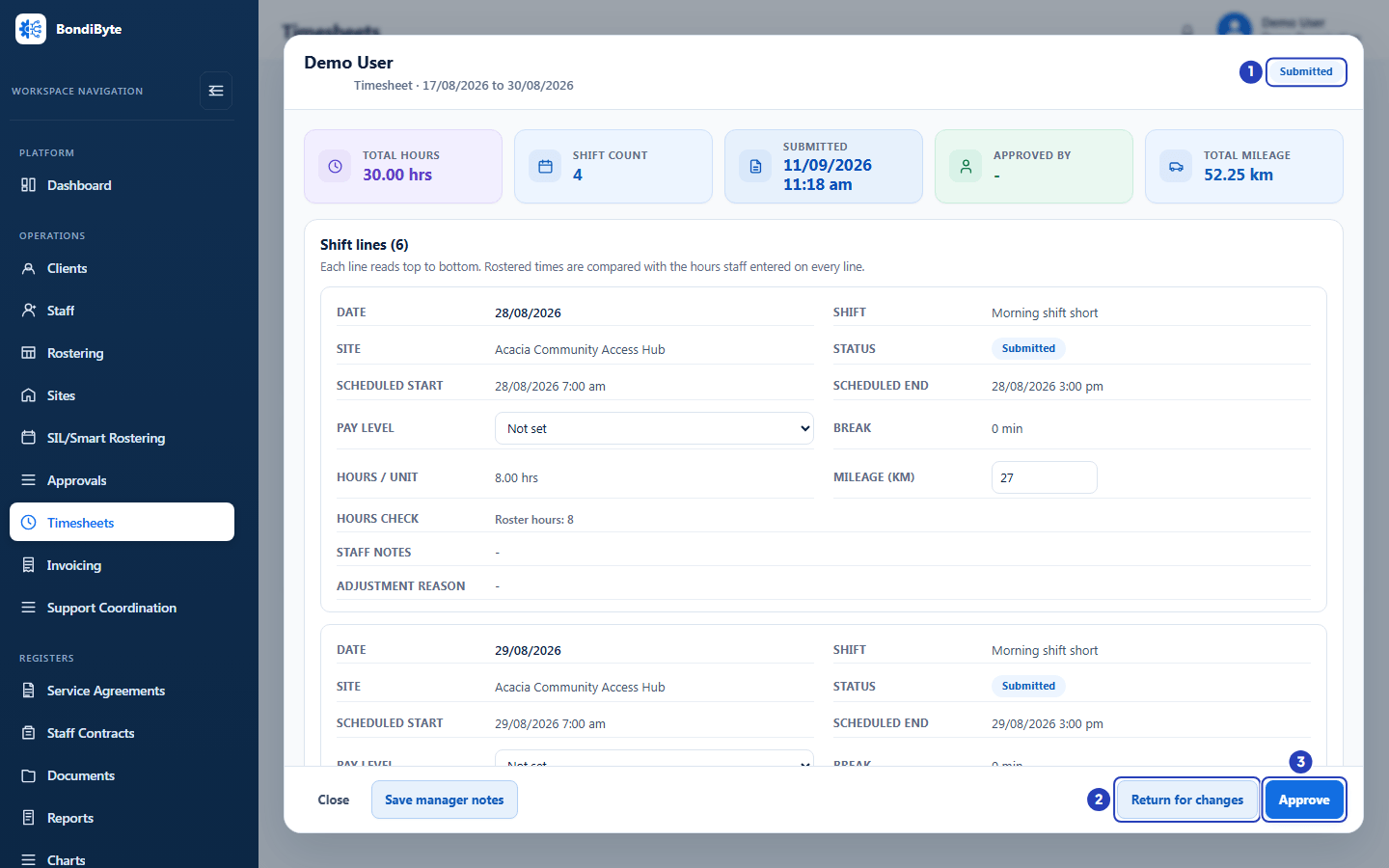
Approving a timesheet
The Approve and Return for changes buttons are at the bottom of the review window, next to Close and Save manager notes. They are available only while the status says Submitted.
If you choose Approve on a person's row in the list, BondiByte opens the review window first and says Review the loaded pay version before approving. Check the Pay interpretation section, then choose Approve in the window. The button waits until the pay version has loaded. If it has not, a message says Load the reviewed pay version before approval.
If another manager saves a pay review while you are looking at the timesheet, approval is refused with a message that says The reviewed pay revision changed. Reload before approving. Close the window, open the timesheet again, read the new revision and approve again.
You can approve while some amounts are still unresolved. Unresolved amounts stay blank. Decide on them before you approve, because afterwards they cannot be changed.
Only an Owner or Admin can approve their own timesheet. For everyone else the Approve button is not shown on their own timesheet.
What an approved timesheet keeps
The Pay interpretation section of an approved timesheet shows the reviewed version: every part with its item, rate, amount and explanation, and any Manager decision with its reason. Manager notes are locked once a timesheet is approved.
Publishing a rule says Published a dated rule version. Existing approved earnings remain unchanged. Retiring a rule says Retirement boundary recorded; original evidence preserved. The Rules part of the Pay Rules window says that disabling interpretation preserves approved evidence. Turning Pay Levels off stops automatic interpretation for new timesheets and keeps your saved interpretations.
A pay rate that has approved timesheets cannot be changed, and the message says This pay rate cannot be changed because it has approved timesheets.
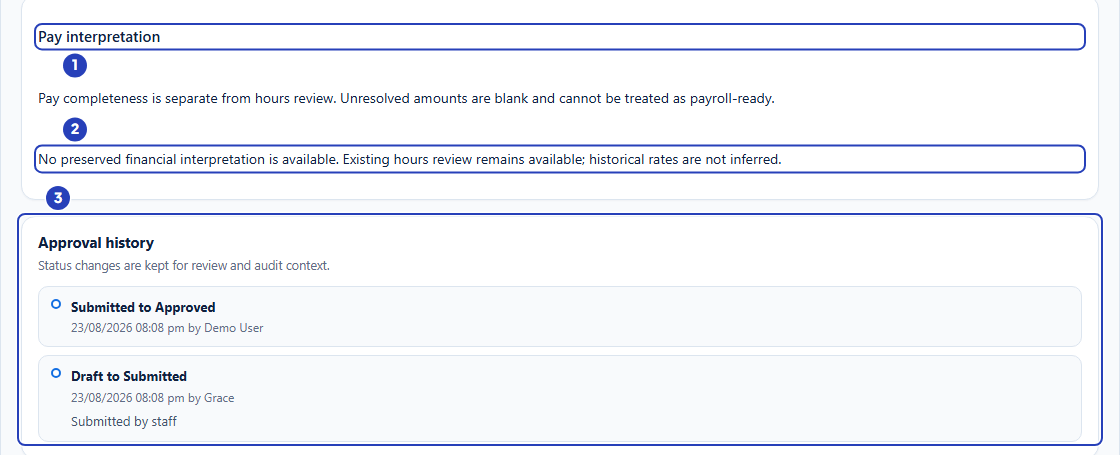
Timesheets approved without a kept pay version
A timesheet approved before pay interpretation was switched on has no kept pay version. Its Pay interpretation section says No preserved financial interpretation is available. Existing hours review remains available; historical rates are not inferred. BondiByte does not work out historical rates afterwards, so those timesheets keep their approved hours only.
A timesheet submitted before interpretation was switched on shows legacy submitted rate not preserved for every part. Review the hours as usual. Its money amounts stay blank.
Payroll export and unresolved pay
Only approved timesheets are exported. A money export uses the pay kept at approval, one row for each approved pay part. If approved earnings are incomplete, the export stops with the message Approved earnings are incomplete or historically unknown. Resolve the outstanding decisions, or deliberately select approved hours only.
In the export window that Export Payroll opens, you can tick Export approved hours only (leave all monetary totals blank). Where every part of a shift line is resolved, each part is its own row with the quantity only and every money total blank; a line with an unresolved part is exported as one row with the quantity only. It does not confirm payroll valuation.
The steps of the export itself are covered in the Timesheets guide. See Timesheets overview.
Where to go next
Continue with the guide for the part you need.
Important notes
Important: BondiByte applies the Pay Rules your organisation configures. It is not a complete Award interpreter. Your organisation is responsible for checking the pay on a timesheet before it is approved, because an approved timesheet cannot be changed.
Note: A manager whose access is limited to some sites can review and approve only the timesheets of staff they can see.
Good practice
- Read the Pay interpretation section and clear the list of problems before you choose Approve. After approval the pay cannot be changed.
- If you are not sure of a rate, choose Return for changes and write a Reason instead of approving, so the timesheet stays open.
- Publish or correct rules before the period's timesheets are submitted, so the pay that is kept at submission is already right.
- Do not approve a timesheet from the list without opening it. Approve from the review window after reading the Revision and the amounts.
- Keep your approval date for each pay period in your own payroll records, and check Approval history when someone asks who approved a timesheet and when.
Questions and answers
Can I change the pay of an approved timesheet?
No. An approved timesheet keeps the pay it was approved with, and the review window offers no way to approve it again or return it. Resolve pay decisions before you approve.
Does publishing a new rule change timesheets that are already approved?
No. The window says Existing approved earnings remain unchanged. Timesheets that have not been approved follow your current rules until the staff member submits them.
Why does an approved timesheet say that no preserved financial interpretation is available?
It was approved before pay interpretation was switched on, so there is no kept pay version. Its approved hours are still shown, and historical rates are not worked out afterwards.