

Who this is for
This guide is written for Owner, Admin, Manager and Finance.
Before you begin
- Pay Levels must be switched on first. An Owner or Admin switches it on in Account settings > Automation & Capacity Controls > Pay Levels and automatic interpretation, by choosing Enable. See Enable Pay Levels. When it is off, the Pay interpretation section does not appear on a timesheet at all.
- You are signed in to BondiByte on a computer.
What pay interpretation is
Pay interpretation is how BondiByte works out the pay for each worked interval on a timesheet from the Pay Rules your organisation has published. For every interval it looks at the staff member's dated assignment to a Pay Level, the published rules of that level, and, for rules that depend on public holidays, the payroll jurisdiction and the public holiday information for that day.
It helps your team see how a rate was applied and which hours still need a decision. It applies only the rules you have configured, and it is not a complete Award interpreter. Your organisation checks the result.
What has to be in place
A timesheet is priced only when everything below is in place for the person who worked it. If one part is missing, the hours stay unresolved and the reason is shown on the timesheet.
First, Pay Levels is switched on by an Owner or Admin in Account settings > Automation & Capacity Controls > Pay Levels and automatic interpretation. See Enable Pay Levels.
Second, the person has a dated assignment to a Pay Level, recorded on the Staff assignment part of Pay Rules and preview, and that level says Interpretation enabled. See Understand Pay Rules.
Third, the level has a published rule for each day and time that is worked. See Weekday, weekend and Public Holiday rules and Sleepovers.
Fourth, the person has a Payroll jurisdiction on an Active contract that covers the days worked. BondiByte needs it to apply public holidays, and the hours stay unresolved without it. See Payroll jurisdiction.
Where you see it
Go to Timesheets, choose the period and a status button such as Submitted, and choose Review or View on the person's row. In the review window, scroll to the Pay interpretation section. It sits below Manager review and above Approval history.
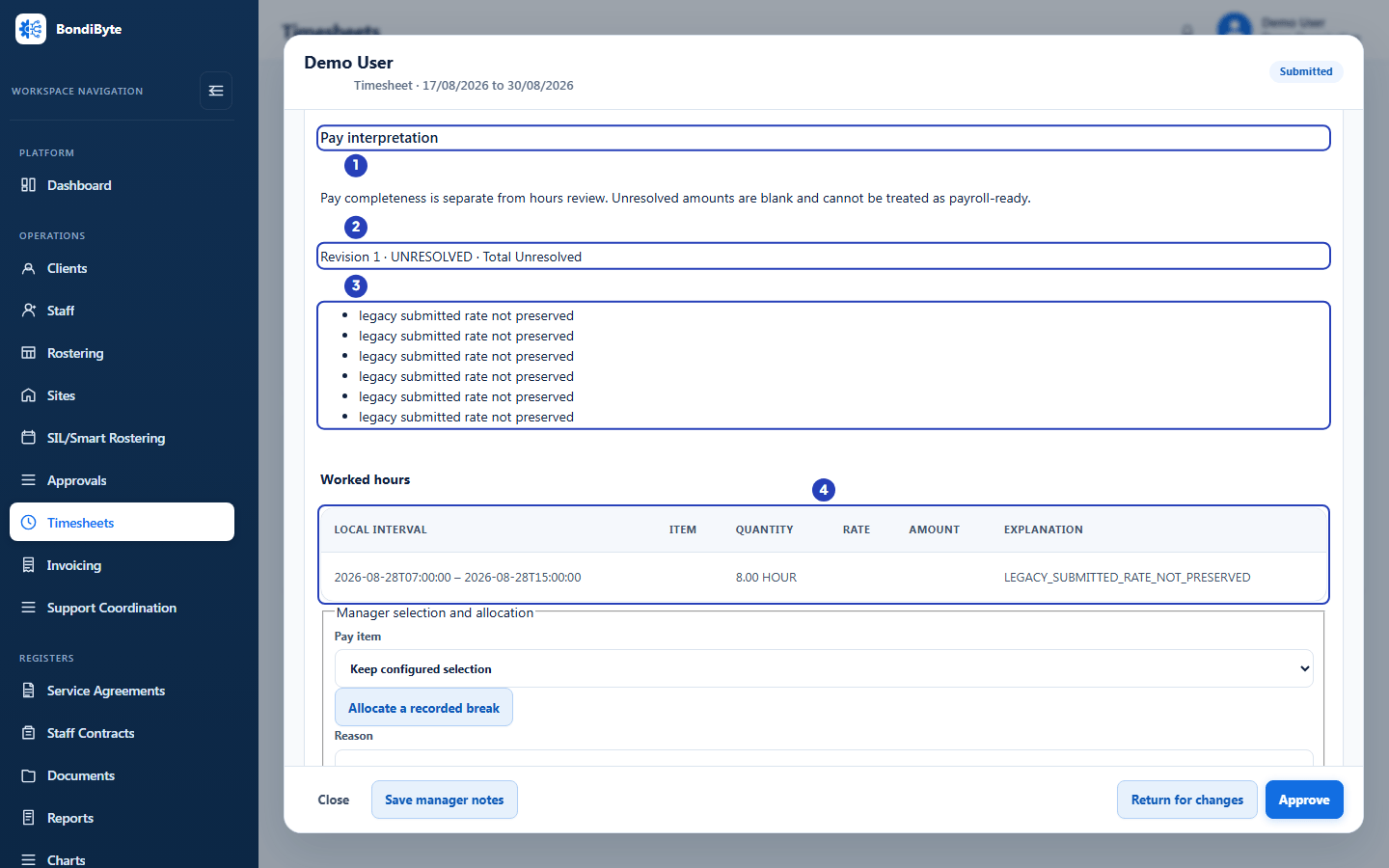
Under the heading it says that pay completeness is separate from hours review, and that unresolved amounts are blank and cannot be treated as payroll-ready.
Without Can view pay levels, the section says Detailed pay interpretation requires Staff Pay view permission; hours review remains available. If the pay version cannot be loaded, the section shows the problem and a Retry pay review button.
On each shift line above, the Pay level box is greyed out when Pay Rules are in use. Its tooltip says Use Pay interpretation below to select a rule and record a reason.
How to read the section
The first line reads Revision, a number, then RESOLVED or UNRESOLVED, then Total with an amount in dollars or the word Unresolved. The revision goes up each time the pay is worked out again with different information. RESOLVED means every part of the timesheet has an item, a rate and an amount. For a rate line that is managed in Xero, the rate and amount are blank and the part still counts as RESOLVED. UNRESOLVED means at least one part has no item, rate or amount, and the total is left blank.
Under that line, each problem is listed in plain words, one line per problem, such as pay rule gap or Payroll jurisdiction is required before automatic pay interpretation can run for this staff member. A problem about a payroll jurisdiction can carry a Review staff contracts link for Owners and Admins. See Troubleshoot an unresolved interpretation.
The pay is then shown part by part. Each part has a heading, such as Worked hours, or Active hours before sleepover, Sleepover allowance and Active hours after sleepover for a sleepover shift. A part with no priced interval says No resolved pay segments.
Each table has six columns. Local interval gives the start and end of the interval in the local time of the site. Item shows the code of the rate line that priced the interval, for example BASE_WEEKDAY. Quantity gives the hours or units. Rate and Amount are in dollars. Explanation gives the reason, such as CONFIGURED_RULE_MATCH when BondiByte matched a rule, MANAGER_SELECTION when a manager chose the item, or the reason an amount is blank.
When a manager has changed a part, the Explanation column also shows Manager decision with the reason, and Original rate when the rate changed.
A box named Manager selection and allocation sits under each part for people who can change it. It holds Pay item, Allocate a recorded break, Reason and Save pay review.
When the pay is worked out again
Before the staff member submits, the section follows your current assignments and published rules, so a rule you publish today shows the next time the timesheet is opened.
When the staff member submits the timesheet, the pay as it stands at that moment is kept with it. Rules, rates, assignments and jurisdictions that change afterwards do not change that kept version. A timesheet that is returned for changes is worked out again when it is submitted again.
When a manager chooses a Pay item or allocates a break and chooses Save pay review, the pay is worked out again with that decision and the Revision number goes up. This is only available while the timesheet is submitted or returned for changes.
Once the timesheet is approved, its pay never changes. See Approval and frozen interpretation.
A timesheet that was submitted before interpretation was switched on shows legacy submitted rate not preserved for every part. BondiByte does not work out historical rates for it.
What it does not do
Pay interpretation does not decide which rate is correct. It applies the rules you published and shows its working. If your rules are wrong or missing, the pay is wrong or blank.
When it cannot decide, it leaves the amount blank instead of guessing. Examples are two rules that match the same hours, no rule for the hours, a missing payroll jurisdiction, or a shift that crosses a part-day public holiday and needs manual review.
It does not export or send anything. Money amounts are only exported from approved timesheets. See Approval and frozen interpretation.
Where to go next
Continue with the guide for the part you need.
Important notes
Important: BondiByte applies the Pay Rules your organisation configures. It is not a complete Award interpreter, and it does not check rates or times against an Award or agreement. Your organisation is responsible for checking the pay on every timesheet before it is approved.
Note: A manager whose access is limited to some sites sees the pay interpretation only for timesheets of staff they can see.
Good practice
- Open the Pay interpretation section for every submitted timesheet and read the list of problems before you approve.
- Fix the cause of a problem once, in the rules, the assignment or the contract, instead of choosing items by hand on every timesheet.
- When you choose an item by hand, write a reason that someone else could follow later, such as the agreement clause you relied on.
- After you publish or change a rule, open one timesheet that it should affect and check the Item, Rate and Amount.
- Check Approval history and the Revision number if two managers work on the same timesheet, so one decision does not hide another.
Questions and answers
Why is there no Pay interpretation section in my timesheet review window?
Pay Levels is switched off for your organisation, and BondiByte hides the section while it is off. An Owner or Admin switches it on in Account settings > Automation & Capacity Controls > Pay Levels and automatic interpretation, by choosing Enable.