

Who this is for
This guide is written for Owner and Admin.
Before you begin
- Pay Levels must be switched on first. An Owner or Admin switches it on in Account settings > Automation & Capacity Controls > Pay Levels and automatic interpretation, by choosing Enable. See Enable Pay Levels. Until it is on, the Pay Levels page says Pay Levels are not enabled for this organisation.
- You are signed in to BondiByte on a computer.
- The Pay Level you want to copy already exists. See Review provisioned Pay Levels.
- You have a name and a group for the new level.
Steps
The screenshots show a demonstration organisation with made-up names. Your own screens show your organisation's details. Select a screenshot to open it full size.
-
Go to Administration > Pay Levels and choose Clone
1 In the left menu, under Administration, choose Pay Levels. The Staff Pay Levels page opens.
2 Find the level you want to copy and choose Clone on its card. The Clone pay level window opens, with the name of that level in its title.
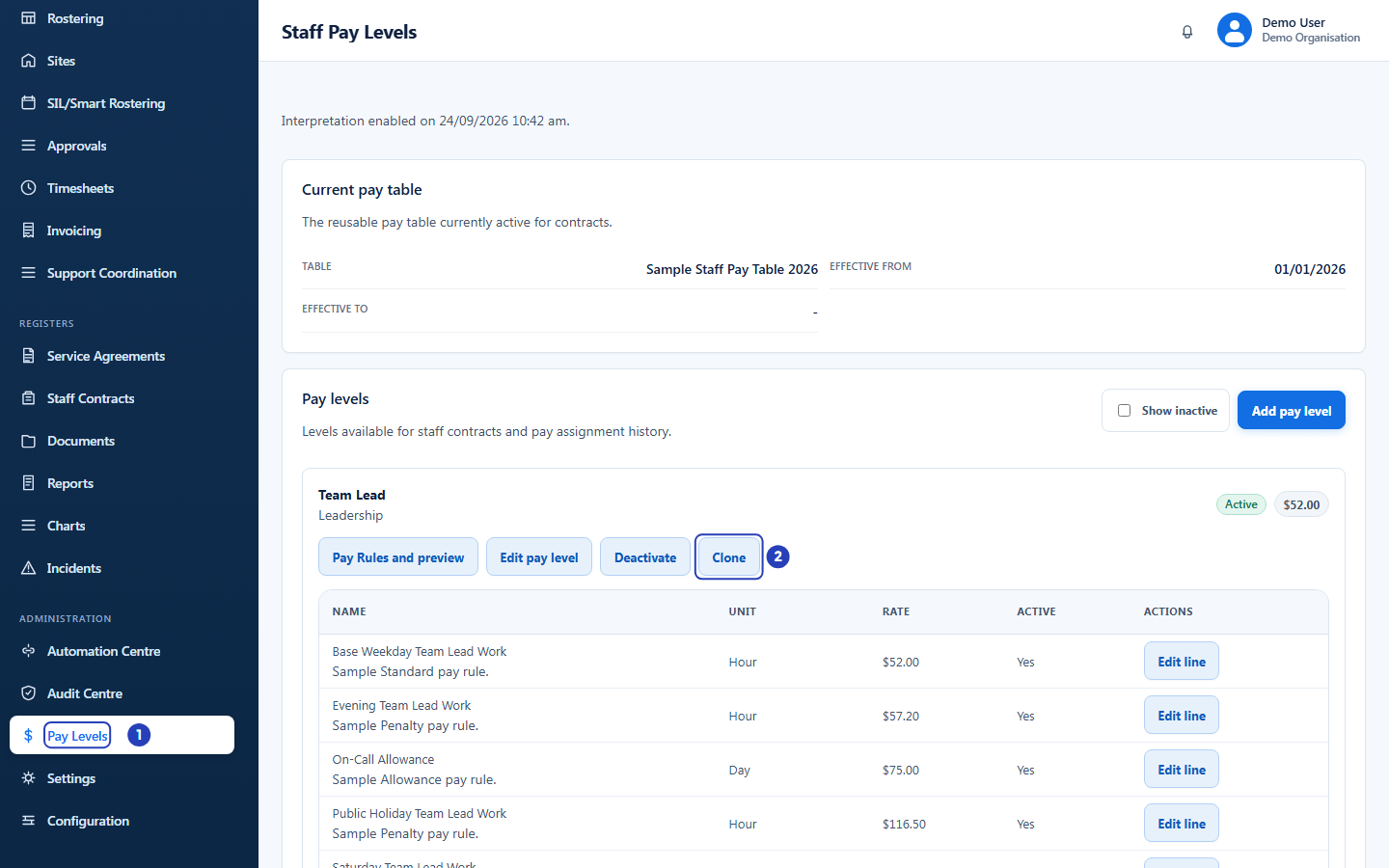
Choose Pay Levels under Administration (1), then Clone on the level you want to copy (2). -
Name the copy and choose its group
1 In New name, type the name of the new level, such as
Support Worker Level 1 (copy).2 In Group, check the group. It starts with the group of the level you are copying. Change it if the copy belongs in a different group.
3 Leave Source version as Current published rules. It is the only choice.
4 In Effective from, choose a date if the copied rates and rules should start on a particular day. If you leave it empty, today's date is used.
Fields in step 2 Field What it means New name Required. The name of the new Pay Level. Group Required. Starts with the source level's group. Source version Current published rules copies the rate lines, and the rules that are in force today, from the level you chose. Effective from Optional. The date the copied rates and rules start from. 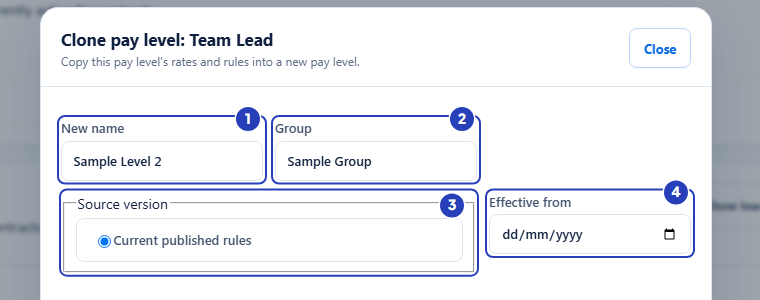
Type the new name (1), check the group (2), leave the source version (3) and choose an effective date if you need one (4). -
Read the notice, then choose Clone
1 Read the notice under the fields. It says what is copied and what is not.
2 Choose Clone.
3 Choose Cancel instead to close the window without copying.
Important: Rates and rules are copied. The copied rules stay as a draft until you publish them, so you can adjust the rates first. Staff assignments, contracts, timesheets and history are not copied. The copy starts disabled for interpretation.
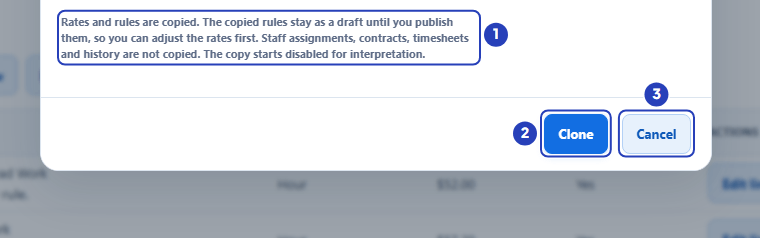
Read the notice (1), then choose Clone (2) to copy, or Cancel (3) to close the window without copying. -
Check the copy
After you choose Clone, a message confirms Cloned to a new pay level, followed by the name you typed. The new level is in the list with the name and group you chose, and it keeps the sort order of the level you copied. Its code is made from the new name, and you can see it in the Edit pay level window. Its rate lines start on the Effective from date you chose, or on today's date if you left it empty.
1 The Edit pay level window opens for the new level. If rules were copied, the heading Copied rules (draft, not yet published) shows how many, with one line for each rule. They are drafts.
2 Publish copied rules publishes the drafts. You do not have to publish now: the next step explains it. You can open this window again at any time with Edit pay level on the copy's card.
3 To leave the rules as drafts for now, choose Cancel to close the window.
Note: If the level you copied had no published rules in force, only its rate lines are copied and there is no Copied rules heading.
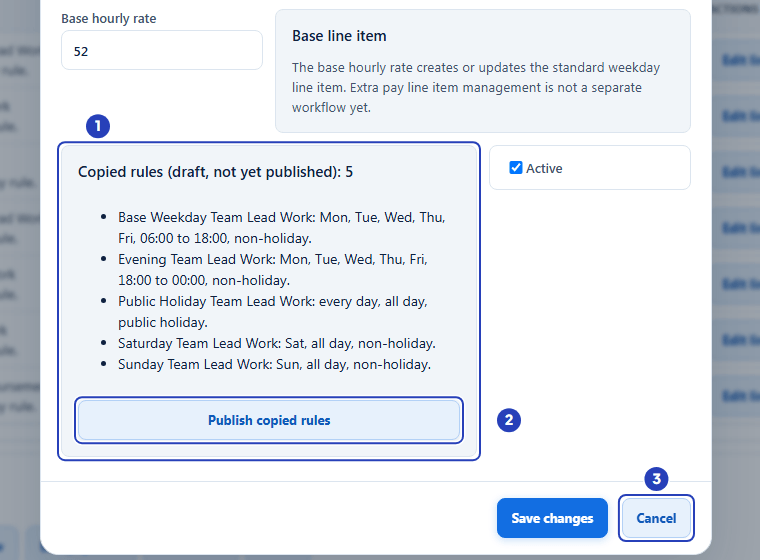
The copied rules, still drafts (1), the button that publishes them (2) and Cancel (3), which closes the window and keeps them as drafts. -
Publish the copied rules when you are ready
When the rates on the copy are right, open the Edit pay level window for the copy and choose Publish copied rules. A window asks Publish the copied rules?
1 Read the message. Published rates are locked, and a new dated version is needed to change them later.
2 Choose Publish copied rules in that window to publish.
3 Choose Cancel instead to keep the rules as drafts.
After you publish, a message says how many rules were published, for example Published 5 copied rules. The Copied rules heading then disappears from the Edit pay level window.
Warning: Published rates are locked. Check every rate on the copy first. Once published, a rate line that has its own rule cannot be changed on this page, and neither can the base hourly rate of the level. You change them by publishing a new dated version in Pay Rules and preview.
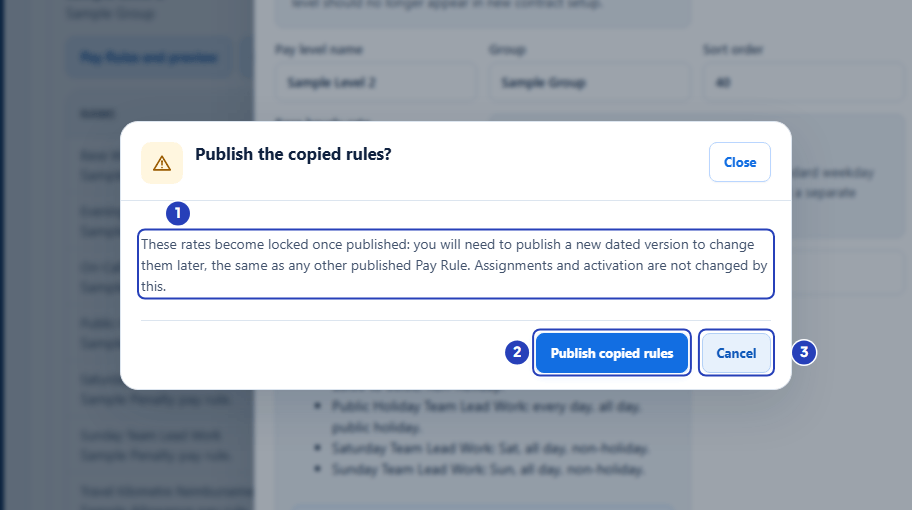
Read the message about locked rates (1), then choose Publish copied rules (2) to publish, or Cancel (3) to keep the rules as drafts.
What happens next
The copy is a new Pay Level. It has its own rate lines, with the same rates as the level you copied, and it starts with interpretation switched off.
Until you publish, the copied rules are drafts and the rates on the copy can still be edited. See Edit rates on a Pay Level. To start from a blank level instead, see Create a Pay Level.
Publishing the copied rules does not turn interpretation on for the level, and it does not give the level to any staff member. Those are separate settings, both in Pay Rules and preview: Enable interpretation for the level, and Staff assignment for each person.
The copy keeps the sort order of the level you copied and has a code made from its new name. You can change the code, name, group and sort order in Edit pay level.
Important notes
Important: BondiByte applies the Pay Levels and Pay Rules that your organisation configures. A copy carries the source level's sample or configured rates, not figures checked against an Award. Your organisation is responsible for checking every rate against its industrial instrument.
Good practice
- Check and edit every rate on the copy before you choose Publish copied rules, because publishing locks the rates of the lines that have a rule. Until then the rates can still be changed.
- Give the copy a name that tells it apart from the original, such as the name of the level with the year, so staff and contract screens are easy to read.
- Choose Effective from when the copied rates should start on a particular day, for example the first day of a new pay period, rather than leaving it empty.
Troubleshooting
I cannot see Clone on a Pay Level card.
Why it happens: Your role does not include the Can manage pay levels permission.
What to do: Ask an Owner or Admin to check your role, or to copy the level for you.
The window says Enter a name for the new pay level. or Enter a group for the new pay level.
Why it happens: New name or Group is empty. Both are required.
What to do: Type a name and a group, then choose Clone again.
There is no Copied rules (draft, not yet published) heading on the copy.
Why it happens: The level you copied had no published rules in force today, or the copied rules have already been published.
What to do: If you expected rules, check the original level in Pay Rules and preview. Only rules in force today are copied.
The copy does not change anyone's pay yet.
Why it happens: The copy starts disabled for interpretation, its copied rules are drafts, and no staff member has the level.
What to do: Publish the copied rules when the rates are right. Then, in Pay Rules and preview, type an Activation or retirement reason and choose Enable interpretation, and record each staff member on Staff assignment.
The Pay Levels page says Pay Levels are not enabled for this organisation., or Pay Levels is missing from the left menu.
Why it happens: Pay Levels is not switched on, or your organisation's subscription is not active.
What to do: An Owner or Admin switches it on in Account settings > Automation & Capacity Controls > Pay Levels and automatic interpretation. See Enable Pay Levels. If the menu item is still missing, an Owner or Admin checks Billing & subscription and contacts BondiByte support.