

Who this is for
This guide is written for Owner and Admin.
Before you begin
- Pay Levels must be switched on first. An Owner or Admin switches it on in Account settings > Automation & Capacity Controls > Pay Levels and automatic interpretation, by choosing Enable. See Enable Pay Levels. The payroll jurisdiction is only used when pay is worked out automatically, so it does nothing until Pay Levels is on.
- You are signed in to BondiByte on a computer as an Owner or Admin.
- The staff member is Active. For an inactive person, Add contract shows the message Inactive staff cannot be assigned a new contract.
- You know the state or territory where the person is based for work. BondiByte applies the public holidays of that state or territory.
- If you want BondiByte to suggest the jurisdiction, the person has a primary site with a recognised state. You set it as Primary site / house in Edit staff. See Create a staff member.
Steps
The screenshots show a demonstration organisation with made-up names. Your own screens show your organisation's details. Select a screenshot to open it full size.
-
Go to Staff > the person's record > Contracts & Pay > Add contract
1 In the left menu, choose Staff. The Staff Records list opens.
2 Choose the person's name to open their record, then choose the Contracts & Pay tab. The Staff Contract & Pay section lists the contracts linked to this person, or says No staff contracts. In this guide we use a synthetic person, Jordan Sample.
3 At the top right of the section, choose Add contract. The Add staff contract window opens.
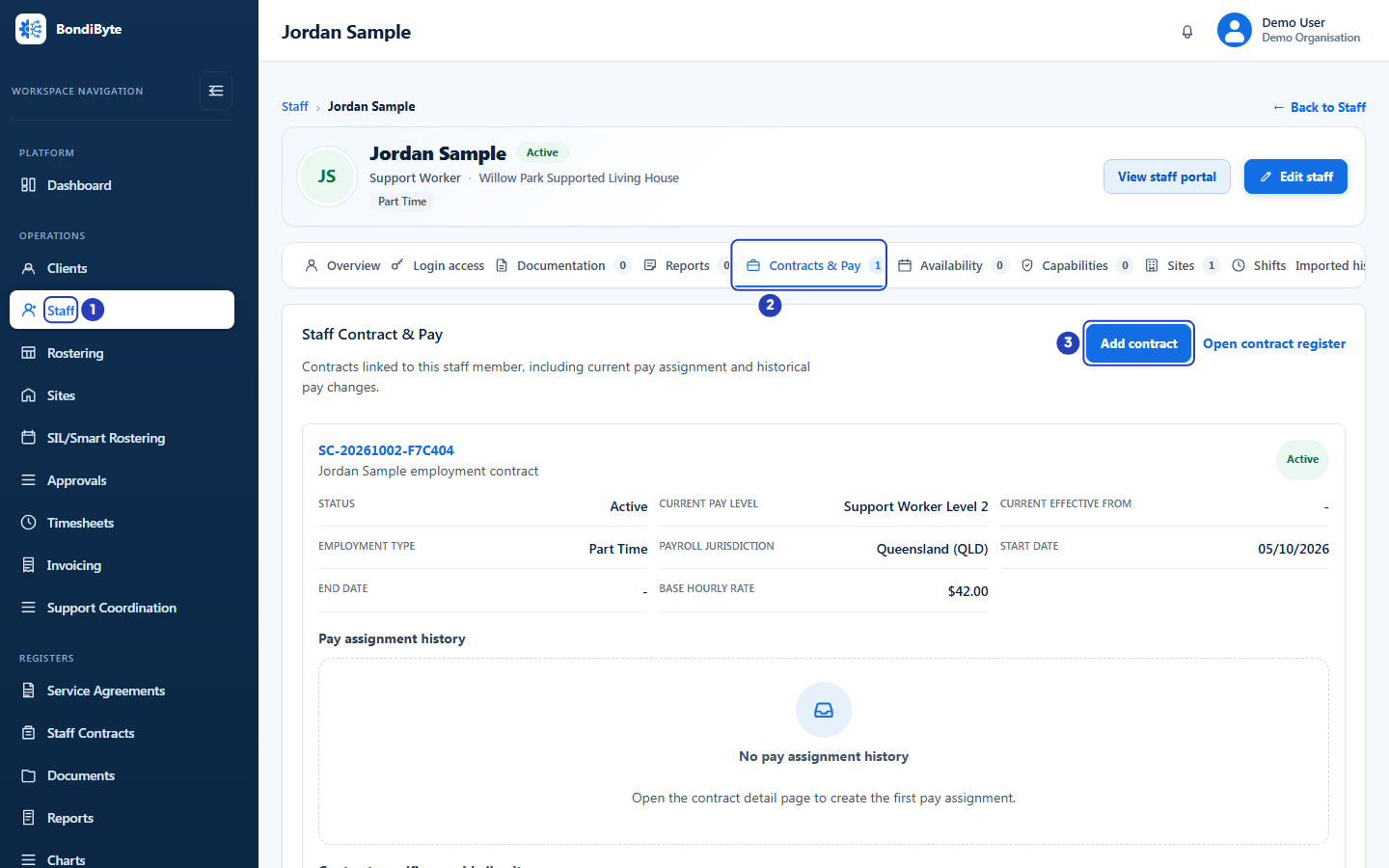
Choose Staff in the left menu (1), open the person's record and choose the Contracts and Pay tab (2), then choose Add contract (3). -
Choose how to start and set the contract basics
The window opens on Creation method and Contract basics. Under the title it says that you are creating a draft staff contract linked to this staff profile.
1 In Creation method, leave Start from scratch chosen for a first contract. Use last contract setup copies the person's latest contract, including its payroll jurisdiction, and is only useful once the person has one.
2 In Contract status, choose Active. It starts as Draft.
3 Check the Contract title. It starts as the person's name followed by employment contract.
4 Check the Employment type. It starts from the person's staff record.
Fields in step 2 Field What it means Creation method Start from scratch creates a clean contract. Use last contract setup copies the fields and any contract-specific override line items from the person's latest contract. It starts as Start from scratch, and the copy always starts as a draft. Staff member Shows the person. You cannot change it, because the contract is linked to this record. Contract status Draft, Active, Expired, Cancelled or Suspended. Starts as Draft. BondiByte uses the payroll jurisdiction only of a contract whose status is Active or Expired. A Draft, Cancelled or Suspended contract is never used. Contract title A name for the contract. It starts as the person's name followed by employment contract. Employment type Casual, Part Time, Full Time or Contractor. It starts from the staff record. Important: Set the Payroll jurisdiction here, in the Add staff contract window on the person's record, and choose Active now, because a contract saved as Draft is never used for pay. The Create staff contract window on the Staff Contracts page has no Payroll jurisdiction box, and there is no screen for changing the jurisdiction of a saved contract. If a contract was made there, add a new Active contract here instead.
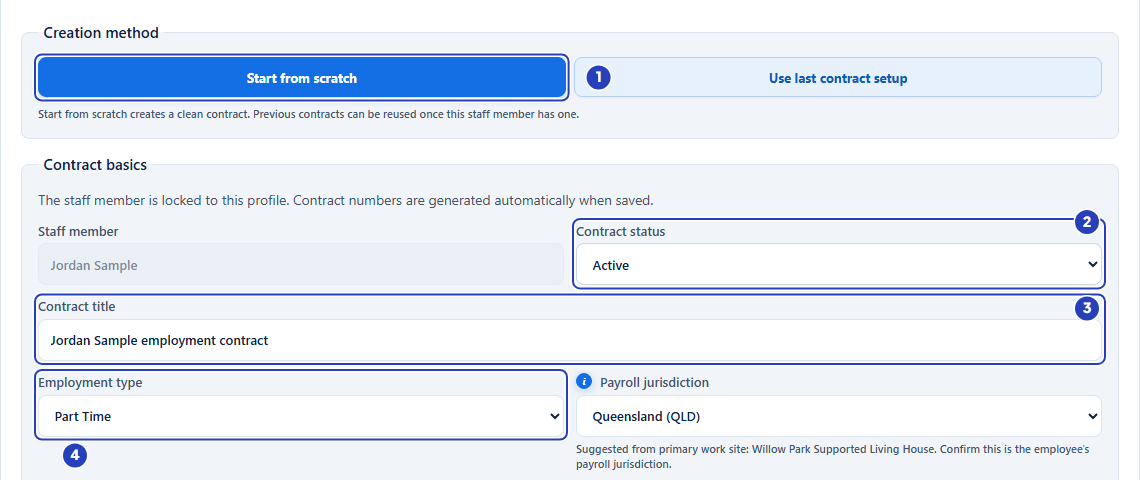
Leave Start from scratch chosen (1), choose Active as the contract status (2), check the title (3) and the employment type (4). -
Choose the payroll jurisdiction and Pay Level
1 In Payroll jurisdiction, choose the state or territory where the person works. It starts as Not set unless BondiByte suggests one. Point at the small information mark for the explanation.
2 Read the line under the box. When the person has a primary site with a recognised state, the box is filled in and the line says Suggested from primary work site followed by the site name, and Confirm this is the employee's payroll jurisdiction. The suggestion is only filled in for Start from scratch. Check it against where the person actually works.
3 In Pay level, check the level for this contract. It starts from the person's default Pay Level. No pay level is also an option.
4 Leave Base hourly rate blank to use the rate of the Pay Level. Type a rate only if this contract needs a different one.
Fields in step 3 Field What it means Payroll jurisdiction Not set, or one of Australian Capital Territory (ACT), New South Wales (NSW), Northern Territory (NT), Queensland (QLD), South Australia (SA), Tasmania (TAS), Victoria (VIC) or Western Australia (WA). The information mark says it is used to determine applicable public holidays for payroll interpretation. Starts as Not set, or the suggestion from the primary site. Pay level The Pay Level for this contract, or No pay level. It starts from the person's default level. It shows the level on the contract. The dated assignment that prices timesheets is recorded separately on the Staff assignment part of Pay Rules and preview. Base hourly rate Optional. A rate in dollars, with up to two decimal places. Leave it blank to use the rate of the selected Pay Level. 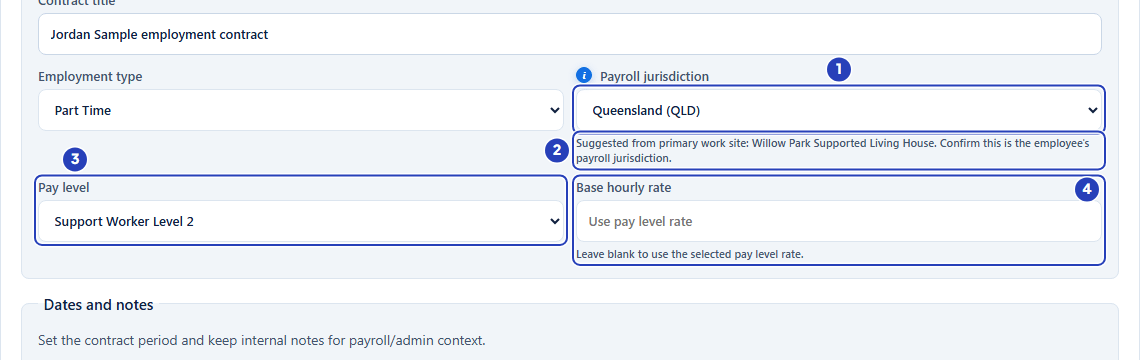
Choose the payroll jurisdiction (1) and read the suggestion line (2), check the Pay Level (3) and leave the base hourly rate blank (4). -
Set the dates, check the review and save
1 In Start date, choose the first day the contract applies. It is required, and it starts as the person's start date or today. Choose the date from which the jurisdiction should apply.
2 In End date, choose the last day of the contract, or leave it blank for an ongoing contract.
3 Read the Review box. It repeats the person, the Pay level, the Employment type, the Payroll jurisdiction, the dates and the base rate. Check the Payroll jurisdiction line.
4 At the bottom of the window, choose Save contract. Choose Cancel instead to close the window without saving. The line beside the buttons says that the contract number, the linked staff and the audit history are created when the record is saved.
Fields in step 4 Field What it means Start date Required. The first day the contract applies. The jurisdiction applies from this day. If it is empty, the message says Enter a staff contract start date before saving. End date Optional. The last day of the contract. Leave it blank for an ongoing contract. Notes Optional. Notes about the contract for payroll or office use. Warning: A new contract that starts after today ends the person's earlier open contract on the day before the new start date. Choose the Start date carefully when the person already has a contract.
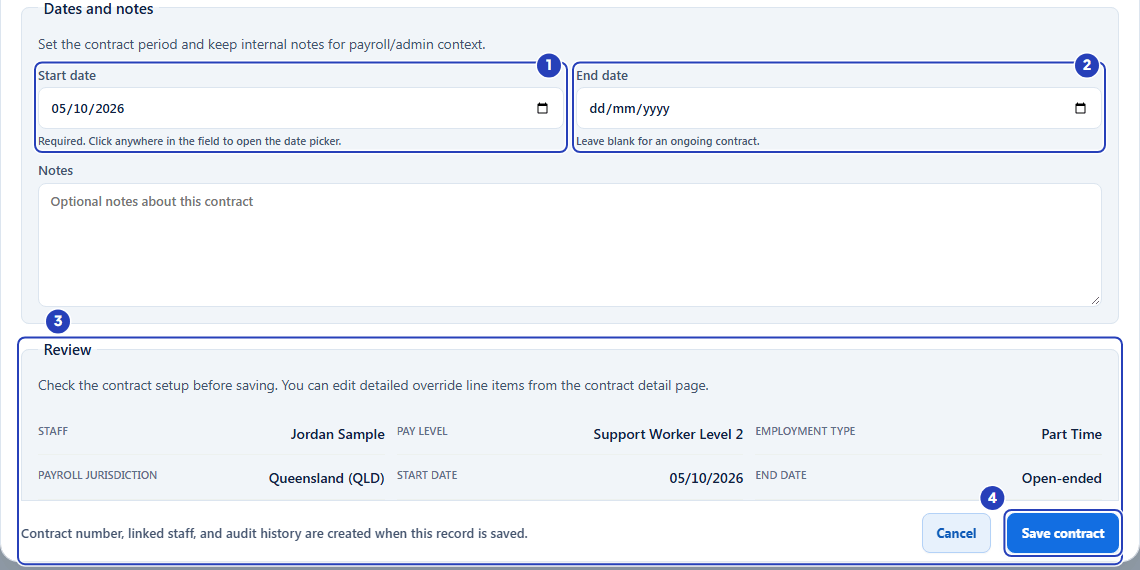
Set the start date (1) and the end date (2), check the review summary (3), then choose Save contract (4). -
Check the new contract
1 A message confirms Staff contract created.
2 The window closes and the new contract appears in the Staff Contract & Pay section. Check that Status says Active and that Payroll jurisdiction shows the state or territory you chose. A contract with no jurisdiction shows Not set.
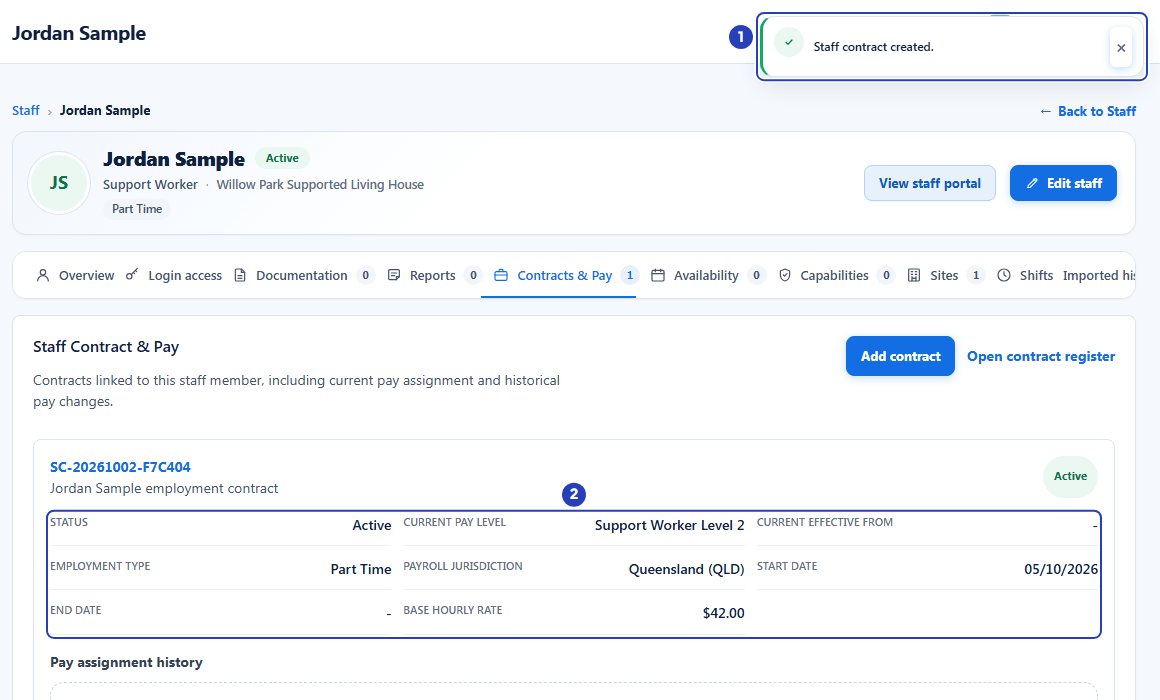
The confirmation message (1) and the new contract with its status and Payroll jurisdiction (2). -
Check that the contract covers the days worked
BondiByte uses the payroll jurisdiction of the contract that covers each day a person worked. Look at the contract card from step 5.
1 Check that Status says Active. A contract that has ended can say Expired and still counts for the days it covered. A Draft, Cancelled or Suspended contract is never used.
2 Check that Start date is on or before the first day the person worked, and that End date is blank or after the last day they worked.
3 If two contracts cover the same day, BondiByte uses the one with the latest Start date.
-
Go to Administration > Pay Levels > Pay Rules and preview > Staff assignment to confirm a jurisdiction for Preview
This step is optional. The Preview part of the Pay Rules window uses a jurisdiction confirmed here. Timesheets use the Payroll jurisdiction of the contract, so step 5 is the one that matters for pay.
In the left menu, under Administration, choose Pay Levels. On a level's card choose Pay Rules and preview, then choose the Staff assignment button. Choose the Staff member. Under Confirmed payroll work-base jurisdiction:
1 In Confirmed state / territory, choose the state or territory.
2 In Region code (if evidenced), type a region only if you have evidence for it.
3 In Jurisdiction effective from, choose the first day it applies.
4 In Jurisdiction effective to (exclusive, optional), choose the day it stops applying, or leave it blank.
5 In Confirmation evidence / reason, type how you know, for example that the person works at a site in that state.
6 Choose Confirm jurisdiction. A message says Payroll work-base jurisdiction recorded with evidence.
Fields in step 7 Field What it means Confirmed state / territory Required. Select confirmed jurisdiction, then ACT, NSW, NT, QLD, SA, TAS, VIC or WA. Region code (if evidenced) Optional. A region within the state, only when you have evidence for it. Regional or uncertain coverage still needs a manager's review. Jurisdiction effective from Required. The first day the confirmation applies. It must come after any earlier confirmation for the same person. Jurisdiction effective to (exclusive, optional) Optional. The day the confirmation stops applying. That day is not covered. It must be after the start day. Confirmation evidence / reason Required. Why you are confident of the work base. It is kept as the record of the confirmation. Note: The form says that this is the employee's confirmed work base, separate from temporary service locations and home address.
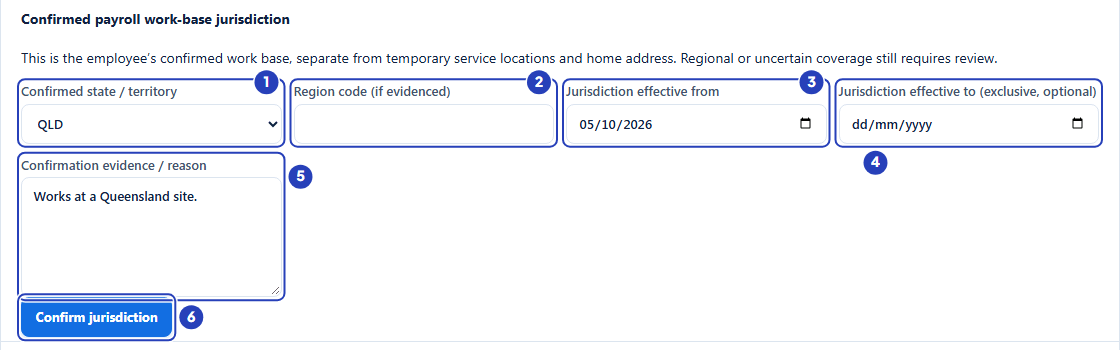
Choose the state or territory (1), add a region code if evidenced (2), set the first day (3) and, if needed, the last day (4), type the evidence (5) and choose Confirm jurisdiction (6).
What happens next
The contract is saved and shown on the Contracts & Pay tab. The next time a timesheet for this person is worked out, BondiByte uses the public holidays of the state or territory on the contract that covers the day worked. Rules that say Verified public holiday or Verified non-holiday depend on them.
A timesheet that is already approved is not changed. A timesheet that was submitted before the contract existed keeps its pay as submitted. To pick up the new jurisdiction, return it for changes and let the staff member submit it again. See Approval and frozen interpretation.
If two contracts cover the same day, BondiByte uses the one with the latest start date. Only contracts whose status is Active or Expired count.
A jurisdiction confirmed in step 7 is recorded with its evidence and is used by Preview. It does not change timesheets.
Important notes
Important: BondiByte never guesses a payroll jurisdiction. If it is Not set, or no Active or Expired contract covers the day worked, the hours stay unresolved with the message Payroll jurisdiction is required before automatic pay interpretation can run for this staff member.
Note: Every person whose timesheets are priced automatically needs a payroll jurisdiction, even when none of your rules mention public holidays.
Good practice
- Choose the state or territory where the person actually works, not where the head office is. A staff member who works in two states needs the jurisdiction of their usual work base.
- Save the contract as Active the first time, because a Draft contract is never used for pay.
- Check the Payroll jurisdiction line of every contract card when you onboard staff, so no one is left on Not set.
- When a person moves to another state, add a new contract that starts on the day they move instead of reusing the old one, so each day keeps the right holidays.
- Write real evidence in Confirmation evidence / reason, such as the site and the date the work base was agreed, so the record makes sense later.
Troubleshooting
I cannot see the Contracts & Pay tab or the Add contract button.
Why it happens: Only Owners and Admins can see the tab and add a contract.
What to do: Ask an Owner or Admin to add the contract, or to check your role.
A message says Inactive staff cannot be assigned a new contract.
Why it happens: The staff member's status is not Active.
What to do: Set the person to Active on their staff record, or add the contract once they are active again.
A message says Enter a staff contract start date before saving.
Why it happens: Start date is empty.
What to do: Choose a Start date and choose Save contract again.
The Payroll jurisdiction says Not set on a contract I created from the Staff Contracts page.
Why it happens: The Create staff contract window on the Staff Contracts page has no Payroll jurisdiction box, and there is no screen for changing the jurisdiction of a saved contract.
What to do: Open the person's record, choose Contracts & Pay > Add contract, choose the status Active, choose the Payroll jurisdiction and a Start date that covers the days worked, then choose Save contract. If two contracts cover the same day, BondiByte uses the one with the latest Start date. Then return the timesheet for changes so it is submitted again.
The Payroll jurisdiction box says Not set and there is no suggestion line.
Why it happens: BondiByte only suggests a jurisdiction when the person has a clear primary site with a recognised state, and only for Start from scratch.
What to do: Choose the state or territory yourself. You can set the person's primary site on their staff record for next time.
A timesheet says Payroll jurisdiction is required before automatic pay interpretation can run for this staff member.
Why it happens: The person has no contract that covers the day worked, the contract's Payroll jurisdiction is Not set, or the contract is a Draft, Cancelled or Suspended, which BondiByte never uses.
What to do: Open the Contracts & Pay tab (an Owner or Admin sees a Review staff contracts link in the message) and add an Active contract with a jurisdiction and a Start date that covers the days worked. Then return the timesheet for changes so it is submitted again.
A timesheet says Public holiday reference data does not cover this date yet.
Why it happens: BondiByte does not hold public holiday information for that date and jurisdiction.
What to do: Contact BondiByte support and say which state or territory and which dates are affected. The hours stay unresolved until the public holiday information is in place. See Troubleshoot an unresolved interpretation.
A timesheet says A regional public holiday may apply; the work region could not be confirmed. or This shift crosses a part-day public holiday boundary and needs manual review.
Why it happens: The day may be a public holiday only in part of the state, or for only part of the day, and BondiByte will not guess.
What to do: BondiByte does not guess these days, and the hours stay unresolved. Contact BondiByte support and say which timesheet and dates are affected.
A message says These dates conflict with existing dated records. Refresh the history and choose dates that do not overlap. when I choose Confirm jurisdiction.
Why it happens: The person already has a confirmed jurisdiction that starts on or after the date you chose.
What to do: Choose a Jurisdiction effective from date that is later than the existing confirmation.
A message says A confirmed jurisdiction, effective date and evidence are required.
Why it happens: Confirmed state / territory, Jurisdiction effective from or Confirmation evidence / reason is empty, or the end day is not after the start day.
What to do: Fill in all three required boxes and check the dates, then choose Confirm jurisdiction again.
Preview says Holiday coverage is unknown for the confirmed payroll jurisdiction.
Why it happens: A rule that depends on public holidays matched, and Preview cannot confirm whether the day is a public holiday for the jurisdiction confirmed in step 7.
What to do: Check the rule on a real timesheet. Make sure the person's contract has an Active status and a Payroll jurisdiction.
I saved the contract as Draft by mistake.
Why it happens: A Draft contract is never used for pay.
What to do: Add another contract with the status Active, a Payroll jurisdiction and a Start date that covers the days worked.