

Who this is for
This guide is written for Owner and Admin.
Before you begin
- Pay Levels must be switched on first. An Owner or Admin switches it on in Account settings > Automation & Capacity Controls > Pay Levels and automatic interpretation, by choosing Enable. See Enable Pay Levels. Until it is on, the Pay Levels page says Pay Levels are not enabled for this organisation.
- You are signed in to BondiByte on a computer.
- You have your industrial instrument or pay agreement to hand, so you can compare it with the rates on screen.
Steps
The screenshots show a demonstration organisation with made-up names. Your own screens show your organisation's details. Select a screenshot to open it full size.
-
Go to Administration > Pay Levels
1 In the left menu, under Administration, choose Pay Levels. The Staff Pay Levels page opens.
2 Read the message at the top of the page. It tells you where the setup is.
Preparing your Pay Levels. means it is still being prepared. Your Pay Levels are ready. Review and adjust the rates and rules below. means it is waiting for your review. A line that reads Interpretation enabled on, with a date and time, means it has been confirmed.
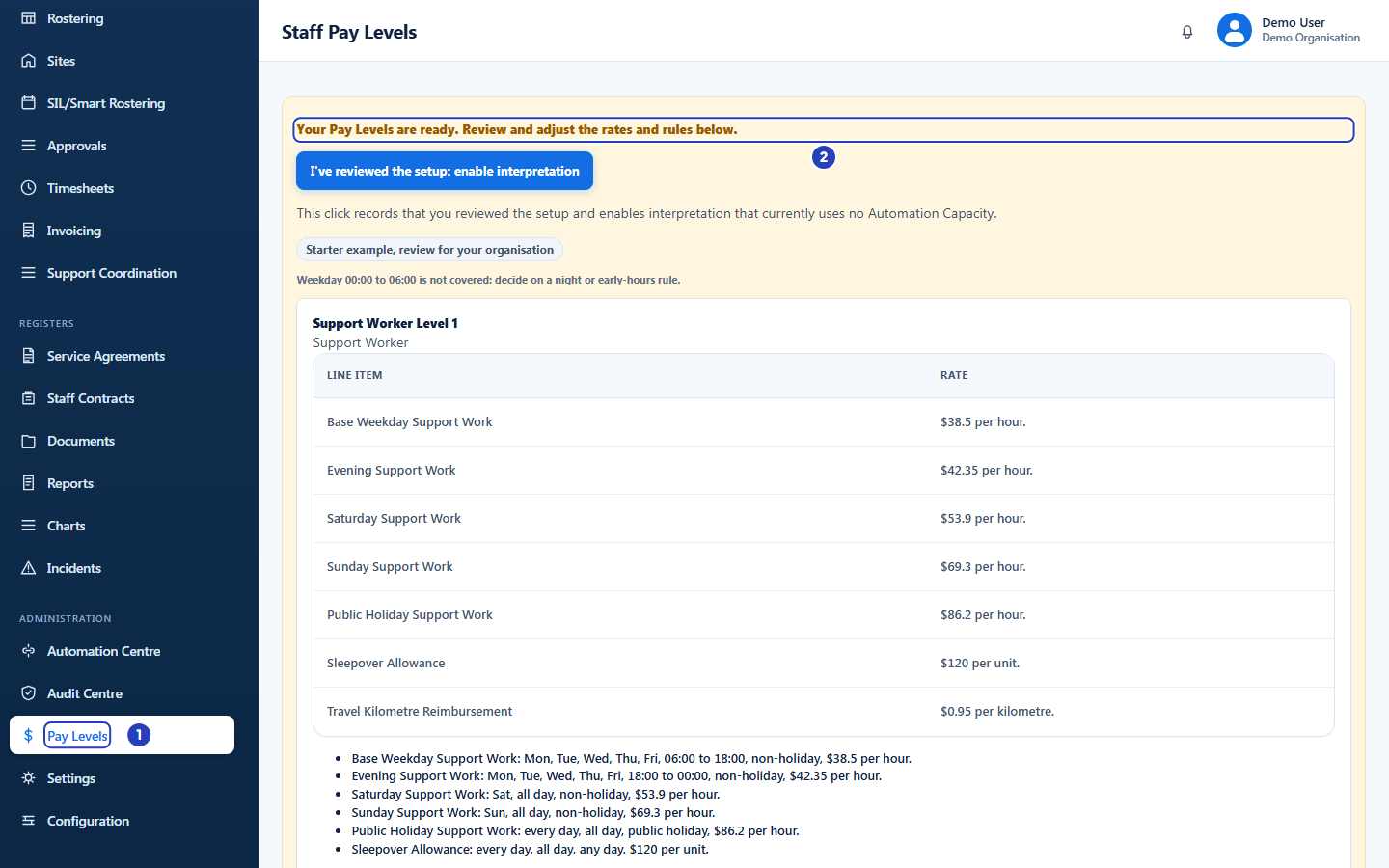
Choose Pay Levels under Administration (1). The message at the top of the page tells you where the setup is (2). -
Wait while the setup is prepared
1 While BondiByte prepares the setup, the page shows Preparing your Pay Levels. with a list of Pay table, Pay levels, Line items and Draft rules. Each one reads Done or In progress.
2 You can keep using BondiByte. The page says You can continue using BondiByte. Setup continues in the background. The list updates by itself.
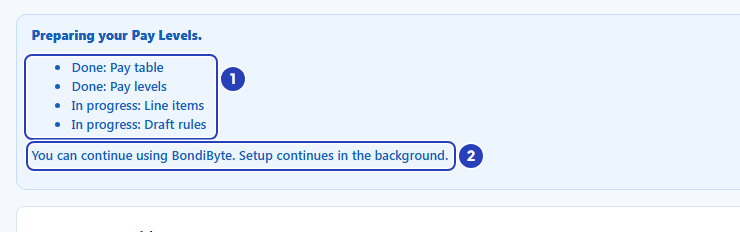
The preparation message and its list of parts (1), and the line saying you can keep using BondiByte (2). -
Review the prepared setup
The review message is followed by a summary of everything that was prepared. It is labelled Starter example, review for your organisation.
1 Read the label first. Everything in the setup is an example. It is not a copy of any Award or agreement.
2 Read any note about a gap. The starter setup does not cover weekday hours from 00:00 to 06:00, and the page says so: Weekday 00:00 to 06:00 is not covered: decide on a night or early-hours rule.
3 For each Pay Level, read its name and its group.
4 Read its table of Line item and Rate. Each rate is written per unit, for example per hour.
5 Read the draft rules under each level. Each rule is written in words: the pay item, the days, the times, whether it applies on a public holiday, and the rate. Then look for lines that explain something left out, such as a draft rule that was not created because its rate line is inactive or missing, or a level that was skipped because you had deactivated it. Read any review questions listed under a level and decide what to do about them before you confirm.
Important: Check every rate and rule against your own industrial instrument or pay agreement before you confirm. Your organisation is responsible for the rates it uses.
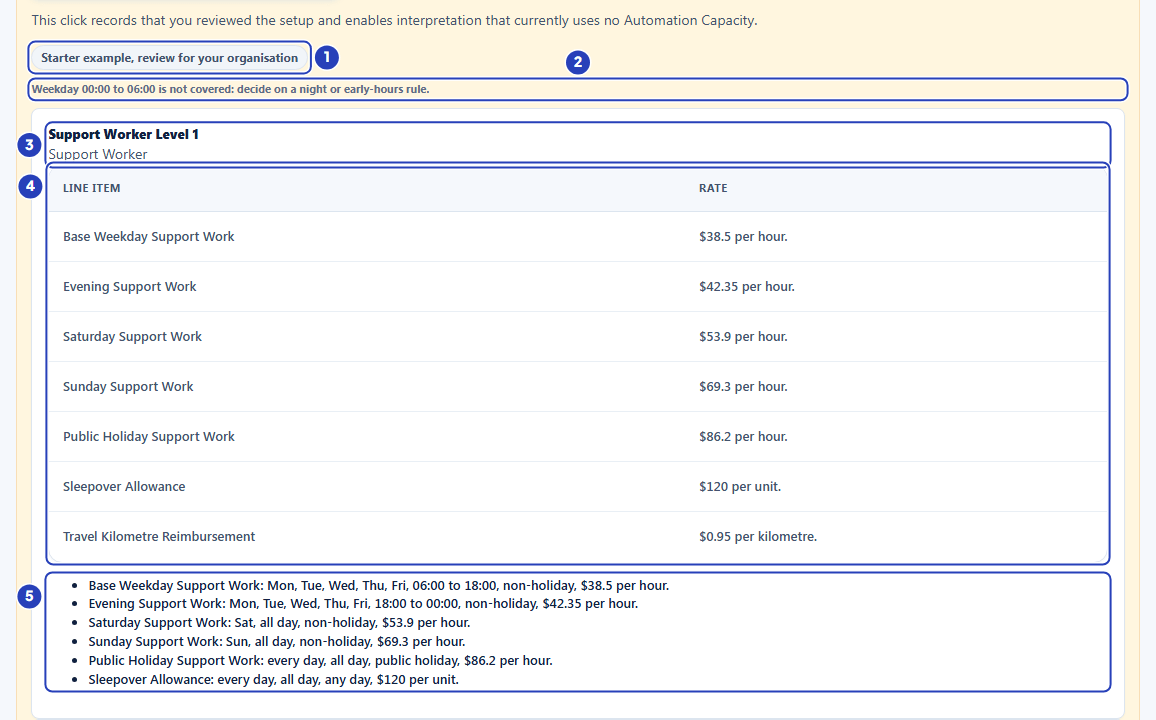
The starter example label (1), the gap note (2), a level's name and group (3), its line items and rates (4) and its draft rules (5). -
Change what does not suit your organisation
1 To change a rate, use Edit line on the level's card, or Edit pay level for its base hourly rate. See Edit rates on a Pay Level.
2 To see the rules of a level in full, choose Pay Rules and preview on its card.
3 After you change a rate, reload the Pay Levels page so that the summary shows your change before you confirm.
Note: The review message says you can adjust the rates and rules. Rates can be changed now because the draft rules have not been published yet. The draft rules are published when you confirm.
-
Confirm the setup
1 Read the text under the button. It says that this click records that you reviewed the setup and enables interpretation, and whether interpretation uses Automation Capacity.
2 Choose I've reviewed the setup: enable interpretation.
A message confirms Interpretation enabled.
Warning: Confirming publishes the draft rules. A rate line that has a published rule is locked, and so is the base hourly rate of its level. After this, those rates change only through a new dated version in Pay Rules and preview. Lines without a rule, such as Travel Kilometre Reimbursement and On-Call Allowance, can still be edited.
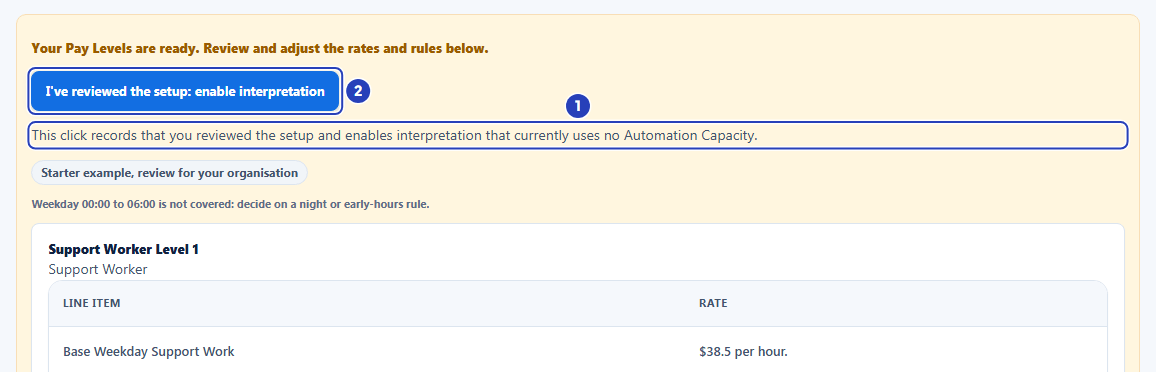
Read the text under the button (1), then choose I've reviewed the setup: enable interpretation (2). -
Check the result
1 The page now shows the line Interpretation enabled on, followed by the date and time you confirmed.
2 On any level, choose Pay Rules and preview to see the rules that were published. The Effective dates column shows the date each one starts from.
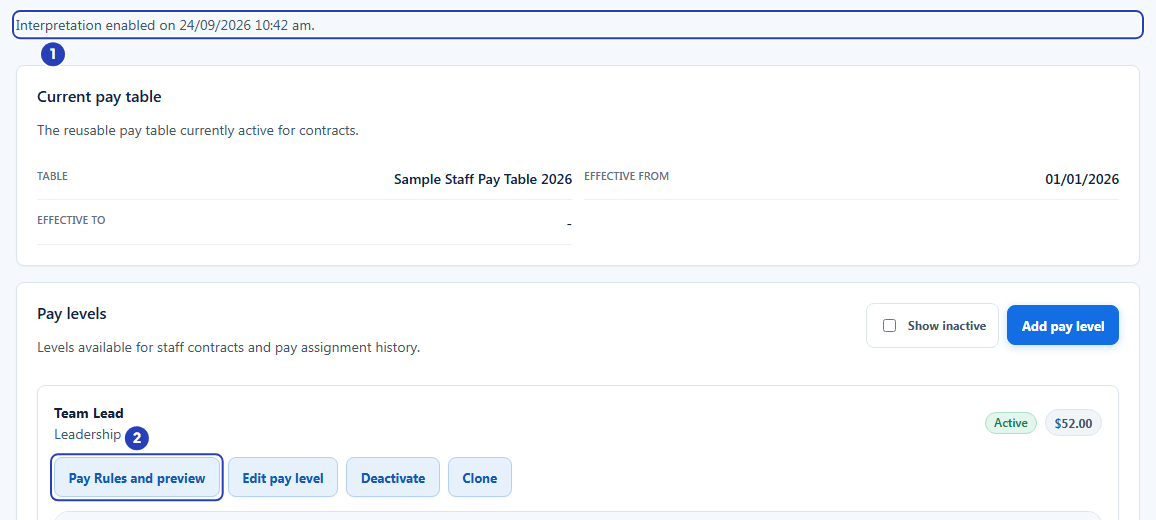
The line showing when the setup was confirmed (1) and the Pay Rules and preview button of a level (2).
What happens next
After you confirm, BondiByte publishes the draft rules and turns interpretation on for each starter level that has rules. It works out a staff member's pay on a reviewed timesheet only when that person has a current dated assignment to a level with interpretation turned on. Record each person's assignment in Pay Rules and preview > Staff assignment.
The starter rates stay yours to maintain. When your industrial instrument or pay agreement changes, publish a new dated version in Pay Rules and preview.
You can add your own levels, or copy an existing one. See Create a Pay Level and Clone a Pay Level.
Important notes
Important: BondiByte applies the Pay Levels and Pay Rules that your organisation configures. It is not a complete Award interpreter. The starter setup is a set of examples, and your organisation is responsible for checking every rate and rule against its industrial instrument.
Note: Turning Pay Levels off later stops automatic interpretation for new timesheets. Your rates, rules, assignments and saved interpretations are preserved.
Good practice
- If you change a rate during the review, reload the Pay Levels page before you choose I've reviewed the setup: enable interpretation. The summary on screen is not refreshed by a rate change, so confirming without a reload shows The reviewed setup changed.
- Work through every level before you confirm, and decide what should apply to weekday hours from 00:00 to 06:00. Fix any wrong rate first, because confirming locks the rates of lines that have a published rule.
- After you confirm, record a dated assignment for each staff member in Pay Rules and preview > Staff assignment. Interpretation only works out pay for people who have one.
Troubleshooting
The page says Pay Levels are not enabled for this organisation.
Why it happens: Pay Levels has not been turned on, so there is no setup to review yet.
What to do: An Owner or Admin turns it on in Account settings > Automation & Capacity Controls > Pay Levels and automatic interpretation. See Enable Pay Levels.
The page shows Preparing your Pay Levels. for a long time.
Why it happens: The setup is still being prepared in the background, or it did not finish.
What to do: You can keep using BondiByte. Come back to the page later. If the control in Account settings says Failed, choose Retry.
The page shows a message about the setup failing, with a Retry button.
Why it happens: Preparing the setup did not finish. The page shows the reason, or the words Pay Levels setup failed.
What to do: Choose Retry. If it fails again, contact BondiByte support with the reason shown.
A window titled The reviewed setup changed opens.
Why it happens: A rate or the setup changed after the page was loaded, for example because you edited a rate or another person did. The window says The reviewed setup changed in another session. Reload to review the latest rates and rules.
What to do: Close the window. The page then refreshes the summary. Check the latest rates and rules, then choose I've reviewed the setup: enable interpretation again.
I cannot see I've reviewed the setup: enable interpretation.
Why it happens: Your role does not include the Can manage pay levels permission.
What to do: Ask an Owner or Admin to review and confirm the setup.
A level I had deactivated is not in the setup.
Why it happens: The setup does not bring back a level that was deactivated on purpose. The summary says that level was skipped because it is deactivated.
What to do: Tick Show inactive on the Pay Levels page, then choose Activate on the level if you want it back. Activating it does not add it to this setup; set up its rules in Pay Rules and preview.