

Who this is for
This guide is written for Owner and Admin.
Before you begin
- Xero Payroll has no switch to turn on first. Configuration is in your left menu, under Administration, for Owners, Admins and any role that includes a Configuration permission such as Can manage integrations. An Owner or Admin can add that permission to a role in Configuration > Roles & Permissions. See Roles and permissions basics.
- A Xero organisation that uses Xero Payroll in Australia, and a Xero user who can sign in to it and has payroll access.
- You know which Xero organisation to connect. A BondiByte organisation connects to one Xero organisation.
- Your roster period and your payroll calendar in Xero should start on the same weekday. You can check this after you connect. See Choose a Sunday or Monday week start.
Steps
The screenshots show a demonstration organisation with made-up names. Your own screens show your organisation's details. Select a screenshot to open it full size.
-
Go to Configuration > Xero Payroll
1 In the left menu, under Administration, choose Configuration. The Configuration page opens with its settings shown as tiles.
2 Under Integrations, choose Xero Payroll. The Xero Payroll Settings page opens.
Note: The right side of the page shows Setup Health. Its Xero Payroll line says Not configured until Xero is connected.
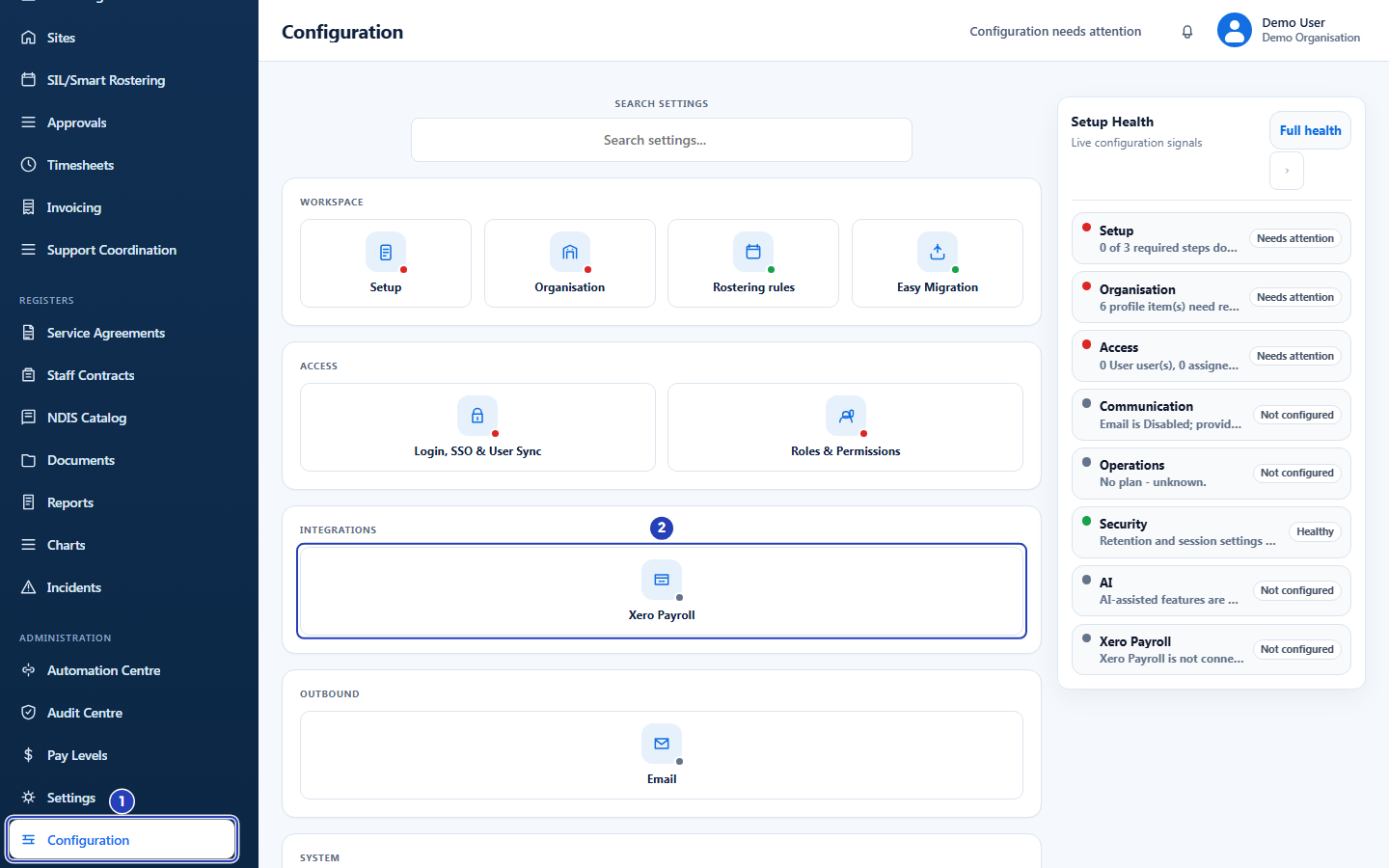
Choose Configuration under Administration (1), then Xero Payroll under Integrations (2). -
Choose Connect Xero
The card says Xero Payroll is not connected. while no Xero organisation is connected.
1 Choose Connect Xero. The button reads Connecting... for a moment, and then you are taken to Xero.
Important: Choosing Connect Xero sends you to Xero in the same browser tab. Finish there and you come back to this page.
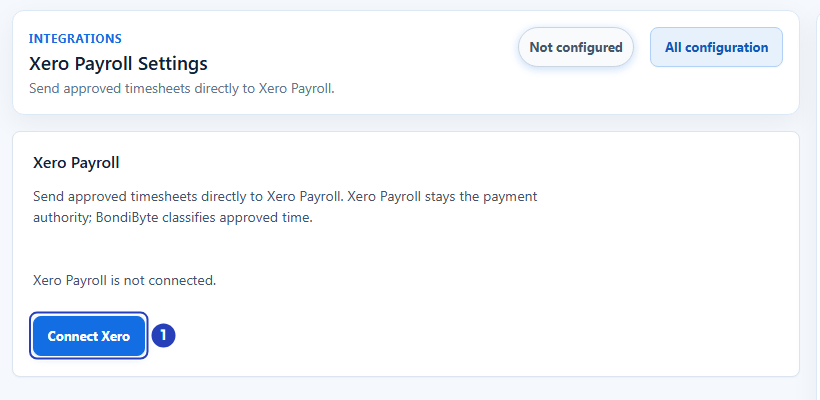
Choose Connect Xero (1) to go to Xero and approve access. -
Sign in to Xero and approve access
You are taken to Xero to sign in and approve access.
1 Sign in to Xero with a user who has payroll access to the organisation you want to connect.
2 If Xero asks which organisation to allow, choose one organisation only.
3 Approve the full access request. If you allow less than BondiByte asks for, the connection stops with a message when you come back.
4 Xero returns you to the Xero Payroll Settings page in BondiByte.
Warning: Do not close the Xero page part way through, and do not return to it later from your browser history. An attempt that was cancelled, expired or already used has to be started again with Connect Xero.
-
Check that Xero is connected
1 A message says Xero connected.
2 The card now shows the connection details and three buttons. Check that Organisation is the Xero organisation you meant to connect.
3 Scroll down. The Payroll calendars and Mappings sections now appear below the card. You use them in the next guides.
Fields in step 4 Field What it means Organisation The name of the Xero organisation that is connected. Connected by A general description of who connected Xero, not a person's name. Last connection check When BondiByte last checked the connection, with a result such as Connection OK. It says Not checked yet until the first check. Manage mappings Scrolls down to the Mappings section. Test connection Checks the connection now. Disconnect Ends the connection after you confirm. 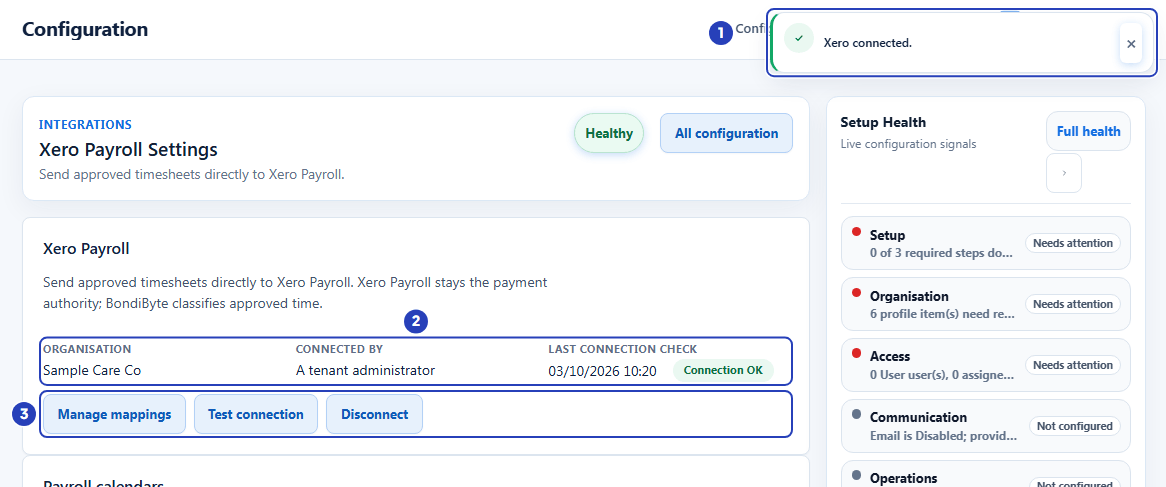
The confirmation message (1), the connection details (2) and the three buttons (3). -
Choose Test connection
1 Choose Test connection. The button reads Testing... while it checks.
2 A message says Test connection succeeded. Connection OK. and the Last connection check time changes.
3 If the result is not Connection OK, a warning message names the result instead. See Troubleshooting below.
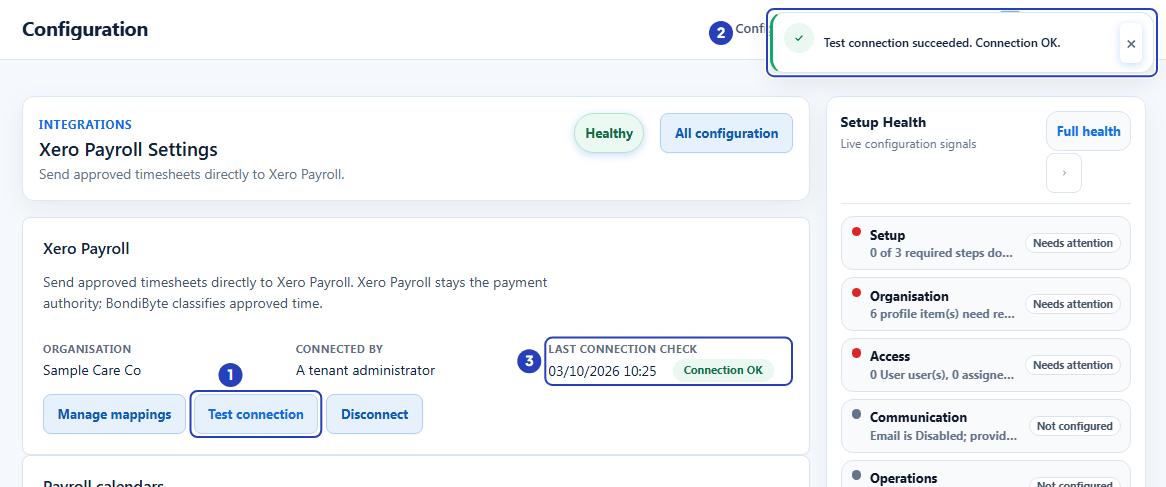
Choose Test connection (1). The message (2) and the last connection check (3) show the result. -
Reconnect or disconnect when you need to
If Xero asks to be reconnected, the card says Xero needs to be reconnected before pay item and employee mappings can be managed. and shows Reconnect Xero instead of Manage mappings and Test connection. Choose Reconnect Xero and sign in to Xero again.
To end the connection, choose Disconnect on the card. A window titled Disconnect Xero? opens.
1 Choose Disconnect in the window to confirm. A message says Xero disconnected.
2 Choose Cancel instead to keep the connection.
Warning: The window warns that queued timesheets that have not been sent will be cancelled. Timesheets already in Xero and BondiByte timesheets are kept.
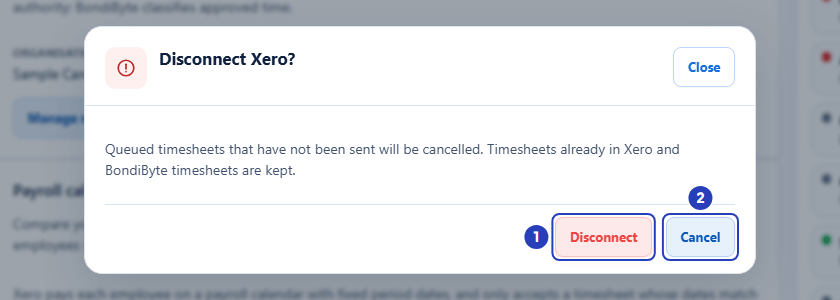
Choose Disconnect (1) to confirm, or Cancel (2) to keep the connection.
What happens next
The Xero Payroll card shows your connected Xero organisation, and Setup Health on the Configuration page shows Xero Payroll as healthy.
Connecting does not send anything to Xero. Timesheets are only sent when you choose to send them, in a separate step.
Next, match your staff to their Xero employees. See Map staff to Xero employees. Then choose the Xero earnings rates your hours are paid at. See Map earnings rates in Xero. When both are done, see Send approved timesheets to Xero.
Important notes
Important: Xero Payroll stays the payment authority. BondiByte sends approved hours to Xero as draft timesheets and does not pay anyone.
Note: Only roles with Can manage integrations can connect, test or disconnect. A role that can see the page without it sees the connection details with the buttons greyed out.
Good practice
- Connect Xero with a Xero user who has payroll access. Without it the connection stops with a message about payroll access.
- Choose Test connection before each pay run. A problem then shows up before you try to send timesheets.
- Do the setup in order: connect Xero, map your staff, map your earnings rates, then send timesheets.
- Check the Payroll calendars section after you connect. A calendar that starts on a different weekday from your roster period holds timesheets when you send.
Troubleshooting
Configuration or Xero Payroll is missing from the page or the left menu.
Why it happens: Your role does not include Can manage integrations or another Configuration permission that opens the page.
What to do: Ask an Owner or Admin to add Can manage integrations to your role in Configuration > Roles & Permissions.
Connect Xero, Test connection or Disconnect is greyed out.
Why it happens: Your role does not include Can manage integrations. You can see the connection but not change it.
What to do: Ask an Owner or Admin to connect Xero, or to add Can manage integrations to your role.
A message says The Xero connection was cancelled before it finished.
Why it happens: You chose not to approve access in Xero, or closed the Xero page before approving.
What to do: Choose Connect Xero again and approve access when Xero asks.
A message says That Xero connection attempt expired or was already used. Choose Connect Xero to start again.
Why it happens: The attempt was left too long, or you returned to an earlier Xero page.
What to do: Choose Connect Xero on the Xero Payroll Settings page and start again from the beginning.
A message says No Xero organisation was authorised. Choose Connect Xero and select an organisation.
Why it happens: No organisation was chosen in Xero.
What to do: Choose Connect Xero again and select the organisation you want to connect.
A message says Choose a single organisation when Xero asks which organisation to allow.
Why it happens: More than one Xero organisation was allowed.
What to do: Choose Connect Xero again and select one organisation only.
A message says Xero did not grant every permission BondiByte needs. Choose Connect Xero and allow the full access request.
Why it happens: You allowed less access in Xero than BondiByte asked for.
What to do: Choose Connect Xero again and approve the full request.
A message says This Xero user does not have payroll access. Reconnect with a Xero user who has Xero Payroll access.
Why it happens: The Xero user you signed in with cannot use Xero Payroll for that organisation.
What to do: Choose Connect Xero again and sign in with a Xero user who has payroll access.
A message says Xero could not be connected. Try again, or contact support if it keeps happening.
Why it happens: The connection did not finish for a reason BondiByte could not identify.
What to do: Choose Connect Xero and try once more. If it keeps happening, contact BondiByte support.
A message says Xero payroll integration is not configured for this environment.
Why it happens: Xero connections are not available for this BondiByte site.
What to do: Contact BondiByte support.
Test connection shows a warning such as Test connection: No payroll access., Test connection: Xero is rate-limiting requests. or Test connection: Xero could not be reached.
Why it happens: No payroll access means the Xero user who connected cannot use Xero Payroll for that organisation. The other two come from Xero and are usually short.
What to do: For No payroll access, check in Xero that the user who connected still has payroll access, then choose Test connection again. If the warning stays, contact BondiByte support. For the others, wait a short while and choose Test connection again.
The card says Xero needs to be reconnected before pay item and employee mappings can be managed.
Why it happens: Xero no longer accepts the existing connection, so the Payroll calendars and Mappings sections are hidden.
What to do: Choose Reconnect Xero and sign in to Xero again.