

Who this is for
This guide is written for Owner and Admin.
Before you begin
- Xero Payroll must be connected first. See Set up Xero Payroll.
- Your Xero organisation has the earnings rates your hours should be paid at, such as an ordinary hours rate. Xero only accepts ordinary or overtime earnings rates on timesheets.
- What you map depends on Pay Levels. When Pay Levels is off you choose one default earnings rate. When Pay Levels is on you map each pay item. An Owner or Admin switches Pay Levels on in Account settings > Automation & Capacity Controls > Pay Levels and automatic interpretation. See Enable Pay Levels.
- If Pay Levels is on, its setup is confirmed. While setup is in progress the Mappings section says Pay Level setup is in progress. Pay item mappings appear here once the setup is confirmed. See Use the starter setup.
Steps
The screenshots show a demonstration organisation with made-up names. Your own screens show your organisation's details. Select a screenshot to open it full size.
-
Go to Configuration > Xero Payroll > Mappings
1 In the left menu, under Administration, choose Configuration. Then, under Integrations, choose Xero Payroll. The Xero Payroll Settings page opens.
2 Choose Manage mappings on the connection card. The page scrolls down to the Mappings section.
What you see first in Mappings depends on Pay Levels. If it says Pay Levels is off for this organisation., follow step 2. If it shows Payroll rate source, follow steps 3 to 6. If it says Pay Level setup is in progress. Pay item mappings appear here once the setup is confirmed., finish the Pay Levels setup first. See Enable Pay Levels.
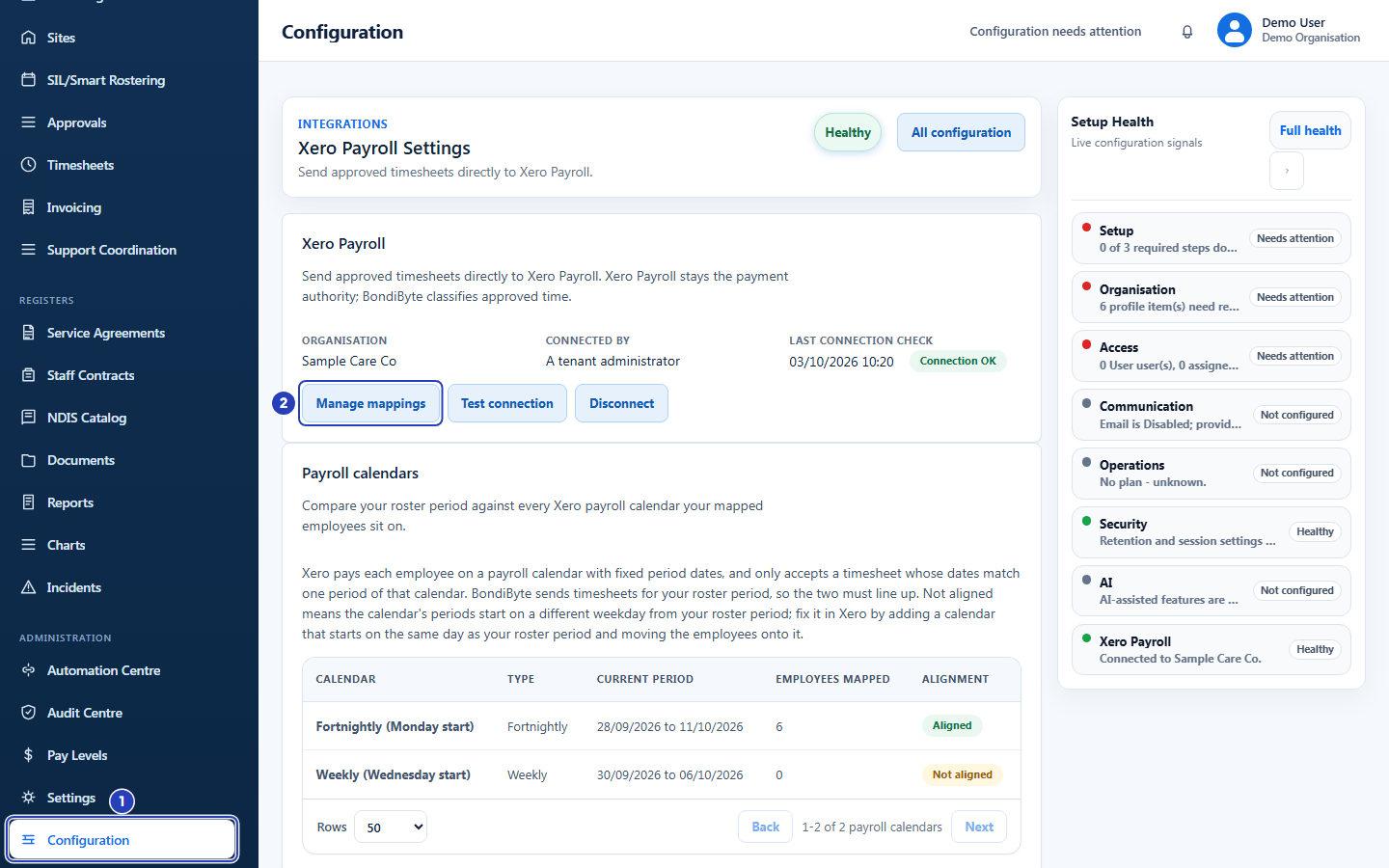
Choose Configuration under Administration and then Xero Payroll (1), then choose Manage mappings (2). -
If Pay Levels is off, choose the Default earnings rate
Every approved hour is sent against one Xero earnings rate. The section says so: Pay Levels is off for this organisation. Every approved hour is sent against one Xero earnings rate; no per-item mapping is used.
1 Open the Default earnings rate list and choose the Xero earnings rate your hours are paid at. The list starts at Choose a Xero earnings rate.
2 Choose Save. The button reads Saving... for a moment, and a message says Default earnings rate saved.
Fields in step 2 Field What it means Default earnings rate The one Xero earnings rate every approved hour is sent against. Rates Xero does not accept on timesheets are listed under Not valid for timesheets and cannot be chosen. Note: If the rate you saved earlier can no longer be used on Xero timesheets, Needs attention appears beside the list. Choose another rate and save.
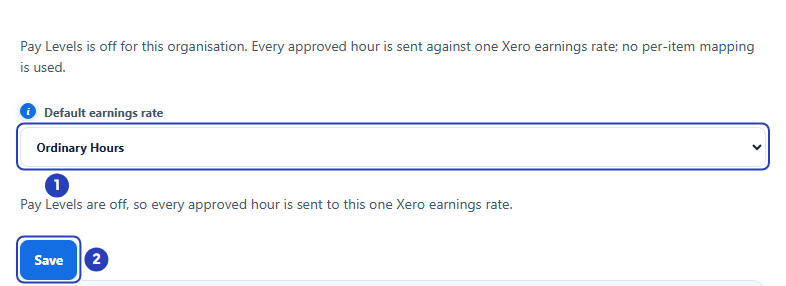
Choose the Default earnings rate (1), then choose Save (2). -
If Pay Levels is on, check the Payroll rate source
1 Under Payroll rate source, keep Xero Payroll selected. It is marked Recommended. The earnings rate in Xero then supplies the dollar rate, and BondiByte sends hours only. BondiByte keeps your BondiByte rates as the authority, and the send is still hours only.
2 If you changed the choice, choose Save. A message says Payroll rate source saved.
3 Read the line under the button, such as 3 of 6 pay items mapped. It counts the pay items from your Pay Levels that have a Xero earnings rate. It also says how many need attention, when some do. Review Pay Levels opens the Pay Levels page.
Important: Keep Xero Payroll selected to choose a Xero earnings rate for each pay item. The Xero earnings rate list on a pay line is only offered when Payroll rate source is Xero Payroll.
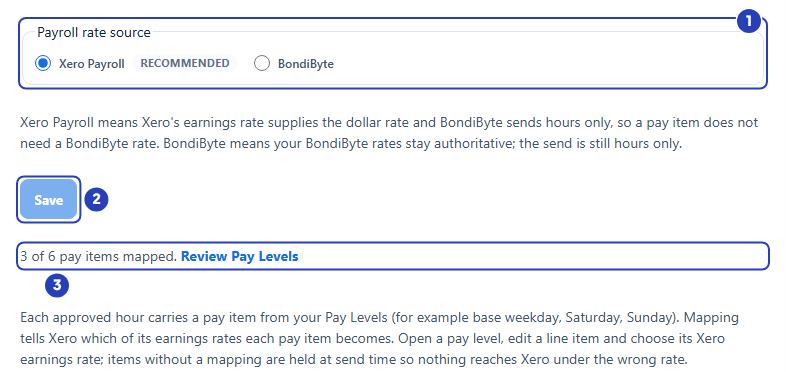
Keep Xero Payroll selected (1), choose Save if you changed it (2) and read how many pay items are mapped (3). -
If Pay Levels is on, go to Administration > Pay Levels
In the left menu, under Administration, choose Pay Levels. The Staff Pay Levels page opens.
1 Read the note at the top. It says Xero is connected: followed by how many pay items need a Xero earnings rate.
2 In the level's table, find a pay item that needs a rate and choose Edit line. The line opens for editing.
Note: The count includes unit-based pay items, such as a sleepover allowance. Xero timesheets carry hours only, so those items are not sent. They are added in the Xero pay run.
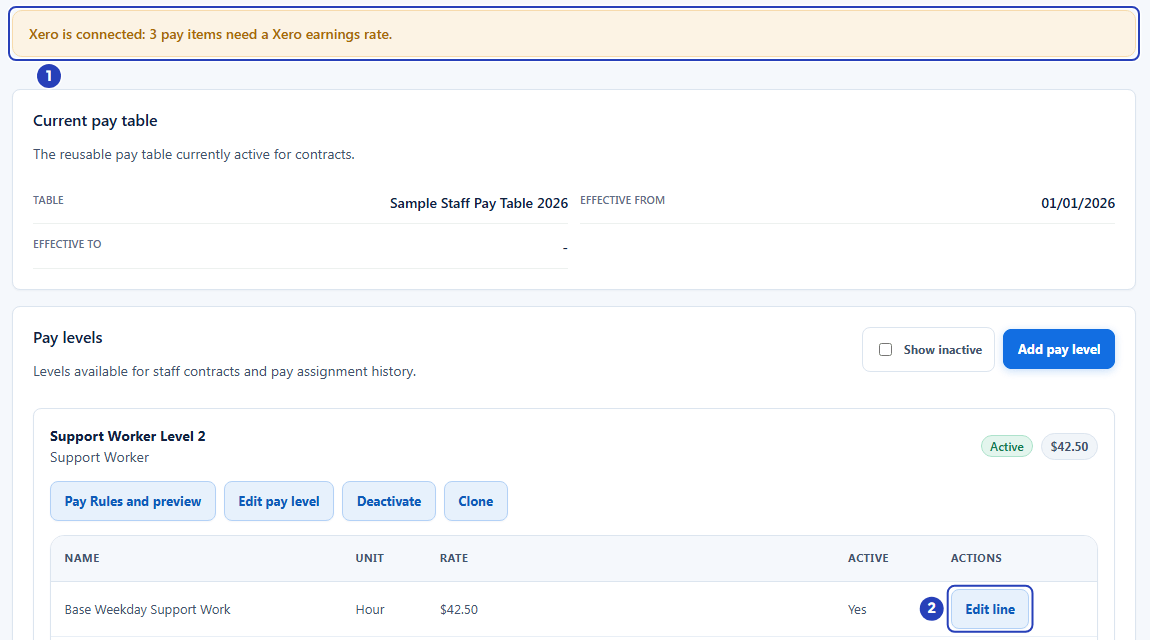
Read the note about pay items that need a Xero earnings rate (1), then choose Edit line on a pay item (2). -
Choose Managed in Xero and the Xero earnings rate
1 Under Payroll rate, choose Managed in Xero. The box in the Rate column becomes optional, because Xero supplies the rate, and a Xero earnings rate list appears.
2 In Xero earnings rate, choose the Xero earnings rate this pay item is paid at. It starts at Select an earnings rate.
3 Choose Save. A message says Pay line item updated.
Choose Cancel instead to leave the line as it was.
Fields in step 5 Field What it means Payroll rate BondiByte keeps the pay rate you type on the line. Managed in Xero leaves the rate to Xero. This choice only appears when Xero is connected and Payroll rate source is Xero Payroll. Xero earnings rate The Xero earnings rate that hours of this pay item are sent against. Rates Xero does not accept on timesheets are listed under Not valid for timesheets and cannot be chosen. Rate The box in the Rate column of the line. It is optional while the line is Managed in Xero, and shows Optional when it is empty. 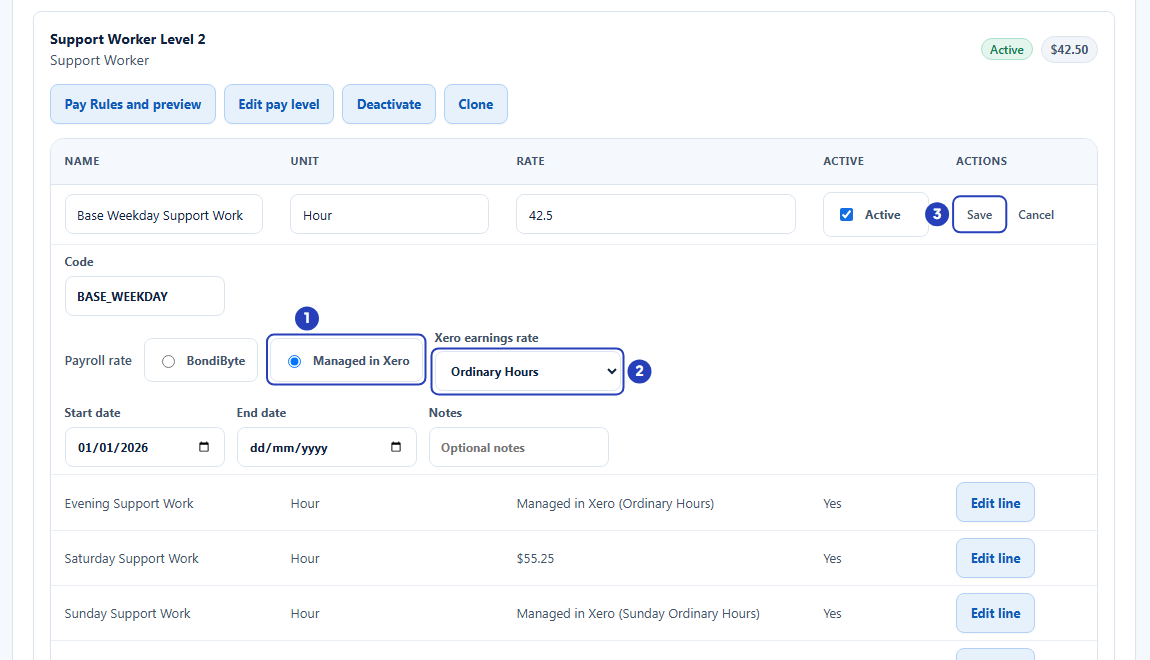
Choose Managed in Xero (1), choose the Xero earnings rate (2) and choose Save (3). -
Check the result and map the other pay items
1 In the Rate column the line now says Managed in Xero followed by the name of the earnings rate.
2 Repeat steps 4 and 5 for each other pay item that is paid by the hour, such as a Saturday line. The note at the top counts down as you go.
Back on Xero Payroll > Mappings, the line under Payroll rate source shows how many pay items are mapped.
Tip: A pay line shows Needs attention beside its rate when its Xero earnings rate is missing or can no longer be used. Point at it to read why when a reason is given, then choose a rate with Edit line.
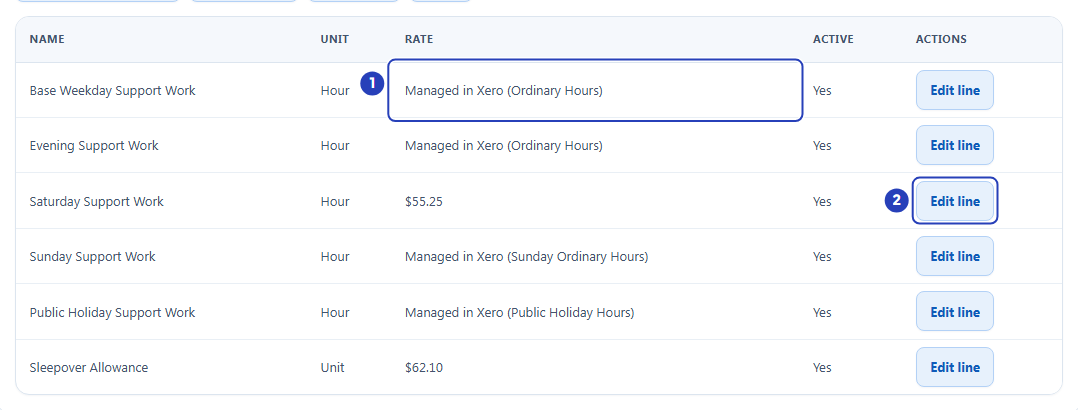
The first line now shows Managed in Xero with its earnings rate (1). Choose Edit line on the next pay item (2).
What happens next
Hours are now sent to Xero against the earnings rates you chose. A person is held only if a pay item or the default rate is still missing when you check a period.
If you have not matched your staff yet, see Map staff to Xero employees. When staff and earnings rates are done, see Send approved timesheets to Xero.
If a held person's reason mentions an earnings rate, see Troubleshoot Xero preflight checks.
Important notes
Important: BondiByte sends hours only. The dollar amounts come from Xero Payroll, which stays the payment authority.
Note: A pay item that is paid per unit, such as a sleepover allowance, is not sent in a Xero timesheet. The check before sending says Sent without unit items and names them, so you can add them in the Xero pay run.
Good practice
- Map every pay item that is paid by the hour before your first send. A person whose hours include an unmapped item is held until you map it.
- Choose ordinary or overtime earnings rates only. Rates listed under Not valid for timesheets cannot be chosen.
- Map new pay items as soon as you add them to a Pay Level. The note at the top of Pay Levels reminds you.
Troubleshooting
The Mappings section is missing, or says Pay Level setup is in progress. Pay item mappings appear here once the setup is confirmed.
Why it happens: Xero is not connected or needs to be reconnected, or Pay Levels setup has started but is not confirmed yet.
What to do: Connect Xero first. See Set up Xero Payroll. For setup, choose Review Pay Levels and finish it. See Use the starter setup.
The choices are greyed out and there is no Save button.
Why it happens: Your role does not include Can manage integrations.
What to do: Ask an Owner or Admin to choose the rate, or to add Can manage integrations to your role.
The earnings rate I need is listed under Not valid for timesheets, or is not listed.
Why it happens: Xero only accepts ordinary or overtime earnings rates on timesheets. An allowance or leave rate cannot be chosen.
What to do: Choose an ordinary or overtime rate. If you need another rate, add it in Xero and reload the page.
Managed in Xero is missing from Payroll rate when I edit a pay line.
Why it happens: Xero is not connected, Pay Levels is not fully on, or Payroll rate source is set to BondiByte.
What to do: Check that Xero is connected, that Pay Levels setup is confirmed, and that Payroll rate source is Xero Payroll, then edit the line again.
A pay line shows Needs attention.
Why it happens: The line is Managed in Xero but no Xero earnings rate is chosen, or the rate was removed in Xero, or it cannot be used on Xero timesheets.
What to do: Choose Edit line, pick another Xero earnings rate and choose Save.
A held person's reason says One or more approved pay items have no mapped Xero earnings rate. or No default Xero earnings rate is configured.
Why it happens: Their approved hours include a pay item with no Xero earnings rate, or Pay Levels is off and no default rate has been saved.
What to do: Map the item under Administration > Pay Levels as in steps 4 and 5, or choose the Default earnings rate as in step 2. Then check the period again.