

Who this is for
This guide is written for Owner, Admin, Manager and Compliance Officer.
Before you begin
- Read the Audit Centre overview for what a Practice Standard is.
- An audit session exists and holds at least one file, added on the Evidence tab or with Prepare audit (which needs Audit Centre automation switched on). See Run an audit session.
What the mapping does
Mapping links the files in an audit session to the NDIS Practice Standards, so you can see which standards have evidence behind them and which do not yet.
Each audit session has its own mapping. You choose which standards apply, link each file to the standards it supports, and read a scorecard.
Where to find it
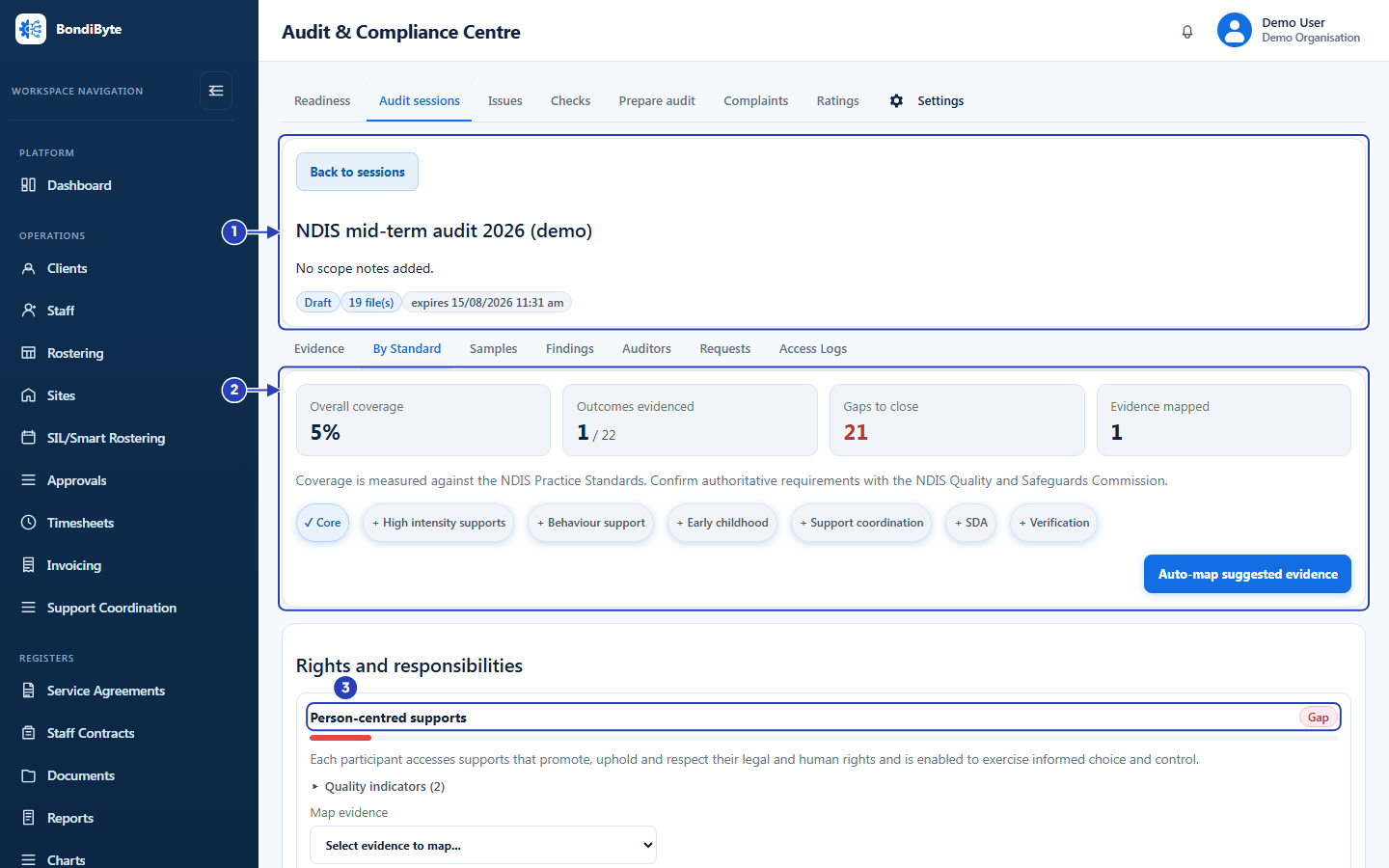
Go to Audit Centre > Audit sessions, choose a session, then choose the By Standard tab. The session needs at least one file first.
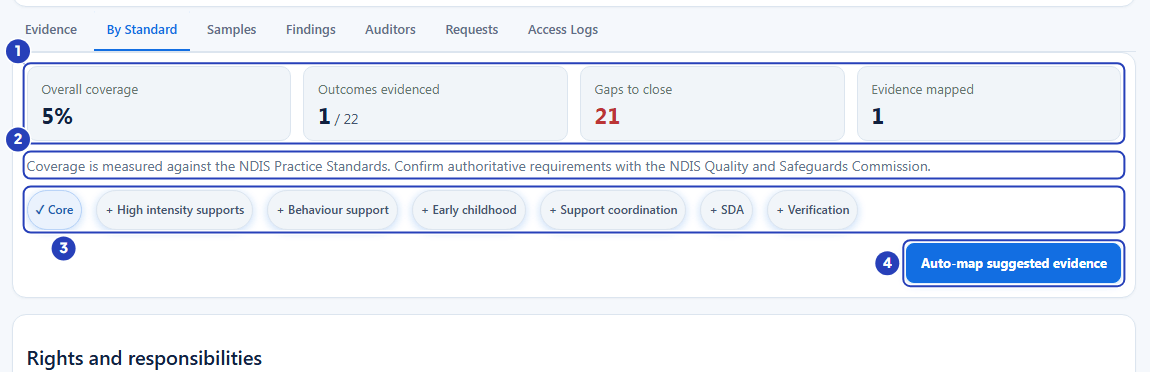
At the top are the scorecard, a row of module chips and Auto-map suggested evidence. Below them, each standard is a row, grouped under division headings.
Choose the modules and read the scorecard
The chips choose which parts of the Practice Standards apply to this session. A chip with a tick is on and a chip with a plus is off. Core applies to every registered provider and is on to start with. Switch on High intensity supports, Behaviour support, Early childhood, Support coordination, SDA or Verification only if they apply to you. Hover over a chip to read what it covers.
Four tiles sum up the session. Overall coverage is the share of standards with at least one file mapped. Outcomes evidenced counts the standards that have a file, such as 1 / 22. Gaps to close counts the standards with nothing mapped, and Evidence mapped counts your mapped files. The tiles change as you switch modules.
A file counts as soon as it is mapped, even while it is Draft (private). The auditor sees a file only after you share it.
Map a file to a standard
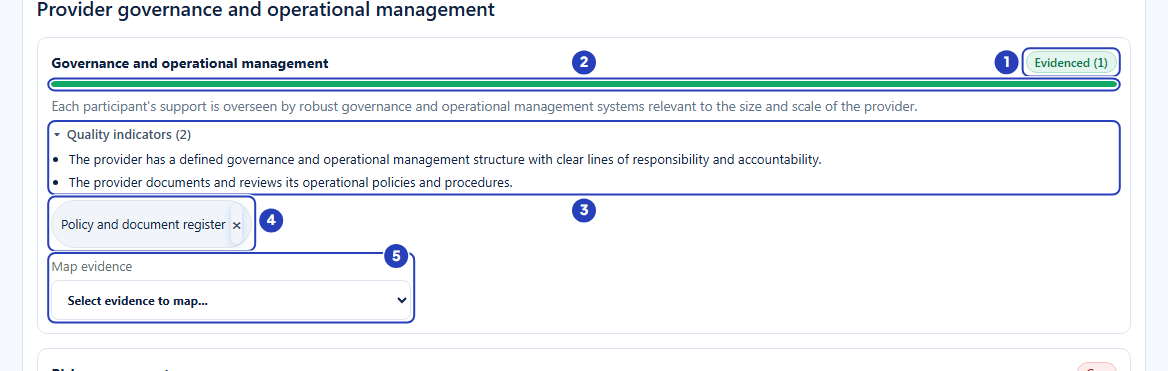
Each standard is a row with its name, a badge and a bar. The badge says Gap when no file is mapped, and Evidenced with the number of files, such as Evidenced (1), once there is one. Quality indicators opens a list of what the standard looks for. Read it to decide which file belongs under the standard.
To map a file, choose it in Map evidence on the standard's row. A message says Evidence mapped to the standard., the file appears as a chip, the badge changes to Evidenced and the tiles update.
One file can support more than one standard, so map it again under each. To undo a mapping, choose the × on its chip. This removes the link only. The file stays in the session.
Let BondiByte suggest links
Choose Auto-map suggested evidence and BondiByte links the evidence it can match to a standard. A message says Auto-mapped and the number of links, or No new auto-mappable evidence found. Links made this way show (auto) on their chip, and you can remove them like any other.
Files you upload, and the registers made by Prepare audit, are not matched by it. Map those yourself with Map evidence.
What the auditor sees
The auditor sees Evidence by Practice Standard: the standards that have a shared file mapped to them, grouped by division, with the files behind each one. Shared files that are not mapped to any standard appear under Additional evidence.
The auditor does not see your scorecard or your Gap badges, and a mapped file that is not shared is not shown. Mapping organises your evidence. Sharing is what releases it.
Important notes
Important: Practice Standards mapping helps you prepare and organise evidence. A high Overall coverage does not show that your organisation meets the standards. Confirm authoritative requirements with the NDIS Quality and Safeguards Commission and your auditor.
Good practice
- Start with Core and switch on another module only if you deliver those supports. Each extra module adds standards that show as gaps until you map evidence to them.
- Map a file to the standard it really shows, not to raise the percentage. Open Quality indicators first and check that the file answers what the standard looks for.
- Use Gaps to close as your to-do list, and map before you share so the auditor finds each file under the right heading.
Questions and answers
Does a high coverage percentage mean my organisation meets the standards?
No. Overall coverage counts how many standards have at least one file mapped to them. It does not judge whether the files are good enough.
Why can I not see Map evidence, or why are the module chips greyed out?
Changing modules and mapping files need Can edit audit session. Map evidence also only appears when the session has files. Ask an Owner or Admin to check your role, or add files on the Evidence tab first.