
Support Coordination | BondiByte NDIS Software
Clients & Coordination

A full Support Coordination workspace.

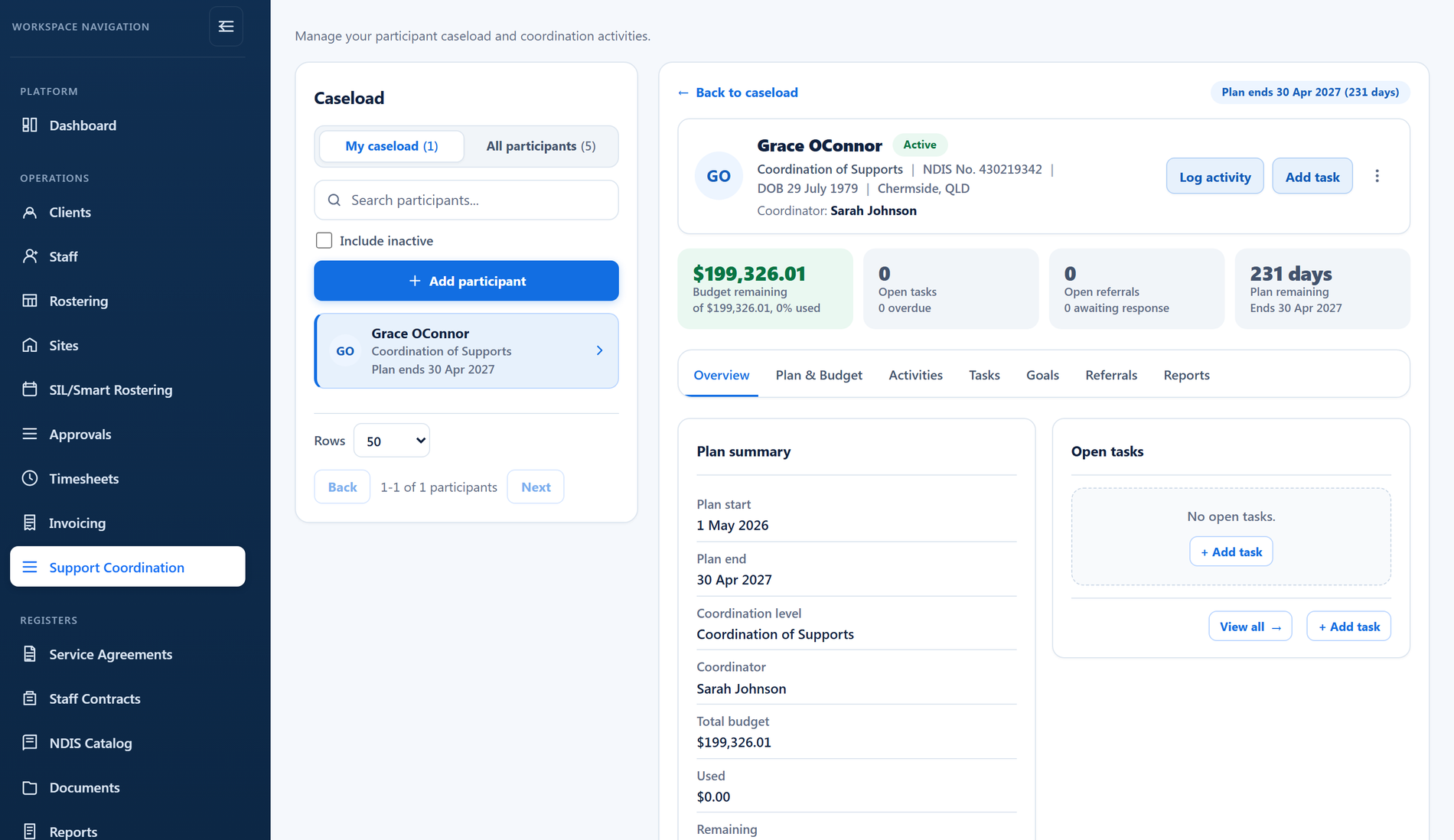
The whole coordination job in one workspace: the caseload, billable case notes, plan budgets, goals, tasks, referrals, reports and claims, with a clear record of who did what for every participant.

Support Coordination workspace

What you get with Support Coordination.

  • Caseload with assigned, unassigned and inactive states

    See every participant's coordination status at a glance and keep nothing slipping through.

  • Billable case notes and budget burn

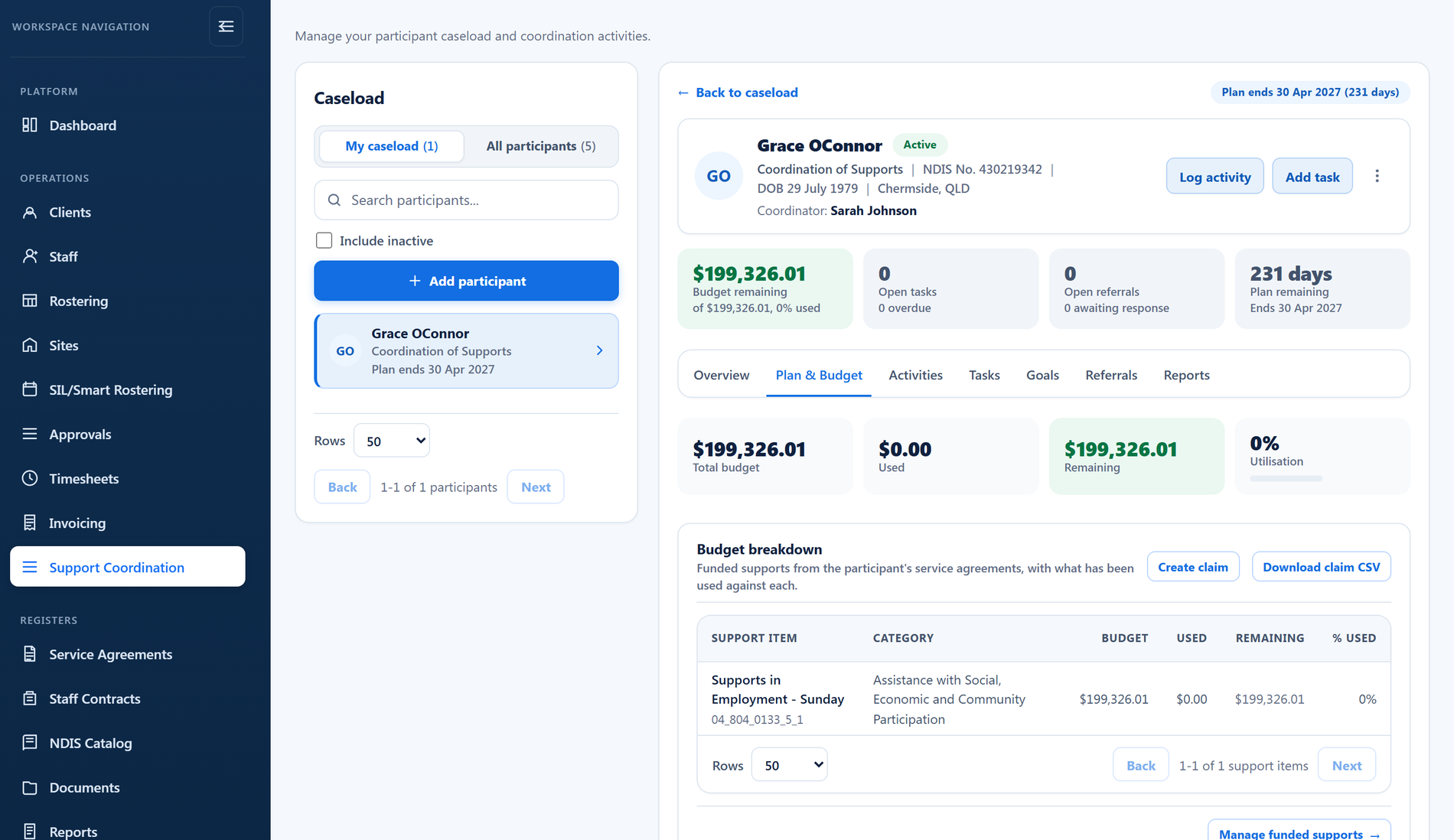
    Log billable coordination time as you work and watch the budget in real time.

  • Goals, tasks, referrals, coordinator history

    Run the whole coordination workflow in one workspace: goals, tasks, referrals and coordinator history.

Why it exists

The problem it solves.

Support coordination usually runs on a private spreadsheet: who is on the caseload, what was done for each participant, how much of the plan budget is left. That holds together until a coordinator is away, a claim is due or the NDIA asks for a report, and the answers turn out to live in one person's head.

How it works

1

Build the caseload

Add participants to the caseload and assign each a coordinator and level: Support Connection, Coordination of Supports or Specialist Support Coordination. The list shows who is assigned, unassigned or inactive at a glance, with each participant's budget position beside them.

2

Log the work as it happens

Record case notes with the date, duration, travel and activity type. Mark a note billable and book it against a funded plan line item, or keep it non-billable; either way the work is on the record.

3

Watch the plan, not just the notes

The Plan & budget view shows funded, used and remaining amounts per line item, whole-plan totals, and when the plan ends, so nothing runs dry unnoticed.

4

Run goals, tasks and referrals

Track goals with progress, tasks with due dates and assignees, and referrals to other providers. A referral can be emailed as a branded PDF letter directly from the workspace, with its status tracked from Sent through to In place.

5

Report and claim

Compile an initial plan implementation report or an end-of-plan reassessment report and email it, then turn billable time into a claim and export the NDIS-ready file.

What you can do.

Caseload with a personal view

Coordinators can switch to My caseload and work from their own list, while managers see the whole caseload including inactive participants.

Billable notes tied to funding

Every billable case note is booked against a funded plan line item, so each billable minute has a funding source and a rate.

Emails that log themselves

Emails sent from the coordination workspace are recorded as activities on the participant, with billable time attributed where it applies.

Referrals with real letters

Referrals generate a PDF letter carrying your organisation details and are emailed to the provider, with status tracked as Sent, Accepted, Declined or In place.

Goals and tasks in the same place

Goals carry status, target dates and progress percentages; tasks carry due dates, priorities and assignees.

Plan reports on demand

Initial plan implementation and end-of-plan reassessment reports compile the coordinator, budget position, goals, referrals and activity summary, ready to email.

How it connects.

  1. Client records
  2. Caseload & case notes
  3. Funds & budget burn
  4. Coordination claims
  5. History & audit trail

You stay in control.

Coordinator assignment is deliberate

Only active staff can be assigned as coordinators, and every assignment, change and removal is recorded in the participant's history, naming who replaced whom.

Caseload states are managed, not deleted

When coordination ends, the participant is made inactive on the caseload rather than removed. The record stays, the change is logged, and reactivation is one action later.

Billable work must name its funding

A billable case note cannot be saved without the funded line item it draws from, so budget burn and claims stay accurate by construction.

Learn how to use this feature.

Frequently asked questions.

Can coordinators see just their own participants?

Yes. The My caseload view filters the list to participants assigned to the signed-in coordinator, and managers can view the full caseload including inactive entries.

Which support coordination levels are supported?

Support Connection, Coordination of Supports and Specialist Support Coordination. The level is recorded with the coordinator assignment.

Can we log non-billable work?

Yes. Case notes can be marked non-billable, so phone calls and admin stay on the record without touching the budget. Billable notes must be booked against a funded line item.

What happens when a coordinator changes?

The new assignment replaces the old one and the participant's history records the change, including who was replaced, so handovers stay visible.

What reports can we produce for the NDIA?

An initial plan implementation report and an end-of-plan reassessment report, compiled from the participant's coordination record and emailable from the workspace, with the send logged as an activity.

See Support Coordination in BondiByte

Start your free trial, or book a demo to see it with your own operation in mind.

Start free trial