
Report & Form Builder for NDIS Providers | BondiByte
Reports & forms

Build the forms your organisation actually uses, without waiting on anyone.

Every provider has its own paperwork. A progress note shaped the way your clinical lead wants it, a handover the day team will actually read, a checklist one funder asks for and nobody else does. Most of it lives as a document emailed around, filled in inconsistently, and re-typed later by someone else.

BondiByte includes a report and form builder. You build the form in the browser, preview it, publish it, and it appears where your team already records work: on a participant, a worker, a site or a shift.

Prefer written steps? Read the Reports guide.

  1. Create a template
  2. Add sections and fields
  3. Set show and hide rules
  4. Preview the form
  5. Publish it
  6. Staff fill it in

A builder, not a request to your software supplier.

Sections and fields

Build the form the way your team reads it.

  • Group questions into sections, up to twelve of them
  • Up to eighty fields across the whole form
  • Drag a field into a different position or a different section
  • Give every question a label, help text, and a placeholder where the field takes one
  • Mark the questions that must be answered

Thirteen field types

Grouped so the right one is easy to find.

  • Basic: short text, long text, number, date, time, date and time, yes or no
  • Choice: single choice, multiple choice, checkbox
  • People and records: a person picker
  • Layout: section heading, info text
  • Up to thirty options on a choice question

Show and hide rules

A question that only appears when it is relevant.

  • Show a field based on the answer to an earlier one
  • Is equal to, or is not equal to, a chosen value
  • Is yes or ticked, or is no or unticked
  • Hidden questions stay out of the way instead of being skipped over

People fields

Pick a real person, not a typed name.

  • Choose from your own staff records, or your own participant records
  • One person per question
  • The person is stored as a link to their record
  • The name is also kept as it read when the report was submitted

The field types you can put on a form.

The palette is deliberately short. Thirteen field types cover the paperwork providers actually run, without turning form building into a project of its own.

Group
What you can add
Basic
Short text, long text, number, date, time, date and time, yes or no.
Choice
Single choice, multiple choice, checkbox.
People and records
A person picker that selects a staff member or a participant from your organisation's own records.
Layout
Section heading and info text. These carry guidance for whoever fills the form in, and are never answered.
Drafts and versions

Change the form without rewriting history.

A new template starts as a draft. Nobody sees it, nothing can be written on it, and you can rebuild it as many times as you like. Preview shows exactly what your team will see. Publishing is the moment it becomes available to fill in.

A published version is fixed. When you improve the form, you edit a new draft and publish it as the next version, and every report already written keeps rendering on the version it was written on. A question you removed last month does not vanish from last month's reports.

Unpublishing takes a template out of circulation without touching anything written on it, and archiving retires it for good, with a restore if you change your mind.

Improve the form. Keep the record.
  1. Draft
  2. Preview
  3. Published
  4. Reports completed on version 1
  5. New draft
  6. Published as version 2

A report belongs to a record, not to a folder.

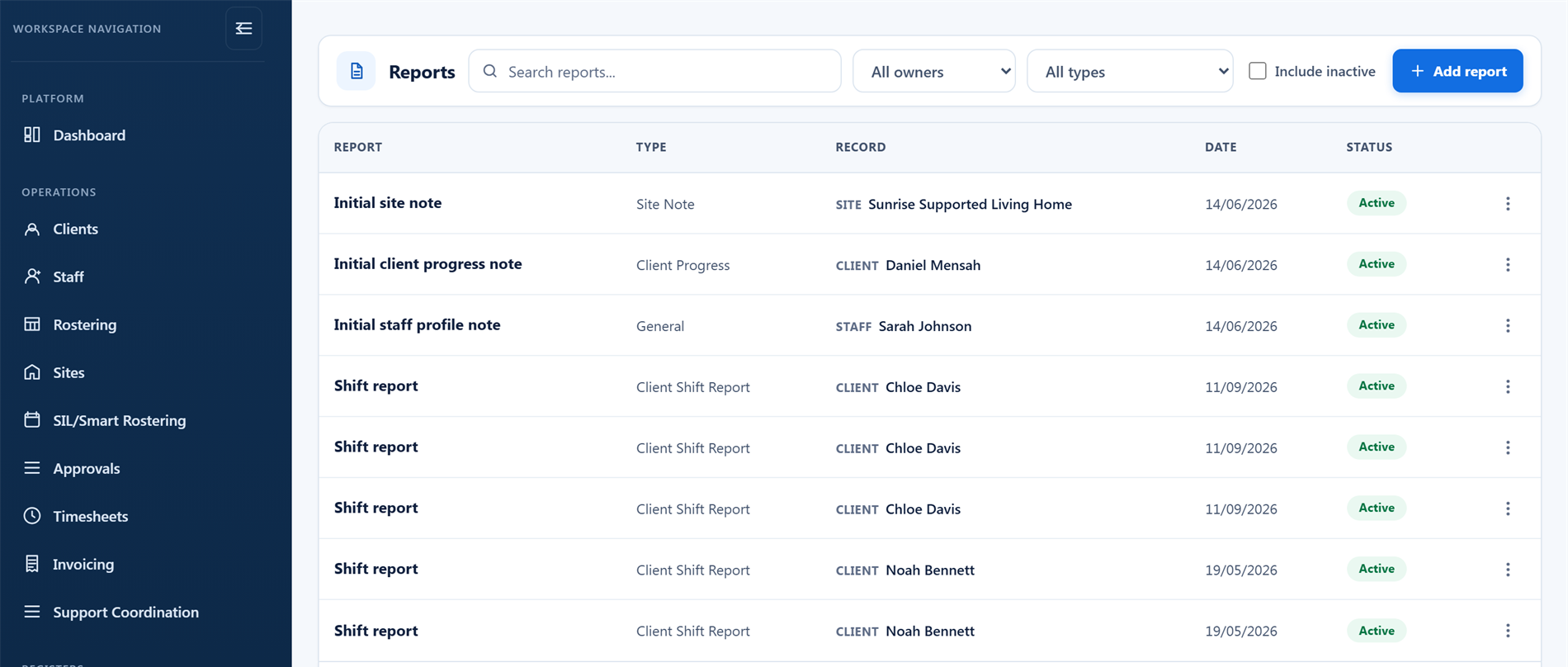
Every report is written against the participant, worker, site or shift it concerns, so it is found by opening that record rather than by remembering where the file went.

Against a participant

The record most reports belong to.

  • Progress reports and client shift reports
  • Plan reassessment and functional capacity
  • Behaviour support, medication and risk observation
  • Goal progress, family and contact communication
  • Appointments and meetings, and follow-ups

Against a worker

The staff record, for the things that belong on it.

  • Supervision, performance and training notes
  • Availability notes
  • Pay level notes
  • Capability and qualification notes
  • Site assignment notes

Against a site

Operational records that belong to the location.

  • Site operational notes
  • Site compliance notes
  • General operational reports and follow-ups
  • Visible on the site's own Reports tab

Against a shift

What happened on the day, tied to rostered work.

  • Shift notes and shift reports
  • Incident reports raised from a shift
  • Kept on the shift's own record
  • Reviewed by a manager against the work it belongs to

Ready to use on day one

A sample of what ships with every organisation.

  • Client progress report
  • Client shift report
  • Incident report
  • Plan reassessment report
  • Functional capacity assessment
  • Behaviour support report
  • Medication report
  • Risk observation
  • Goal progress update
  • Supervision, performance and training notes
  • Site operational and compliance notes
  • Shift note and shift report
Built-in templates

Start from a template BondiByte already wrote.

You do not have to build from a blank page. BondiByte ships a library of report templates covering the records providers keep most often, and they are available to every organisation from the first day.

Preview any of them to see the real form. When one is close but not quite yours, duplicate it and customise it: the copy arrives in the builder with all of its sections and fields already in place, ready to edit, rename and publish as your own.

Use it as it is. Or make it yours.
Form type routing

An incident form belongs in Incidents.

Every template carries a category: progress note, incident, assessment, review, handover, or other. The category is not a label. It decides where the form lives.

Set a template's category to incident and it moves out of the ordinary report picker and into the Incidents area, along with every record already written on it. Staff reach it where they would look for it, and incident records stay together rather than scattered through general reports.

Because a change of category moves existing records, BondiByte asks you to confirm before it reclassifies a template, so it is never a surprise.

  1. A template's category is set to Incident
  2. It leaves the report picker
  3. It appears in the Incidents area
  4. Records written on it open there too
Connected records

Forms that feed the rest of the platform.

Building and publishing templates is restricted to the people you give permission to manage them. Everyone else simply sees the published forms in their picker: on a participant, a worker or a site record, on a shift, in the Reports register, and in Incidents.

What comes back is structured rather than a wall of free text, attached to the right record, and available when you are pulling together evidence in the Audit Centre.

Your form. Your wording. On the right record.
  1. Template built
  2. Published
  3. Report completed
  4. Manager review
  5. Attached to the record
  6. Audit evidence

Stop bending your paperwork to fit the software.

Start your free trial, or book a demo to see the report and form builder, the built-in template library, and reports landing on the records they belong to.

Start free trial