

Who this is for
This guide is written for Owner, Admin, Manager, Coordinator and Finance.
Before you begin
- If Service Agreements is missing under Registers in the left menu, your role does not include Can view service agreements. Ask an Owner or Admin to check your role. If the page says Your plan does not include this feature., your organisation's subscription is not active. An Owner or Admin checks Billing & subscription. There is no switch to turn on.
- You are signed in to BondiByte on a computer.
- The agreement already exists, is not signed, and has a start date and an end date. See Create a Service Agreement.
- The agreement's pricing zone is set the way you want it before you add lines, because the catalogue price you compare against comes from the zone. See Choose a pricing zone.
- You know the support item code, the hourly rate and the weekly hours you agreed with the client.
Steps
The screenshots show a demonstration organisation with made-up names. Your own screens show your organisation's details. Select a screenshot to open it full size.
-
Go to Service Agreements > the agreement > Agreement Line Items
1 In the left menu, under Registers, choose Service Agreements. The Agreement Records list opens. Choose the agreement number to open the agreement. See Complete the agreement profile for other ways to find an agreement.
2 Scroll to Agreement Line Items. Each saved line shows its name, code, Hourly rate, Hours/Wk, Total weeks and Total cost. The amount in the Hourly rate column is the agreed rate for that line. The small text next to it names the pricing zone, and when the agreed rate differs from the catalogue price it also shows Ref and the catalogue price.
3 To set the agreed rate on a new line, choose Add line item. You set the rate while you add the line.
Important: A saved line cannot be edited in place. Its Actions column has only Remove. If a saved rate is wrong, remove the line and add it again with the right rate (steps 5 to 7). While a line is still being added, you can change its rate as often as you like.
Note: The green Active badge beside Download PDF only shows that the agreement record is switched on. It is not the agreement's Status. The Status in the Agreement Profile, for example Draft, is what decides whether BondiByte bills from the agreement.
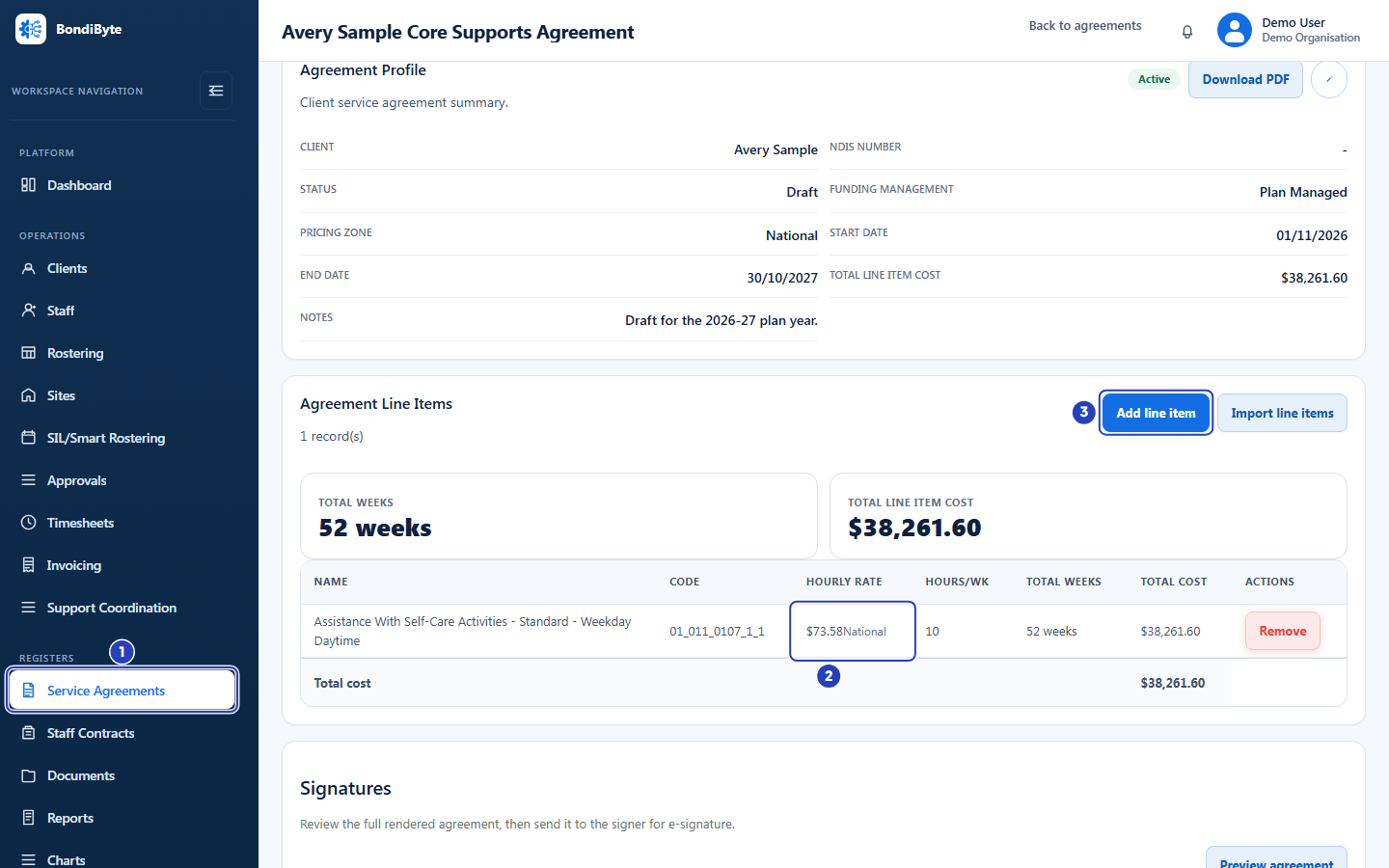
Open the agreement from Service Agreements (1), find the agreed rate in the Hourly rate column of a saved line (2), then choose Add line item (3). -
Start a new line and choose the item
1 In the new row at the bottom of the table, click the box that says Search NDIS catalogue. Type the support item code, for example
01_400_0104_1_1, then choose the matching item from the list. The box then shows the item's name and the Code column shows its code.2 Look at the rate box in the Hourly rate column. BondiByte fills it with the catalogue price for the agreement's pricing zone.
3 Read the line under the rate box. It starts with Reference:, then the zone name and the catalogue price, for example Reference: National $79.60. This is the catalogue price, shown for comparison. You cannot edit it.
Fields in step 2 Field What it means Name (the search box) Required. Type a code or part of an item's name, then choose an item from the list. Each result shows the item's name, its code and support category, and a catalogue price. Typing in the box again clears your choice. Code The item's NDIS support item code. It shows a dash until you choose an item. Hourly rate (the agreed rate) The rate box in the Hourly rate column. It starts as the catalogue price for the agreement's pricing zone and you can change it. It accepts dollars and cents, zero or more. Reference The line under the rate box, for example Reference: National $79.60. It always shows the catalogue price for the agreement's pricing zone, so you can compare it with your agreed rate. It does not change when you type a different rate. Note: If an item needs a quote, or the catalogue has no price for the agreement's zone, the rate box starts empty and its placeholder says Quote required, or the line under it says Catalogue rate unavailable for and the zone name. BondiByte never fills in a price it does not have, so type the agreed rate yourself.
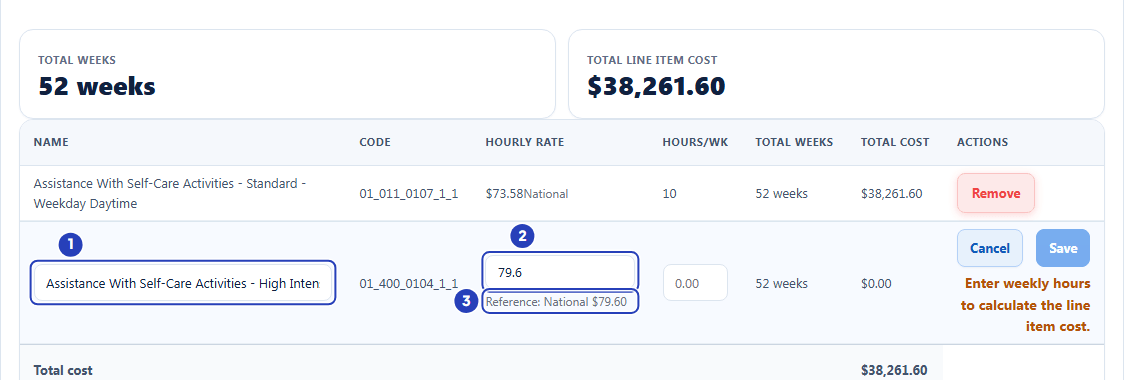
The chosen item in the search box (1), the agreed rate box in the Hourly rate column (2) and the Reference line (3). -
Type the agreed rate and the hours
1 Click the rate box in the Hourly rate column and type the rate you agreed with the client, for example
75.2 Read the note under the Reference line. If your rate differs from the catalogue price it says Agreed rate differs from the catalogue reference price. If your rate is higher, it adds Confirm this rate is appropriate for this agreement. The note is a prompt to check. You can still save.
3 In the box in the Hours/Wk column, type the weekly hours, for example
5.The Total cost at the right of the row changes as you type. It is the agreed rate multiplied by the hours per week and the total weeks. You check it again after you save, in the next step.
Fields in step 3 Field What it means Hours/Wk (hours per week) Required. More than zero. The box moves in quarter hours, for example 7.5.Total weeks The number of weeks between the agreement's start and end dates. You cannot change it here. Total cost The agreed rate multiplied by the hours per week and the total weeks. It updates as you type. The note under Reference Appears only when your rate is different from the catalogue price. Lower or higher, it says Agreed rate differs from the catalogue reference price. Higher adds a request to confirm the rate is appropriate for this agreement. It never stops you saving. Note: If you clear the rate box before you save, BondiByte uses the catalogue price shown in the Reference line for that line. The Total cost shows the amount it will use.
Note: When your rate differs from the catalogue price, the note makes the Hourly rate column wider, so the table becomes wider than the window. The Total cost column can then sit out of sight behind the Actions buttons, which is why it is not visible in the picture. Scroll the table sideways to see it, or check it after you save.
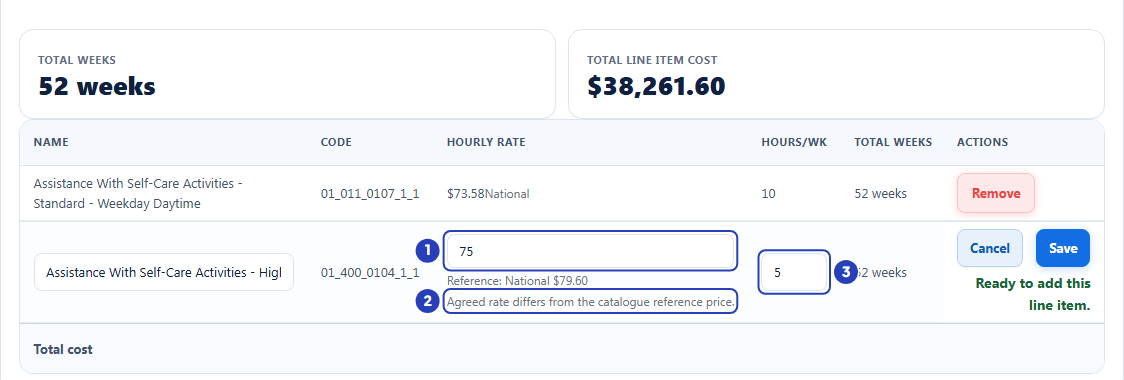
Type the agreed rate (1), read the note about the catalogue price (2) and type the hours per week (3). The Total cost column sits out of sight behind the Actions buttons here, so scroll the table sideways to see it. -
Choose Save and check the saved rate
1 Check that the hint under the buttons says Ready to add this line item. Then choose Save. A message confirms Agreement line item added.
2 Find the new line in the table. Its Hourly rate shows the rate you typed. The small text next to it shows the zone name, then Ref and the catalogue price, because your rate is different from it.
3 Check Total cost at the right of the new line. It is the agreed rate multiplied by the hours per week and the total weeks.
4 Check Total line item cost at the top of the list. It now includes the new line.
Fields in step 4 Field What it means Cancel Closes the new row without adding anything. Save Adds the line. It stays greyed out until you have chosen an item, entered weekly hours above zero and the agreement has valid dates. Pointing at it shows what is still missing. The hint under the buttons Tells you what is missing: Select a catalogue item to continue., Check the agreement start and end dates., This catalogue item requires a quote. Enter the agreed rate., Enter weekly hours to calculate the line item cost. or, when everything is in place, Ready to add this line item. 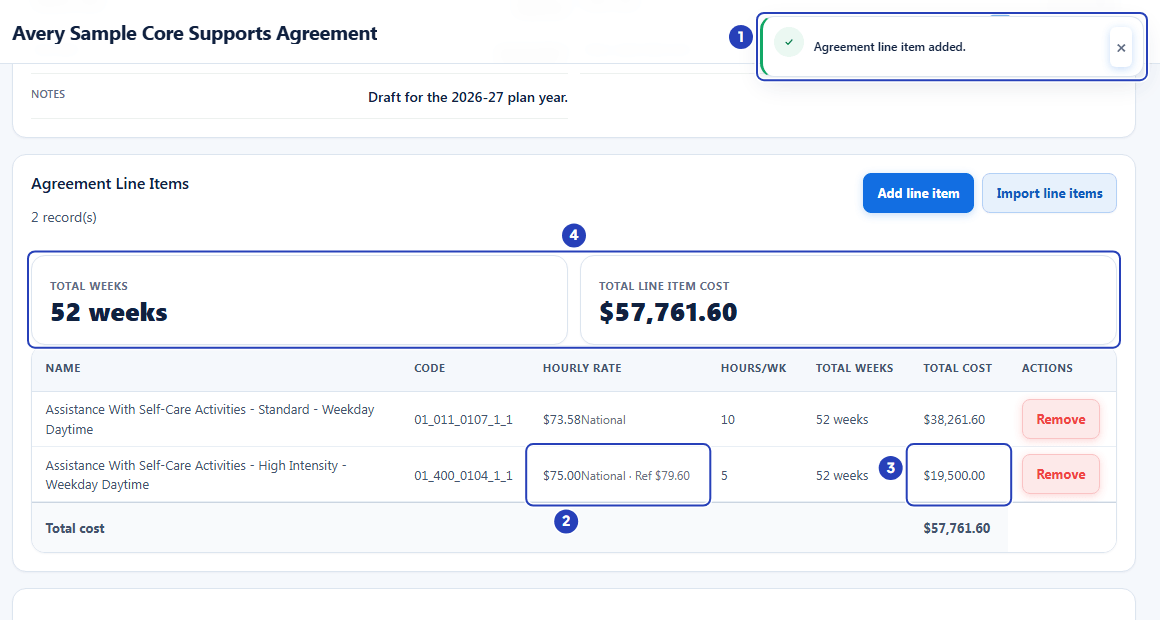
The confirmation message (1), the saved line with its agreed rate and the Ref text (2), its total cost (3) and the updated total line item cost (4). -
To correct a saved rate, choose Remove
1 Find the line with the wrong rate. In its Actions column, choose Remove.
Warning: Removing a line takes it off the agreement and out of the total, and this screen has no way to bring it back. You add the line again with the right rate. Before you remove a line that upcoming shifts already use, note which shifts they are, because those shifts do not move to the new line by themselves.
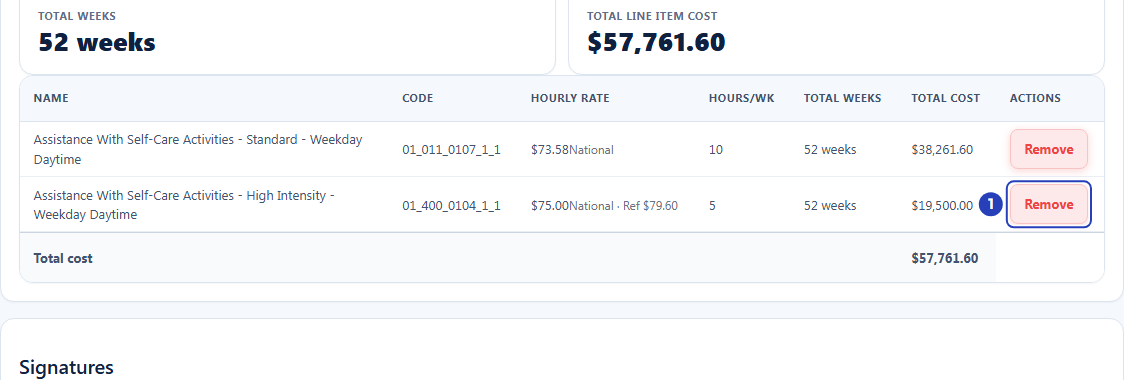
Choose Remove (1) in the Actions column of the line with the wrong rate. -
Confirm the removal
1 A window titled Remove line item? opens. It asks you to confirm that you want to remove the line it names from this service agreement. Check that it names the line you mean.
2 Choose Remove to take the line off the agreement.
3 Choose Cancel to keep the line. The window also has a Close button that does the same.
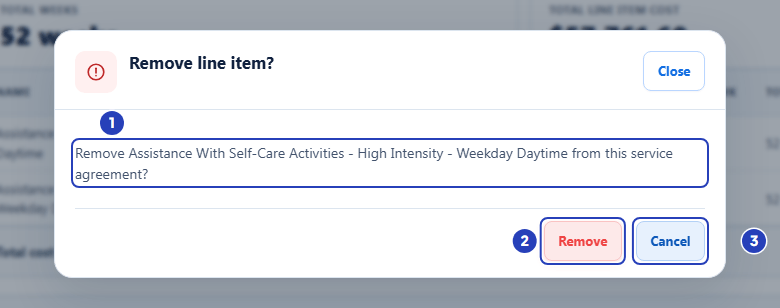
Check the line named in the window (1), then choose Remove (2) to confirm or Cancel (3) to keep the line. -
Add the line again with the correct rate
1 A message confirms Agreement line item removed. The line leaves the table and Total line item cost goes down by its cost.
2 Choose Add line item and repeat steps 2 to 4, this time typing the correct rate in step 3.
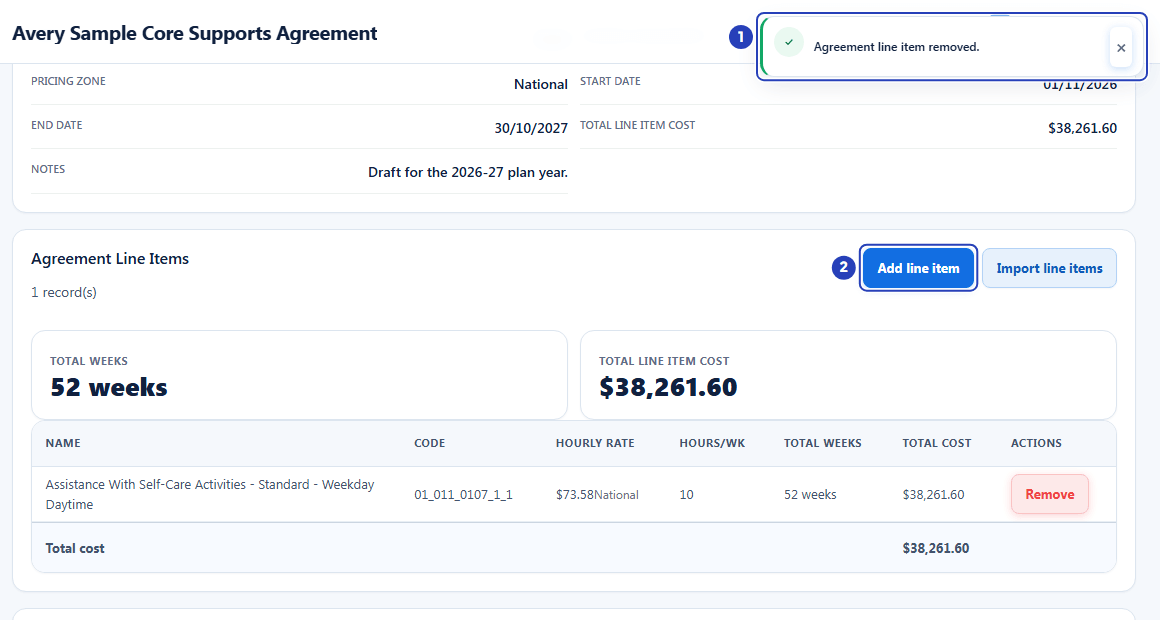
The confirmation message (1) and the Add line item button (2) for adding the line again.
What happens next
The agreed rate you saved is the price BondiByte uses for that line. When the agreement is the client's Active agreement, shifts linked to the line are priced at this rate when BondiByte prepares invoices. A Draft agreement is not used for billing.
The line keeps showing the zone it was priced for and, when your rate differs, the catalogue price you compared it with. Saved lines and their agreed rates do not change when BondiByte later publishes a new NDIS catalogue, and they do not change when you change the agreement's pricing zone. A new zone applies only to lines you add afterwards.
A removed line no longer counts in Total line item cost. After you replace a line, open the upcoming shifts for that client and check Client invoice line items in the shift window. Choose the new line wherever the removed one was used.
If you import line items instead of adding them one at a time, each row of the review table has its own rate box. You can change the rate there before you save.
Important notes
Important: Your organisation is responsible for checking agreed rates against the client's plan and the current NDIS pricing arrangements. BondiByte shows the catalogue price to help you compare, and it does not stop you agreeing a different rate.
Good practice
- Set the agreement's pricing zone, Start date and End date before you add lines. The catalogue price you compare against comes from the zone and the cost comes from the dates, and a saved line does not change if you edit either one later.
- Look at the Reference line every time you add a line, not only when you type your own rate. The catalogue price can differ between pricing zones, so the same item can show a different reference on a Remote or Very Remote agreement.
- Keep a short record of why a rate differs from the catalogue price, for example the quote as a document on the client's Documentation tab. The line itself has no notes box, and the Ref text only shows that the two rates differ. The agreement's Notes box can be printed in the agreement your signer reads when your organisation has no published agreement template, so write there only what you are happy for the client to see.
- Type the agreed rate and the weekly hours before you choose Save, and compare Total cost with the figure in your agreement paperwork. A line cannot be edited after it is saved, so a quick check now saves a remove and re-add later.
- Correct a wrong rate while the agreement is still a Draft. Once the agreement is Active and shifts use its lines, replacing a line means going back through those shifts to choose the new one.
- Before you replace a line on an Active agreement, note which upcoming shifts use it. Open each shift and check Client invoice line items, because the new line has to be chosen again wherever the old one was.
- When you have many lines to set up, use Import line items instead of adding them one at a time. Every row of its review table has its own rate box, so you can set each agreed rate before anything is saved.
Troubleshooting
I cannot see Add line item or Remove, or searching for an item says You do not have permission to do that.
Why it happens: Your role does not include Can manage agreement line items, or Can view NDIS catalog, which the search needs as well.
What to do: Ask an Owner or Admin to check your role.
Add line item and Import line items are greyed out.
Why it happens: The agreement has a signed copy, or a new line row or the import window is already open on the page. For a signed agreement, pointing at either button shows Signed agreements are read-only.
What to do: For a signed agreement, create a new agreement for the changes. Otherwise save or cancel the open row first.
Remove is greyed out, or a message says This service agreement has been signed and is read-only.
Why it happens: The agreement has a signed copy, which greys out Remove (it shows no hint), or it was signed through E-signature, in which case the buttons look normal and the message appears when you try to save or remove a line.
What to do: Create a new agreement for the changes you need.
I want to edit the rate on a saved line but there is no edit button.
Why it happens: A saved line has only a Remove button. Its agreed rate cannot be edited in place.
What to do: Choose Remove, confirm, then choose Add line item and add the line again with the right rate (steps 5 to 7).
The rate box is empty and says Quote required, or the line under it says Catalogue rate unavailable for a zone.
Why it happens: The item needs a quote, or the catalogue has no price for the agreement's pricing zone.
What to do: Type the agreed rate yourself. BondiByte never fills in a price it does not have.
A message under the table says Please check the information you entered and try again. when I choose Save.
Why it happens: A value in the row cannot be saved. The most common cause is a rate below zero.
What to do: Type a rate of zero or more in the Hourly rate box, check the hours, and choose Save again.
The line saved at the catalogue price, not at the rate I meant.
Why it happens: The rate box was empty when you chose Save, so BondiByte used the catalogue price from the Reference line.
What to do: Remove the line and add it again, typing the agreed rate before you save (steps 5 to 7).
The Total cost is not what I expected.
Why it happens: The total is the agreed rate multiplied by the hours per week and the total weeks, and the weeks come from the agreement's start and end dates.
What to do: Check the three numbers. If the weeks look wrong, correct the dates first. See Complete the agreement profile.
A message under the table says This client is inactive. when I choose Save.
Why it happens: The client has been made inactive, and lines cannot be added while the client is inactive.
What to do: Reactivate the client, then open the agreement and add the line again.