

Who this is for
This guide is written for Owner, Admin, Manager, Coordinator and Finance.
Before you begin
- You are signed in to BondiByte on a computer.
- If Service Agreements is missing under Registers in the left menu, your role does not include Can view service agreements. Ask an Owner or Admin to check your role. If the page says Your plan does not include this feature., your organisation's subscription is not active. An Owner or Admin checks Billing & subscription.
What a Service Agreement is in BondiByte
A Service Agreement records what your organisation has agreed to deliver to one client for a period. It holds the dates, how the client's funding is managed, an optional total budget, and the NDIS catalogue line items with the agreed rate and weekly hours for each.
Each agreement belongs to one client for its whole life. A client can have many agreements over time, one for each plan period. A new plan should have a new agreement, so the history of earlier agreements stays in place.
BondiByte provides the tools to build and manage agreements. It does not provide legal advice, so have your agreement wording checked by your own team or legal adviser.
Where to find Service Agreements
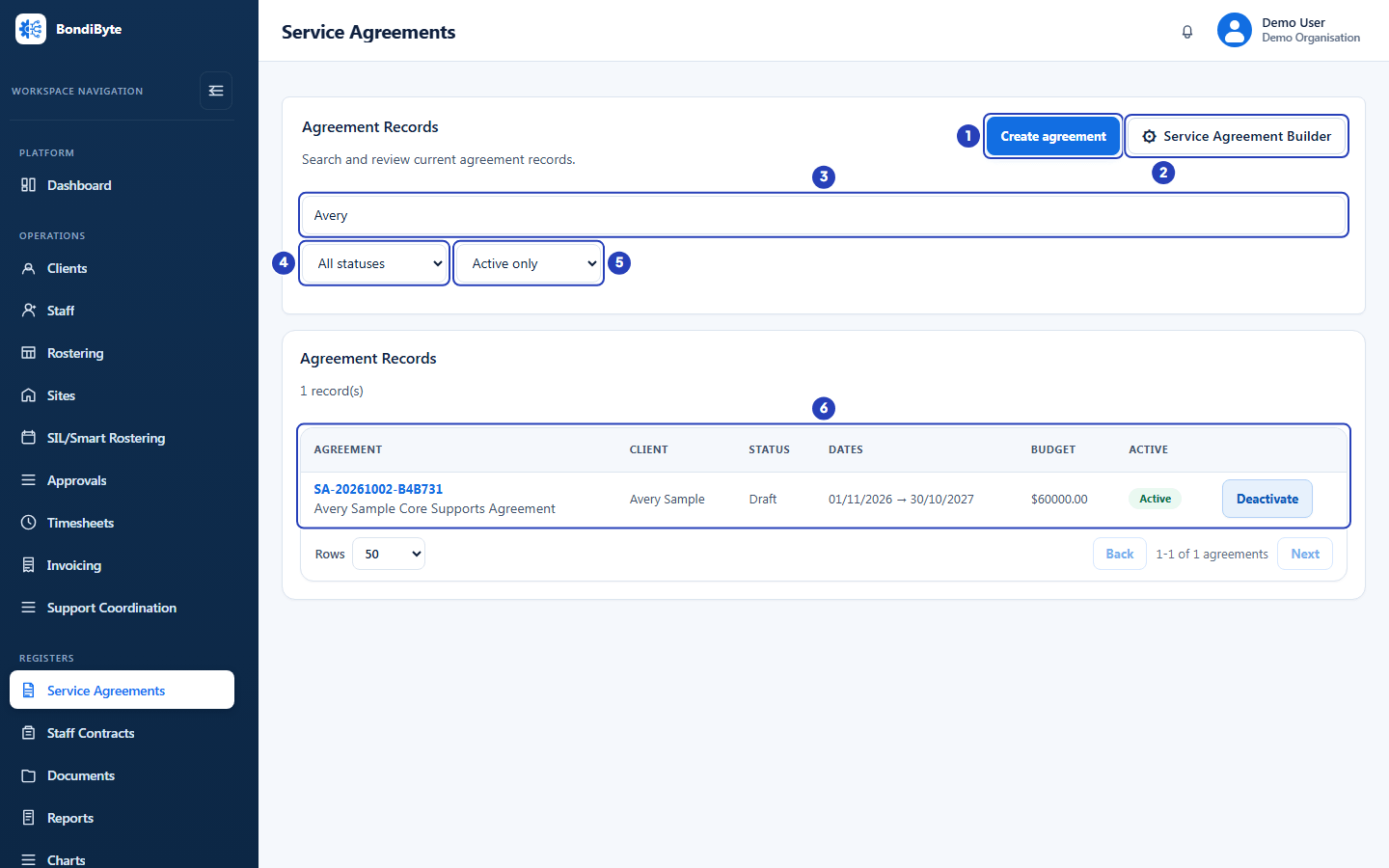
In the left menu, under Registers, choose Service Agreements. The Agreement Records list shows the agreements for your organisation. Search by agreement number, title, client name or NDIS number, and use the status filter and Include inactive to narrow the list.
Each client's record has a Service Agreements tab that lists that client's agreements. The client's current agreement opens automatically.
The gear icon beside Create agreement opens the Service Agreement Builder. People who hold Can configure the service agreement template use it to edit the agreement template that produces the agreement document. It has its own guide.
How an agreement moves from Draft to Active
A new agreement is always a Draft. BondiByte uses a client's Active agreement when it adds billing to shifts and prepares invoices, so a draft is not used until it becomes the client's active agreement.
Only one agreement can be active for a client at a time. To make a draft active yourself, choose Activate on its card in the client's Service Agreements tab, or set Status to Active in the agreement profile. Either way, the client's previous active agreement is marked Expired and deactivated, so it leaves the default Agreement Records list.
Activate on the card opens a confirmation titled Activate this service agreement? with the button Activate agreement. It says which agreement will be deactivated and reminds you that automated shift patterns and upcoming shifts that use line items from that agreement keep pointing at it, so review their line items after the change. The Status setting in the agreement profile saves straight away, without that confirmation.
If the client has no active agreement when a draft's start date arrives, BondiByte can make the draft active for you. It does this only when that draft is the only one that qualifies, and it tells your administrators.
BondiByte marks an agreement Expired once its end date has passed. Cancelled and Suspended are statuses you choose yourself in the agreement profile. Expired and Cancelled agreements are deactivated, so they leave the list unless you choose Include inactive.
The green badge beside Download PDF on an agreement says Active whenever the record is switched on, including for a draft. It is not the agreement's Status. Read Status in the profile.
What is on an agreement
Agreement Profile: the client, status, funding management, pricing zone, start and end dates, total line item cost and notes. You can edit most of it while the agreement is not signed.
Agreement Line Items: the NDIS catalogue items on the agreement, each with its code, agreed hourly rate, hours per week, total weeks and total cost. You can add lines one at a time or import them.
Signatures: preview the full agreement and send it to the signer for E-signature. An agreement with a signed copy or a completed E-signature is read-only.
Download PDF: downloads the agreement as a PDF.
Pricing zones and catalogue prices
Each agreement has a pricing zone: National, Remote or Very Remote. The zone decides which NDIS catalogue price is suggested when you add a line item. The agreed rate on each line stays editable, and your organisation is responsible for checking agreed rates against the client's plan and the current NDIS pricing arrangements.
Who can do what
Seeing the list and opening an agreement needs Can view service agreements. Can create service agreements lets you add an agreement. Can edit service agreements lets you edit the agreement profile, including Status, and use Reactivate on a deactivated agreement in the Agreement Records list. Can change service agreement status lets you use Activate on a client's card. Can delete/deactivate service agreements lets you use Deactivate on an agreement in the Agreement Records list. Can manage agreement line items lets you add, import and remove line items. Can configure the service agreement template lets you edit the template in the Service Agreement Builder.
If a button is missing, your role does not include the permission it needs. Ask an Owner or Admin to check your role.
If your access is limited to certain sites, you see only the agreements of clients at those sites, and you can create agreements only for those clients.
Which guide to follow next
To create an agreement, start with Create a Service Agreement, then complete the profile, choose the pricing zone and add line items.
Important notes
Important: A draft agreement is not used for billing. Check its dates, funding management, pricing zone and line items before you make it the client's active agreement.
Good practice
- To renew an agreement, open the client's record, choose the Service Agreements tab, choose Add Service Agreement, then choose Use last agreement setup. It copies the last agreement's title, dates, total budget, funding management, notes, pricing zone and line items into a new draft. Change Start date and End date to the new plan period, and change the title, before you save.
- Check an agreement's dates, funding management, pricing zone and line items before you make it Active. BondiByte bills from the client's Active agreement, so a mistake in a draft costs nothing until it is activated.
- If you cannot find an agreement in Agreement Records, choose Include inactive. Expired and Cancelled agreements are switched off and leave the default list, but they are still on the client's record.